> ## Documentation Index
> Fetch the complete documentation index at: https://help.vori.com/llms.txt
> Use this file to discover all available pages before exploring further.
# Manage EBT Eligibility in the Back Office, VoriOS, and the POS
> Learn how to set EBT eligibility for departments and individual products to ensure a smooth checkout for your shoppers
Correctly flagging products as eligible for the Supplemental Nutrition Assistance Program (SNAP/EBT) is essential. The most efficient way to manage this is by setting eligibility for entire departments in the Back Office. You can also manage settings for individual products in either the Back Office or the VoriOS app.
### How EBT Settings Work
Vori manages eligibility using a top-down approach. Setting EBT eligibility at the **department level** automatically applies to all products within that department.
You can also set eligibility at the **individual product level**. A product-level setting will always override its department's setting. This is useful for items that are exceptions to their department's rule.
✏️ **Note:** An item can be marked as both taxable and EBT-eligible. You should keep the item's normal tax setting applied. The POS will automatically waive the tax for that item when the shopper pays with an EBT card.
***
### Set EBT Eligibility by Department
Use this method in the Back Office to enable EBT for all products in a department.
1. Navigate to **Products** > **[Departments](https://app.vori.com/retail/departments)**.
2. Find the department you wish to edit and click the **Edit** button.
3. In the "Edit Department" window, locate the **Regulatory** section.
4. Ensure the toggle next to **EBT** is **Enabled**.
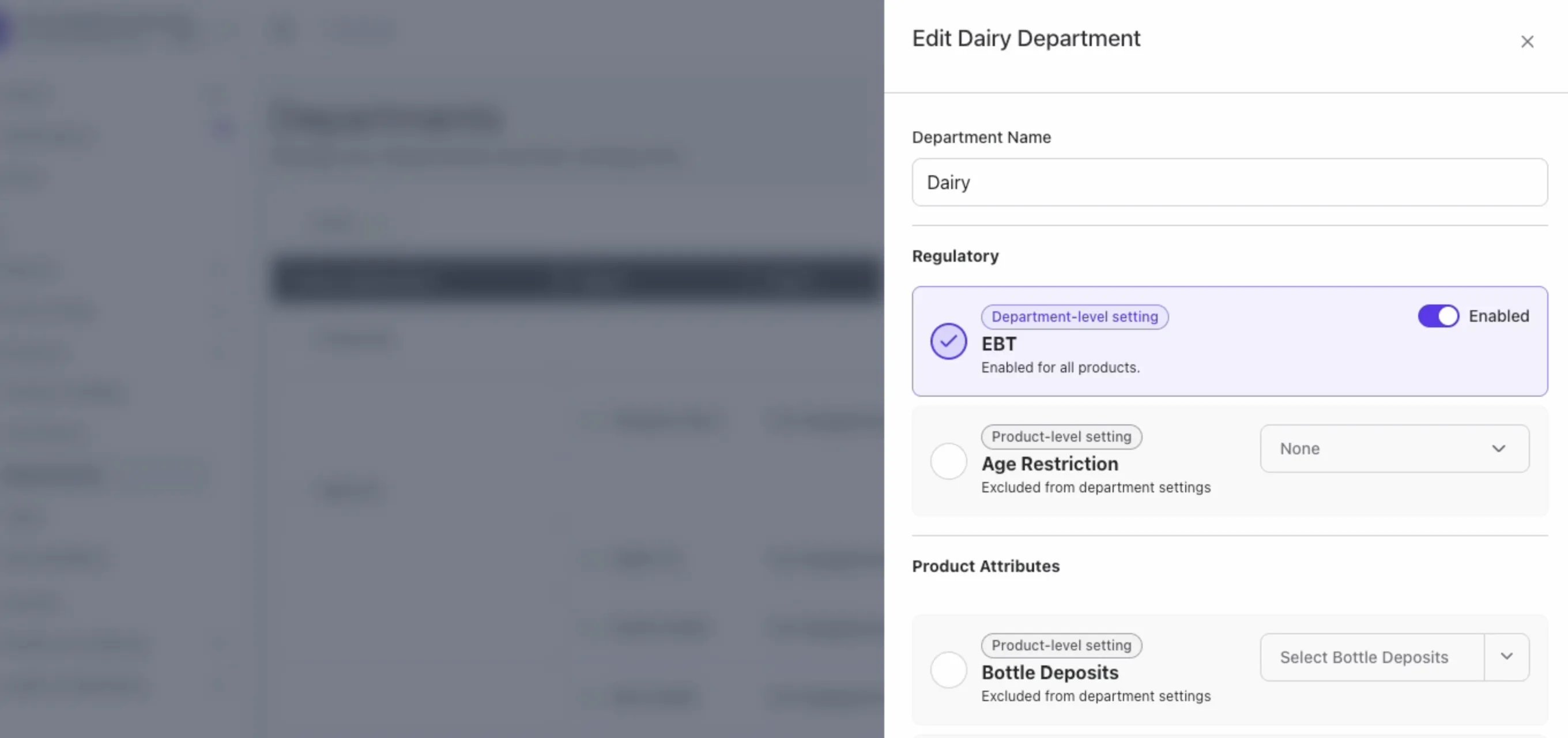 5. Click **Save**. A confirmation message will appear: "**Department Updated**".
***
### Set EBT Eligibility for an Individual Product
Follow these steps to manage a single product's EBT status from the Back Office or VoriOS.
#### In the Back Office
1. Navigate to **Products** > **[Products](https://app.vori.com/retail/products)**.
2. Search for the product you wish to edit and click the > carrot icon.
3. In the Product window, select the **Product Details** tab.
4. Scroll down to the "Qualified for Federal or State Assistance" section.
5. Click the toggle to enable **EBT**.
5. Click **Save**. A confirmation message will appear: "**Department Updated**".
***
### Set EBT Eligibility for an Individual Product
Follow these steps to manage a single product's EBT status from the Back Office or VoriOS.
#### In the Back Office
1. Navigate to **Products** > **[Products](https://app.vori.com/retail/products)**.
2. Search for the product you wish to edit and click the > carrot icon.
3. In the Product window, select the **Product Details** tab.
4. Scroll down to the "Qualified for Federal or State Assistance" section.
5. Click the toggle to enable **EBT**.
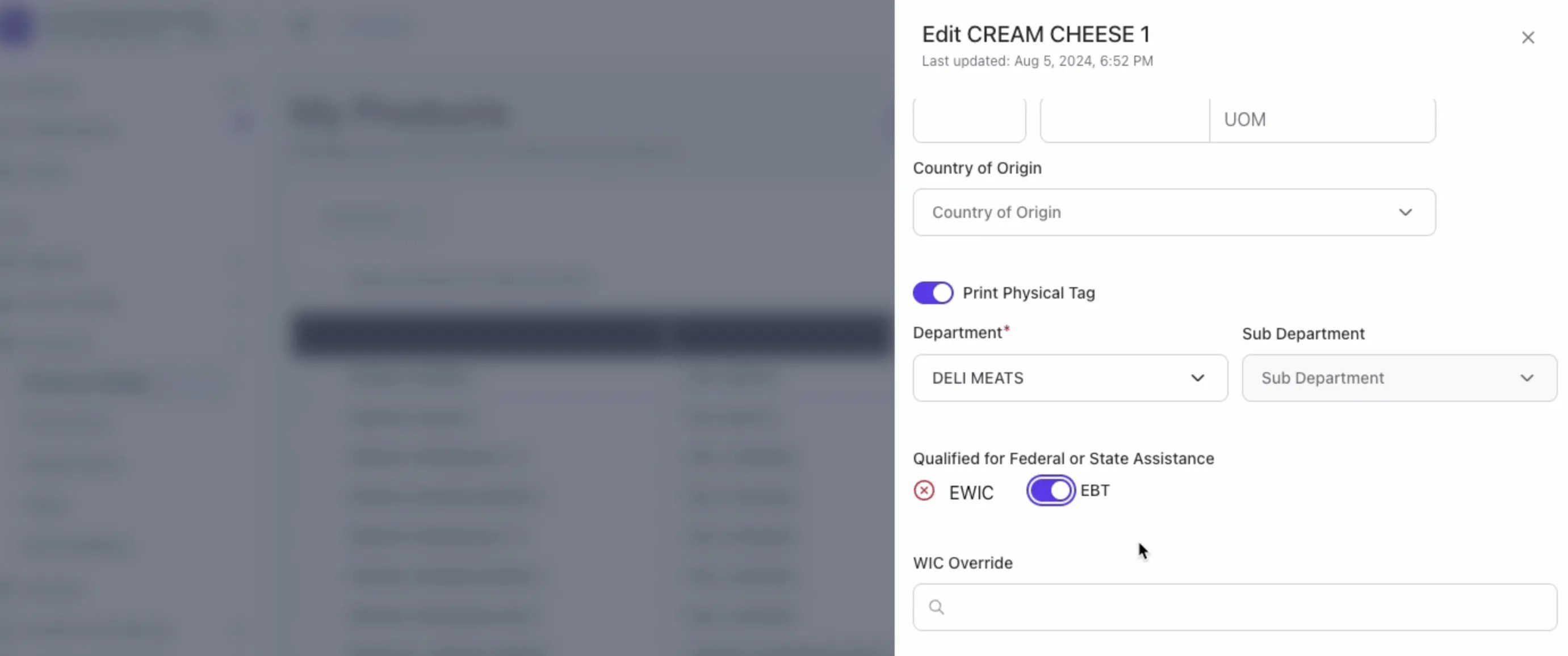 6. Click **Save**. A confirmation message will appear: "**Product Update**".
#### In VoriOS
1. From the home screen, tap the **Search** bar at the bottom.
2. Search or scan for and select the product you wish to edit.
3. Tap **Edit Product Details**.
4. Select the **Details** tab.
5. Scroll down and tap the toggle to enable **EBT**.
6. Click **Save**. A confirmation message will appear: "**Product Update**".
#### In VoriOS
1. From the home screen, tap the **Search** bar at the bottom.
2. Search or scan for and select the product you wish to edit.
3. Tap **Edit Product Details**.
4. Select the **Details** tab.
5. Scroll down and tap the toggle to enable **EBT**.
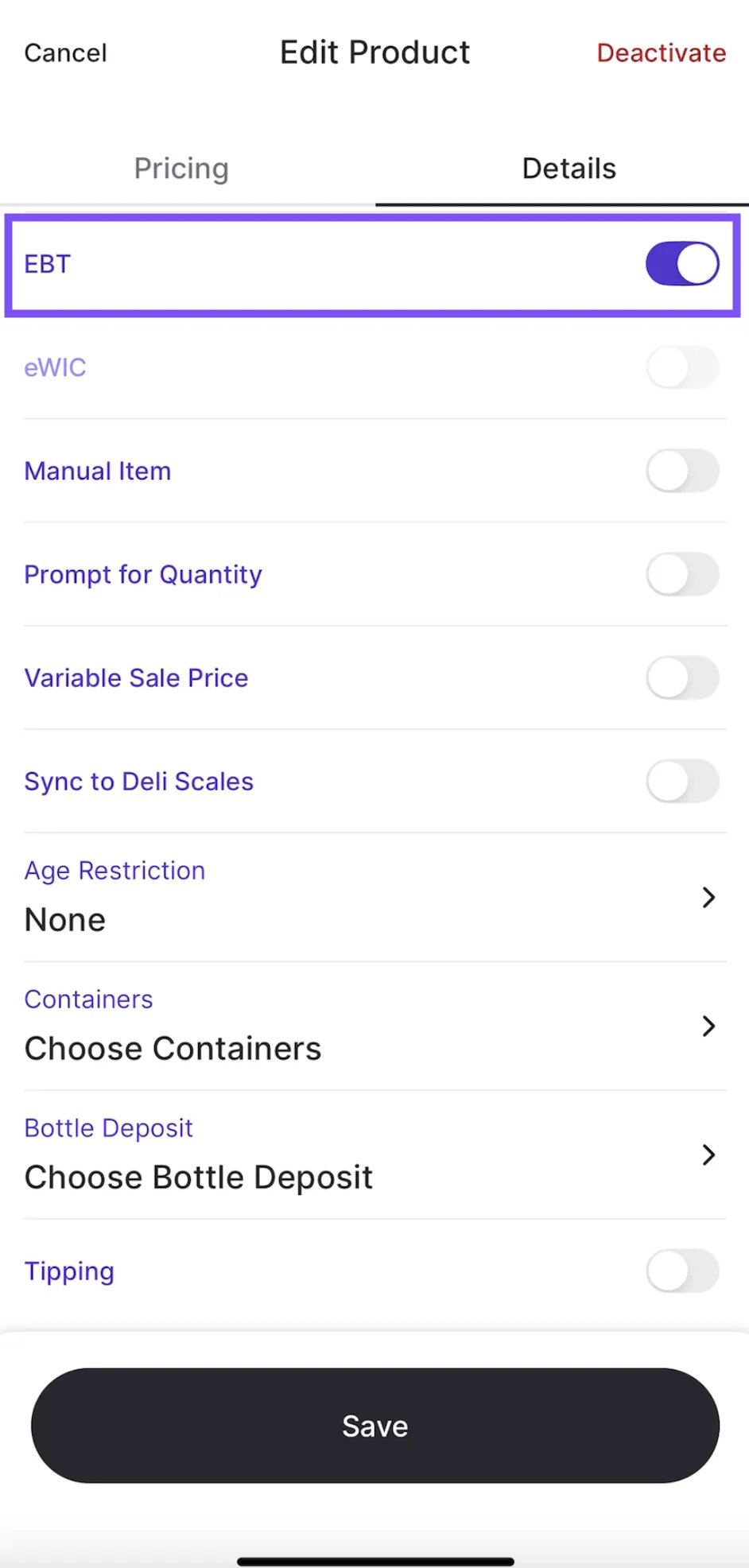 6. Tap **Save**.
***
### Temporarily Mark an Item as EBT Eligible on the POS
If an item isn't flagged correctly during checkout, you can temporarily mark it as eligible for the current transaction.
1. Once an item is added to the basket, tap the item, and select the **...More** button next to the item name.
2. Tap **Mark as EBT eligible**.
3. Proceed to the payment screen. The item will now be included in the EBT-eligible total.
✏️ **Note:** This adjustment is temporary and will not permanently update the product's setting in the Back Office or VoriOS.
## Related topics
- [Frequently Asked Questions](/faqs.md)
- [Set Up Departments](/departments/set-up-departments.md)
- [Meet Vori! A Tour of VoriOS](/getting-started-with-vori/meet-vori/meet-vori-a-tour-of-vorios.md)
6. Tap **Save**.
***
### Temporarily Mark an Item as EBT Eligible on the POS
If an item isn't flagged correctly during checkout, you can temporarily mark it as eligible for the current transaction.
1. Once an item is added to the basket, tap the item, and select the **...More** button next to the item name.
2. Tap **Mark as EBT eligible**.
3. Proceed to the payment screen. The item will now be included in the EBT-eligible total.
✏️ **Note:** This adjustment is temporary and will not permanently update the product's setting in the Back Office or VoriOS.
## Related topics
- [Frequently Asked Questions](/faqs.md)
- [Set Up Departments](/departments/set-up-departments.md)
- [Meet Vori! A Tour of VoriOS](/getting-started-with-vori/meet-vori/meet-vori-a-tour-of-vorios.md)