> ## Documentation Index
> Fetch the complete documentation index at: https://help.vori.com/llms.txt
> Use this file to discover all available pages before exploring further.
# Pay-In & Pay-Out on the POS
> Learn what pay-ins and pay-outs are, when to use them, and how to perform one on the POS
### Introduction
Pay-ins and pay-outs help stores manage cash flow throughout the day.
These functions are used to manually add or remove cash from the register and are recorded in both the POS and the Back Office for visibility.
Whether you’re doing a quick vendor payment, dropping excess cash for security, or adding change to a busy till, this guide walks you through how to handle pay-ins and pay-outs step-by-step.
***
### What is a Pay-In or Pay-Out?
* **Pay-In** – When cash is *added* to a till.
* **Pay-Out** – When cash is *removed* from a till.
These are manual cash adjustments typically used for operational needs and tracked through the POS and Back Office.
***
### Common Use Cases
**Pay-Ins (adding cash to the till):**
* Adding extra change to a till after a high-cash day.
* Replacing cash accidentally removed.
* Receiving a cash return from an employee or vendor.
* For example, if an employee returns unused petty cash from a previous pay-out.
* Western Union money transfer cash.
**Pay-Outs (removing cash from the till):**
* Dropping excess cash once the till exceeds a certain limit (safe drop).
* Paying out a lottery winner.
* Paying a vendor for a delivery.
✏️ **Note:** Some stores may disable pay-ins and pay-outs entirely based on internal procedures.
***
### Adjusting Pay-In and Pay-Out Settings
To set permissions or limits for pay-ins and pay-outs:
1. Go to **Back Office > [POS Settings](/cashier-and-till-management/till-management/customize-your-pos-settings).**
2. Locate the section for **Pay-In and Pay-Out Limits.**
3. Set a **maximum amount** that a cashier can perform without manager approval.
These settings help control access and ensure secure cash handling.
***
### How to Perform a Pay-In or Pay-Out on the POS
1. On the POS, tap the **Checkout** icon at the bottom of the screen.
2. Select **Pay-In / Pay-Out**.
3. Choose whether you are doing a **Pay-In** or a **Pay-Out**.
4. Enter the **amount** being added or removed.
5. Select a **reason type** (Vendor, Employee, or Other).
6. Enter a **custom note** (this will appear in Back Office reporting).
7. Tap **Complete Pay-In / Pay-Out**, then confirm.
8. Choose whether or not to **print a receipt**.
***
### Where to View Pay-In and Pay-Out History
You can view all pay-in and pay-out activity in your **Reports** in the back office.
To review the till pay-in and pay-out report:
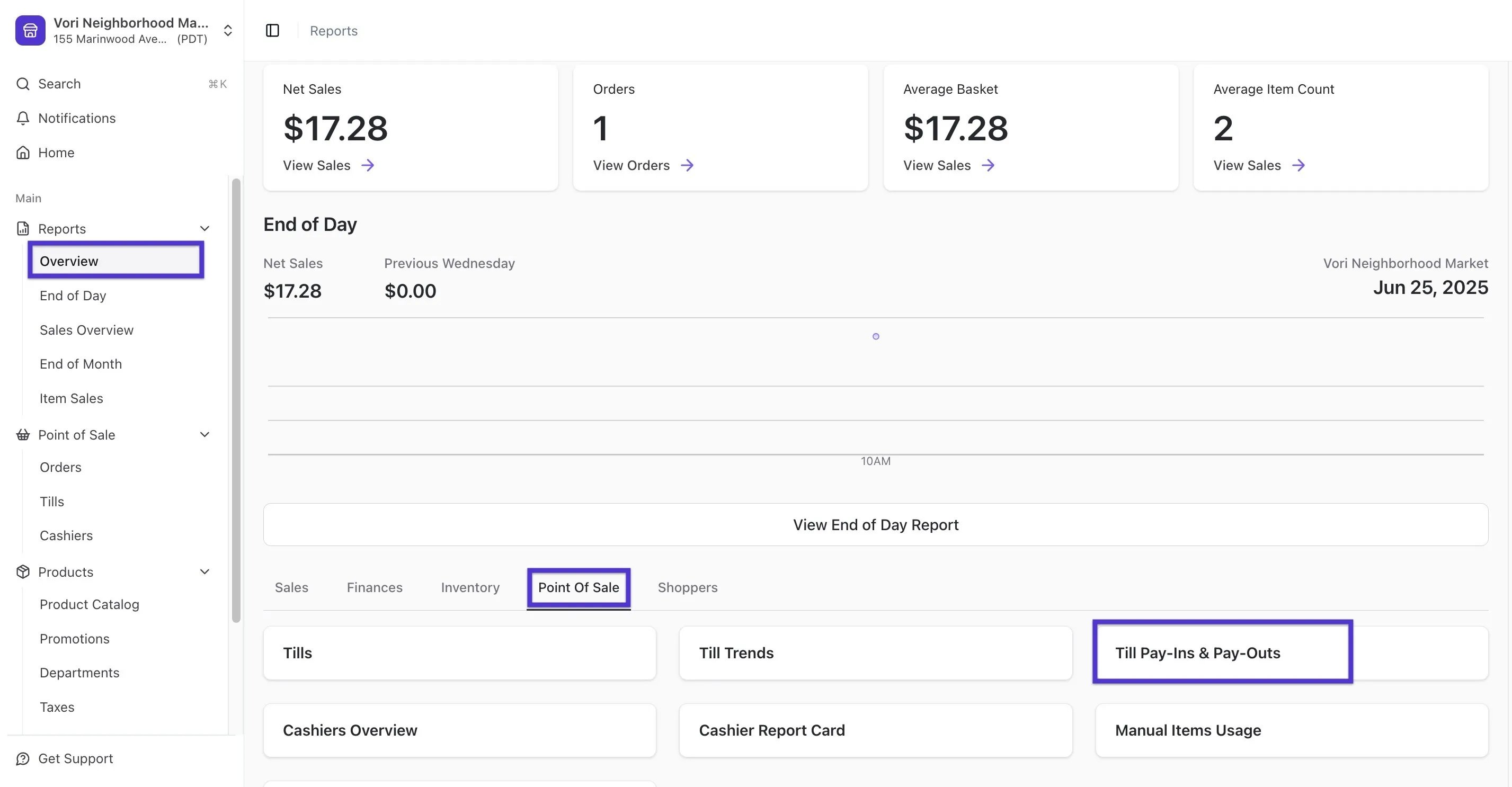 1. Go to **Back Office > [Reporting](https://app.vori.com/retail/reporting) > Overview**
2. Scroll to the **Point of Sale** section
3. Click on **Till Pay-Ins and Pay-Outs**
This report will show you:
1. Go to **Back Office > [Reporting](https://app.vori.com/retail/reporting) > Overview**
2. Scroll to the **Point of Sale** section
3. Click on **Till Pay-Ins and Pay-Outs**
This report will show you:
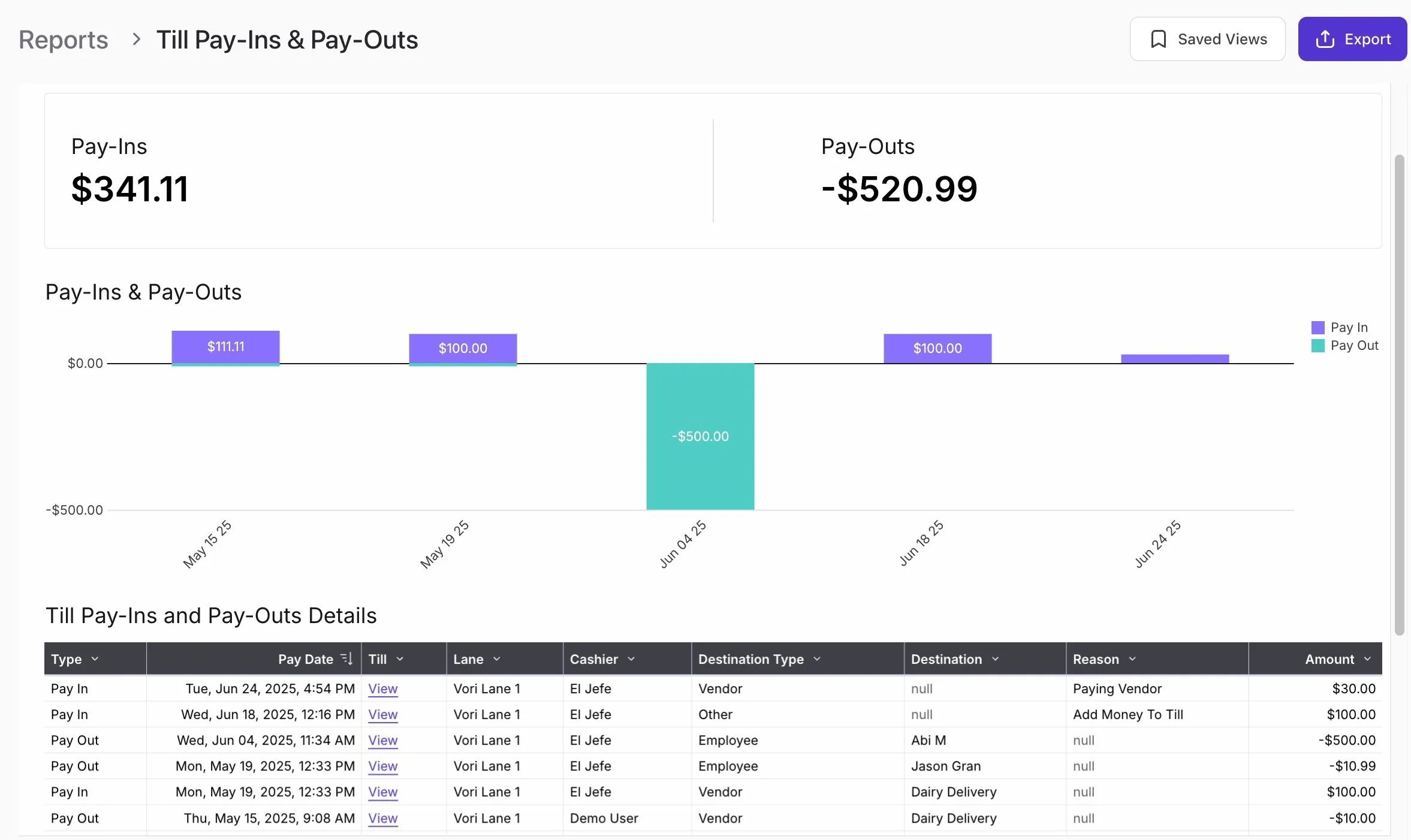 * Overview of the amounts of pay-ins and pay-outs.
* Date and time of each transaction.
* The cashier who performed it.
* Amount and reason for the pay-in or pay-out.
## Related topics
- [Using the POS as a Cashier](/point-of-sale-pos/basic-cashier-functions/using-the-pos-as-a-cashier.md)
- [How to Cash a Check for a Shopper](/point-of-sale-pos/blackhawk-gift-cards-checks-lottery-and-payouts/how-to-cash-a-check-for-a-shopper.md)
- [Investigate and Resolve Till Discrepancies](/cashier-and-till-management/till-management/investigate-and-resolve-till-discrepancies.md)
* Overview of the amounts of pay-ins and pay-outs.
* Date and time of each transaction.
* The cashier who performed it.
* Amount and reason for the pay-in or pay-out.
## Related topics
- [Using the POS as a Cashier](/point-of-sale-pos/basic-cashier-functions/using-the-pos-as-a-cashier.md)
- [How to Cash a Check for a Shopper](/point-of-sale-pos/blackhawk-gift-cards-checks-lottery-and-payouts/how-to-cash-a-check-for-a-shopper.md)
- [Investigate and Resolve Till Discrepancies](/cashier-and-till-management/till-management/investigate-and-resolve-till-discrepancies.md)