> ## Documentation Index
> Fetch the complete documentation index at: https://help.vori.com/llms.txt
> Use this file to discover all available pages before exploring further.
# Manage Lottery Sales and Payout Wins
> Learn how to sell lottery tickets and process lottery win payouts, so your cash drawer stays balanced, and your records stay clean
Many grocery stores sell lottery tickets, including scratchers and draw games (like Powerball or Mega Millions). Vori gives you the tools to record lottery sales and payouts directly at the POS, so every dollar is accounted for and your reporting stays accurate.
### Selling Lottery Tickets in Vori
Lottery sales fall into two categories: scratchers and draw games.
#### Scratchers
Scratch-off tickets with UPCs can be scanned and sold just like any other item.
To make checkout faster:
* **Add the UPCs** into your catalog through the Back Office or VoriOS app.
* Confirm pricing is correct before tickets hit the floor.
 #### Draw Games (Powerball, Mega Millions, etc.)
Draw game tickets are printed from your state lottery terminal and typically don’t have standard UPCs.
To ring these up
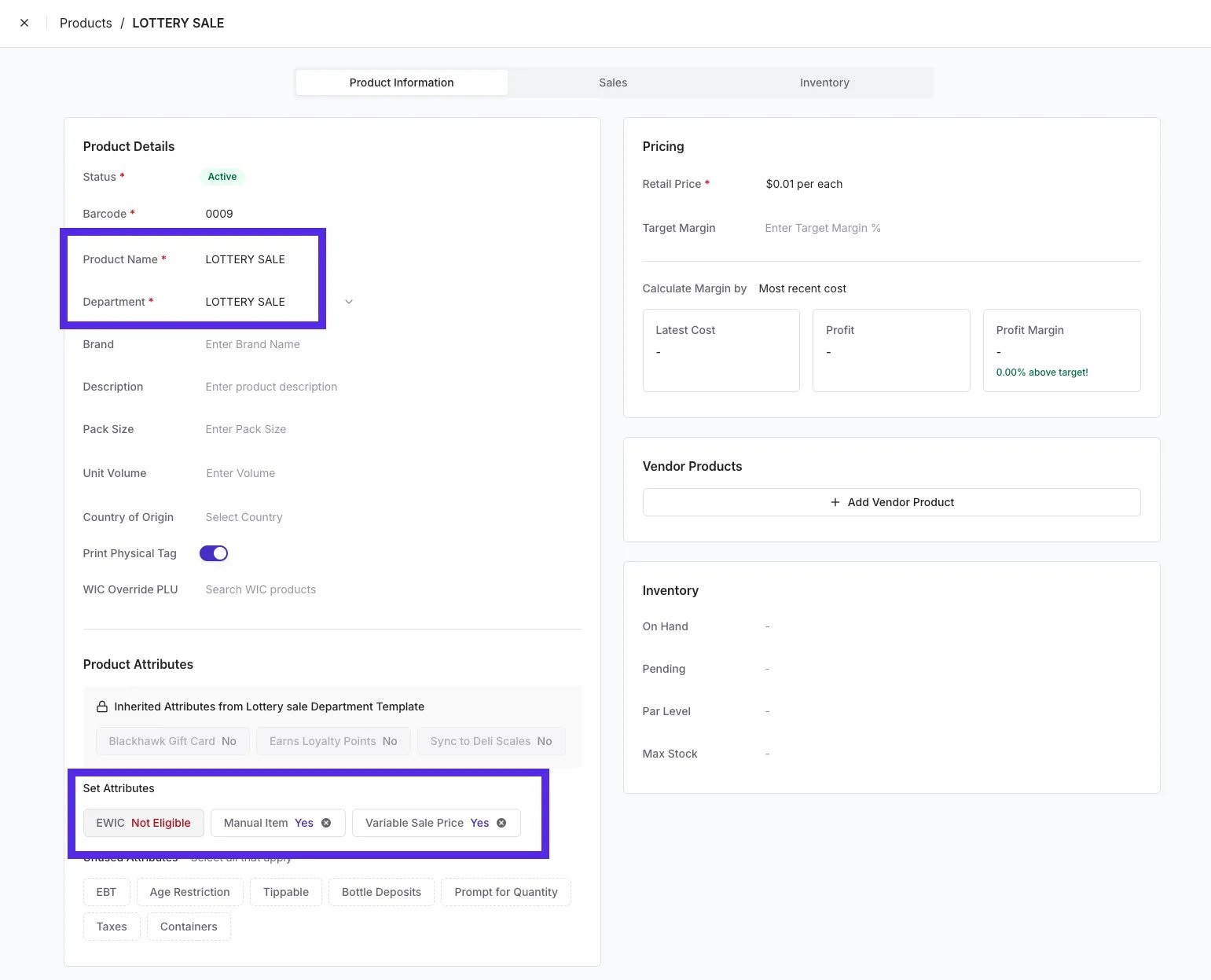
* Create a custom product in the Back Office (for example, “Lottery - Sale”) with a manual variable price item. Your cashiers can select it quickly without slowing down the line.
#### Draw Games (Powerball, Mega Millions, etc.)
Draw game tickets are printed from your state lottery terminal and typically don’t have standard UPCs.
To ring these up
* Create a custom product in the Back Office (for example, “Lottery - Sale”) with a manual variable price item. Your cashiers can select it quickly without slowing down the line.
 ***
### Validating Winnings
Before paying out any prize, you must validate the ticket using your official state lottery terminal.
Vori does not:
* Validate tickets
* Confirm prize amounts
* Determine winning status
Always confirm the win through your state’s required process before issuing cash.
***
### Paying Out Lottery Winnings
For small prizes, you can pay the shopper directly from the till. To keep your drawer balanced and your accounting clean, lottery payouts must be processed using the **Pay Out** workflow — not as a refund.
This ensures:
* Your cash drawer stays accurate
* Your Lottery vendor is properly credited
* Lottery payouts remain separate from product returns
#### Before You Start
Make sure:
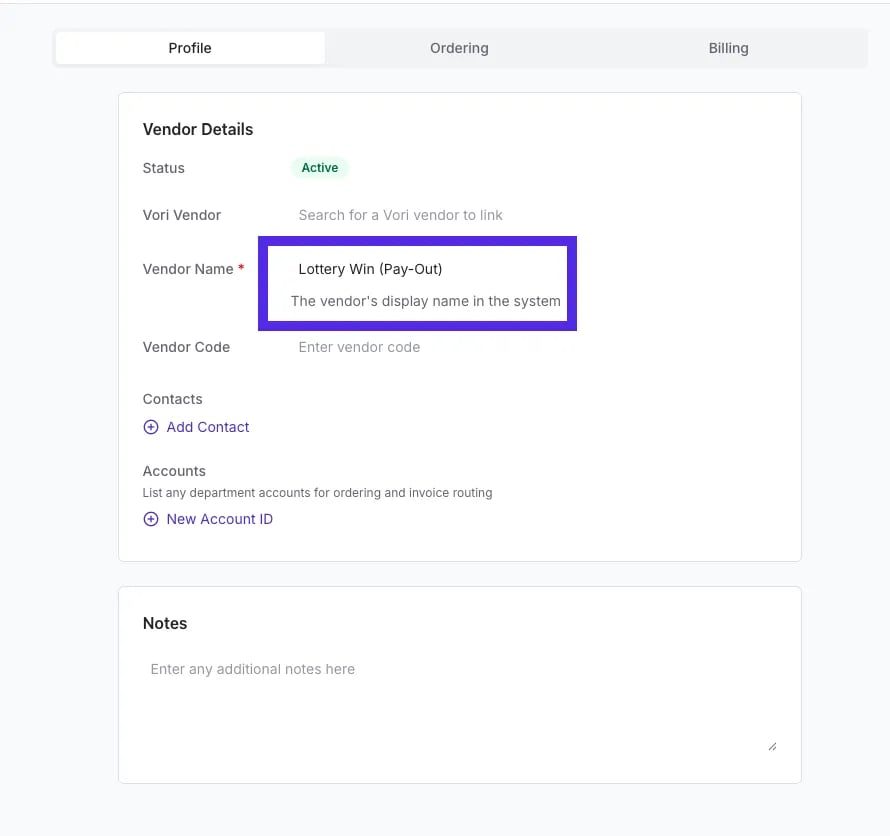
* A vendor named **“Lottery Win (Pay-Out)”** should be created in the Back Office.
* The cashier has permission to perform payouts.
***
### Validating Winnings
Before paying out any prize, you must validate the ticket using your official state lottery terminal.
Vori does not:
* Validate tickets
* Confirm prize amounts
* Determine winning status
Always confirm the win through your state’s required process before issuing cash.
***
### Paying Out Lottery Winnings
For small prizes, you can pay the shopper directly from the till. To keep your drawer balanced and your accounting clean, lottery payouts must be processed using the **Pay Out** workflow — not as a refund.
This ensures:
* Your cash drawer stays accurate
* Your Lottery vendor is properly credited
* Lottery payouts remain separate from product returns
#### Before You Start
Make sure:
* A vendor named **“Lottery Win (Pay-Out)”** should be created in the Back Office.
* The cashier has permission to perform payouts.
 #### Step-by-Step: Processing a Lottery Win Pay Out
1. Validate the ticket using your official state lottery terminal.
2. On the POS checkout screen, tap the arrow next to the total.
3. Select **Pay In & Pay Out**.
4. Tap **Pay Out**.
5. Enter the winning amount (example: 25.00) and tap **Next**.
6. Tap the **Vendor** dropdown and search for “Lottery.”
7. Select **Lottery Win (Pay-Out)**.
8. Tap **Confirm Pay Out**.
9. The drawer will open. Provide the shopper with their cash and tap **Continue**.
10. Choose **Print** to provide a receipt or **No Receipt** to finish.
**💡Tip: Set Clear Payout Guardrails**
We recommend creating a simple internal policy that outlines:
* The **maximum payout** a cashier can issue (for example, \$50).
* When a **manager approval** is required.
* How all payouts should be **logged and reviewed**.
You can enforce payout limits in the Back Office through **POS Settings**. See our guide, **[Customize Your POS Settings](/cashier-and-till-management/till-management/customize-your-pos-settings)**, for instructions.
***
### Viewing Payout Activity in the Back Office
You can track all payout activity from the Reports section.
To view payout history:
1. Go to **Back Office**.
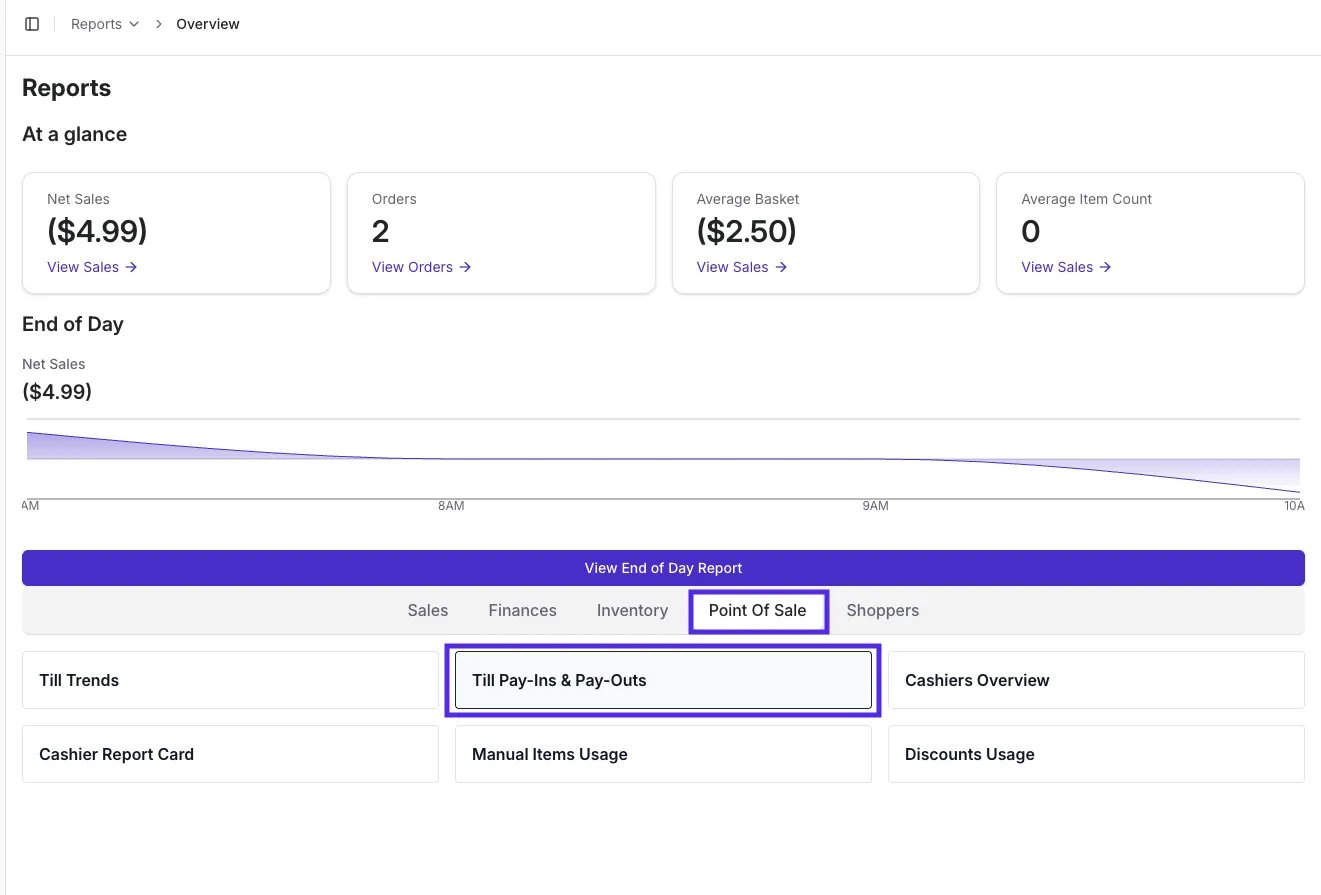
2. Navigate to **Reports > Point of Sale > Till Pay Ins and Pay Outs**.
#### Step-by-Step: Processing a Lottery Win Pay Out
1. Validate the ticket using your official state lottery terminal.
2. On the POS checkout screen, tap the arrow next to the total.
3. Select **Pay In & Pay Out**.
4. Tap **Pay Out**.
5. Enter the winning amount (example: 25.00) and tap **Next**.
6. Tap the **Vendor** dropdown and search for “Lottery.”
7. Select **Lottery Win (Pay-Out)**.
8. Tap **Confirm Pay Out**.
9. The drawer will open. Provide the shopper with their cash and tap **Continue**.
10. Choose **Print** to provide a receipt or **No Receipt** to finish.
**💡Tip: Set Clear Payout Guardrails**
We recommend creating a simple internal policy that outlines:
* The **maximum payout** a cashier can issue (for example, \$50).
* When a **manager approval** is required.
* How all payouts should be **logged and reviewed**.
You can enforce payout limits in the Back Office through **POS Settings**. See our guide, **[Customize Your POS Settings](/cashier-and-till-management/till-management/customize-your-pos-settings)**, for instructions.
***
### Viewing Payout Activity in the Back Office
You can track all payout activity from the Reports section.
To view payout history:
1. Go to **Back Office**.
2. Navigate to **Reports > Point of Sale > Till Pay Ins and Pay Outs**.
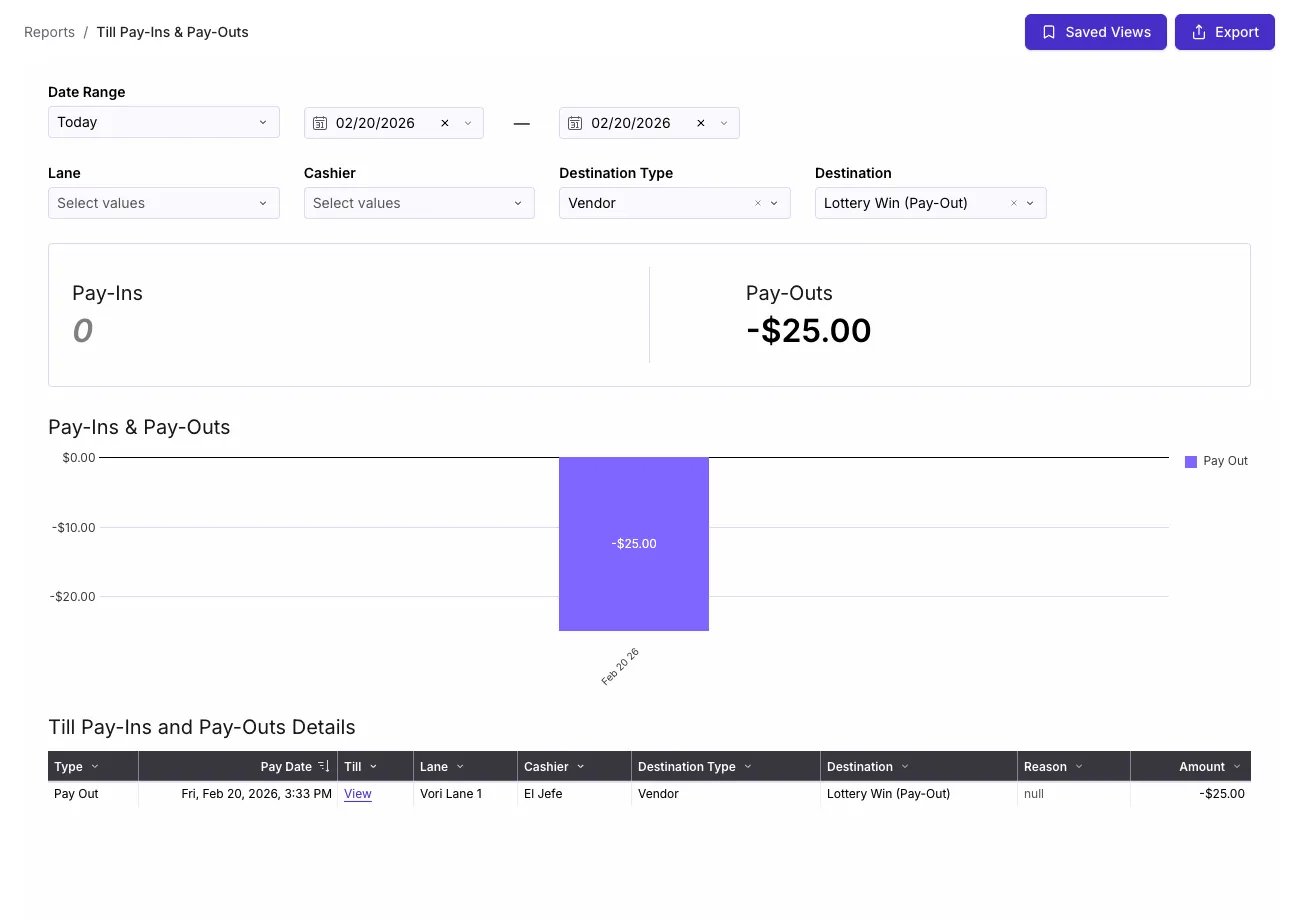
 3. Filter by **destination type (Vendor)** and **destination (Vendor Name)** to view recorded activity.
 ## Related topics
- [Sell and Manage Blackhawk Gift Cards in Vori POS](/point-of-sale-pos/blackhawk-gift-cards-checks-lottery-and-payouts/sell-and-manage-blackhawk-gift-cards-in-vori-pos.md)
- [Pay-In & Pay-Out on the POS](/point-of-sale-pos/blackhawk-gift-cards-checks-lottery-and-payouts/pay-in-and-pay-out-on-the-pos.md)
- [How to Cash a Check for a Shopper](/point-of-sale-pos/blackhawk-gift-cards-checks-lottery-and-payouts/how-to-cash-a-check-for-a-shopper.md)
## Related topics
- [Sell and Manage Blackhawk Gift Cards in Vori POS](/point-of-sale-pos/blackhawk-gift-cards-checks-lottery-and-payouts/sell-and-manage-blackhawk-gift-cards-in-vori-pos.md)
- [Pay-In & Pay-Out on the POS](/point-of-sale-pos/blackhawk-gift-cards-checks-lottery-and-payouts/pay-in-and-pay-out-on-the-pos.md)
- [How to Cash a Check for a Shopper](/point-of-sale-pos/blackhawk-gift-cards-checks-lottery-and-payouts/how-to-cash-a-check-for-a-shopper.md)