> ## Documentation Index
> Fetch the complete documentation index at: https://help.vori.com/llms.txt
> Use this file to discover all available pages before exploring further.
# Process Offline Payments in Vori POS
> Learn how to accept and process offline credit or debit card payments in Vori POS.
💡 **Reminder:** Accepting offline payments always carries some risk. It's up to your store to decide when the benefit of keeping lines moving outweighs the potential for payment failure.
### How Offline Payments Work
Accepting offline payments helps minimize revenue loss during internet outages and keeps checkout lines moving. When offline mode is active, Vori stores card transaction details securely in a queue. Once the internet is restored, these payments can be processed manually.
* To the customer, the checkout experience stays the same. After selecting **Card** and confirming the total, they complete payment as usual.
* As offline payments are queued on the lane, the badge count in the Orders tab will increase.
 ⚠️ **Caution:** The following payment types **cannot** be processed offline: **EBT SNAP, EBT Cash, eWIC, and Gift Cards.** **Debit cards may also vary**; some banks allow offline processing through the gateway, while others do not.
✏️ **Note:** During offline mode, terminals can only verify that a card appears valid (e.g., not expired, part of a known card network). Final approval happens later, once the internet is restored—so some payments may still be declined.
***
### Process Offline Payments from the Orders Tab
Once the internet is restored, follow these steps to process queued payments from the **Orders** tab.
1. Tap the **Orders** tab in the POS app.
2. Tap **Process**, then tap **Process** again to confirm.
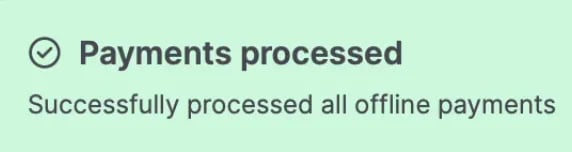
3. Wait for the confirmation message at the top of the screen.
⚠️ **Caution:** The following payment types **cannot** be processed offline: **EBT SNAP, EBT Cash, eWIC, and Gift Cards.** **Debit cards may also vary**; some banks allow offline processing through the gateway, while others do not.
✏️ **Note:** During offline mode, terminals can only verify that a card appears valid (e.g., not expired, part of a known card network). Final approval happens later, once the internet is restored—so some payments may still be declined.
***
### Process Offline Payments from the Orders Tab
Once the internet is restored, follow these steps to process queued payments from the **Orders** tab.
1. Tap the **Orders** tab in the POS app.
2. Tap **Process**, then tap **Process** again to confirm.
3. Wait for the confirmation message at the top of the screen.
 ✏️ **Note:** Offline payments won’t appear in reporting (such as the **End-of-Day** report or sales dashboards) until they’re processed and the POS is connected to a live internet connection.
⚠️ **Caution:** While offline payments are processing, the payment terminal is **unavailable** for other transactions. Only process offline payments during a slow period or after store hours.
🚨 **Warning:** If a customer’s card is declined after they’ve left the store, the store may not be able to recover the funds. Use offline payments only when necessary.
***
### **Process Offline Payments from the End-of-Day Report**
Managers can also process offline payments as part of the End-of-Day workflow.
1. Log in as a **manager** on the POS app.
2. Switch to **Reporting** mode.
3. Select **End of Day**.
4. Tap **Process Payments**.
5. Once payments have been processed, tap **Continue** to print the [End-of-Day Report](/reporting/daily-and-shift-reports/review-and-print-the-end-of-day-report).
✏️ **Note:** The POS must be connected to a **live, hardwired internet connection** to process offline payments. Processing will not work over WiFi or a mobile hotspot.
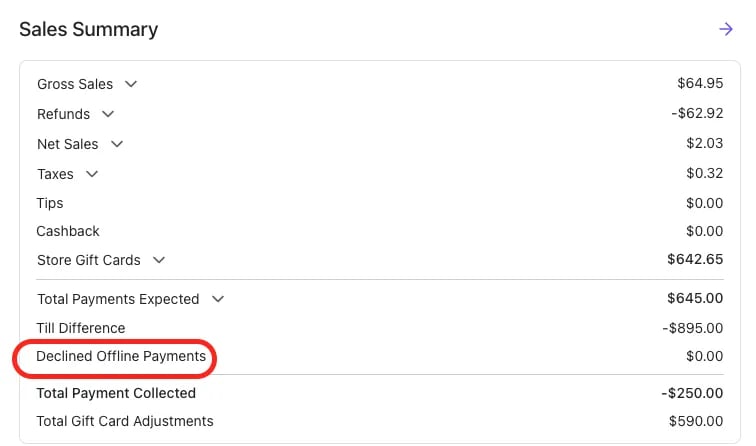
**✏️ Note:** Any **declined** offline payments will appear in the **End-of-Day Report**.
✏️ **Note:** Offline payments won’t appear in reporting (such as the **End-of-Day** report or sales dashboards) until they’re processed and the POS is connected to a live internet connection.
⚠️ **Caution:** While offline payments are processing, the payment terminal is **unavailable** for other transactions. Only process offline payments during a slow period or after store hours.
🚨 **Warning:** If a customer’s card is declined after they’ve left the store, the store may not be able to recover the funds. Use offline payments only when necessary.
***
### **Process Offline Payments from the End-of-Day Report**
Managers can also process offline payments as part of the End-of-Day workflow.
1. Log in as a **manager** on the POS app.
2. Switch to **Reporting** mode.
3. Select **End of Day**.
4. Tap **Process Payments**.
5. Once payments have been processed, tap **Continue** to print the [End-of-Day Report](/reporting/daily-and-shift-reports/review-and-print-the-end-of-day-report).
✏️ **Note:** The POS must be connected to a **live, hardwired internet connection** to process offline payments. Processing will not work over WiFi or a mobile hotspot.
**✏️ Note:** Any **declined** offline payments will appear in the **End-of-Day Report**.
 ***
### Important Considerations
🚨 **Warning:** If a customer's card is declined after they’ve left the store, the retailer may **not be able to recover the funds**. Use offline payments only when necessary.
**✏️ Note:** There may be a slight delay with the **first** offline payment as the system attempts to reconnect before switching to offline mode. This delay helps prevent unnecessary offline transactions due to brief network drops.
🚨 **Warning:** If existing offline transactions are over **48 hours old**, the payment terminal will not allow additional offline payments. The terminal will display a **Payment Error** with the message: *"VALIDATION: Transactions cannot be stored. There are stored transactions that are older than 48 hour(s) and must be forwarded. (StoreAndForward Error)"* To resolve this, restore the internet connection and process the queued offline payments.
**💡Reminder:** To complete offline payment setup, make sure to [**Download/Run EMV Parameters**](/hardware-and-peripherals/payment-terminals/run-get-parameters-on-the-payment-terminal) on all payment terminals while connected to the internet.
## Related topics
- [How to finalize terminal setup for Offline Payments](/point-of-sale-pos/pos-customization-and-setup/how-to-finalize-terminal-setup-for-offline-payments.md)
- [Troubleshoot Network Connectivity Issues with the POS](/hardware-and-peripherals/cashier-screen-and-shopper-display/troubleshoot-network-connectivity-issues-with-the-pos.md)
- [Reconcile CardConnect Deposits with your Payments Report](/payments-and-financials/cardconnect/reconcile-cardconnect-deposits-with-your-payments-report.md)
***
### Important Considerations
🚨 **Warning:** If a customer's card is declined after they’ve left the store, the retailer may **not be able to recover the funds**. Use offline payments only when necessary.
**✏️ Note:** There may be a slight delay with the **first** offline payment as the system attempts to reconnect before switching to offline mode. This delay helps prevent unnecessary offline transactions due to brief network drops.
🚨 **Warning:** If existing offline transactions are over **48 hours old**, the payment terminal will not allow additional offline payments. The terminal will display a **Payment Error** with the message: *"VALIDATION: Transactions cannot be stored. There are stored transactions that are older than 48 hour(s) and must be forwarded. (StoreAndForward Error)"* To resolve this, restore the internet connection and process the queued offline payments.
**💡Reminder:** To complete offline payment setup, make sure to [**Download/Run EMV Parameters**](/hardware-and-peripherals/payment-terminals/run-get-parameters-on-the-payment-terminal) on all payment terminals while connected to the internet.
## Related topics
- [How to finalize terminal setup for Offline Payments](/point-of-sale-pos/pos-customization-and-setup/how-to-finalize-terminal-setup-for-offline-payments.md)
- [Troubleshoot Network Connectivity Issues with the POS](/hardware-and-peripherals/cashier-screen-and-shopper-display/troubleshoot-network-connectivity-issues-with-the-pos.md)
- [Reconcile CardConnect Deposits with your Payments Report](/payments-and-financials/cardconnect/reconcile-cardconnect-deposits-with-your-payments-report.md)