> ## Documentation Index
> Fetch the complete documentation index at: https://help.vori.com/llms.txt
> Use this file to discover all available pages before exploring further.
# Manage Discounts at the POS
> Learn how to view, apply, and remove discounts at checkout.
### Introduction
Discounts allow your team to offer special pricing at the POS. You can choose from a list of preset discounts or apply a manual discount for one-off use cases.
***
### Set up and manage your Discounts
You can create, edit, and assign Quick Action buttons directly from the Back Office — no need to contact Vori Support. See [Create Quick Actions in Back Office](/point-of-sale-pos/pos-customization-and-setup/create-quick-actions-in-back-office) for step-by-step instructions on building actions, creating lane templates, and assigning them to specific lanes.
***
### Viewing Your Discounts at the POS
To view all active discounts on the POS:
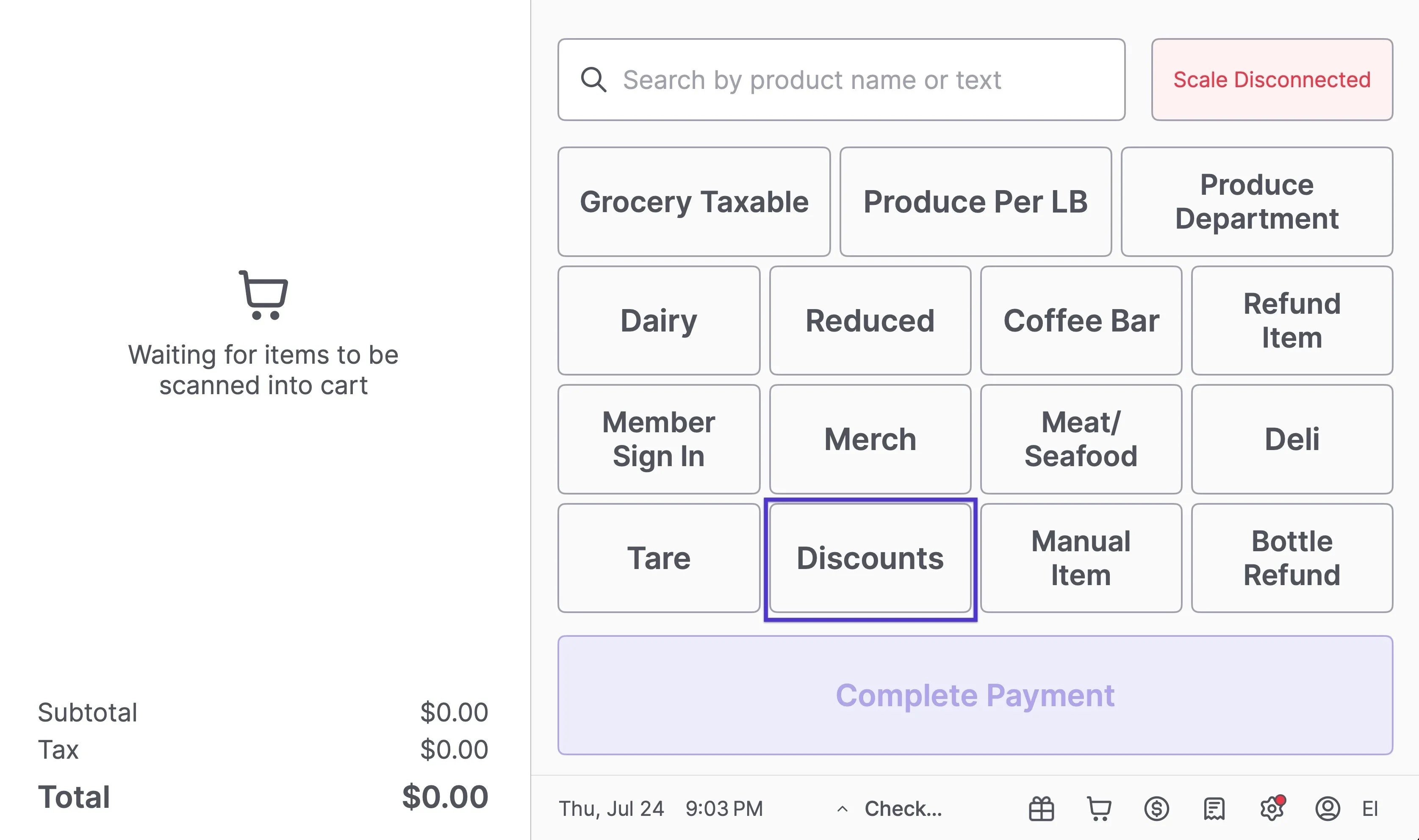
1. Tap the **Discounts** quick action button at the top of the screen.
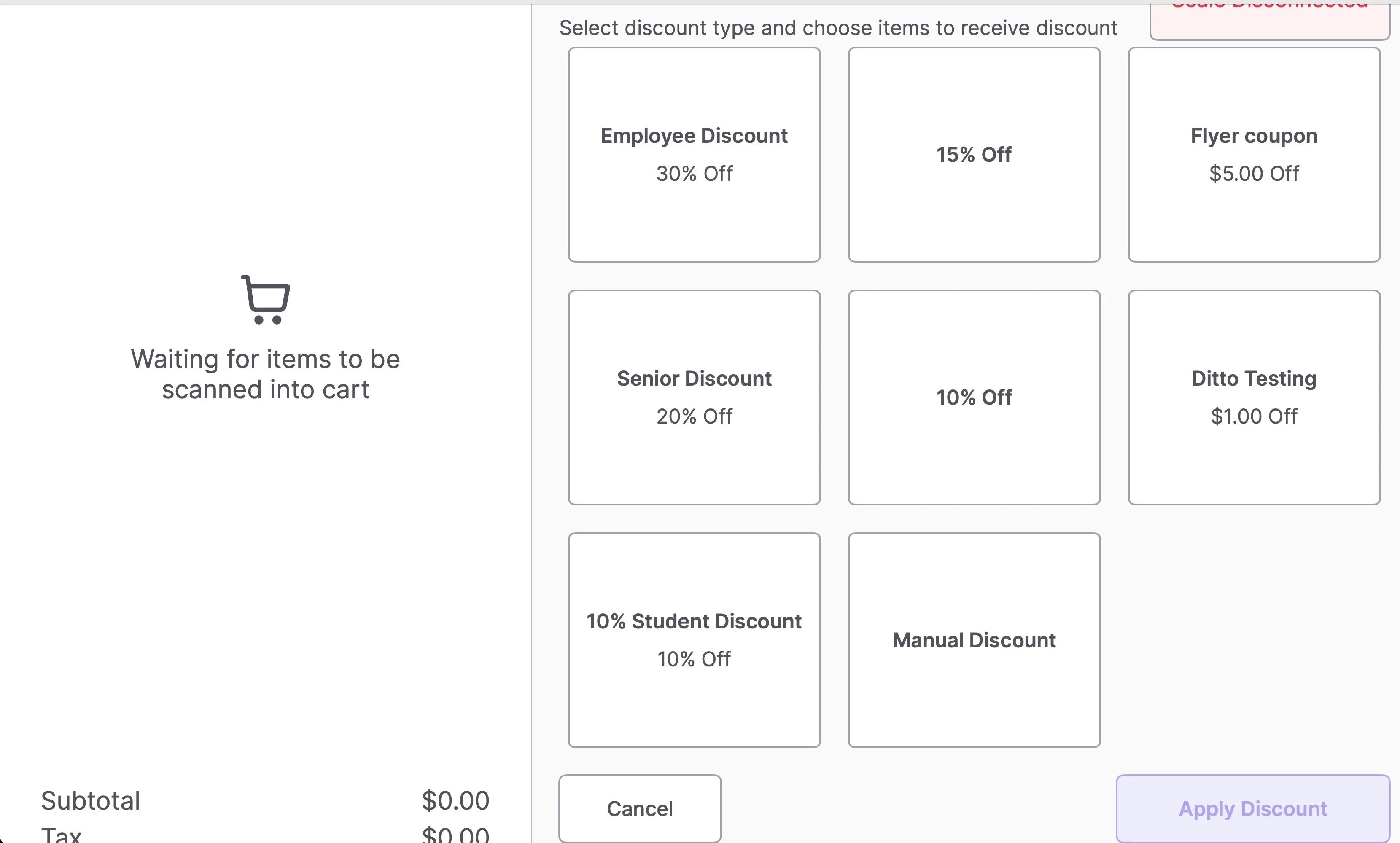
2. A list of available discount types will appear.
 3. Tap into any discount to apply it during checkout.
 ***
***
### Apply a Custom Discount at the POS
To apply a preset discount to an item or cart:
1. Add items to the cart.
2. Tap the **Discounts** button.
3. Use the checkboxes to select one or more items to discount (or tap **Select All** to apply to the full cart).
4. Tap the desired preset discount.
5. Tap **Apply Discount**.
6. Confirm the discount has been applied to each selected item.
***
### Apply a Manual Discount at the POS
To apply a custom discount amount:
1. Add items to the cart.
2. Tap the **Discounts** button.
3. Use the checkboxes to select the item(s).
4. Tap **Manual Discount**.
5. Choose between a **percentage** or an **amount off**.
6. Tap **Apply Discount**.
7. Confirm the discount appears on each selected item.
**✏️ Note:** Manual discounts in Vori are currently designed to apply at the item level, not at the full basket level.
You can choose which items receive the discount (via the **checkmarks** next to each item), and the specified discount amount will be applied individually to those items, or select the full basket to apply the discount to all items in the cart.
***
### Discount restrictions at the POS
Some items can be set up so they cannot be discounted at the register. These restrictions are configured per product in the Back Office under **Set Attributes > Discount Restrictions**. See [Product Catalog & Product Details in the New Back Office](/product-and-product-catalog-management/product-creation-and-set-up/product-catalog-product-details) for how to set them.
There are three restriction types, and each changes what your cashiers can do at the POS:
* **Restrict Discounts on Promotions:** If the item is already on promotion, the POS will not let your cashier add another discount on top of it.
* **Restrict POS Discounts:** The item cannot be discounted at all. Discounts are unavailable for it at the register.
* **Restrict Multiple POS Discounts:** The item can take one discount, but the POS will block a second one (for example, an Employee discount on top of a Reduced discount).
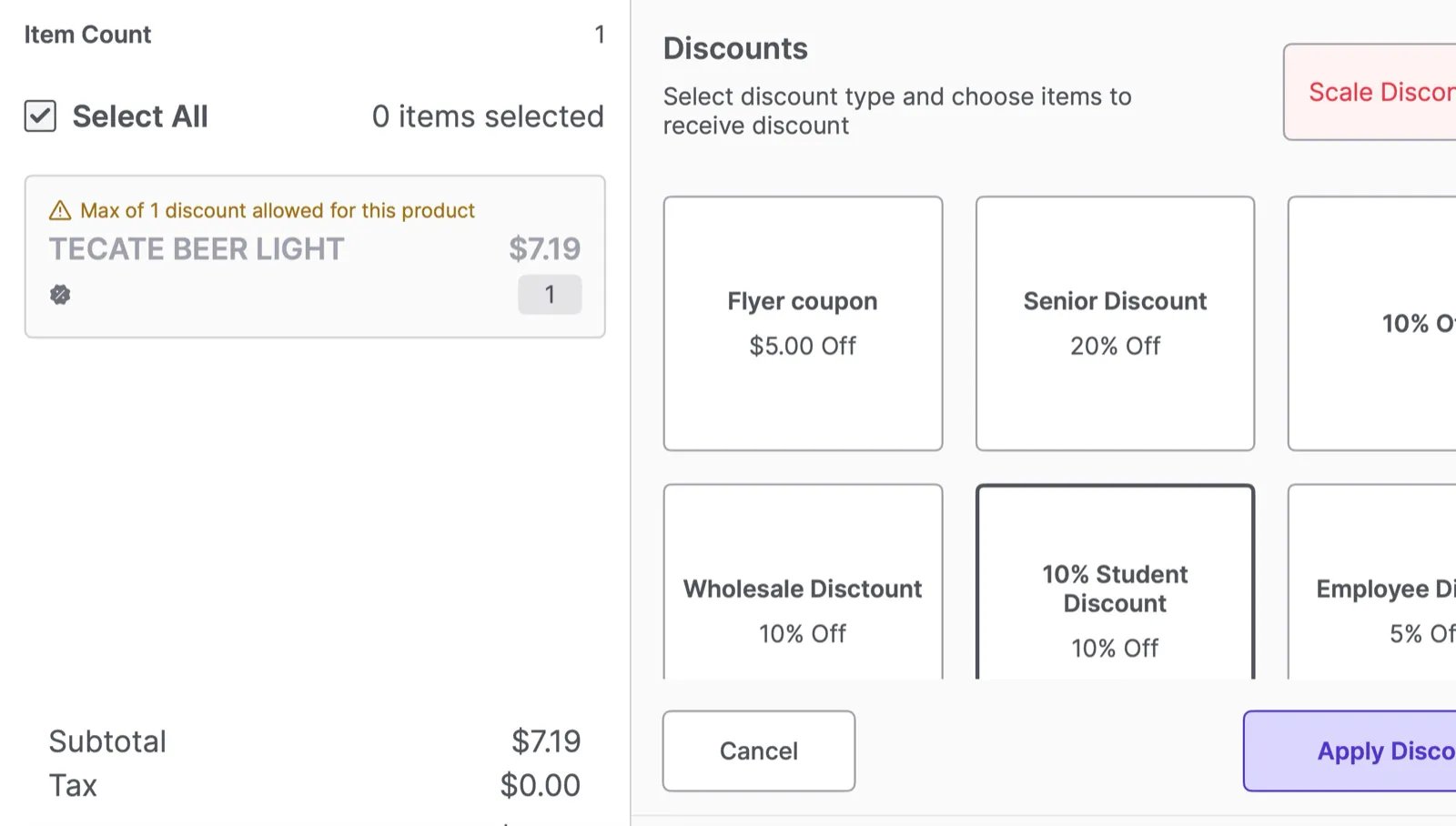
When a discount is restricted, the POS flags the item in the cart with a warning so your cashier knows why a discount cannot be applied. For example, an item set to **Restrict Multiple POS Discounts** shows *"Max of 1 discount allowed for this product."*
***
***
### Apply a Custom Discount at the POS
To apply a preset discount to an item or cart:
1. Add items to the cart.
2. Tap the **Discounts** button.
3. Use the checkboxes to select one or more items to discount (or tap **Select All** to apply to the full cart).
4. Tap the desired preset discount.
5. Tap **Apply Discount**.
6. Confirm the discount has been applied to each selected item.
***
### Apply a Manual Discount at the POS
To apply a custom discount amount:
1. Add items to the cart.
2. Tap the **Discounts** button.
3. Use the checkboxes to select the item(s).
4. Tap **Manual Discount**.
5. Choose between a **percentage** or an **amount off**.
6. Tap **Apply Discount**.
7. Confirm the discount appears on each selected item.
**✏️ Note:** Manual discounts in Vori are currently designed to apply at the item level, not at the full basket level.
You can choose which items receive the discount (via the **checkmarks** next to each item), and the specified discount amount will be applied individually to those items, or select the full basket to apply the discount to all items in the cart.
***
### Discount restrictions at the POS
Some items can be set up so they cannot be discounted at the register. These restrictions are configured per product in the Back Office under **Set Attributes > Discount Restrictions**. See [Product Catalog & Product Details in the New Back Office](/product-and-product-catalog-management/product-creation-and-set-up/product-catalog-product-details) for how to set them.
There are three restriction types, and each changes what your cashiers can do at the POS:
* **Restrict Discounts on Promotions:** If the item is already on promotion, the POS will not let your cashier add another discount on top of it.
* **Restrict POS Discounts:** The item cannot be discounted at all. Discounts are unavailable for it at the register.
* **Restrict Multiple POS Discounts:** The item can take one discount, but the POS will block a second one (for example, an Employee discount on top of a Reduced discount).
When a discount is restricted, the POS flags the item in the cart with a warning so your cashier knows why a discount cannot be applied. For example, an item set to **Restrict Multiple POS Discounts** shows *"Max of 1 discount allowed for this product."*
 ***
### Remove a Discount from an Item
To remove a discount from a single item:
1. Double-tap the item in the cart.
2. Tap **More**.
3. Deselect the applied discount by unchecking the box.
4. Tap **Apply Changes**.
5. Confirm that the item is no longer discounted.
## Related topics
- [Create and Manage Discounts](/cashier-and-till-management/till-management/create-and-manage-discounts.md)
- [Manage Tare Containers at the POS](/bottle-deposits-tares-and-taxes/manage-tare-containers-at-the-pos.md)
- [Manage POS Logins, Tills, Timeouts, and Manual Updates](/cashier-and-till-management/pos-user-access/manage-pos-logins-tills-timeouts-and-manual-updates.md)
***
### Remove a Discount from an Item
To remove a discount from a single item:
1. Double-tap the item in the cart.
2. Tap **More**.
3. Deselect the applied discount by unchecking the box.
4. Tap **Apply Changes**.
5. Confirm that the item is no longer discounted.
## Related topics
- [Create and Manage Discounts](/cashier-and-till-management/till-management/create-and-manage-discounts.md)
- [Manage Tare Containers at the POS](/bottle-deposits-tares-and-taxes/manage-tare-containers-at-the-pos.md)
- [Manage POS Logins, Tills, Timeouts, and Manual Updates](/cashier-and-till-management/pos-user-access/manage-pos-logins-tills-timeouts-and-manual-updates.md)