> ## Documentation Index
> Fetch the complete documentation index at: https://help.vori.com/llms.txt
> Use this file to discover all available pages before exploring further.
# Apply a Manufacturer or Third-Party Coupon to an Order
> Learn how to apply the discount from an unsupported third-party coupon to a POS transaction using the Manufacturer's Coupon payment type.
Vori currently does not support the scanning of third-party coupons at the POS.\
Follow the steps outlined below to process these coupons in the current workflow.
### Steps
1. Add the item(s) to the basket.
2. Retrieve the coupon from the **shopper**.
3. Tap **Other** on the payment screen.
4. Select **Manufacturer's Coupon**.
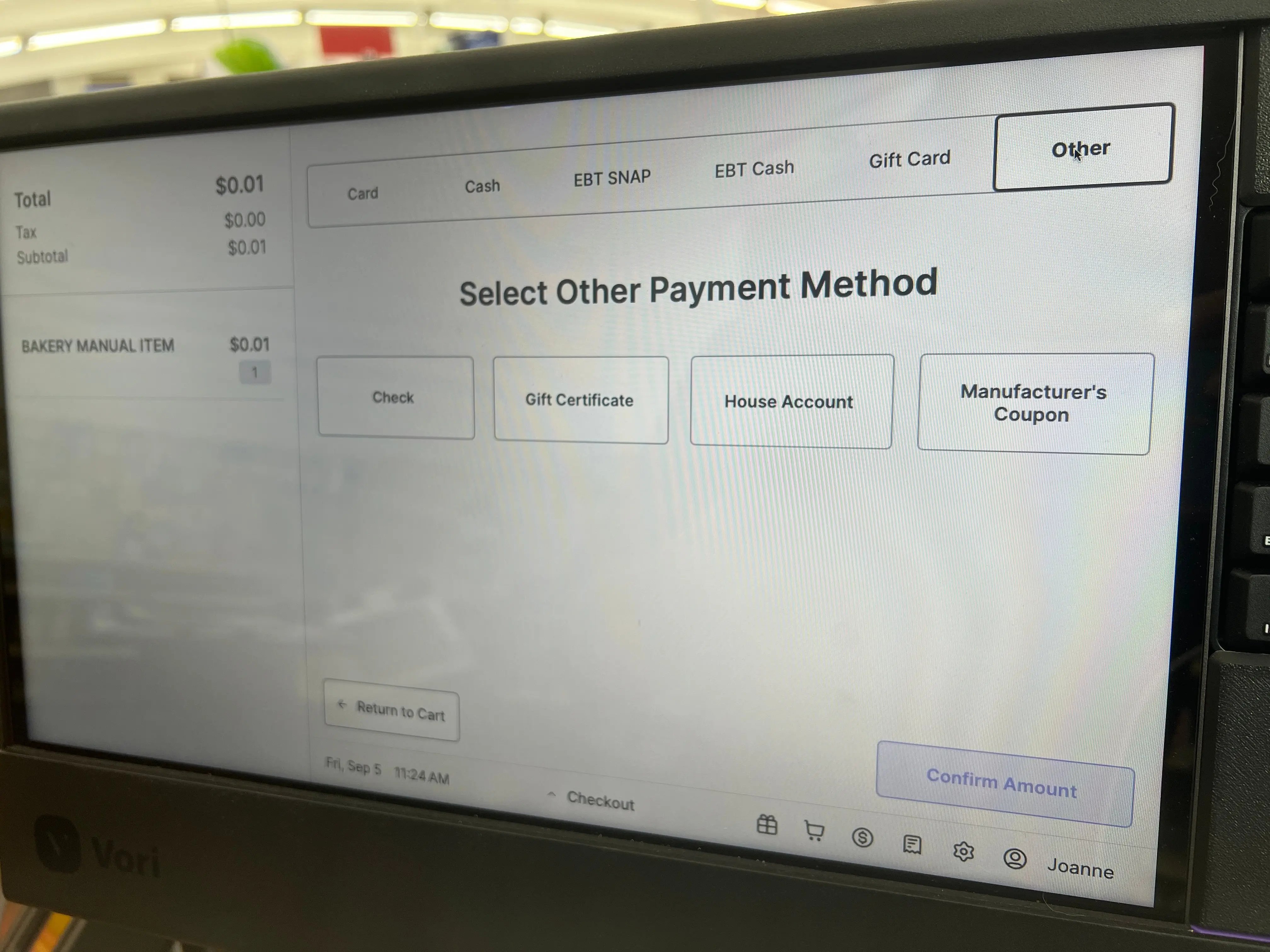 5. In the **Input specific amount** field, enter the value of the coupon.
6. Tap **Confirm Amount**.
* The cash drawer will open with a message: "**Manufacturer's Coupon** \$\[amount]**."**
* Retain the coupon to submit to the accounting department for reimbursement.
7. Tap **Continue transaction**.
* If the coupon value is equal to or greater than the transaction total, the payment will be complete.
* If there is an outstanding balance, you can select another payment method (e.g., **Card**, **Cash**).
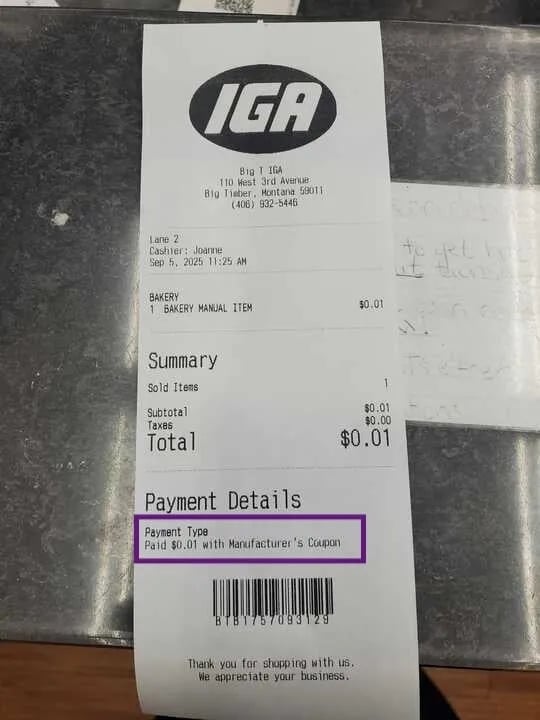
The printed receipt will include a Payment Type line item showing the exact amount paid with the Manufacturer's Coupon.
5. In the **Input specific amount** field, enter the value of the coupon.
6. Tap **Confirm Amount**.
* The cash drawer will open with a message: "**Manufacturer's Coupon** \$\[amount]**."**
* Retain the coupon to submit to the accounting department for reimbursement.
7. Tap **Continue transaction**.
* If the coupon value is equal to or greater than the transaction total, the payment will be complete.
* If there is an outstanding balance, you can select another payment method (e.g., **Card**, **Cash**).
The printed receipt will include a Payment Type line item showing the exact amount paid with the Manufacturer's Coupon.
 ✏️ **Note -** **Coupon Value Exceeds Item Price:** If a coupon's value exceeds the item's price, the cashier will only enter the item's price into the Input specific amount field. The system will not allow the coupon to result in a negative total. The excess coupon value is not returned to the shopper.
## Related topics
- [Redeem Campaign Coupons on the POS](/point-of-sale-pos/basic-cashier-functions/redeem-campaign-coupons-on-the-pos.md)
- [Set Up Departments](/departments/set-up-departments.md)
- [Frequently Asked Questions](/faqs.md)
✏️ **Note -** **Coupon Value Exceeds Item Price:** If a coupon's value exceeds the item's price, the cashier will only enter the item's price into the Input specific amount field. The system will not allow the coupon to result in a negative total. The excess coupon value is not returned to the shopper.
## Related topics
- [Redeem Campaign Coupons on the POS](/point-of-sale-pos/basic-cashier-functions/redeem-campaign-coupons-on-the-pos.md)
- [Set Up Departments](/departments/set-up-departments.md)
- [Frequently Asked Questions](/faqs.md)