> ## Documentation Index
> Fetch the complete documentation index at: https://help.vori.com/llms.txt
> Use this file to discover all available pages before exploring further.
# Find the Status of a Card Charge on Cardconnect
> After a payment is processed, the transaction may be looked up within the Cardpointe portal to confirm the status of the funds being withdrawn from the card.
### Directions
1. Go to [cardpointe.com/account](https://cardpointe.com/account) and log in to your merchant profile.
2. Navigate to the **Reporting** tab in the top menu.  3. Within the **Transactions** tab of Reporting, use the available filters to search for the charge in question. Suggested filters include:
1. **Date**: Filter down transactions to the date of the charge.
2. **Date**:Filter down transactions by the amount of the charge.
3. **Last 4**: Click into the Search Columns button and select the Last 4 filter to filter down transactions by the last 4 digits of the card.
3. Within the **Transactions** tab of Reporting, use the available filters to search for the charge in question. Suggested filters include:
1. **Date**: Filter down transactions to the date of the charge.
2. **Date**:Filter down transactions by the amount of the charge.
3. **Last 4**: Click into the Search Columns button and select the Last 4 filter to filter down transactions by the last 4 digits of the card.
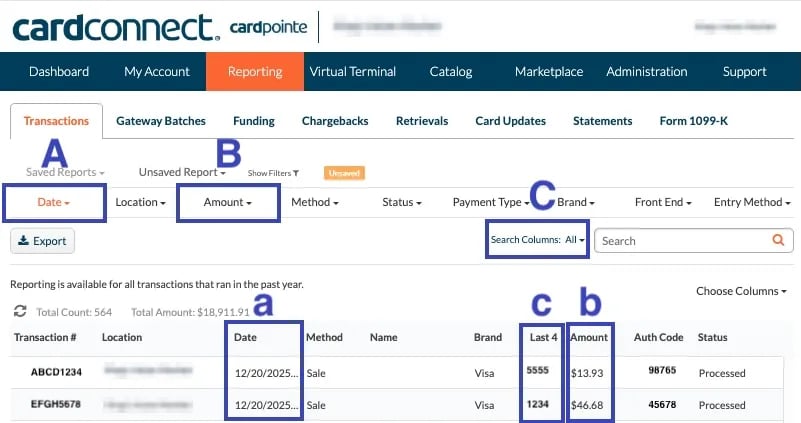 4. Once the transaction is located, confirm whether it was charged by checking the **Status**of the transaction on the far right of the row.
  1. **Authorized** - The card issuer has approved the transaction and placed a hold on the funds. The transaction has not yet been finalized or settled.
2. **Batched** - The transaction has been included in a batch that has been submitted for settlement. Funds will be deposited according to your processor’s funding schedule.
3. **Captured** - The authorized transaction has been finalized and sent for settlement. This status typically means the transaction will move to funding.
4. **Declined** - The card issuer declined the transaction. No funds were authorized. Common reasons include insufficient funds, incorrect card details, or issuer restrictions.
5. **Failed** - The transaction could not be completed due to a system or communication error. No funds were authorized or captured.
6. **Format Error** - The transaction was rejected due to invalid or improperly formatted data (such as missing or incorrect fields).
7. **Partially Refunded** - A portion of the original transaction amount has been refunded to the customer. The remaining amount remains settled.
8. **Partially Voided** - Part of the transaction amount was voided before settlement. Only the remaining amount will be processed.
9. **Processed** - The transaction has been successfully completed and accepted by the processor. Funding status may depend on batching and settlement timing.
10. **Refunded** - The full transaction amount has been returned to the customer after settlement.
11. **Rejected** - The transaction was rejected by the processor or gateway before authorization. This can occur due to validation rules or risk checks.
12. **Token Decrypt Failed** - The transaction could not be processed because the encrypted payment token could not be decrypted. No authorization occurred.
13. **Under Review** - The transaction is being reviewed for potential risk or fraud. Processing is temporarily paused until the review is completed.
14. **Unknown** - The transaction status could not be determined at this time. This may be due to a temporary system issue or delayed response.
15. **Verified** - The card details were successfully verified (such as an address or card verification check), but no funds were authorized or captured.
16. **Voided** -The transaction was canceled before settlement. Any authorized funds will be released back to the cardholder.
## Related topics
- [How to provide evidence against a chargeback](/payments-and-financials/chargebacks/how-to-provide-evidence-against-a-chargeback.md)
- [Reconcile CardConnect Deposits with your Payments Report](/payments-and-financials/cardconnect/reconcile-cardconnect-deposits-with-your-payments-report.md)
- [Handle Card Voids and Payment Cancelations at the POS](/point-of-sale-pos/basic-cashier-functions/handle-card-voids-and-payment-cancelations-at-the-pos.md)
1. **Authorized** - The card issuer has approved the transaction and placed a hold on the funds. The transaction has not yet been finalized or settled.
2. **Batched** - The transaction has been included in a batch that has been submitted for settlement. Funds will be deposited according to your processor’s funding schedule.
3. **Captured** - The authorized transaction has been finalized and sent for settlement. This status typically means the transaction will move to funding.
4. **Declined** - The card issuer declined the transaction. No funds were authorized. Common reasons include insufficient funds, incorrect card details, or issuer restrictions.
5. **Failed** - The transaction could not be completed due to a system or communication error. No funds were authorized or captured.
6. **Format Error** - The transaction was rejected due to invalid or improperly formatted data (such as missing or incorrect fields).
7. **Partially Refunded** - A portion of the original transaction amount has been refunded to the customer. The remaining amount remains settled.
8. **Partially Voided** - Part of the transaction amount was voided before settlement. Only the remaining amount will be processed.
9. **Processed** - The transaction has been successfully completed and accepted by the processor. Funding status may depend on batching and settlement timing.
10. **Refunded** - The full transaction amount has been returned to the customer after settlement.
11. **Rejected** - The transaction was rejected by the processor or gateway before authorization. This can occur due to validation rules or risk checks.
12. **Token Decrypt Failed** - The transaction could not be processed because the encrypted payment token could not be decrypted. No authorization occurred.
13. **Under Review** - The transaction is being reviewed for potential risk or fraud. Processing is temporarily paused until the review is completed.
14. **Unknown** - The transaction status could not be determined at this time. This may be due to a temporary system issue or delayed response.
15. **Verified** - The card details were successfully verified (such as an address or card verification check), but no funds were authorized or captured.
16. **Voided** -The transaction was canceled before settlement. Any authorized funds will be released back to the cardholder.
## Related topics
- [How to provide evidence against a chargeback](/payments-and-financials/chargebacks/how-to-provide-evidence-against-a-chargeback.md)
- [Reconcile CardConnect Deposits with your Payments Report](/payments-and-financials/cardconnect/reconcile-cardconnect-deposits-with-your-payments-report.md)
- [Handle Card Voids and Payment Cancelations at the POS](/point-of-sale-pos/basic-cashier-functions/handle-card-voids-and-payment-cancelations-at-the-pos.md)