![vori-logo-black-horizontal-01 (1).png]](https://help.vori.com/hs-fs/hubfs/vori-logo-black-horizontal-01%20(1).png?height=42&name=vori-logo-black-horizontal-01%20(1).png)
Table of Contents
Overview
-
Vori partners directly with IGA to bring national digital offers into participating stores.
-
Unlike traditional coupons that require cashiers to scan barcodes or shoppers to clip offers in an app, these promotions apply automatically at checkout when the basket qualifies.
-
It’s fast. It’s accurate. And it protects the checkout experience.
Before You Start
-
Ensure your store is officially registered with IGA and opted into the National Digital Ad program.
-
Confirm you are using the POS for transactions to enable automatic redemption.
-
Admin access to New Back Office is required to view active coupons or print shelf tags.
Step-by-Step Instructions
1. View Active Network Coupons
You can manage and monitor active national offers directly from your New Back Office Coupons Dashboard to see which products are currently discounted.
-
Log in to the Vori Back Office.
-
Navigate to the Coupons page in the side menu under the Marketing .
-
Use the Coupon Type filter and select Network to view only IGA-syndicated offers.

-
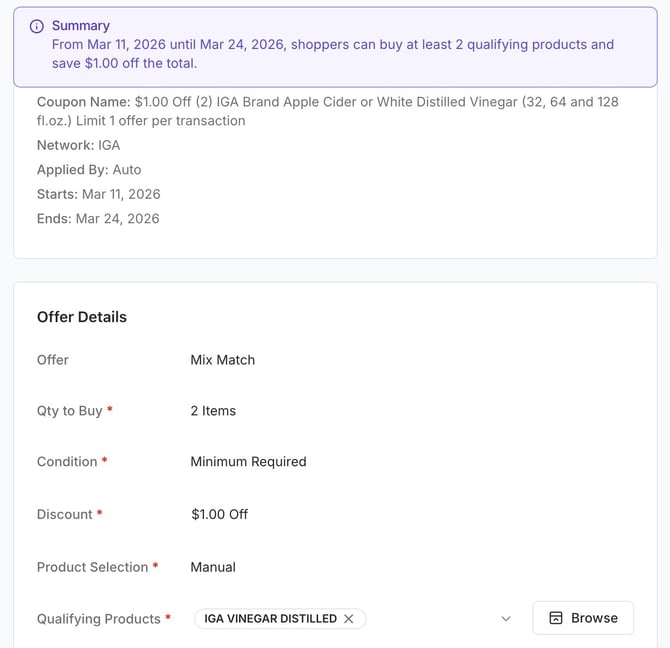
Click on any offer to view specific details, including the discount amount, valid dates, and qualifying products.
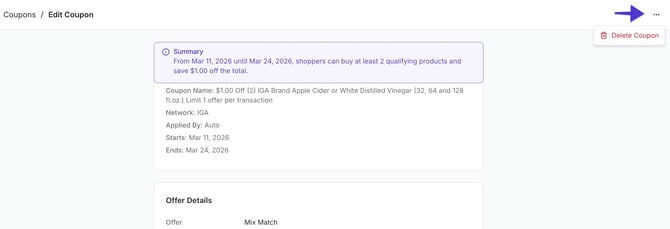
✏️Note: You have the option to delete any IGA coupon if you don't want to run the special. Click into the coupon details, hit the three dots in the right-hand corner, and click "delete coupon."
2. Promote Offers with Shelf Tags
Drive awareness on the floor by printing tags on VoriOS in minutes.
-
From the homescreen of VoriOS, click on Tags.
- If the coupons just took effect in your account, the tags for the coupons should be at the top of the queue
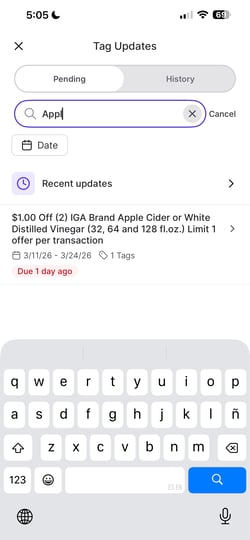
- If not, you can search for the name of the item that is on promo to print the tag.
-
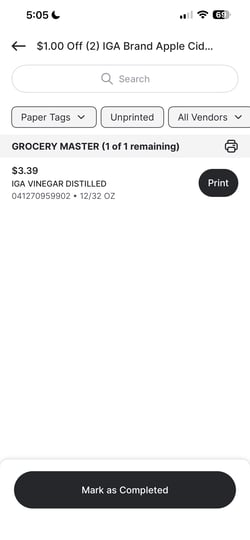
Ensure you have the large yellow promo tags loaded and configured in the Zebra printer, and hit print to print the promo tag.
-
Place the tag on the shelf next to the qualifying product to alert shoppers to the savings!
💡Tip: You can also search or scan the product on the handheld and print the promo tags directly from inside the product details page.
%20-%20Vori%20-%202%20new%20items%20-%20Slack%202026-03-12%20at%205-12-17%20PM-jpg.jpeg?width=250&height=492&name=Taylor%20(DM)%20-%20Vori%20-%202%20new%20items%20-%20Slack%202026-03-12%20at%205-12-17%20PM-jpg.jpeg)
3. Automatic Redemption at Checkout
There is no manual work required by your cashiers to apply these discounts.
-
Scan the qualifying products into the basket at the POS.
-
If the basket meets the offer criteria (e.g., "Buy 2, Get $0.50 Off"), the coupon will auto-apply instantly.
-
The discount will appear as a separate line item on the POS screen and the printed receipt.
Troubleshooting & Tips
-
Visibility: If you have a question about a specific offer, scan the product using the handheld. The product detail page will show any active promotions and coupons currently linked to that item.
-
Offer Exclusions: If a store decides not to participate in a specific national offer, Admins can manually deactivate it. To do this, open the offer in the specifc coupon and select Delete Coupon to remove it from your system.
-
Stacking Savings: National IGA coupons can stack on top of your existing store promotions. For example, if you have a store-wide sale on pasta, a national IGA coupon for that same pasta will provide even deeper savings to the shopper.