![vori-logo-black-horizontal-01 (1).png]](https://help.vori.com/hs-fs/hubfs/vori-logo-black-horizontal-01%20(1).png?height=42&name=vori-logo-black-horizontal-01%20(1).png)
Manage your inventory numbers and track the history of every change directly from the Product Details page in the Back Office.
For Inventory Essentials users, this page serves as your "Source of Truth" snapshot. It combines your manual floor counts with POS sales data to give you an estimated Stock Level.
The Inventory Card
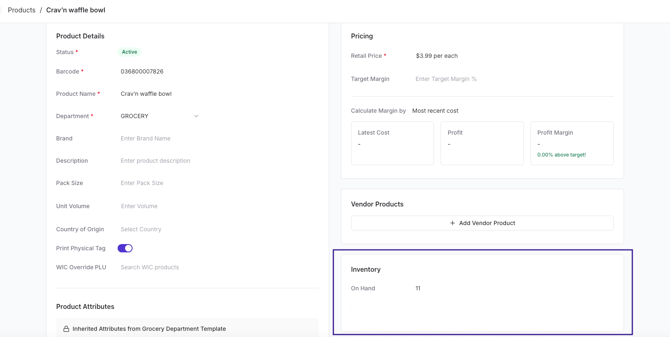
Navigate to any Product Details page and scroll to the bottom right to find the Inventory card.
-
On Hand: The current calculated quantity (Last Physical Count - Sales).
-
Edit: You can manually edit this number directly in the box to establish a new baseline count.
Inventory History Tab
For a detailed audit trail of how your inventory count has changed over time on a specific product, click the Inventory tab at the top of the product page (located next to the Sales tab).
This section displays a historical log of all changes.
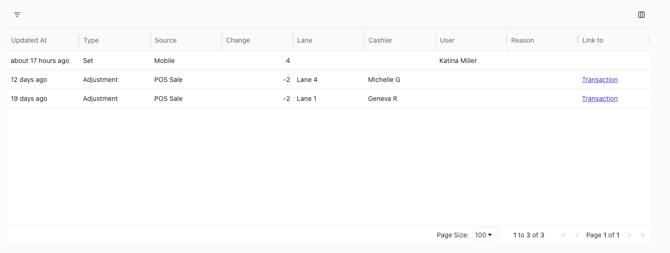
The history tab provides a timestamped audit trail of changes attributed to POS, Web, or Mobile sources.
-
Updated At: How long ago the inventory change occurred.
-
Type: The action taken.
-
Set: A hard reset of the total quantity.
-
Adjustment: An incremental change (+/-).
-
-
Source: Where the change originated.
-
POS Sale: An automatic deduction after a sale at the register.
-
Mobile / Web: An update made by a staff member on the app or Back Office.
-
-
Change: The specific number added or subtracted.
-
User / Cashier: Identifies who made the change. For manual updates, it shows the User; for sales, it shows the Cashier name.
-
Reason: If items were removed for shrinkage, the reason (e.g., "Damage, Other") will appear here.
-
Link to: For POS Sales, click Transaction to view the specific transaction associated with that inventory deduction.