![vori-logo-black-horizontal-01 (1).png]](https://help.vori.com/hs-fs/hubfs/vori-logo-black-horizontal-01%20(1).png?height=42&name=vori-logo-black-horizontal-01%20(1).png)
Table of Contents
When to Use This Workaround
If you encounter technical issues on your handheld that prevent an order from being sent, you can submit the order directly from the Vori Back Office. This ensures your order reaches the vendor on time.
How to Manually Submit a Purchase Order
Follow these steps to locate and send a draft order using a web browser.
-
Log into app.vori.com.
-
In the left-hand navigation menu, click Inventory & Supply Chain.
-
Select Purchase Orders.

-
Find your order in the list. It should be labeled as Draft in the status column.

-
Click on the specific PO to open it.
-
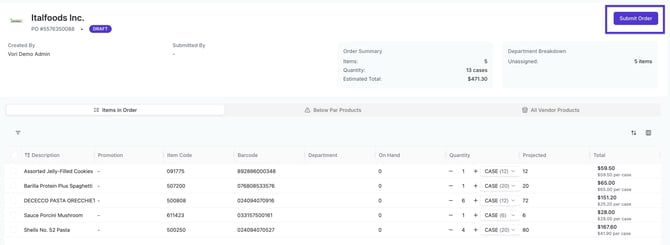
Review the items and quantities, then click the Submit button in the top right-hand corner.
✏️ Note: This process can be used for Single-Vendor orders only. If you have a draft multi-vendor order, you must continue to use the handheld or contact Vori Support for assistance.