![vori-logo-black-horizontal-01 (1).png]](https://help.vori.com/hs-fs/hubfs/vori-logo-black-horizontal-01%20(1).png?height=42&name=vori-logo-black-horizontal-01%20(1).png)
Table of Contents
Understanding Inventory Movement
Keeping accurate counts is essential as we prepare for the official rollout of Perpetual Inventory. You can monitor how your stock levels change in real-time.
-
Navigate to Inventory & Supply Chain > Inventory.
-
View the list of products to see recent movement.
-
Click into any item to see if the movement was a Manual Adjustment or a Purchase. If it was a purchase, a link to the specific order will be available in this view.
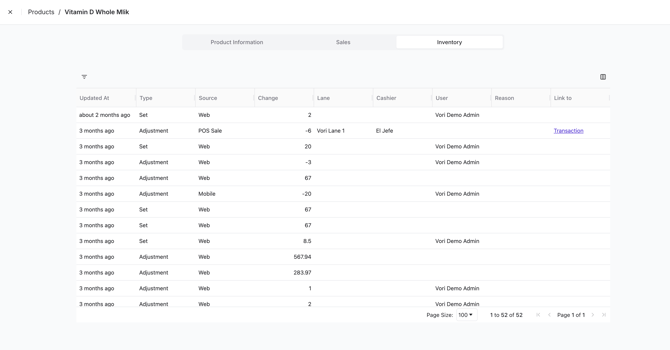
💡 Tip: Click the Hamburger Icon (three horizontal lines) on the table to show or hide specific columns to customize your view.
Adjusting Single or Multiple Items
You can quickly update a handful of products directly from the main view without an upload.
-
Use the Search Bar or Filters to find your products.
-
Tick the checkbox next to the item(s) you wish to update.
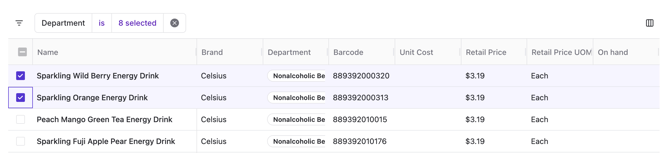
-
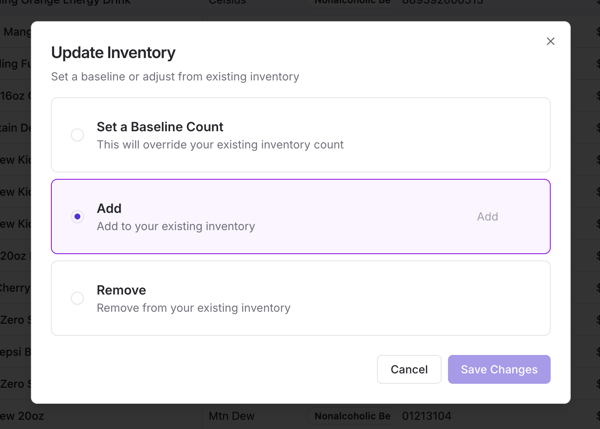
A menu will pop up at the bottom.
-
On-Hand Adjustments:
-
Set Baseline: Overwrite the current count with a new total.
-
Add: Increase the current count.
-
Remove: Decrease the current count.
-
✏️ Note: If you select Remove, you can assign a "Reason for Shrink." This data will automatically populate your Shrink Report in Inventory Reporting.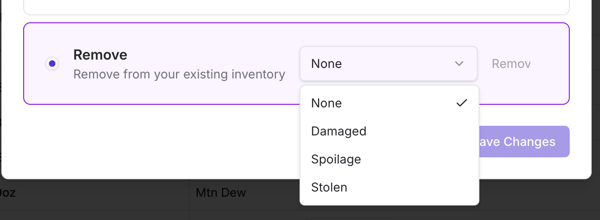
Bulk Updating Inventory via CSV
For store-wide updates or post-receiving adjustments, use the CSV upload tool.
Step 1: Prepare your File
Your CSV must contain a Barcode and at least one of the following: On Hand, Min Par, or Max Stock.
📥 Download the Vori Inventory Import Template
Step 2: Upload and Map
-
On the Inventory page, click Upload in the top right-hand corner.
-
Select your file and click Upload.
-
Select Adjustment Type:
-
Set: Replaces current quantities with the file's values. (Unlisted products remain unchanged).
-
Adjust: Adds or subtracts from current quantities. Use negative numbers for subtraction.
-
-
Map Columns: Match your spreadsheet headers to the Vori fields. Click Next.
Step 3: Review and Commit
-
Review Rows: Vori will show valid and invalid rows.
-
Invalid: Investigate the barcode or fix the spreadsheet and re-upload.
-
Valid: You can manually delete any valid rows you do not wish to update.
-
-
Unmatched/Ignored: Review any items the system could not link.
-
Commit: Review the final summary and hit Commit. Your inventory levels are now updated.
Troubleshooting
Why is my "On Hand" count not changing?
Ensure you selected the correct Adjustment Type. If you chose "Adjust" and uploaded a "5", it will add 5 to your current stock. If you meant for the total to be 5, you must select "Set."
How do I see my Shrink data?
Any time you "Remove" inventory via the manual adjustment tool and provide a reason, it is tracked. Navigate to Reporting > Inventory > Shrink Report to view these losses.