![vori-logo-black-horizontal-01 (1).png]](https://help.vori.com/hs-fs/hubfs/vori-logo-black-horizontal-01%20(1).png?height=42&name=vori-logo-black-horizontal-01%20(1).png)
Vori sends email notifications to keep you updated on financial changes and tasks. These emails ensure you never miss a cost increase, a new item, or a pending invoice.
Table of Contents
About Invoice Emails
There are four specific types of invoice alerts you might receive:
-
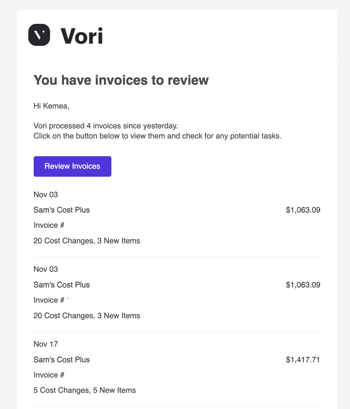
Daily Digest: A summary email sent once a day listing all invoices processed within the last 24 hours.
-
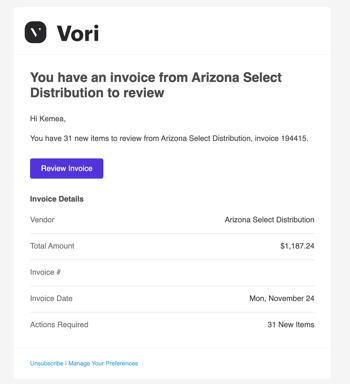
Single Invoice Review: An immediate alert when a specific invoice from a vendor needs your attention (often due to new items).
-
Multiple Invoices Review: A batched alert letting you know you have several invoices waiting for review.

-
Cost Changes Alert: A specific notification highlighting cost changes detected from a vendor that need your approval.
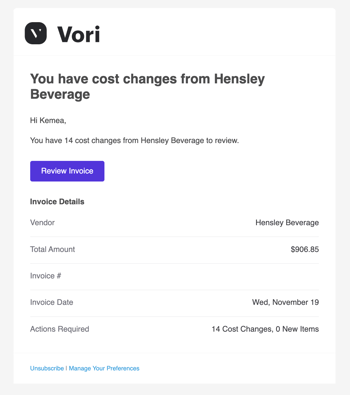
What’s in the email? All four email types contain a purple Review Invoice (or Review Invoices) button. Clicking this button takes you directly to the relevant invoice or list in Vori, where you can verify line items and approve changes.
How to Unsubscribe from Emails
If you prefer not to receive these emails, you can unsubscribe directly from your inbox.
-
Open any invoice notification email.
-
Scroll to the bottom of the message or look near the sender info.
-
Click Unsubscribe.
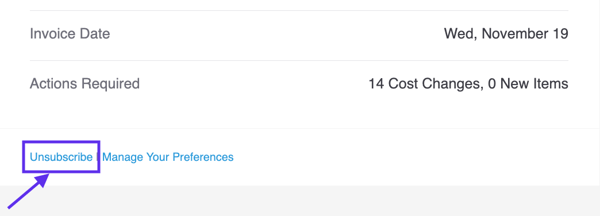
This will remove you from that specific mailing list. For more granular control over what alerts you receive and when, we recommend using your notification preferences in Vori.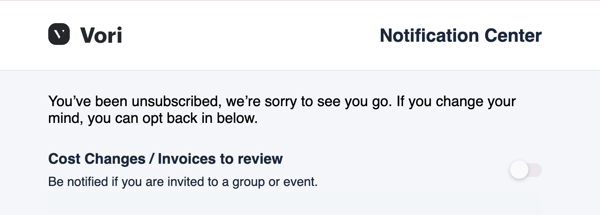
How to Update Notification Preferences
You can manage exactly which notifications you receive—and when you receive them—directly in the Vori web app. These settings control both your email alerts and the pop-up notifications you see while using Vori.
-
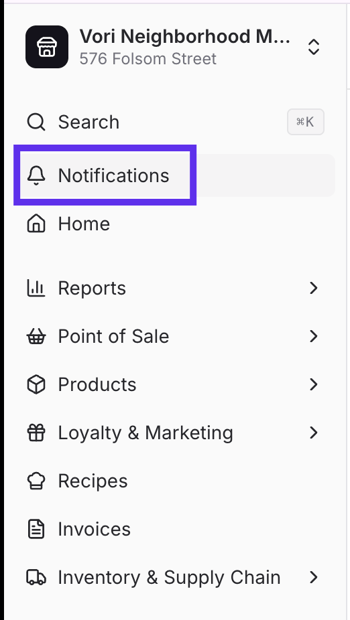
Click Notifications (bell icon) in the top right corner of the screen.
-
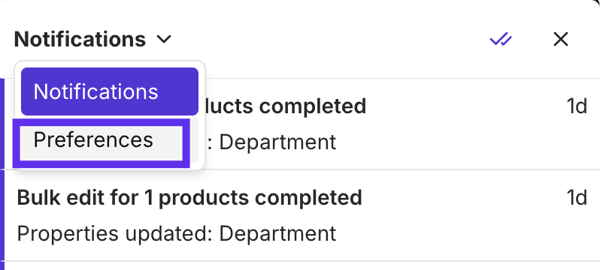
Click Preferences inside the notifications dropdown menu.
-
Cost Changes / Invoices to review: Turn this off to stop receiving immediate alerts for every single invoice or cost change.
-
Daily digest for Cost Changes / Invoices: Turn this on to receive a single summary email instead.
- Adjust your settings using the toggles: (Optional) If you choose the Daily digest, select your preferred time (e.g., Daily at 7:00am) to match your workflow.
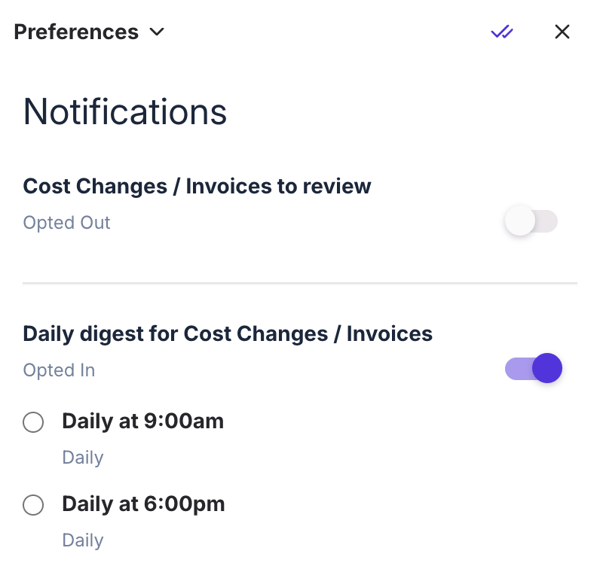
- Adjust your settings using the toggles: (Optional) If you choose the Daily digest, select your preferred time (e.g., Daily at 7:00am) to match your workflow.
-
Troubleshooting
What if I’m still getting emails after unsubscribing? If you clicked Unsubscribe in an email but are still receiving alerts, check your Preferences in the Vori app to ensure the toggles are set to off. System-critical emails (like password resets) cannot be turned off.
Can I receive the digest but not the individual emails? Yes. In your Preferences, toggle Cost Changes / Invoices to review to off, and toggle Daily digest for Cost Changes / Invoices to on. This reduces inbox clutter while keeping you informed.