![vori-logo-black-horizontal-01 (1).png]](https://help.vori.com/hs-fs/hubfs/vori-logo-black-horizontal-01%20(1).png?height=42&name=vori-logo-black-horizontal-01%20(1).png)
We know that accurate margins are the lifeline of an independent grocery store. To keep your data precise, Vori automatically tracks costs from all your vendors to determine which costs should drive your retail pricing.
However, you may have specific vendors you use only for backup that shouldn't impact your day-to-day margin reporting. This guide explains how to manage these settings to ensure your back office reflects reality.
Table of Contents
How the Latest Cost is Determined
By default, Vori calculates your margin based on the Latest Cost.
-
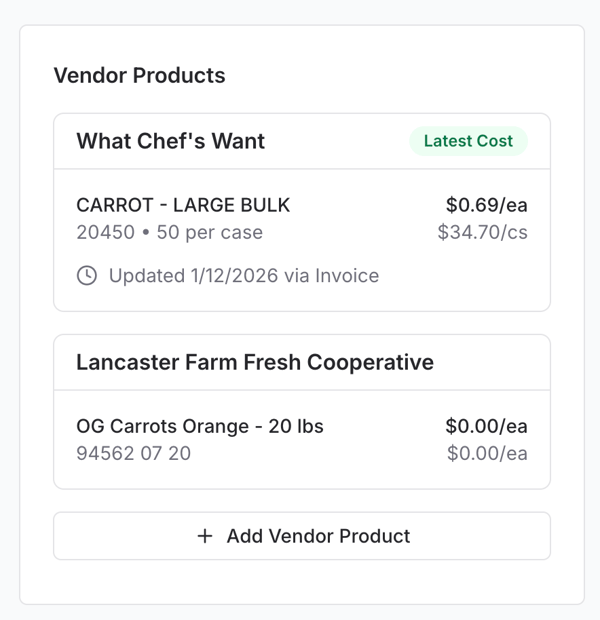
The system automatically looks at all "Active" vendor products associated with an item. The vendor with the most recent data point—whether from an invoice or a manual update—becomes the Lastest Cost source (highlighted in green in the Vendor Products section of the Product Details page).
-
For example, if you usually buy Spinach from Fingerlakes Farms, but you received a delivery from Baldor Specialty Foods yesterday, the system will use the Baldor cost to calculate your current margin because it is the most recent financial data available.
Exclude a Vendor from Margin Calculations
Sometimes you might purchase an item from a "backup" vendor at a higher price just to keep shelves stocked. You likely do not want this temporary higher cost to skew your margin reports or trigger price change alerts.
You can tell Vori to ignore a specific vendor's cost when calculating margins.
-
Navigate to the Product Catalog, hover over the product name, and select Open to view that specific product.
-
Scroll down to the Vendor Products card on the right side of the screen.
-
Locate the vendor you wish to exclude and click the Edit (pencil) icon.
-
In the pop-up window, toggle on Ignore this product when calculating price & margin.
-
Click Done.
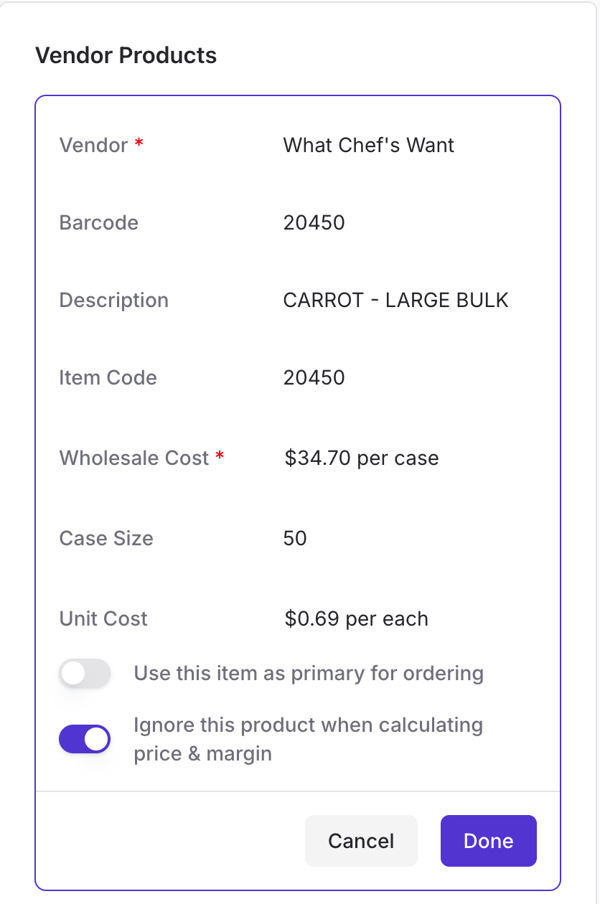
Once enabled, Vori will skip this vendor when determining the Latest Cost, ensuring your margins remain based on your primary or standard suppliers.
Set a Primary Vendor for Ordering
It is important to distinguish between Ordering and Pricing.
-
Latest Cost (Pricing): Determined by the most recent invoice date or manual update to ensure financial accuracy.
-
Primary for Ordering: Determines which vendor is selected by default when you generate a Purchase Order (PO).
You can mark a vendor as your favorite for ordering without affecting the cost logic.
-
On the Vendor Products section click the Edit (pencil) icon next to your preferred vendor.
-
Toggle on Use this item as primary for ordering.
-
Click Done.
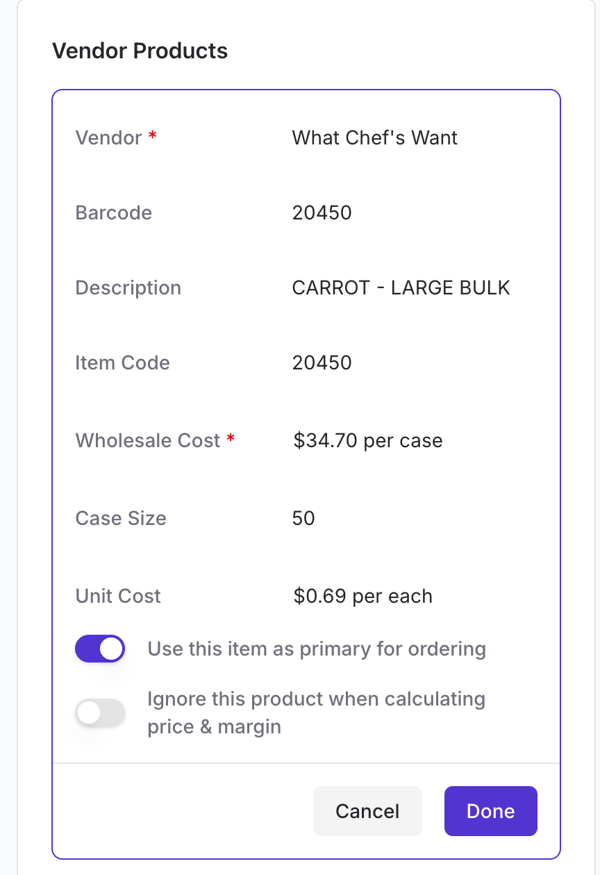
💡 Tip: You can have a vendor set as "Primary for ordering" while a different vendor is currently displaying the "Latest Cost" if the second vendor has a more recent invoice.
Troubleshooting
Why is my preferred vendor not showing as the Latest Cost?
-
The Latest Cost is driven strictly by the date of the last cost update (invoice or user entry). If your preferred vendor hasn't been invoiced recently, but a secondary vendor has, the system defaults to the freshest data.
-
To fix this, you can either:
-
Manually update the cost/date of your preferred vendor.
-
Use the "Ignore this product..." toggle on the secondary vendor if you don't want their pricing to count.
-