![vori-logo-black-horizontal-01 (1).png]](https://help.vori.com/hs-fs/hubfs/vori-logo-black-horizontal-01%20(1).png?height=42&name=vori-logo-black-horizontal-01%20(1).png)
In Vori, a Vendor Product creates a bridge between the item on your shelf (the Store Product) and the item in your supplier's catalog. Establishing this link allows you to automate purchase orders and track rising costs.
Table of Contents
Why Link Vendor Products?
A single item on your shelf—like "Lemon Iced Tea Mix"—might be purchased from multiple sources. You might buy it primarily from Vendor A, but occasionally pick it up from Vendor B when stock is low.
By adding a Vendor Product for each supplier, you tell the system:
-
Who you buy it from.
-
The Code the vendor uses to identify it.
-
The Wholesale Cost and Case Size.
This data powers your "Latest Cost" calculations and ensures that when you scan an item to order, Vori knows exactly which vendor code to put on the Purchase Order.
Add a New Vendor Link
You can manually add a vendor connection to any product in your catalog in just a few clicks.
-
Navigate to the Product Catalog page and select Open next to the product name you wish to update.
-
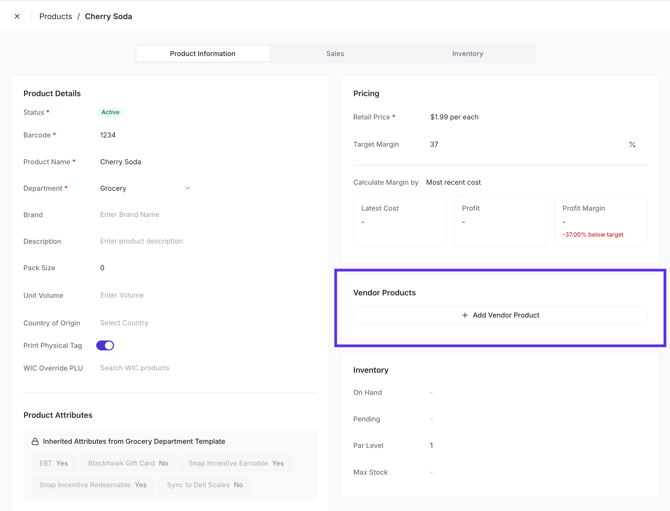
From the Product Details page, scroll to the Vendor Products section on the right side of the screen.
-
Click + Add Vendor Product.
-
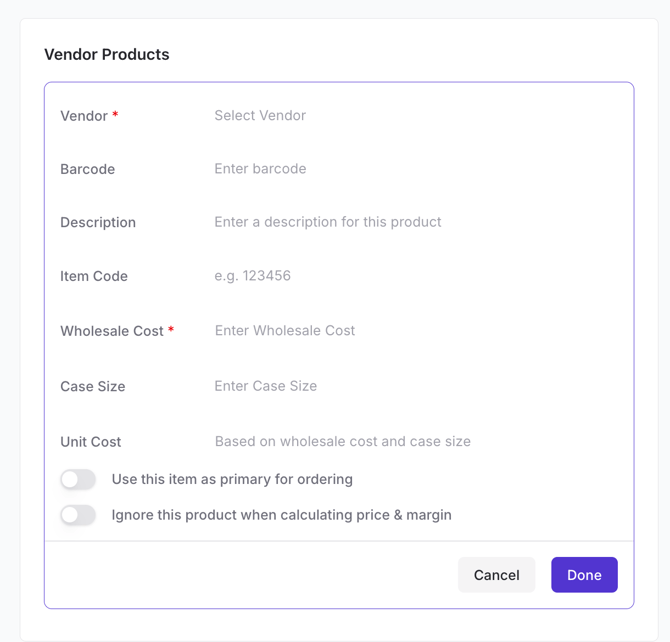
Select the Vendor from the dropdown menu.
-
Enter the key details:
- Barcode: UPC number.
- Description: Name of the product.
-
Vendor Item Code: (Optional but recommended) The code the supplier uses on their invoice.
-
Wholesale Cost: The price you pay. Ensure you select the correct unit (per case vs. per each vs per lb).
-
Case Size: How many units are in the case.
-
Review the Unit Cost (automatically calculated, if applicable).
-
Click Done.
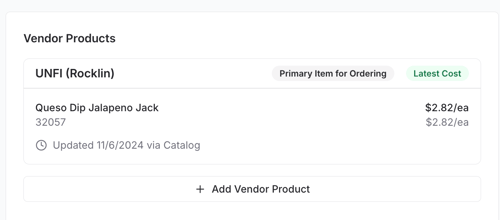
- The new vendor will now appear in the list. If this is the most recently updated cost, it may automatically become the "Active Cost" for margin calculations.
Edit or Remove a Connection
Prices change, and suppliers rotate. You can easily keep your links up to date.
To Edit from the Product Detail Page:
- Hover over the Vendor Product data.
-
Click the Edit (pencil) icon.
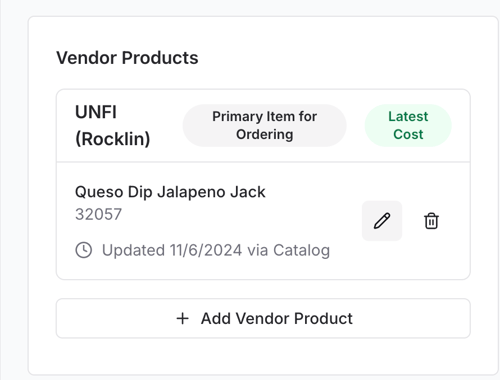
- Update vendor product details, including barcode, description, cost, case size, item code, and related information.
-
Click Done to save.
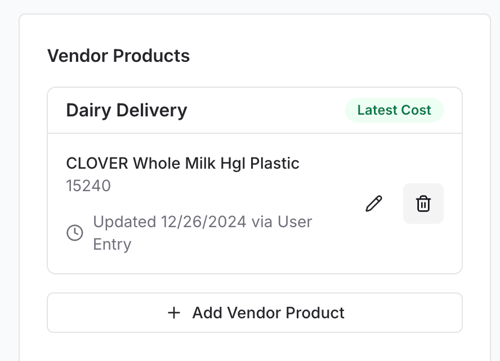
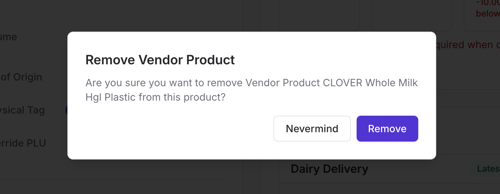
To Remove a Vendor Product Connection:
-
Click the Edit (pencil) icon.
-
Click the Trash Can icon in the bottom corner of the pop-up.
-
Confirm the deletion.
 vv
vv
Troubleshooting
I can't find the vendor in the dropdown list. The vendor must be set up in your main Vendor Directory before you can link products to them. If the vendor is missing, navigate to your Vendors page to add their profile first.
I entered the cost, but the margin looks wrong. Double-check your Case Size. A common error is entering a "Case Cost" (e.g., $24.00) but leaving the Case Size as "1". This tells the system the item costs $24.00 per unit rather than $2.00 per unit ($24.00 / 12).