> ## Documentation Index
> Fetch the complete documentation index at: https://help.vori.com/llms.txt
> Use this file to discover all available pages before exploring further.
# Review Received Deliveries and Commit Cost Changes
> Reconcile what came in against an invoice, apply cost changes, and view your receiving history in the Back Office.
Once a delivery has been [received on the handheld](/invoicing-cost-changes-and-smart-pricing/receiving/receive-deliveries-on-the-handheld), finish the job in the Back Office: reconcile any issues, apply cost changes, and decide whether to update inventory at the same time.
✏️ **Note:** Receiving is currently in closed beta and only available to select stores.
***
### Review What Was Received
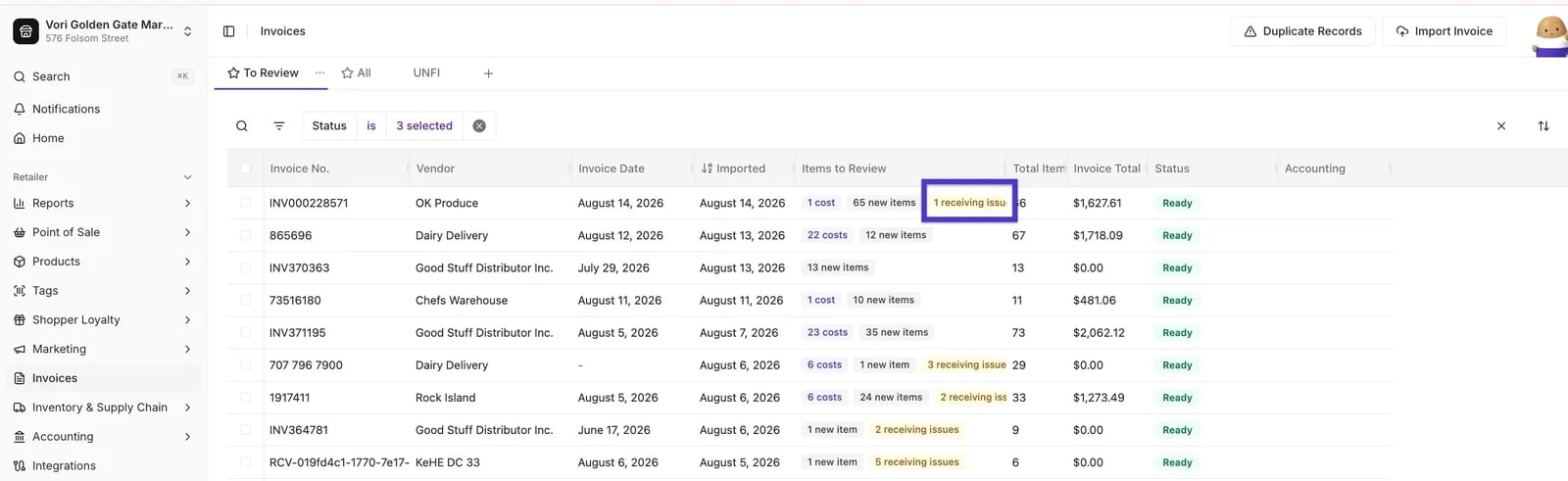
Invoices with items received on the handheld show a **receiving issue** flag in the **Items to Review** column, so you can spot them before opening anything.
 1. Open **[Invoices](https://app.vori.com/retail/invoices)** and select the invoice tied to your receiving session.
2. Open the **Receiving** tab on the invoice to see every item from the handheld scan, with and without issues, along with the quantity received and any issues flagged — damaged, expired, or short.
1. Open **[Invoices](https://app.vori.com/retail/invoices)** and select the invoice tied to your receiving session.
2. Open the **Receiving** tab on the invoice to see every item from the handheld scan, with and without issues, along with the quantity received and any issues flagged — damaged, expired, or short.
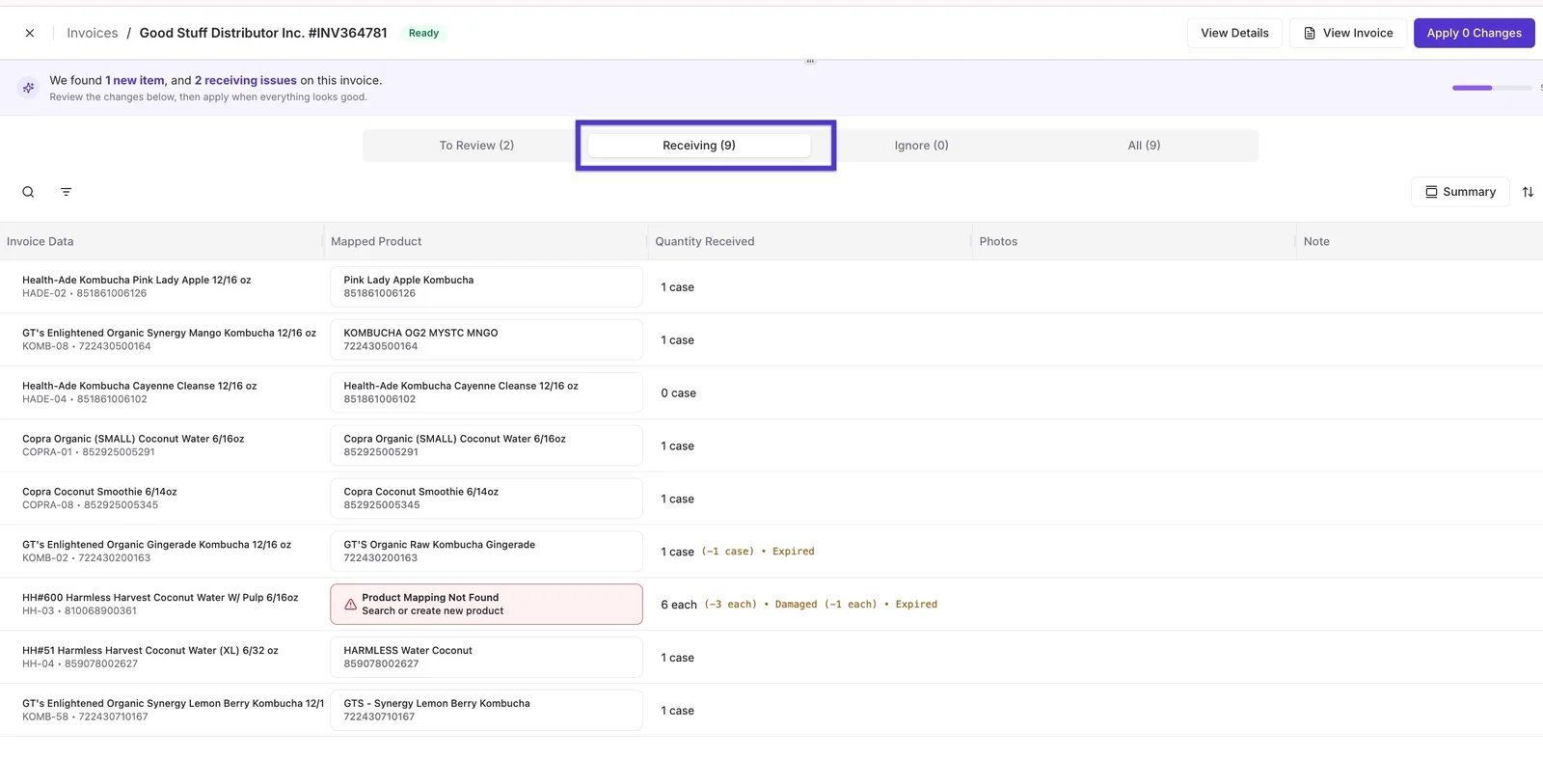 Use this to confirm your cost changes line up with what actually arrived before you commit anything.
***
### Adjust Inventory Updates
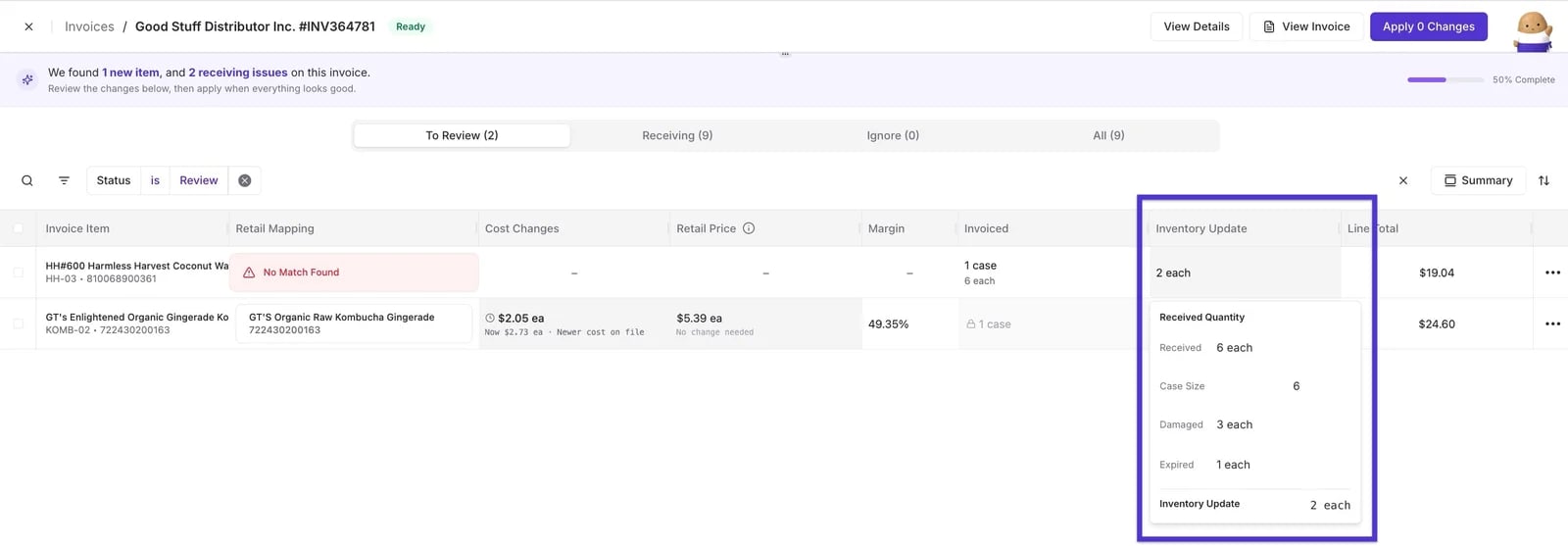
On the **To Review** tab, the **Inventory Update** column shows the net quantity that will be added to inventory for each item. Click into it to see the full breakdown: received quantity, case size, and any damaged or expired units — Vori subtracts those automatically from what gets added to inventory.
Use this to confirm your cost changes line up with what actually arrived before you commit anything.
***
### Adjust Inventory Updates
On the **To Review** tab, the **Inventory Update** column shows the net quantity that will be added to inventory for each item. Click into it to see the full breakdown: received quantity, case size, and any damaged or expired units — Vori subtracts those automatically from what gets added to inventory.
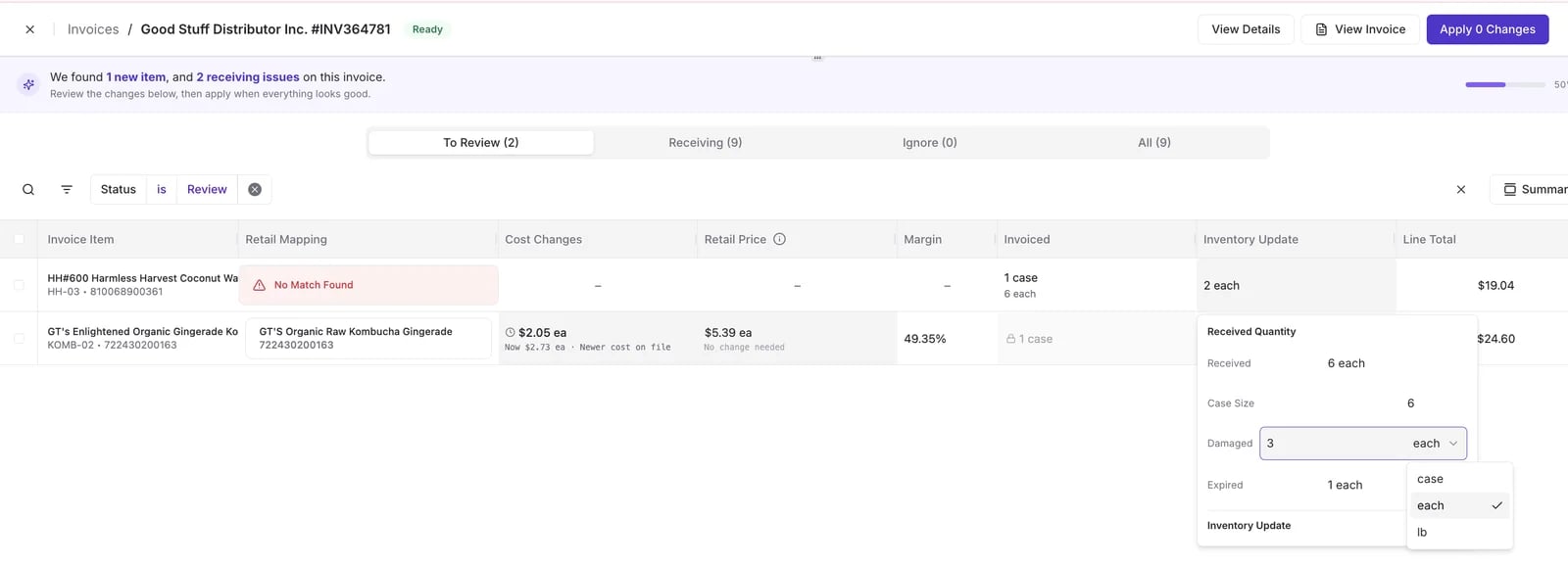
 If something changes after receiving — for example, your team finds a few units expired after the item was already marked with no issues — adjust **Damaged** or **Expired** here before you commit. Toggle between **case**, **each**, or **lb** to match however you're counting.
 ***
### Choose What to Commit
When you're ready to finalize the invoice:
* Leave **Update Inventory** checked to apply your cost changes and inventory updates together.
* Uncheck **Update Inventory** if you only want to commit cost changes for now — useful if you're still finishing a physical count, or want to test the workflow without changing your on-hand counts.
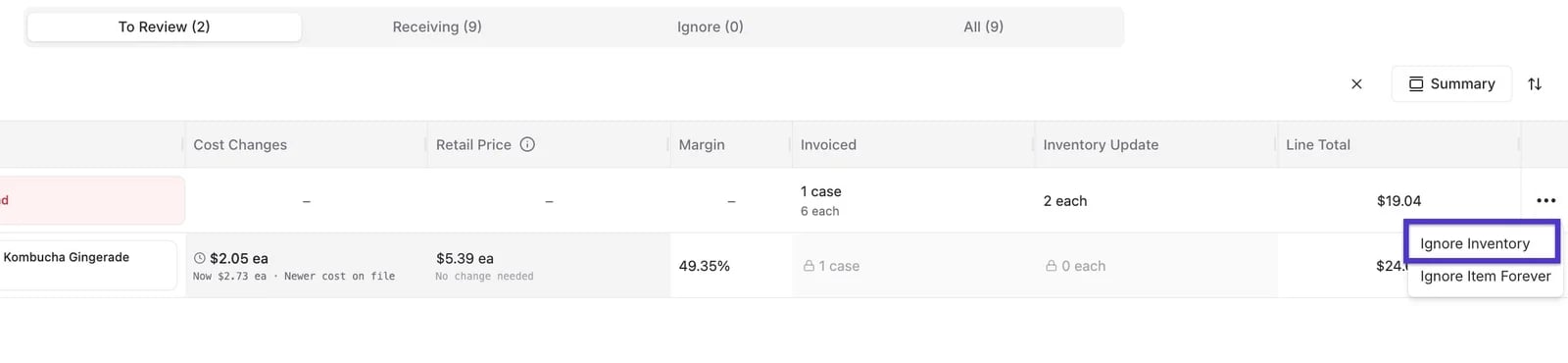
* Use **Ignore Inventory** from an item's three-dot menu if you don't want that item's quantity to affect inventory at all.
***
### Choose What to Commit
When you're ready to finalize the invoice:
* Leave **Update Inventory** checked to apply your cost changes and inventory updates together.
* Uncheck **Update Inventory** if you only want to commit cost changes for now — useful if you're still finishing a physical count, or want to test the workflow without changing your on-hand counts.
* Use **Ignore Inventory** from an item's three-dot menu if you don't want that item's quantity to affect inventory at all.
 Tap **Apply Changes** to see a summary of everything you're about to commit — product changes, cost and price updates, and inventory updates — before it's final.
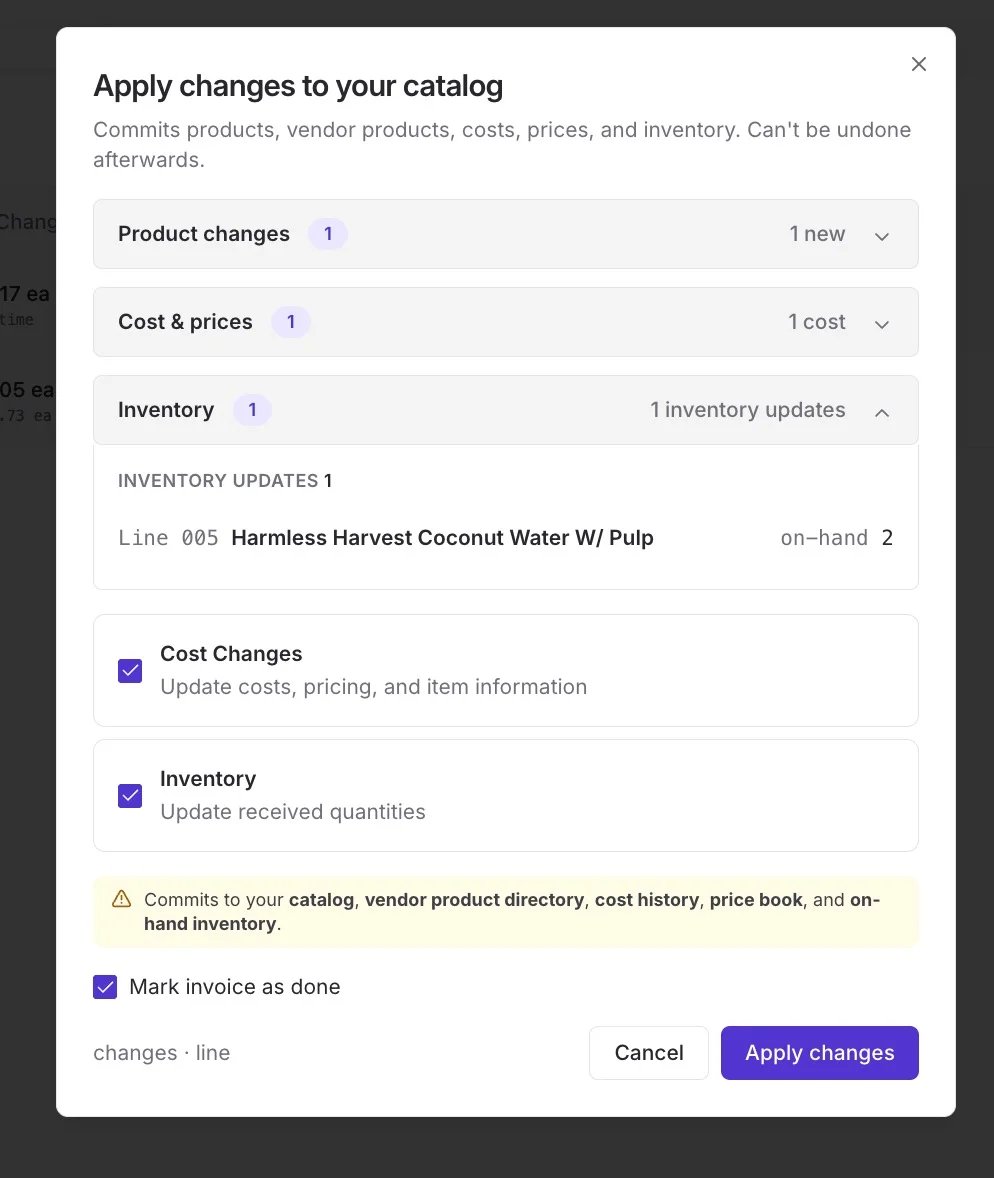 Once applied, cost and price for that invoice are locked to keep your financial records clean.
***
### View Your Receiving History
To see every receiving session across your store, go to **Inventory & Supply Chain > Receiving**.
Once applied, cost and price for that invoice are locked to keep your financial records clean.
***
### View Your Receiving History
To see every receiving session across your store, go to **Inventory & Supply Chain > Receiving**.
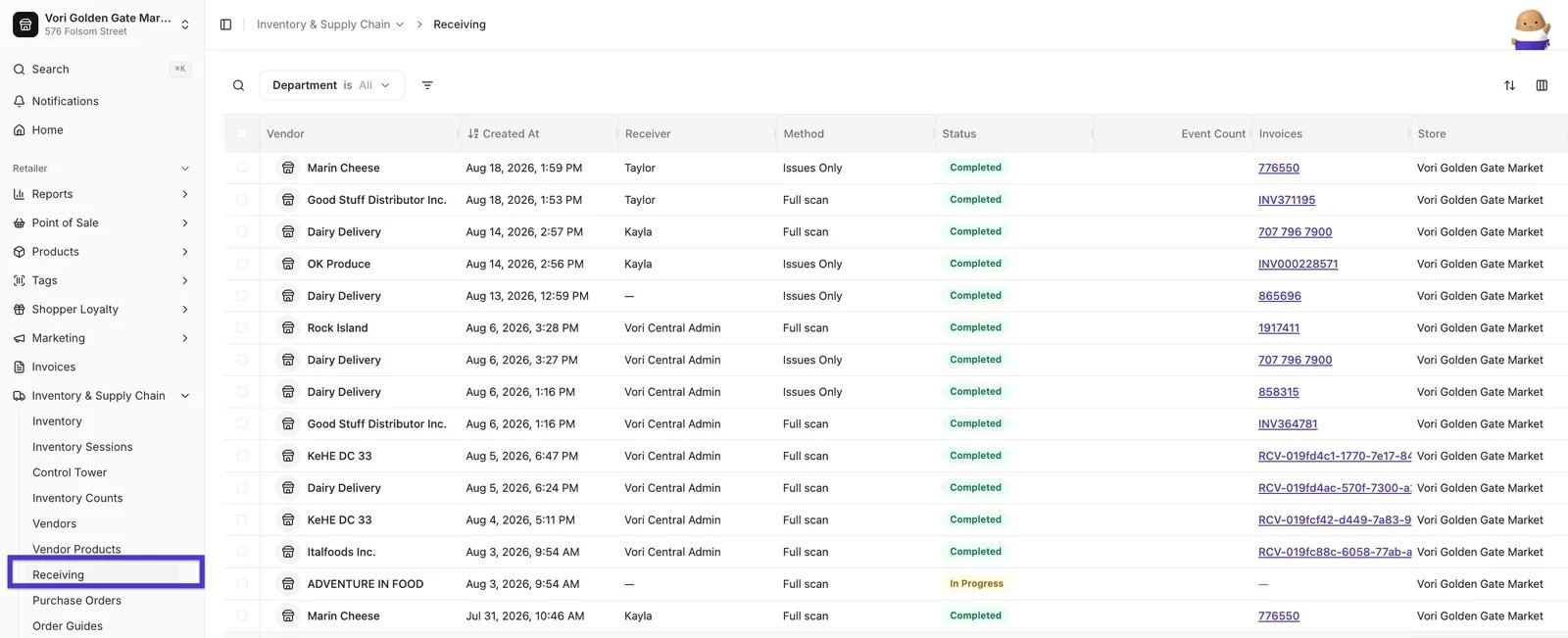 * Each row shows the **vendor**, when it was **created**, who **received** it, the **method** (Full scan or Issues Only), and its **status** (Completed or In Progress).
* The **Invoices** column links directly to the invoice tied to that session.
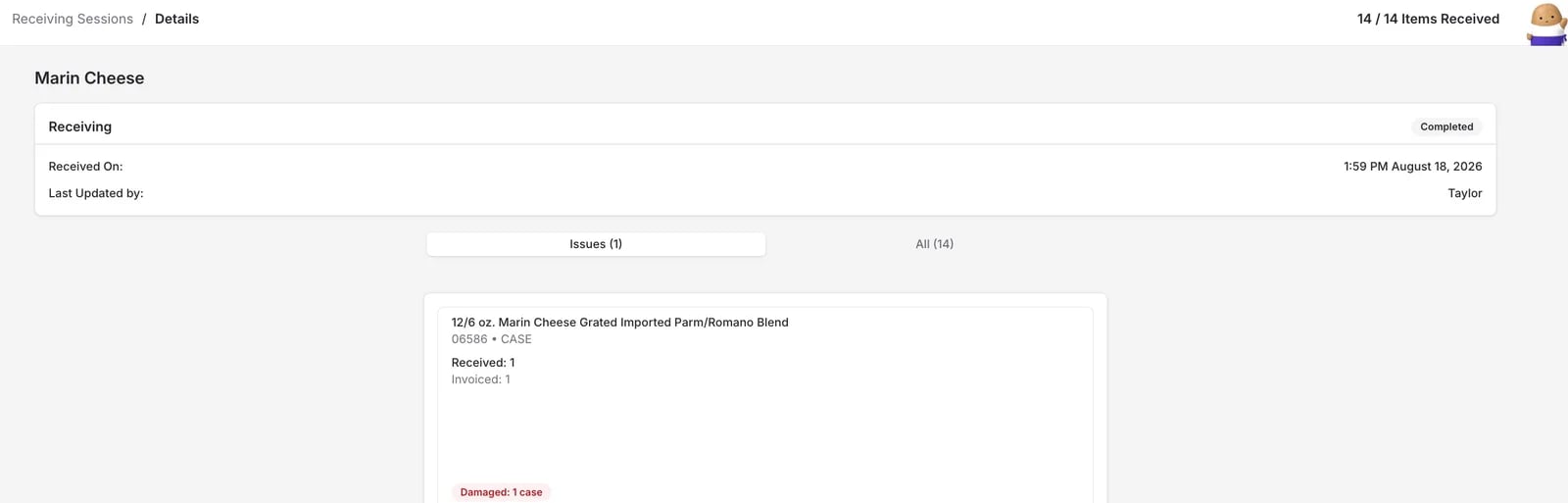
* Tap into a session to see a summary of what was received and any issues flagged.
* Each row shows the **vendor**, when it was **created**, who **received** it, the **method** (Full scan or Issues Only), and its **status** (Completed or In Progress).
* The **Invoices** column links directly to the invoice tied to that session.
* Tap into a session to see a summary of what was received and any issues flagged.
 ## Related topics
- [Receive Deliveries on the Handheld](/invoicing-cost-changes-and-smart-pricing/receiving/receive-deliveries-on-the-handheld.md)
- [Manage Invoices, New Items, and Cost Changes](/invoicing-cost-changes-and-smart-pricing/cost-changes-and-smart-pricing/manage-invoices-new-items-and-cost-changes.md)
- [Preparing Your Store for Advanced Inventory Launch](/inventory-and-ordering/inventory/preparing-your-store-for-advanced-inventory-launch.md)
## Related topics
- [Receive Deliveries on the Handheld](/invoicing-cost-changes-and-smart-pricing/receiving/receive-deliveries-on-the-handheld.md)
- [Manage Invoices, New Items, and Cost Changes](/invoicing-cost-changes-and-smart-pricing/cost-changes-and-smart-pricing/manage-invoices-new-items-and-cost-changes.md)
- [Preparing Your Store for Advanced Inventory Launch](/inventory-and-ordering/inventory/preparing-your-store-for-advanced-inventory-launch.md)