> ## Documentation Index
> Fetch the complete documentation index at: https://help.vori.com/llms.txt
> Use this file to discover all available pages before exploring further.
# Upload Invoices to Vori
> Learn how to scan and upload vendor invoices for processing in the Invoice tool.
***
### How to Get Invoices into Vori
There are several ways to get your vendor invoices into Vori for processing:
* **EDI Automatic Integration:** This upload process is supported for certain vendors (**KeHE**, **JFC**, **CSWG**, **Good Stuff, Rock Island, Clover, SF Naturals**) through a direct system-to-system integration. Please contact Vori support for more details.
* **Invoice Email Inbox:** Set up a dedicated email inbox that auto-forwards invoices to Vori for mapping, upload, and processing. Learn more about **[Setting Up an Invoice Inbox for Cost Changes](/cost-changes-and-smart-pricing/invoice-email-management/configure-an-invoice-email-inbox-for-automatic-cost-change-updates).**
* **Spreadsheet Import:** Download and upload Excel sheets for specific vendors like **UNFI** and **Supervalu**. View guides for **[Downloading UNFI Invoices](/cost-changes-and-smart-pricing/unfi-and-supervalu/how-to-download-unfi-invoices-for-cost-change-review)** and **[Downloading Supervalu Invoices](/invoicing-cost-changes-and-smart-pricing/unfi-and-supervalu/how-to-download-supervalu-invoices-for-cost-change-review).**
* **Manual Scan and Upload:** Scan paper invoices using a document scanner or phone app (**[Google Drive App,](https://support.google.com/drive/answer/3145835?hl=en\&co=GENIE.Platform%3DDesktop\&oco=1) [iPhone Notes App](https://support.apple.com/en-us/108963), or [CamScanner](https://www.camscanner.com/))** and manually upload the files to New Back Office Invoice tool.
***
### Supported Invoice File Types
You can manually upload the following file types for review:
* **Image file**
* PDF
* PNG
* JPG
* **Spreadsheet**
* XLS - UNFI only
* CSV - UNFI only
* TXT - Supervalu only
✏️ **Note:** Direct spreadsheet uploads are currently supported only for **[UNFI and Supervalu invoices](/cost-changes-and-smart-pricing/unfi-and-supervalu/how-to-download-unfi-invoices-for-cost-change-review)**. If you receive spreadsheet invoices from other vendors, convert them to a PDF before uploading.
***
### How to Upload an Invoice to the Back Office
Once your invoice file is saved to your computer, you can upload it to Vori.
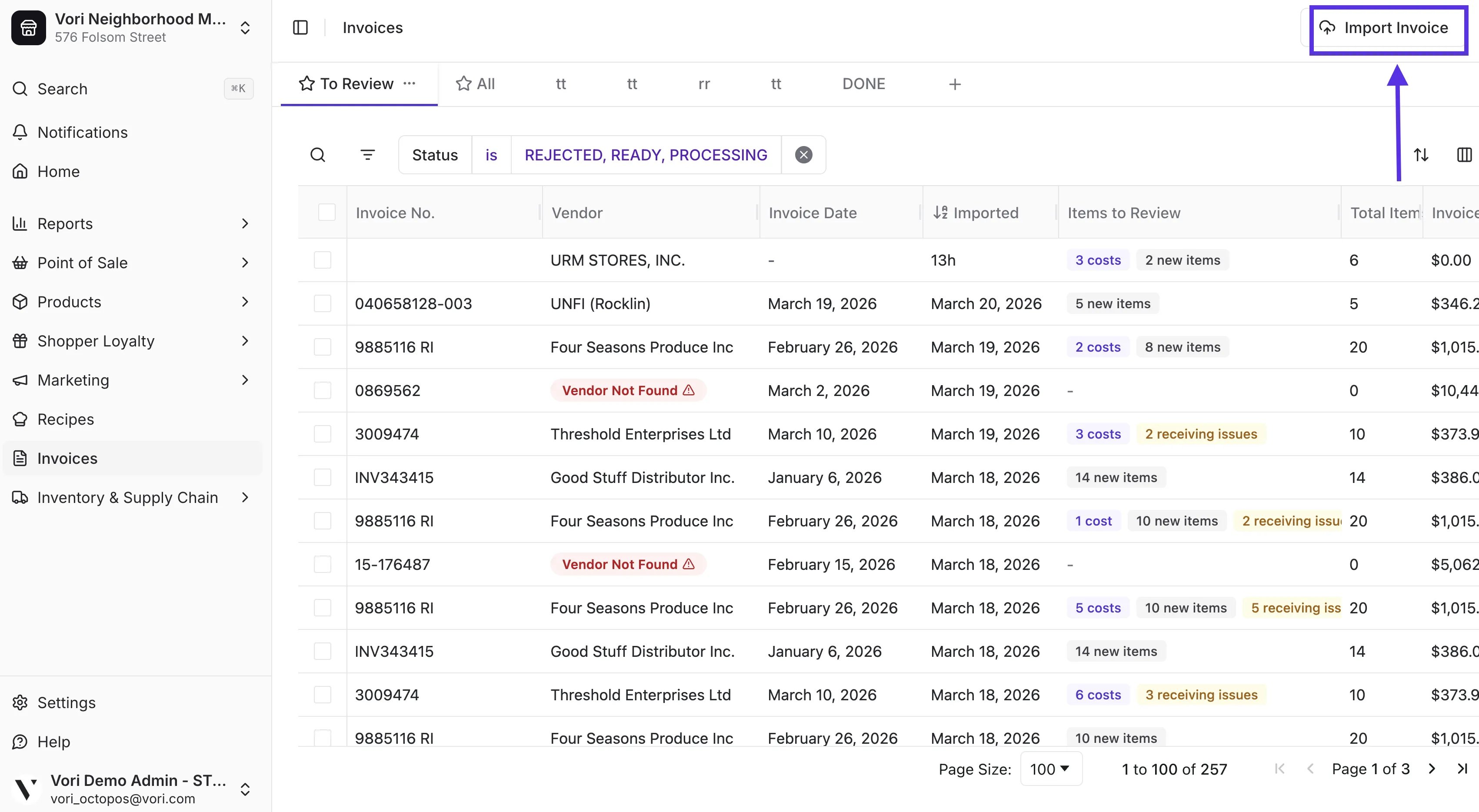
1. Navigate to the **[Invoices](https://app.vori.com/retail/invoices)** module.
2. Tap **Import Invoice** in the top right corner of the page.
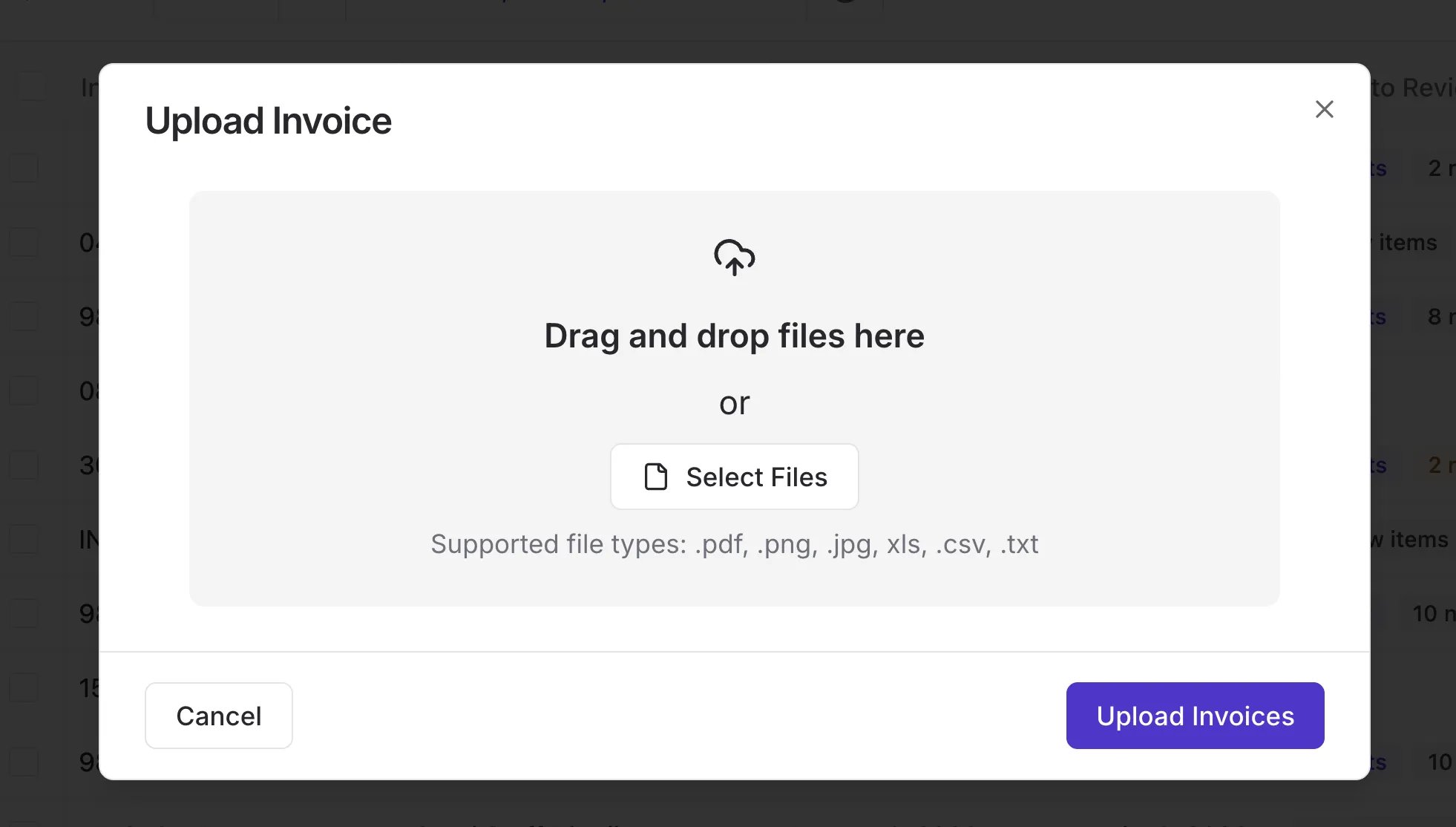
 3. Click to upload or drag and drop the UNFI file.
4. Tap \*\*Upload Invoices.
3. Click to upload or drag and drop the UNFI file.
4. Tap \*\*Upload Invoices.
 \*\*
💡 **Tip:** You can upload up to 12 invoice files at a time using the bulk upload option.
***
### What to Expect After Upload
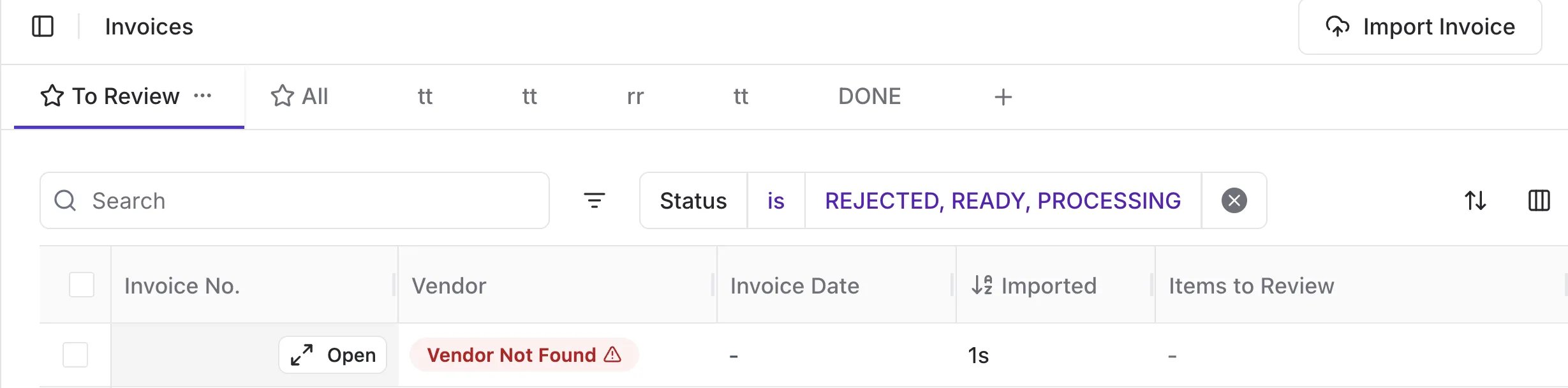
Once your invoice is uploaded, it will appear in the **To Review** tab of the **Invoice table** with a **Processing** status while Vori automatically processes the invoice.
\*\*
💡 **Tip:** You can upload up to 12 invoice files at a time using the bulk upload option.
***
### What to Expect After Upload
Once your invoice is uploaded, it will appear in the **To Review** tab of the **Invoice table** with a **Processing** status while Vori automatically processes the invoice.
 #### Speed Up a Stuck Invoice
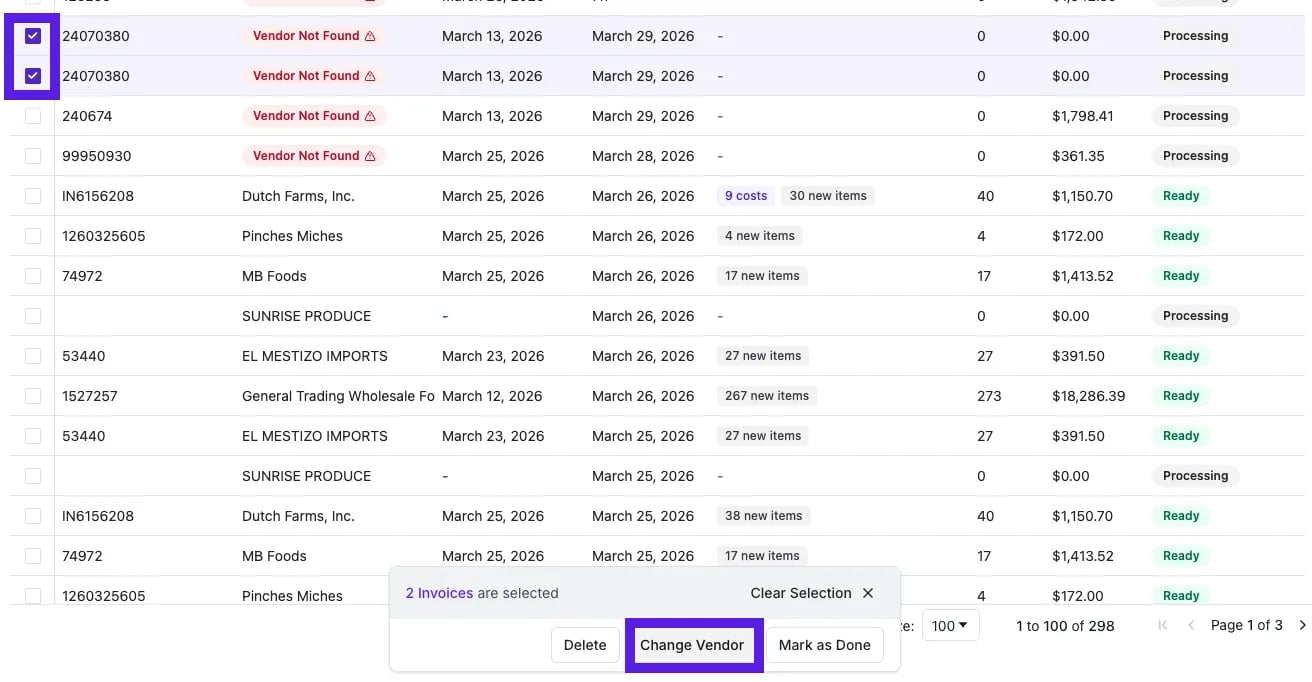
If your invoice is taking longer than expected to process, it may be because the vendor hasn't been linked yet. You can push it through faster by assigning the correct vendor directly from the dashboard.
1. Check the checkbox next to the invoice.
2. Select **Change Vendor** from the action bar at the bottom of the screen.
#### Speed Up a Stuck Invoice
If your invoice is taking longer than expected to process, it may be because the vendor hasn't been linked yet. You can push it through faster by assigning the correct vendor directly from the dashboard.
1. Check the checkbox next to the invoice.
2. Select **Change Vendor** from the action bar at the bottom of the screen.
 3. Choose the correct vendor from your store list.
Vori will reprocess the invoice immediately after the vendor is assigned.
#### Processing to Ready Status
Once processed and mapped to a vendor, the invoice moves to **Ready** status, where Vori flags key items that need your review.
* **New Items:** Products not yet in your system
* **Cost Changes:** Supplier price updates that may impact margin
3. Choose the correct vendor from your store list.
Vori will reprocess the invoice immediately after the vendor is assigned.
#### Processing to Ready Status
Once processed and mapped to a vendor, the invoice moves to **Ready** status, where Vori flags key items that need your review.
* **New Items:** Products not yet in your system
* **Cost Changes:** Supplier price updates that may impact margin
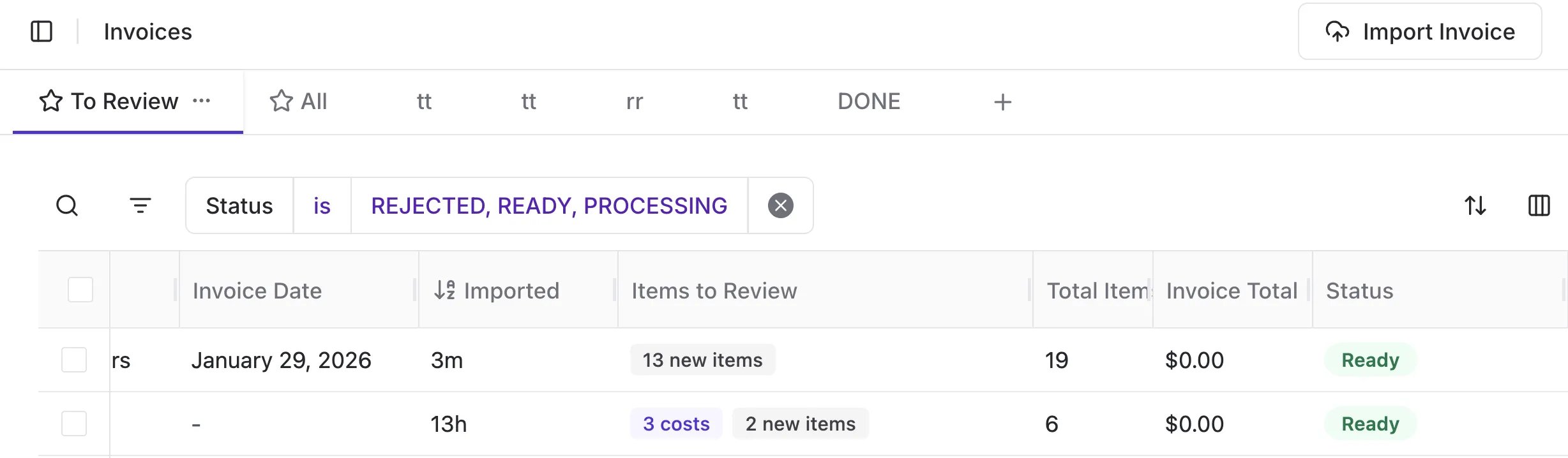 This ensures nothing slips through the cracks and helps you protect margin without digging through paperwork.
## Related topics
- [Troubleshoot Invoice Upload or Scan Formatting Issues](/cost-changes-and-smart-pricing/invoice-upload/troubleshoot-invoice-upload-or-scan-formatting-issues.md)
- [Manage Your Vori Invoice Email Notifications](/cost-changes-and-smart-pricing/invoice-email-management/manage-your-vori-invoice-email-notifications.md)
- [Convert Handwritten Invoices for Cost Changes Using ChatGPT or Gemini](/cost-changes-and-smart-pricing/invoice-upload/convert-handwritten-invoices-for-cost-changes-using-chatgpt-or-gemini.md)
This ensures nothing slips through the cracks and helps you protect margin without digging through paperwork.
## Related topics
- [Troubleshoot Invoice Upload or Scan Formatting Issues](/cost-changes-and-smart-pricing/invoice-upload/troubleshoot-invoice-upload-or-scan-formatting-issues.md)
- [Manage Your Vori Invoice Email Notifications](/cost-changes-and-smart-pricing/invoice-email-management/manage-your-vori-invoice-email-notifications.md)
- [Convert Handwritten Invoices for Cost Changes Using ChatGPT or Gemini](/cost-changes-and-smart-pricing/invoice-upload/convert-handwritten-invoices-for-cost-changes-using-chatgpt-or-gemini.md)