> ## Documentation Index
> Fetch the complete documentation index at: https://help.vori.com/llms.txt
> Use this file to discover all available pages before exploring further.
# Upload Purchase Orders to MyUNFI and KeHE
> Learn how to import purchase orders into your myUNFI and KeHE Connect account.
**✏️Note:** This article explains how to create and download a purchase order from **VoriOS**, then upload it into your **MyUNFI** or **KeHE** portal for final submission. **These upload options are currently in beta and may not yet be available to all stores.**
***
### Section 1: Upload Purchase Orders to MyUNFI
#### Step 1: Create and Download Your Order from VoriOS
1. **Create your order using VoriOS.** Build your UNFI order as usual in the VoriOS app.
2. **Add yourself as an order contact during checkout** to receive a copy of the order file by email.
3. **Download the attached file** from your email — you’ll upload this file to UNFI in the next step.
***
#### Step 2: Log In to MyUNFI
1. Go to [https://www.myunfi.com](https://www.myunfi.com) and sign in using your **MyUNFI** login credentials.
***
#### Step 3: Navigate to the Upload Section
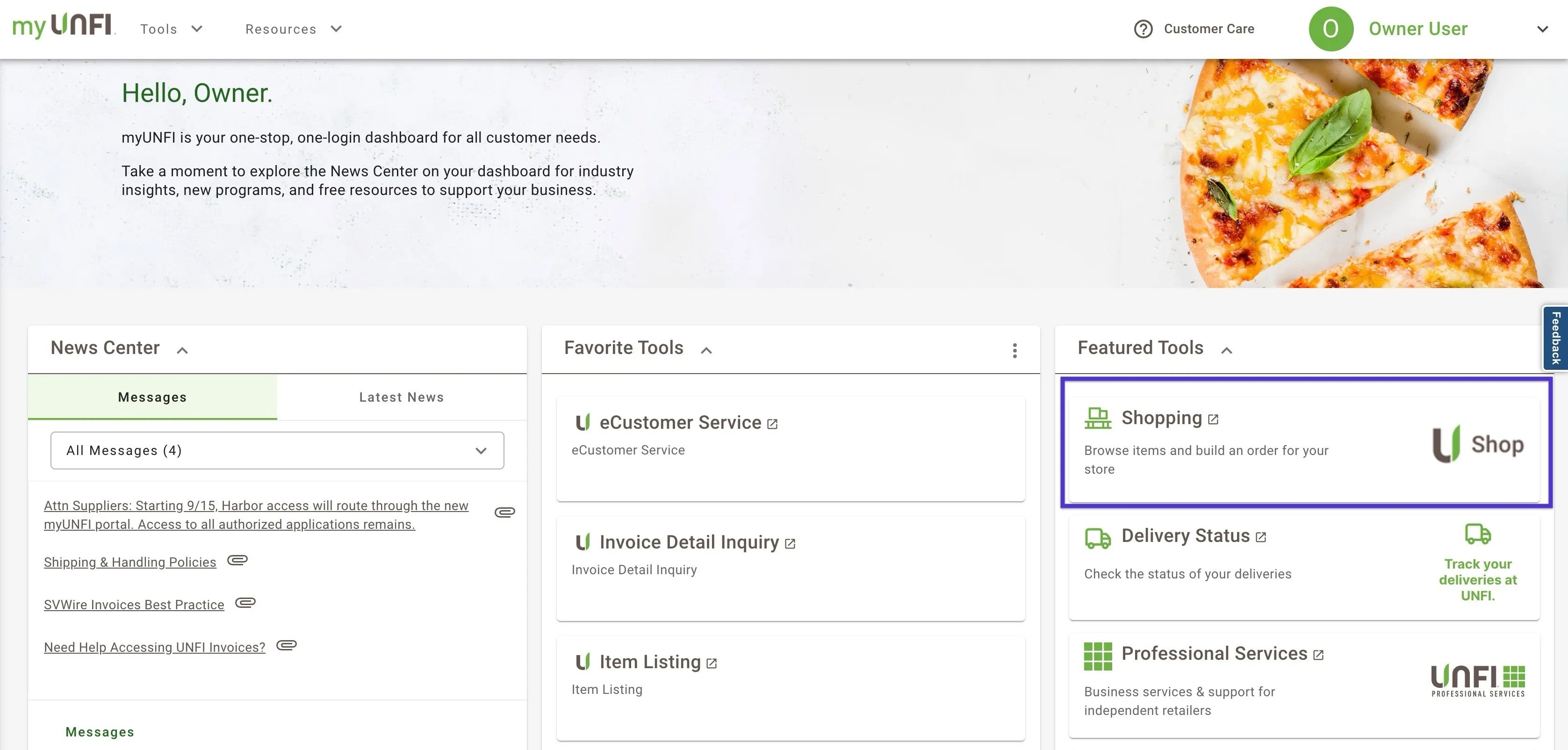
1. From the homepage, click **Shopping** on the right-hand side
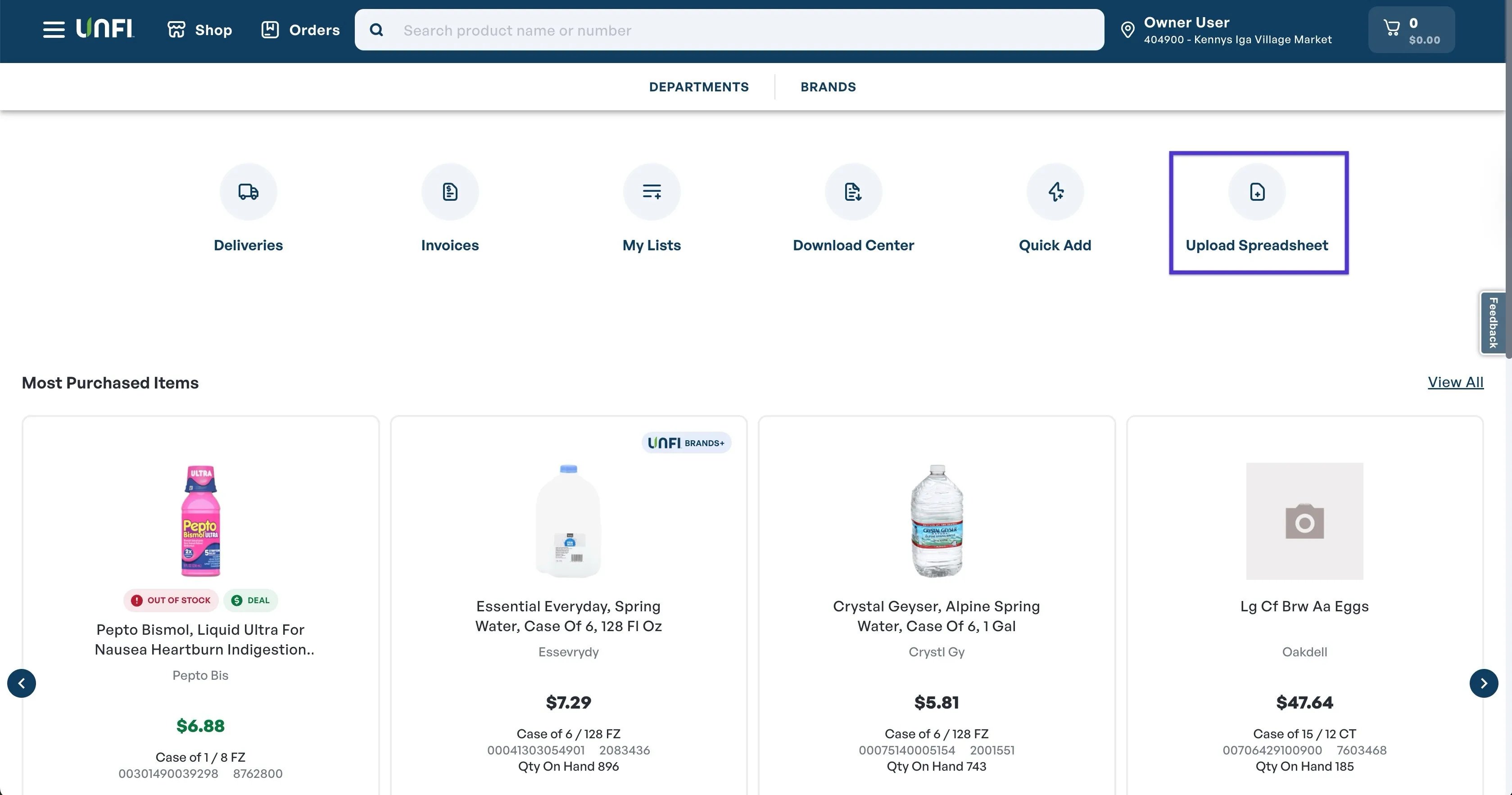
 2. On the right-hand side of the page, click **Upload Spreadsheet**.
 ***
#### Step 4: Upload the CSV File
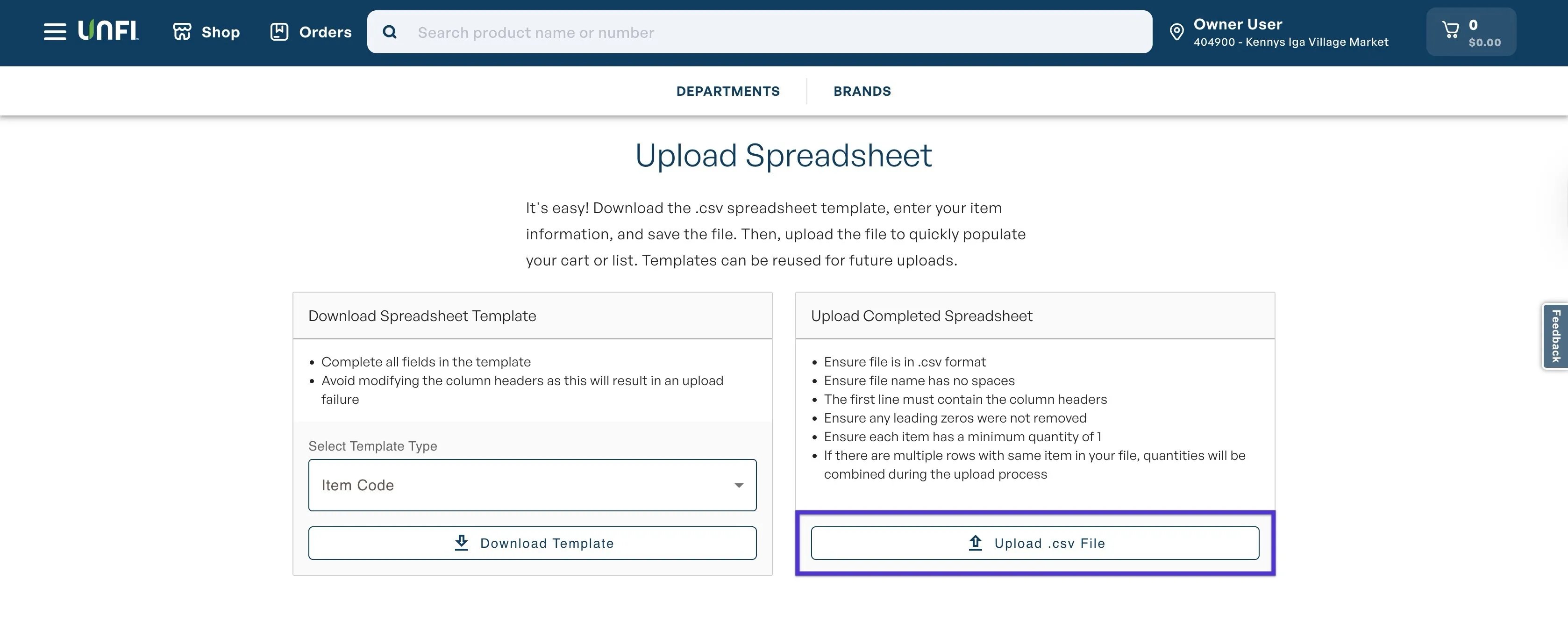
1. Click **Upload CSV.**
2. Select the **CSV file** you downloaded from the order email you received.
3. Click **Upload.csv** to import the file.
***
#### Step 4: Upload the CSV File
1. Click **Upload CSV.**
2. Select the **CSV file** you downloaded from the order email you received.
3. Click **Upload.csv** to import the file.
 ***
#### Step 5: Review the Uploaded Order
After uploading, UNFI will display a summary of the imported order. Review the list for any alerts or flags, such as:
* **Out-of-stock items**
* **Promotional items**
If everything looks correct, proceed with your normal UNFI checkout process.
***
### Section 2: Upload Purchase Orders to KeHE
**✏️ Note:** KeHE orders can also be uploaded via an EDI integration. You can choose if you'd like to turn on the EDI integration for ordering, or manually upload the purchase order.
#### Step 1: Prepare the Order in VoriOS
1. **Create your order in VoriOS**, as usual.
2. **Add yourself as an order contact** to receive a copy of the purchase order file by email.
3. **Download the CSV file** attached to your email — this is the file you’ll upload to KeHE.
***
#### Step 2: Log In to KeHE Connect
1. Log into your store’s **KeHE Connect** account.
#### Step 3: Create a New Order & Upload the File
1. From the dashboard, select **Create New Order**.
2. Choose **File Upload**.
3. Select the CSV file you downloaded from the VoriOS email.
4. Enter an order name (for example: *KeHE 10/10*).
5. The order will upload and display as **Drafted** in your account.
#### Step 4: Review and Submit the Order
1. Click the order link to open it for **review**.
2. Check for alerts or flags, such as **out-of-stock or discontinued items.**
3. Once everything looks correct, proceed with your normal KeHE ordering workflow and submit the order for processing.
***
#### Step 5: Review and Submit the Order
After uploading, KeHE will display a summary of the imported order.
Review for any alerts or flags, such as:
* **Out-of-stock or discontinued items**
* **Quantity mismatches**
If everything looks correct, proceed to **submit your order** through the normal KeHE checkout process.
## Related topics
- [Vori Webinar Training Hub](/vori-webinar-training-hub/vori-webinartraining-hub.md)
- [Preparing Your Store for Ordering Launch](/inventory-and-ordering/ordering/preparing-your-store-for-ordering-launch.md)
- [Upload Invoices to Vori](/invoicing-cost-changes-and-smart-pricing/invoice-upload/upload-invoices-to-vori.md)
***
#### Step 5: Review the Uploaded Order
After uploading, UNFI will display a summary of the imported order. Review the list for any alerts or flags, such as:
* **Out-of-stock items**
* **Promotional items**
If everything looks correct, proceed with your normal UNFI checkout process.
***
### Section 2: Upload Purchase Orders to KeHE
**✏️ Note:** KeHE orders can also be uploaded via an EDI integration. You can choose if you'd like to turn on the EDI integration for ordering, or manually upload the purchase order.
#### Step 1: Prepare the Order in VoriOS
1. **Create your order in VoriOS**, as usual.
2. **Add yourself as an order contact** to receive a copy of the purchase order file by email.
3. **Download the CSV file** attached to your email — this is the file you’ll upload to KeHE.
***
#### Step 2: Log In to KeHE Connect
1. Log into your store’s **KeHE Connect** account.
#### Step 3: Create a New Order & Upload the File
1. From the dashboard, select **Create New Order**.
2. Choose **File Upload**.
3. Select the CSV file you downloaded from the VoriOS email.
4. Enter an order name (for example: *KeHE 10/10*).
5. The order will upload and display as **Drafted** in your account.
#### Step 4: Review and Submit the Order
1. Click the order link to open it for **review**.
2. Check for alerts or flags, such as **out-of-stock or discontinued items.**
3. Once everything looks correct, proceed with your normal KeHE ordering workflow and submit the order for processing.
***
#### Step 5: Review and Submit the Order
After uploading, KeHE will display a summary of the imported order.
Review for any alerts or flags, such as:
* **Out-of-stock or discontinued items**
* **Quantity mismatches**
If everything looks correct, proceed to **submit your order** through the normal KeHE checkout process.
## Related topics
- [Vori Webinar Training Hub](/vori-webinar-training-hub/vori-webinartraining-hub.md)
- [Preparing Your Store for Ordering Launch](/inventory-and-ordering/ordering/preparing-your-store-for-ordering-launch.md)
- [Upload Invoices to Vori](/invoicing-cost-changes-and-smart-pricing/invoice-upload/upload-invoices-to-vori.md)