> ## Documentation Index
> Fetch the complete documentation index at: https://help.vori.com/llms.txt
> Use this file to discover all available pages before exploring further.
# Preparing Your Store for Ordering Launch
> To start ordering through Vori, your vendor data needs to be clean, connected, and accurate. A store is considered launch-ready when the specific criteria below are met.
Follow this three-step process to ensure you can order efficiently and prevent transmission errors.
### Step 1: Validate Vendor Information
Your [**Store Vendor** **Catalog**](/vendors-and-vendor-products/vendor-management/manage-vendors-and-contacts) serves as the foundation for all orders. You must ensure that every vendor you intend to order from is set up correctly in the system.
### Minimum Requirements
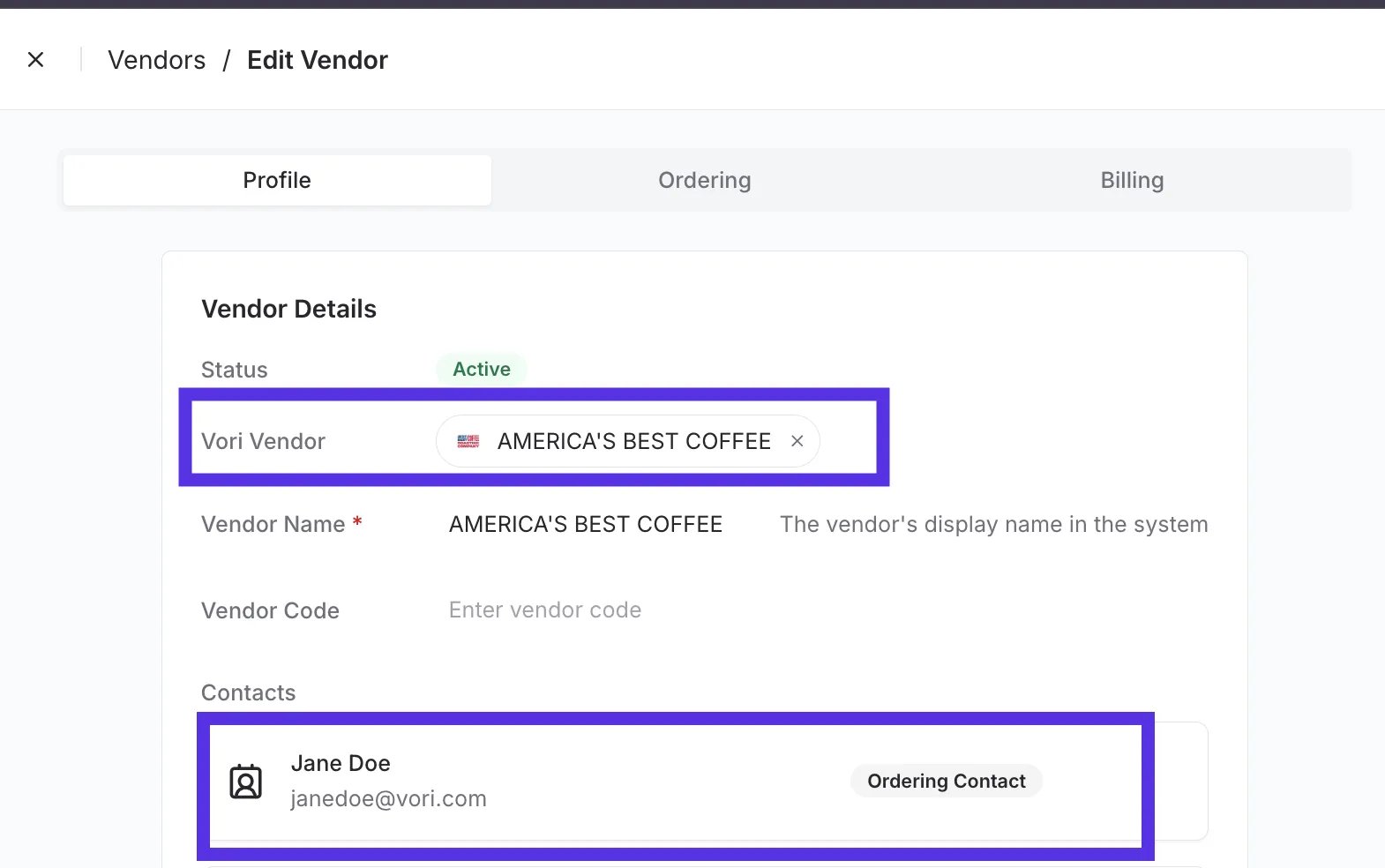
* **Link to a Vori Global Vendor:** Every Store Vendor must be mapped to a Vori Global Vendor. If your vendor can't be found in the Vori Global dropdown, contact Vori Support to create the global connection.
* **Vendor Contact Email:** You must have at least one valid email address listed in the **Contacts** section. This is where the purchase orders (POs) are sent for non-EDI vendors.
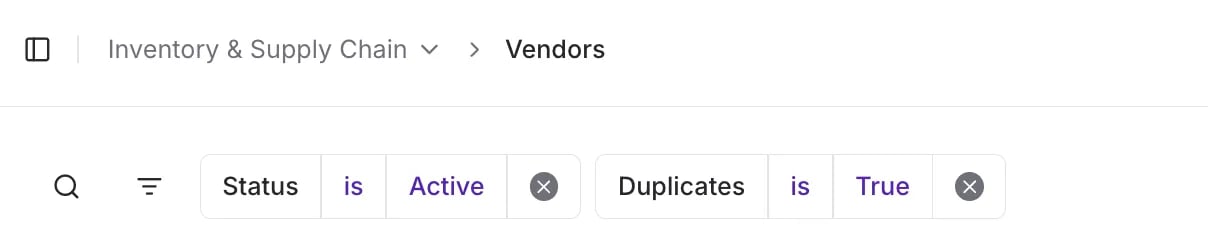
 * **Eliminate Duplicates:** Ensure there is only **one Store Vendor record** per actual vendor. Duplicate vendor profiles (often caused by initial data imports) must be merged before you start ordering.
**💡Tip:** Use the Duplicates filter in the Vendor Catalog to identify all vendors that share the same name.
* **Eliminate Duplicates:** Ensure there is only **one Store Vendor record** per actual vendor. Duplicate vendor profiles (often caused by initial data imports) must be merged before you start ordering.
**💡Tip:** Use the Duplicates filter in the Vendor Catalog to identify all vendors that share the same name.
 #### Highly Recommended (Nice-to-Haves)
Adding these details helps you manage logistics better:
* Order deadlines
* Delivery schedules
* Order minimums
* Vendor Code
***
### Step 2: Upload Vendor Catalogs
Vendor catalogs are critical for filling in data gaps and enabling you to find new items.
### Why Upload a Catalog?
* **Augment Data:** Uploading a catalog fills in missing information (like Item Codes or Descriptions) on your existing Store Vendor Products.
* *Note: This does **not** overwrite your existing product data; it only fills in the blanks.*
* **Enable Discovery:** It provides a separate source for ordering items that do not yet exist in your store’s product list.
### How to Upload
1. **Source the Catalog:** Download the catalog from Vori (if available) or request a current catalog file directly from your vendor representative.
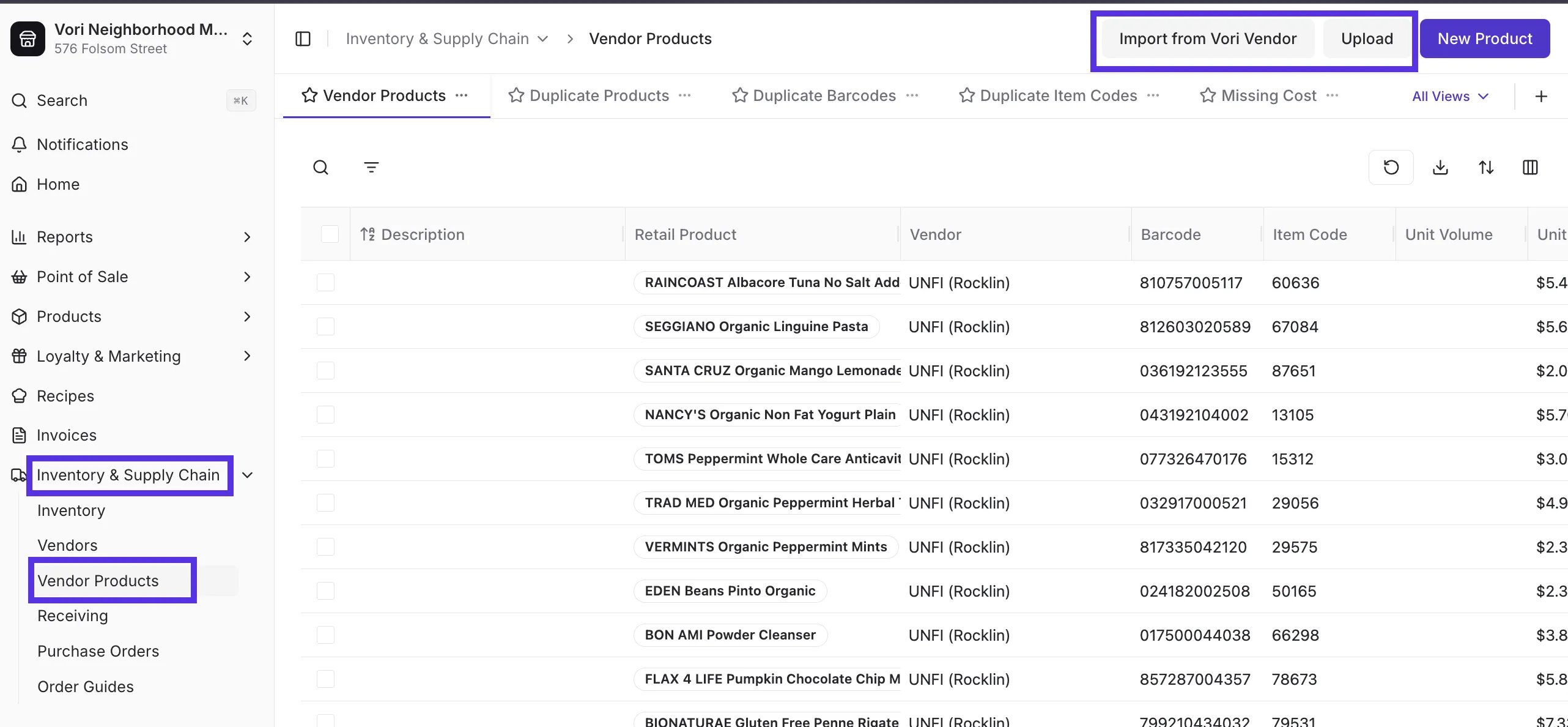
2. **Upload:** Navigate to the [Vendor Products](https://app.vori.com/retail/vendor-products) tab and upload the file.
#### Highly Recommended (Nice-to-Haves)
Adding these details helps you manage logistics better:
* Order deadlines
* Delivery schedules
* Order minimums
* Vendor Code
***
### Step 2: Upload Vendor Catalogs
Vendor catalogs are critical for filling in data gaps and enabling you to find new items.
### Why Upload a Catalog?
* **Augment Data:** Uploading a catalog fills in missing information (like Item Codes or Descriptions) on your existing Store Vendor Products.
* *Note: This does **not** overwrite your existing product data; it only fills in the blanks.*
* **Enable Discovery:** It provides a separate source for ordering items that do not yet exist in your store’s product list.
### How to Upload
1. **Source the Catalog:** Download the catalog from Vori (if available) or request a current catalog file directly from your vendor representative.
2. **Upload:** Navigate to the [Vendor Products](https://app.vori.com/retail/vendor-products) tab and upload the file.
 ***
### Step 3: Clean Up Store Vendor Products
For an item to be ordered, it must exist as a **Store Vendor Product**. If the product data is incomplete, the order may fail to transmit.
#### Vendor Product Standards
Each product must meet the following criteria:
* **Must Exist:** You cannot order an item if it is not listed as a Store Vendor Product.
* **Unique:** The product must be unique per item.
* **Required Data:**
* **UPC**
* **Description**
* **Item Code:** This is required by 95% of vendors.
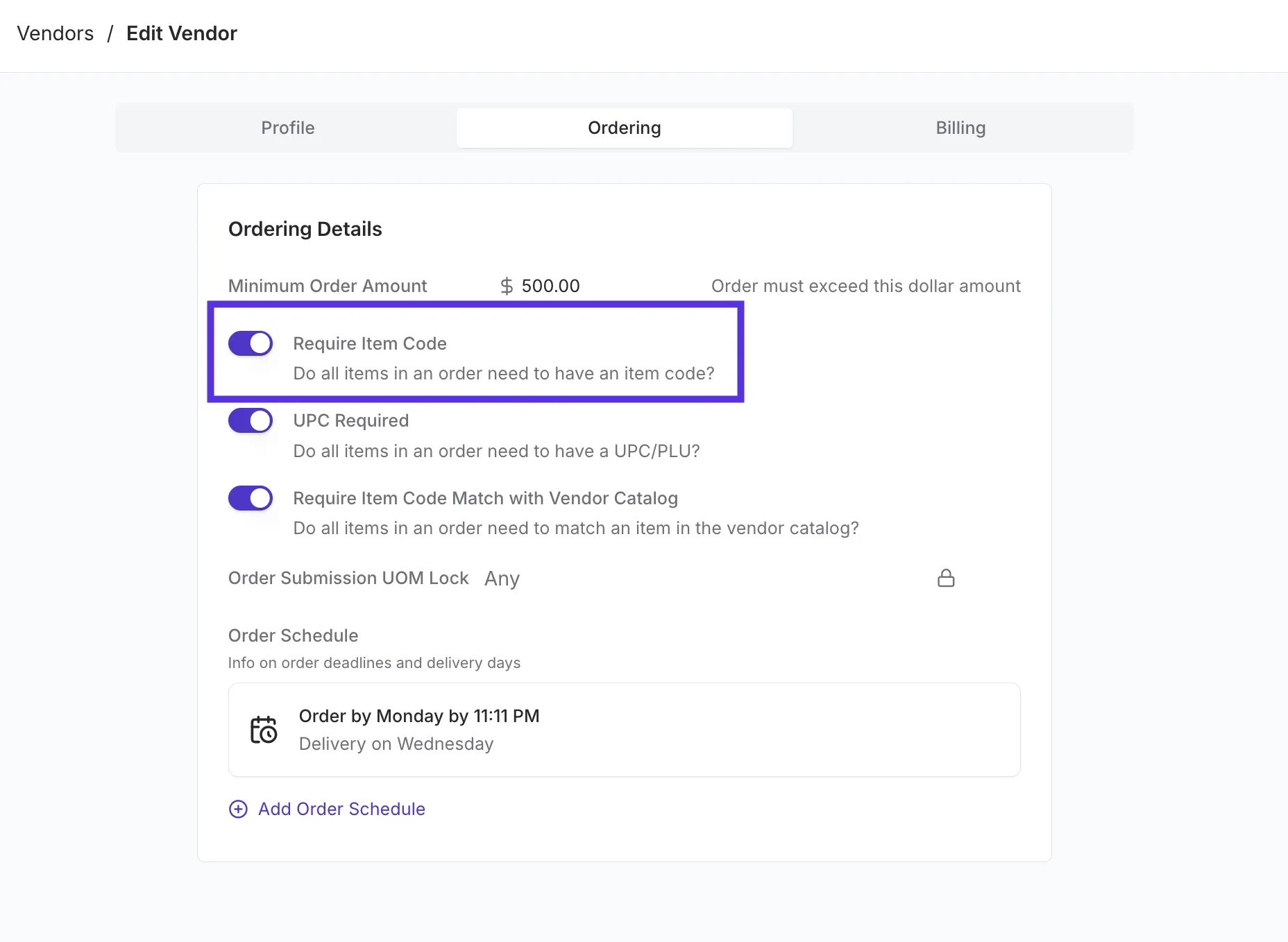
💡 **Tip:** If a product is missing an Item Code, you can add it "on the fly" while building your order. However, for large vendors, we recommend enabling the **"Require Item Code"** setting in Vori to prevent submission errors.
***
### Step 3: Clean Up Store Vendor Products
For an item to be ordered, it must exist as a **Store Vendor Product**. If the product data is incomplete, the order may fail to transmit.
#### Vendor Product Standards
Each product must meet the following criteria:
* **Must Exist:** You cannot order an item if it is not listed as a Store Vendor Product.
* **Unique:** The product must be unique per item.
* **Required Data:**
* **UPC**
* **Description**
* **Item Code:** This is required by 95% of vendors.
💡 **Tip:** If a product is missing an Item Code, you can add it "on the fly" while building your order. However, for large vendors, we recommend enabling the **"Require Item Code"** setting in Vori to prevent submission errors.
 #### Best Practices
For the most accurate reporting and margin management, ideally include:
* Cost
* Case Size
* Brand
***
### Run a Vendor Campaign
Before you launch ordering, reach out to every vendor to confirm they can accept email purchase orders (POs), and let them know Vori will start sending POs on the store's behalf. If a vendor isn't eligible for EDI, they'll receive their PO as an email instead.
✏️ **Note:** Not every vendor is eligible to order through Vori.
* Vendors that require a sales rep to place orders (for example, **Coca-Cola** and **Frito-Lay**) can't be ordered through Vori.
* Vendors that use their own ordering portal, such as some beverage and alcohol distributors, typically won't accept email POs either.
Aim to onboard 90-95% of a store's vendors to ordering through Vori. Some vendors will fall outside that range, and the store will keep ordering with them through their existing method.
💡 **Tip:** Many stores prefer to order from **UNFI** and **Tony's Fine Foods** using their ordering gun instead of Vori, since the gun shows out-of-stocks (OOS) directly and skips the CSV upload step. Learn more in [Upload Purchase Orders to MyUNFI and KeHE](/inventory-and-ordering/ordering/upload-purchase-orders-to-myunfi-and-kehe).
***
### EDI and UNFI Specifics
Some vendors require specific setups to handle automated data transfers (EDI).
#### EDI-Capable Vendors
Electronic Data Interchange (EDI) creates a two-way loop for orders and invoices. If you use any of the vendors listed below, you must provide your **Account ID and select a department** to Vori Support to enable EDI:
* KeHE
* Provide your distribution center (DC) number to Vori Support.
* Rock Island
* SF Naturals
* Good Stuff
* Alta Dena
**💡 Tip:** If the vendor serves multiple departments, choose Grocery.
For EDI vendors, you may enter your own email in the vendor contact field to receive a copy of the PO, as the order itself is transmitted digitally.
We recommend adding an order schedule for any EDI vendors.
#### UNFI / Tony’s / SuperValu
For **UNFI, Tony’s, and SuperValu**, orders must be uploaded manually via the UNFI portal. Please note that UNFI does not currently support EDI or email purchase order submissions. For step-by-step instructions, see [**this article**](/inventory-and-ordering/ordering/upload-purchase-orders-to-myunfi-and-kehe).
## Related topics
- [Preparing Your Store for Advanced Inventory Launch](/inventory-and-ordering/inventory/preparing-your-store-for-advanced-inventory-launch.md)
- [Map Store Vendors to Vori Global Vendors](/vendors-and-vendor-products/vendor-management/map-store-vendors-to-vori-global-vendors.md)
- [Vori Webinar Training Hub](/vori-webinar-training-hub/vori-webinartraining-hub.md)
#### Best Practices
For the most accurate reporting and margin management, ideally include:
* Cost
* Case Size
* Brand
***
### Run a Vendor Campaign
Before you launch ordering, reach out to every vendor to confirm they can accept email purchase orders (POs), and let them know Vori will start sending POs on the store's behalf. If a vendor isn't eligible for EDI, they'll receive their PO as an email instead.
✏️ **Note:** Not every vendor is eligible to order through Vori.
* Vendors that require a sales rep to place orders (for example, **Coca-Cola** and **Frito-Lay**) can't be ordered through Vori.
* Vendors that use their own ordering portal, such as some beverage and alcohol distributors, typically won't accept email POs either.
Aim to onboard 90-95% of a store's vendors to ordering through Vori. Some vendors will fall outside that range, and the store will keep ordering with them through their existing method.
💡 **Tip:** Many stores prefer to order from **UNFI** and **Tony's Fine Foods** using their ordering gun instead of Vori, since the gun shows out-of-stocks (OOS) directly and skips the CSV upload step. Learn more in [Upload Purchase Orders to MyUNFI and KeHE](/inventory-and-ordering/ordering/upload-purchase-orders-to-myunfi-and-kehe).
***
### EDI and UNFI Specifics
Some vendors require specific setups to handle automated data transfers (EDI).
#### EDI-Capable Vendors
Electronic Data Interchange (EDI) creates a two-way loop for orders and invoices. If you use any of the vendors listed below, you must provide your **Account ID and select a department** to Vori Support to enable EDI:
* KeHE
* Provide your distribution center (DC) number to Vori Support.
* Rock Island
* SF Naturals
* Good Stuff
* Alta Dena
**💡 Tip:** If the vendor serves multiple departments, choose Grocery.
For EDI vendors, you may enter your own email in the vendor contact field to receive a copy of the PO, as the order itself is transmitted digitally.
We recommend adding an order schedule for any EDI vendors.
#### UNFI / Tony’s / SuperValu
For **UNFI, Tony’s, and SuperValu**, orders must be uploaded manually via the UNFI portal. Please note that UNFI does not currently support EDI or email purchase order submissions. For step-by-step instructions, see [**this article**](/inventory-and-ordering/ordering/upload-purchase-orders-to-myunfi-and-kehe).
## Related topics
- [Preparing Your Store for Advanced Inventory Launch](/inventory-and-ordering/inventory/preparing-your-store-for-advanced-inventory-launch.md)
- [Map Store Vendors to Vori Global Vendors](/vendors-and-vendor-products/vendor-management/map-store-vendors-to-vori-global-vendors.md)
- [Vori Webinar Training Hub](/vori-webinar-training-hub/vori-webinartraining-hub.md)