> ## Documentation Index
> Fetch the complete documentation index at: https://help.vori.com/llms.txt
> Use this file to discover all available pages before exploring further.
# Place Orders on VoriOS
> A faster way to order on the go! Use the VoriOS mobile app to quickly create and manage single or multi-vendor orders with scan data and live vendor catalogs.
### Access Ordering on VoriOS
1. **Log in to** your store account on the VoriOS app.
2. Tap **Order** from the menu.
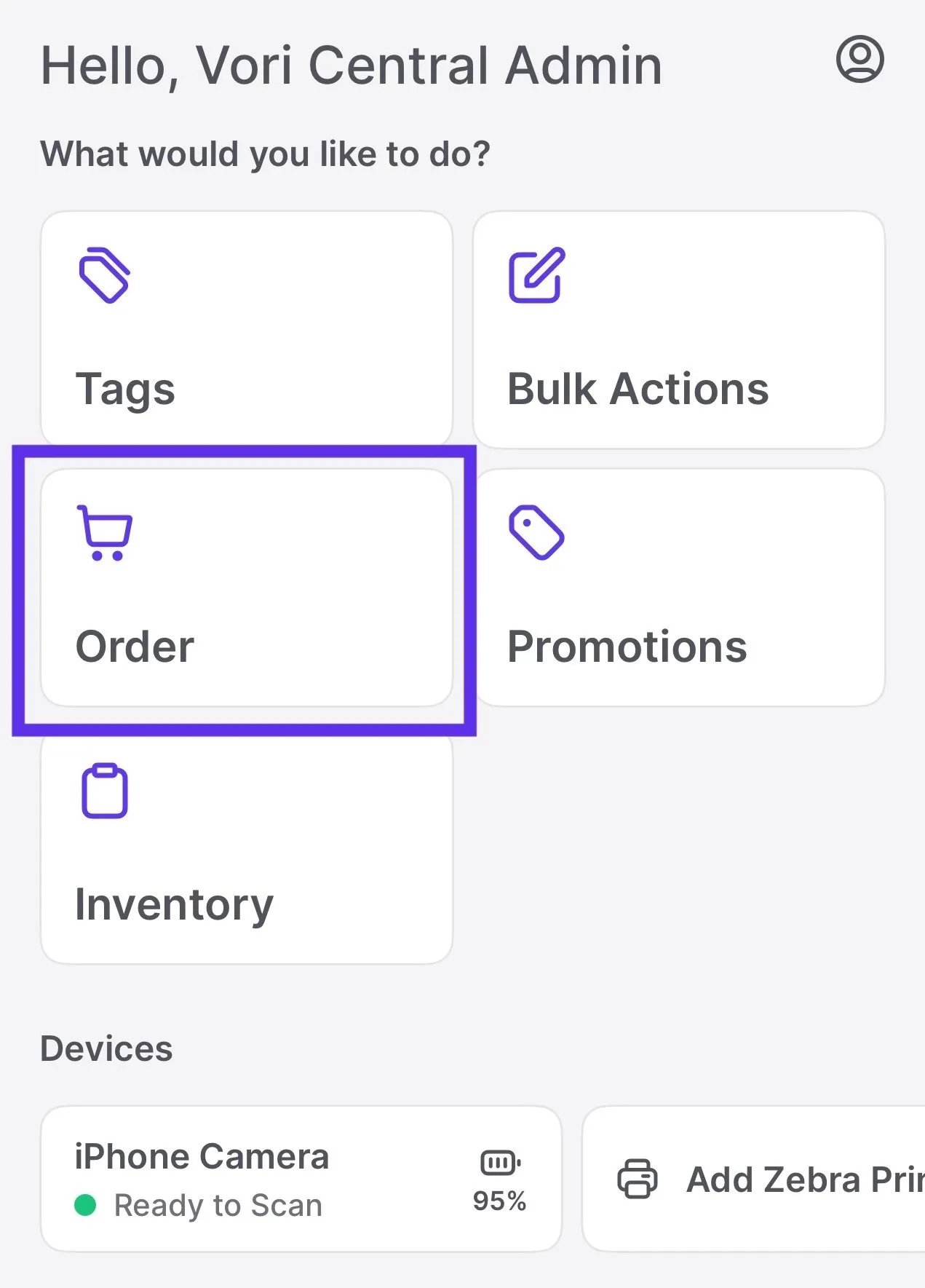 **💡 Tip:** Make sure you’re using the [latest version of the app](/vori-setup-and-troubleshooting/update-the-vorios-app).
***
### Start a New Order
Ready to place an order? Tap **New Order** to get started.
You’ll be prompted to choose:
* **Single Vendor Order:** Order directly from one vendor.
* **Multi Vendor Order:** Build a cart across multiple vendors by scanning or searching.
***
### Order by department
Assign a department when you start an order to keep your team focused on the right products and catch anything that doesn't belong.
**Why order by department**
Assigning a department, like Grocery, Produce, or Deli, helps your team stay focused on ordering for that area of the store. It's especially useful when different people are responsible for ordering different departments.
**How to order by department**
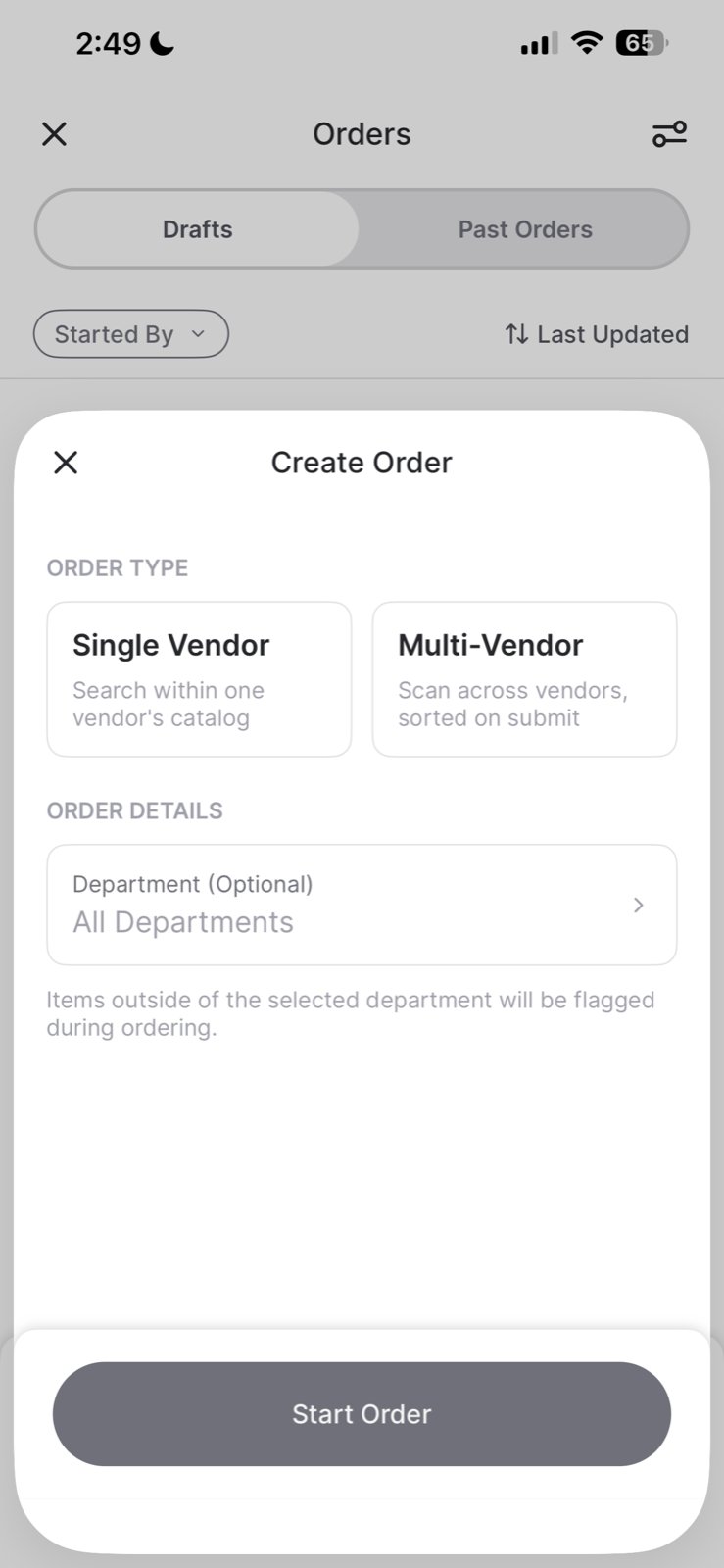
1. Tap **New Order**.
2. Under **Order Details**, tap **Department (Optional)**.
3. Choose the department for this order.
You can set a department for both **Single Vendor** and **Multi Vendor** orders.
**💡 Tip:** Make sure you’re using the [latest version of the app](/vori-setup-and-troubleshooting/update-the-vorios-app).
***
### Start a New Order
Ready to place an order? Tap **New Order** to get started.
You’ll be prompted to choose:
* **Single Vendor Order:** Order directly from one vendor.
* **Multi Vendor Order:** Build a cart across multiple vendors by scanning or searching.
***
### Order by department
Assign a department when you start an order to keep your team focused on the right products and catch anything that doesn't belong.
**Why order by department**
Assigning a department, like Grocery, Produce, or Deli, helps your team stay focused on ordering for that area of the store. It's especially useful when different people are responsible for ordering different departments.
**How to order by department**
1. Tap **New Order**.
2. Under **Order Details**, tap **Department (Optional)**.
3. Choose the department for this order.
You can set a department for both **Single Vendor** and **Multi Vendor** orders.
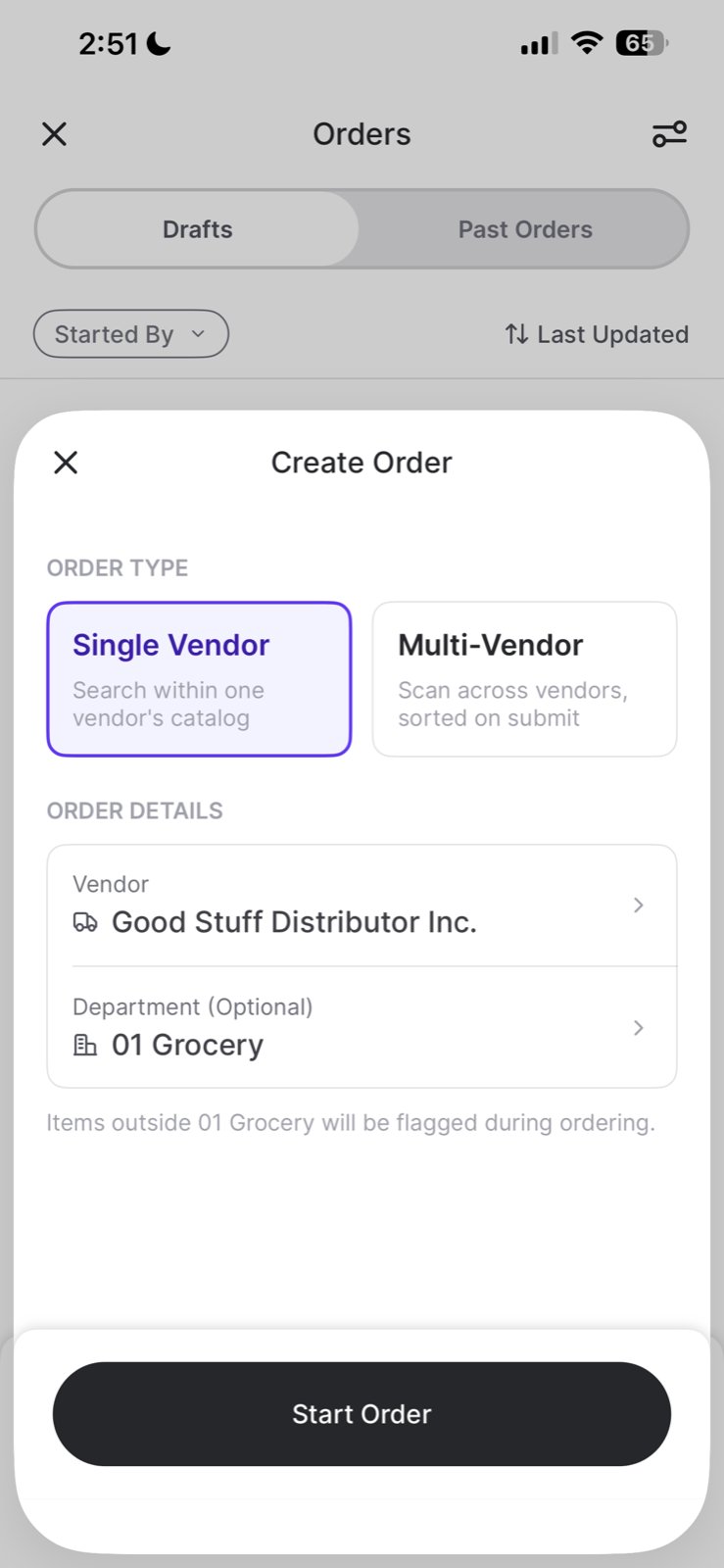
 Once you select a department, like **01 Grocery**, Vori reminds you that items outside that department will be flagged during ordering.
 **What happens when you order an item outside the department**
If you scan or search for a product that isn't in the selected department, Vori flags it on the **Product Order Details** page.
**What happens when you order an item outside the department**
If you scan or search for a product that isn't in the selected department, Vori flags it on the **Product Order Details** page.
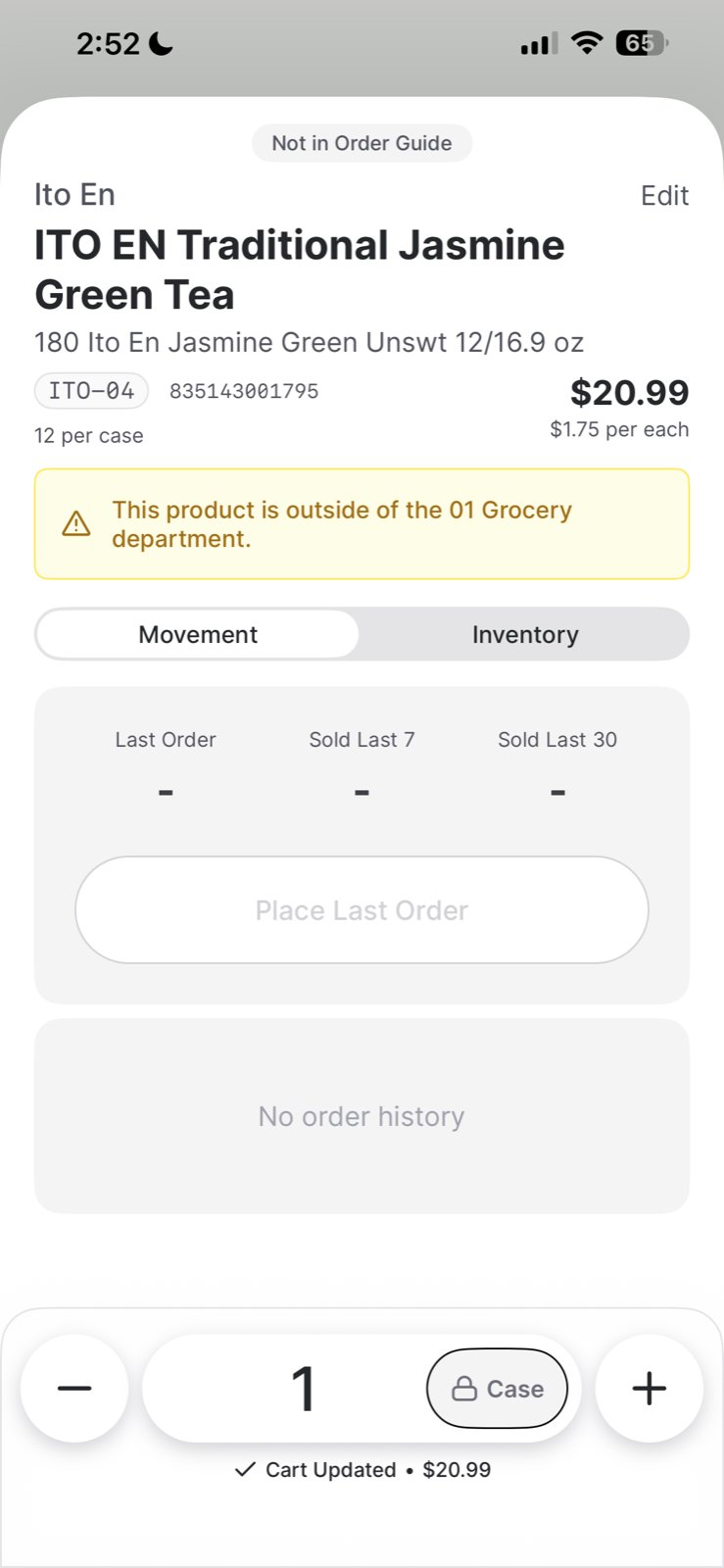 **✏️ Note:** The flag is a heads-up, not a block — you can still add the flagged product to your cart.
***
### Create a Single Vendor Order
**Single Vendor Orders** help streamline your ordering process when working with just one supplier. Once you’ve selected this option, follow these steps to start building your order:
1. Tap **Single Vendor Order**.
2. Select a vendor from your **Vendor List**.
3. **Scan a product** or use the **search bar** to find a product by:
* Product name
* Item code
* Barcode
When searching for products, you can:
* Search within your **store catalog** (products you already carry).
* Search a **vendor catalog** (to discover new products).
**✏️ Note:** New products can be added even if they’re not in your current catalog.
The product will open in a **Product Order Sheet.**
**✏️ Note:** The flag is a heads-up, not a block — you can still add the flagged product to your cart.
***
### Create a Single Vendor Order
**Single Vendor Orders** help streamline your ordering process when working with just one supplier. Once you’ve selected this option, follow these steps to start building your order:
1. Tap **Single Vendor Order**.
2. Select a vendor from your **Vendor List**.
3. **Scan a product** or use the **search bar** to find a product by:
* Product name
* Item code
* Barcode
When searching for products, you can:
* Search within your **store catalog** (products you already carry).
* Search a **vendor catalog** (to discover new products).
**✏️ Note:** New products can be added even if they’re not in your current catalog.
The product will open in a **Product Order Sheet.**
 ***
### Product Order Details
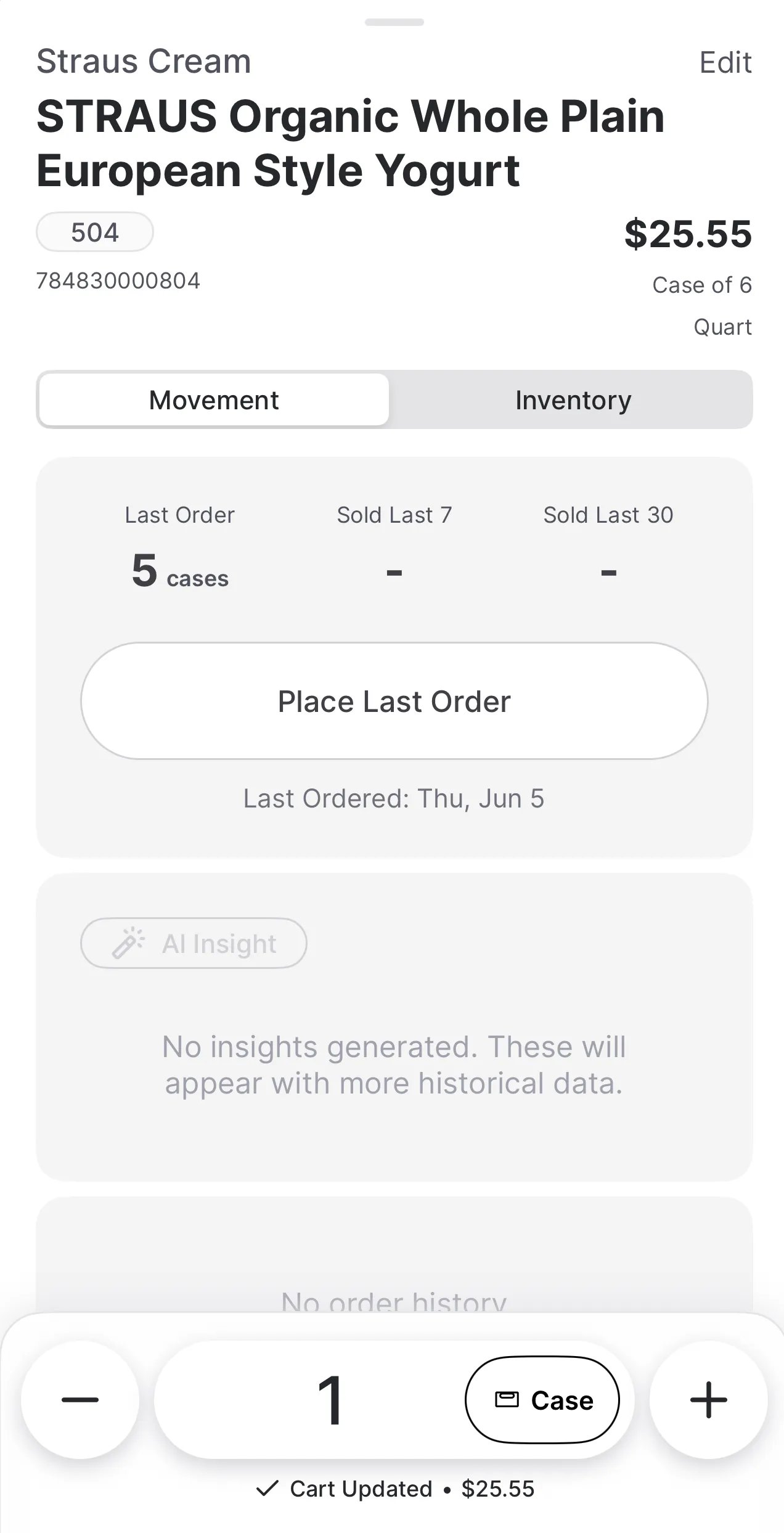
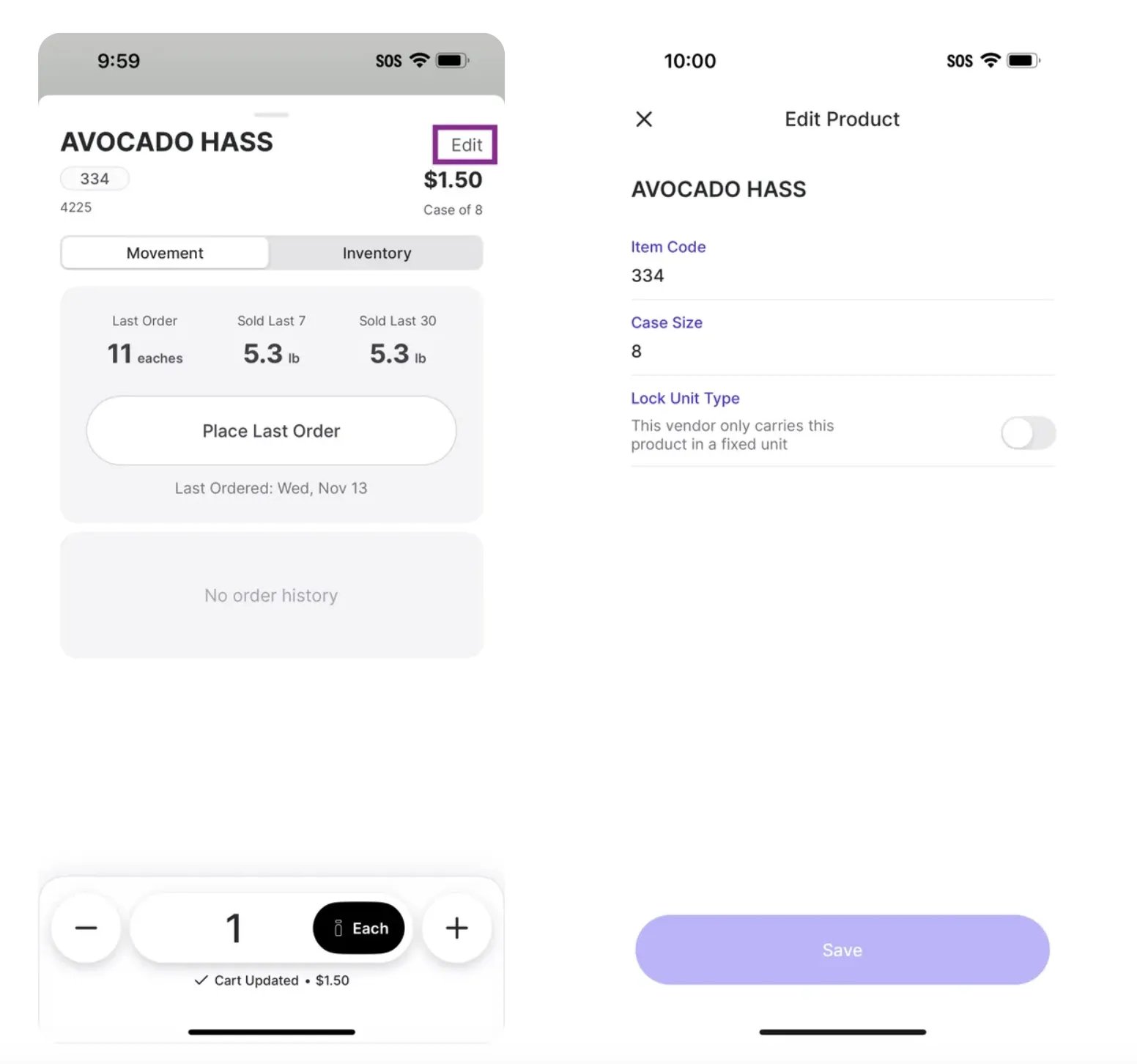
Once you select a product, the **Product Order Details** will appear with key details to help you make informed purchasing decisions.
* **Item Info:** Brand, name, barcode.
* **Cost & Case Details:** Vendor cost, case size, unit type.
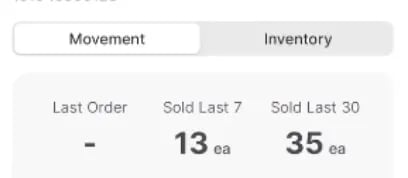
* **Movement Data:** Shows how many units of a product you've sold at the register.
* Movement helps you order what you need, based on sales, not habits.
***
### Product Order Details
Once you select a product, the **Product Order Details** will appear with key details to help you make informed purchasing decisions.
* **Item Info:** Brand, name, barcode.
* **Cost & Case Details:** Vendor cost, case size, unit type.
* **Movement Data:** Shows how many units of a product you've sold at the register.
* Movement helps you order what you need, based on sales, not habits.
 * **Inventory:** Need to make a quick correction to your inventory? Sometimes you spot a mistake mid-order, like realizing your shelf count is 12, not 10. No problem, just tap **Update Inventory** to update the number.
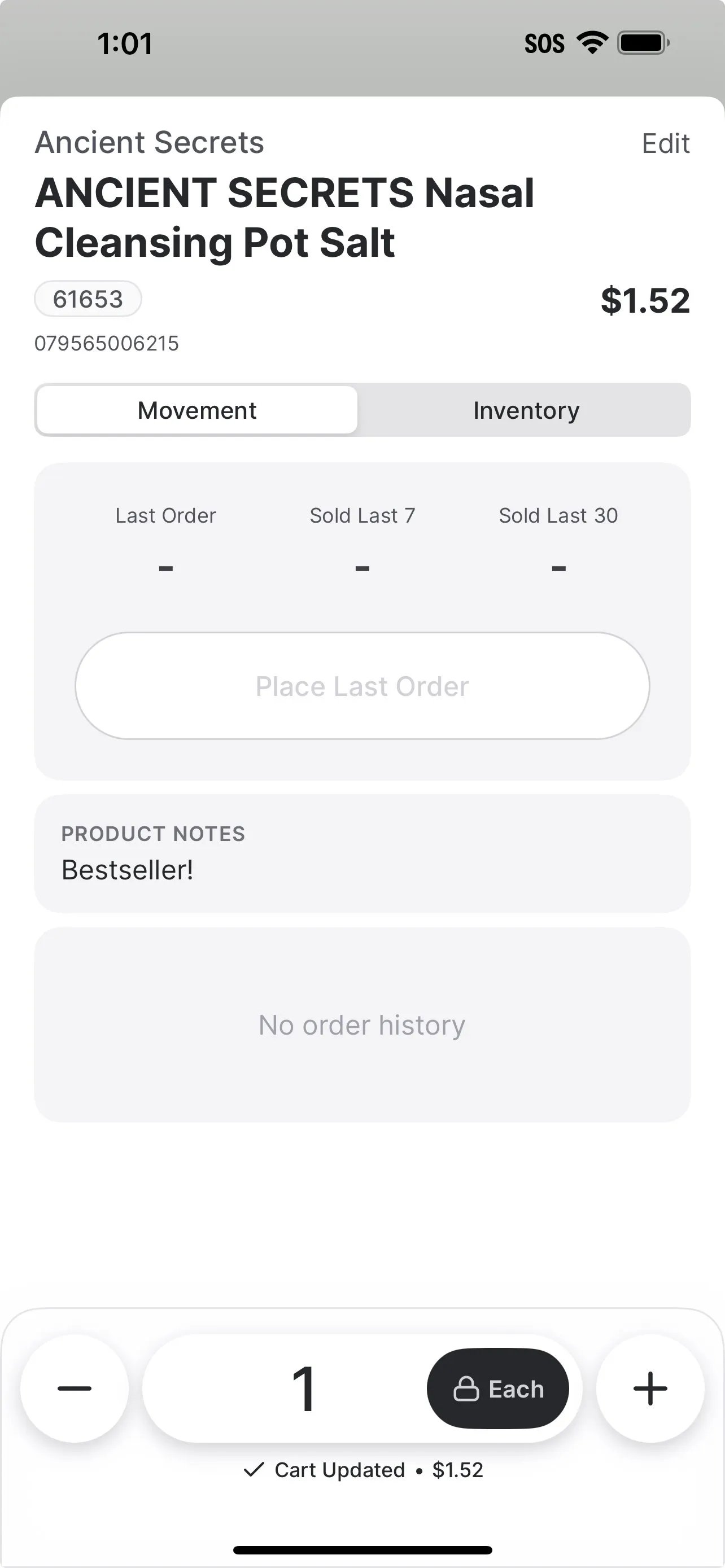
* **Product Notes:** These notes help your team track internal details about a product. While you can view these notes from the Product Order Details page during ordering, they can only be added or edited from the Product Details page. Learn how to add or edit notes, see: [In Beta: New Product Details Page](/product-and-product-catalog-management/product-creation-and-set-up/build-your-product-list-apl-from-scratch-for-new-stores)
* **Inventory:** Need to make a quick correction to your inventory? Sometimes you spot a mistake mid-order, like realizing your shelf count is 12, not 10. No problem, just tap **Update Inventory** to update the number.
* **Product Notes:** These notes help your team track internal details about a product. While you can view these notes from the Product Order Details page during ordering, they can only be added or edited from the Product Details page. Learn how to add or edit notes, see: [In Beta: New Product Details Page](/product-and-product-catalog-management/product-creation-and-set-up/build-your-product-list-apl-from-scratch-for-new-stores)
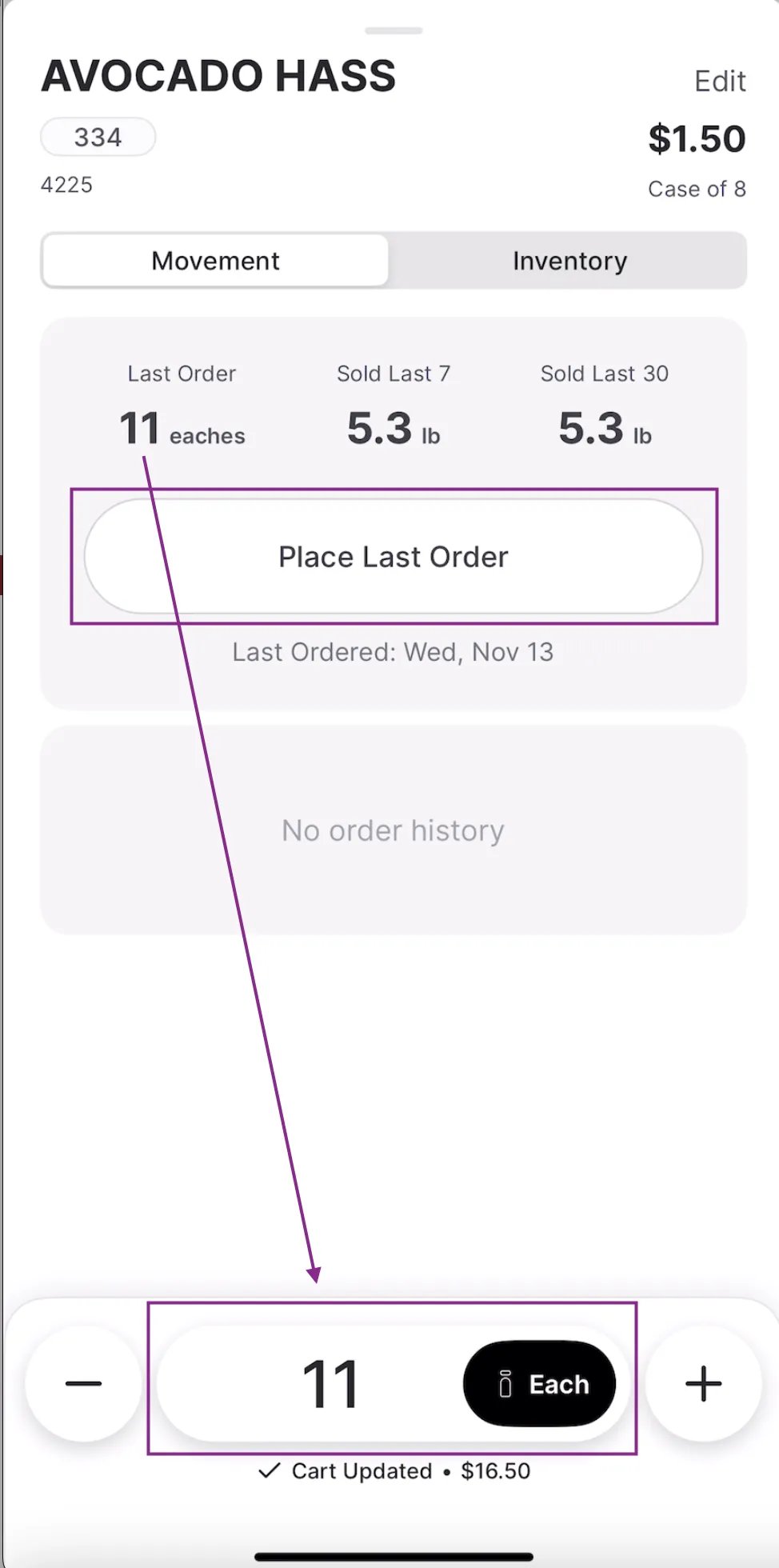
 **💡 Tip:** Tap **Place Last Order** to instantly add the **same quantity and unit type** (case or each) from your last order—no need to re-enter anything manually. This is a fast way to reorder when your previous quantity worked well and you want to repeat it.\\
 **💡 Tip:** Need to add or update an item code or case size? Select **Edit Product** from the top right corner of the Product Order Details page. From there, you can manually enter an Item Code, set the Case Size, or enable Lock Unit Type if the vendor only offers the item in a fixed unit.
 #### Update Order Quantity
You can set how much you’d like to order using the quantity and unit controls.
* Use the **+ / –** buttons to adjust order quantity.
* Toggle between **Case** and **Each**, depending on availability from the vendor.
**✏️ Note:** The default unit type (case vs. each) matches your last order from this vendor.
* **Remove products** from the cart by swiping left and tapping the trash can, or select **Edit** from the top right corner.
**🚨 Warning:** When a product is scanned during the ordering process:
* If it’s not tied to a vendor, you’ll see a red **No Vendor Found** alert.
* If it’s missing an item code, you’ll see a **Missing Item Code** alert.
* If the store product is not matched to the vendor code, you'll see a **Mismatched Code** alert.
#### Update Order Quantity
You can set how much you’d like to order using the quantity and unit controls.
* Use the **+ / –** buttons to adjust order quantity.
* Toggle between **Case** and **Each**, depending on availability from the vendor.
**✏️ Note:** The default unit type (case vs. each) matches your last order from this vendor.
* **Remove products** from the cart by swiping left and tapping the trash can, or select **Edit** from the top right corner.
**🚨 Warning:** When a product is scanned during the ordering process:
* If it’s not tied to a vendor, you’ll see a red **No Vendor Found** alert.
* If it’s missing an item code, you’ll see a **Missing Item Code** alert.
* If the store product is not matched to the vendor code, you'll see a **Mismatched Code** alert.
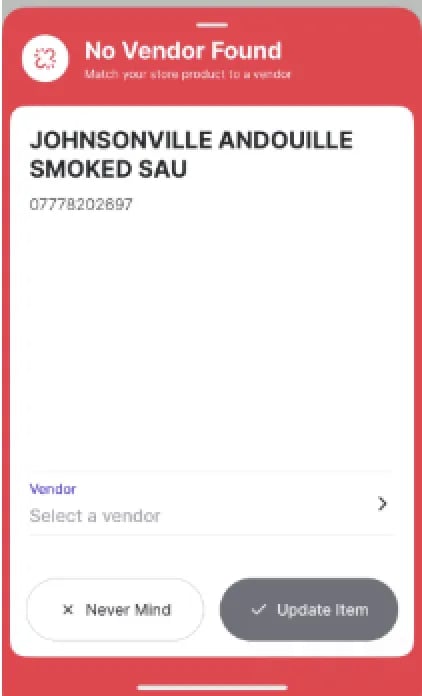
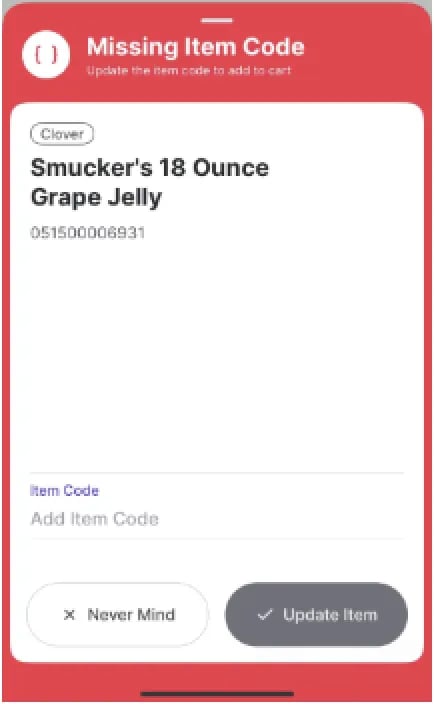
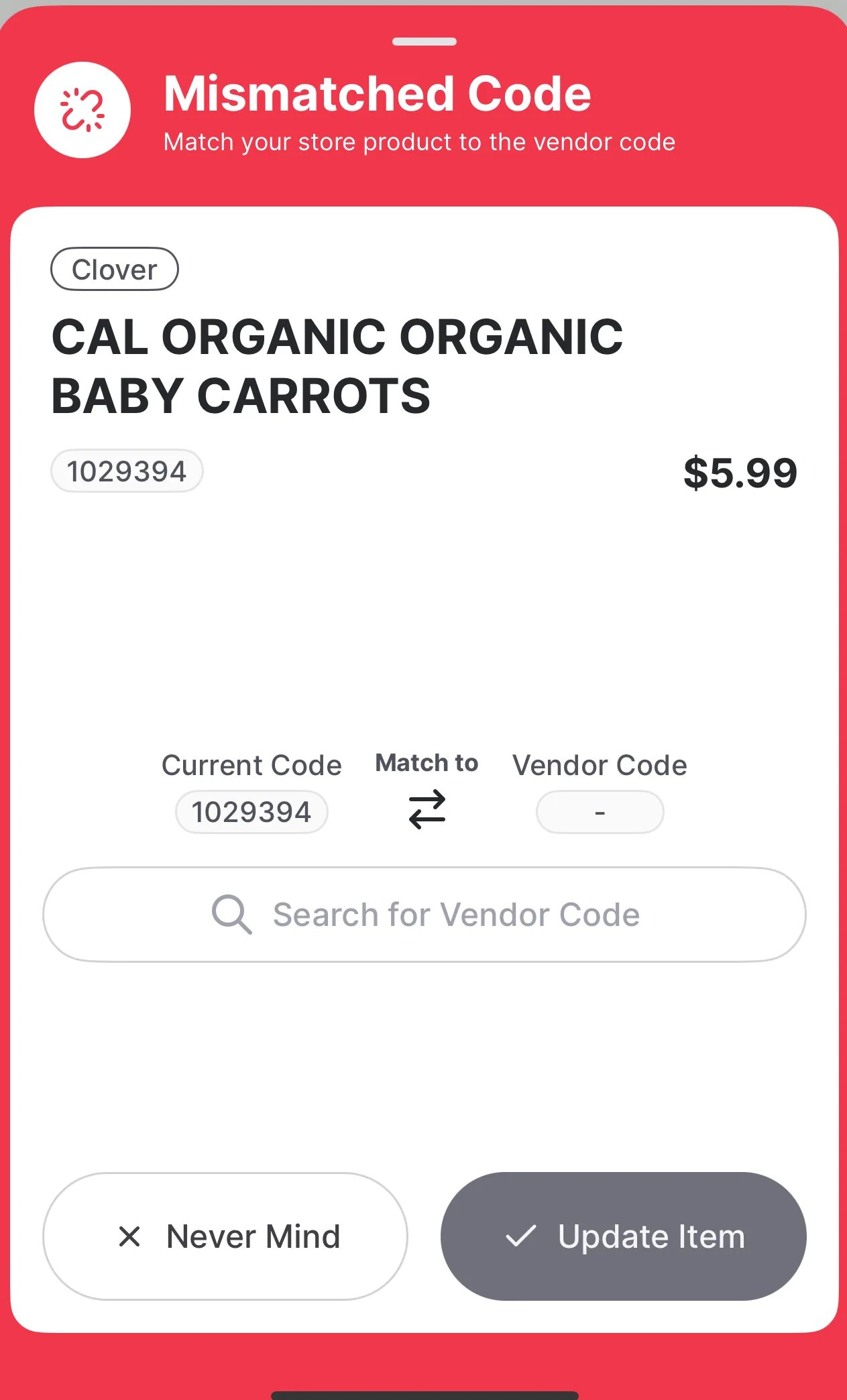 In both cases, the product **cannot** be added to the order until that missing data is filled in, either by assigning the vendor and/or entering the item code manually in the app or via Back Office. Tapping “Never Mind” cancels the step, and the item won’t be added to your cart. Learn how to assign vendors and item codes in this guide: **[How to manage a store vendor & their store vendor products](/vendors-and-vendor-products/vendor-management/manage-vendors-and-contacts)**.
***
### Create a Multi Vendor Order
Use the **Multi Vendor Order** function to scan or search for products from multiple vendors without selecting one upfront. Just move through your store and add items as you go (aka “one-pass scan”). Vori will sort them by vendor at checkout.
1. Tap **Multi Vendor Order**.
2. Scan or search for multiple products.
#### Compare Vendors for the Same Product
If the product is available from multiple vendors:
* A **vendor toggle** appears at the bottom of the product sheet.
* Tap each vendor to compare:
* Cost
* Case size
* Unit type
* Add the product to your cart from the selected vendor.
* Easily find the best deal without switching screens. ***This comparison uses your store’s own vendor data.*** Cost information is maintained by your team and is not actively updated by vendors. Prices may change based on:
* Manual updates by your team.
* Cost changes are reflected in vendor invoices.
**✏️ Note:** Want Vori to automatically select your preferred vendor when placing a Multi Vendor Order?
You’ll need to **set your primary vendor** in the **Back Office**:
1. Go to the **Back Office** and open the **[Product Catalog](https://app.vori.com/retail/products)**.
2. Find the product and click the **carrot ( ˅ ) button**.
3. Under **Pricing**, locate the field:
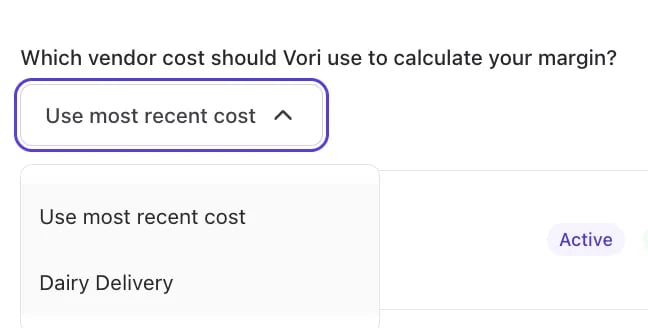
**“Which vendor cost should Vori use to calculate your margin?”**
4. Choose one of the following:
* **Use most recent cost** (default): This pulls from the latest invoice uploaded via the Cost Changes process.
* **Select a vendor**: Manually set a primary vendor for that product.
In both cases, the product **cannot** be added to the order until that missing data is filled in, either by assigning the vendor and/or entering the item code manually in the app or via Back Office. Tapping “Never Mind” cancels the step, and the item won’t be added to your cart. Learn how to assign vendors and item codes in this guide: **[How to manage a store vendor & their store vendor products](/vendors-and-vendor-products/vendor-management/manage-vendors-and-contacts)**.
***
### Create a Multi Vendor Order
Use the **Multi Vendor Order** function to scan or search for products from multiple vendors without selecting one upfront. Just move through your store and add items as you go (aka “one-pass scan”). Vori will sort them by vendor at checkout.
1. Tap **Multi Vendor Order**.
2. Scan or search for multiple products.
#### Compare Vendors for the Same Product
If the product is available from multiple vendors:
* A **vendor toggle** appears at the bottom of the product sheet.
* Tap each vendor to compare:
* Cost
* Case size
* Unit type
* Add the product to your cart from the selected vendor.
* Easily find the best deal without switching screens. ***This comparison uses your store’s own vendor data.*** Cost information is maintained by your team and is not actively updated by vendors. Prices may change based on:
* Manual updates by your team.
* Cost changes are reflected in vendor invoices.
**✏️ Note:** Want Vori to automatically select your preferred vendor when placing a Multi Vendor Order?
You’ll need to **set your primary vendor** in the **Back Office**:
1. Go to the **Back Office** and open the **[Product Catalog](https://app.vori.com/retail/products)**.
2. Find the product and click the **carrot ( ˅ ) button**.
3. Under **Pricing**, locate the field:
**“Which vendor cost should Vori use to calculate your margin?”**
4. Choose one of the following:
* **Use most recent cost** (default): This pulls from the latest invoice uploaded via the Cost Changes process.
* **Select a vendor**: Manually set a primary vendor for that product.
 #### **Cart Behavior**
* Your cart automatically organizes items by vendor.
* You can **tap into each vendor's cart** to review or edit.
***
### Review and Place Your Order
When you’re ready to check out:
1. Tap **Finish & Checkout**.
**⚠️ Caution:** If your cart total is below the **vendor’s minimum order amount** (set in Vendor Settings), you’ll see the **Minimum Not Reached** alert. You can either return to your cart to add more items or proceed with **Ignore & Checkout** *(The vendor may not accept or fulfill the order if the minimum isn’t met).*
#### **Cart Behavior**
* Your cart automatically organizes items by vendor.
* You can **tap into each vendor's cart** to review or edit.
***
### Review and Place Your Order
When you’re ready to check out:
1. Tap **Finish & Checkout**.
**⚠️ Caution:** If your cart total is below the **vendor’s minimum order amount** (set in Vendor Settings), you’ll see the **Minimum Not Reached** alert. You can either return to your cart to add more items or proceed with **Ignore & Checkout** *(The vendor may not accept or fulfill the order if the minimum isn’t met).*  #### Checkout Screen
On the **checkout screen**, you’ll see:
* Your **store name.**
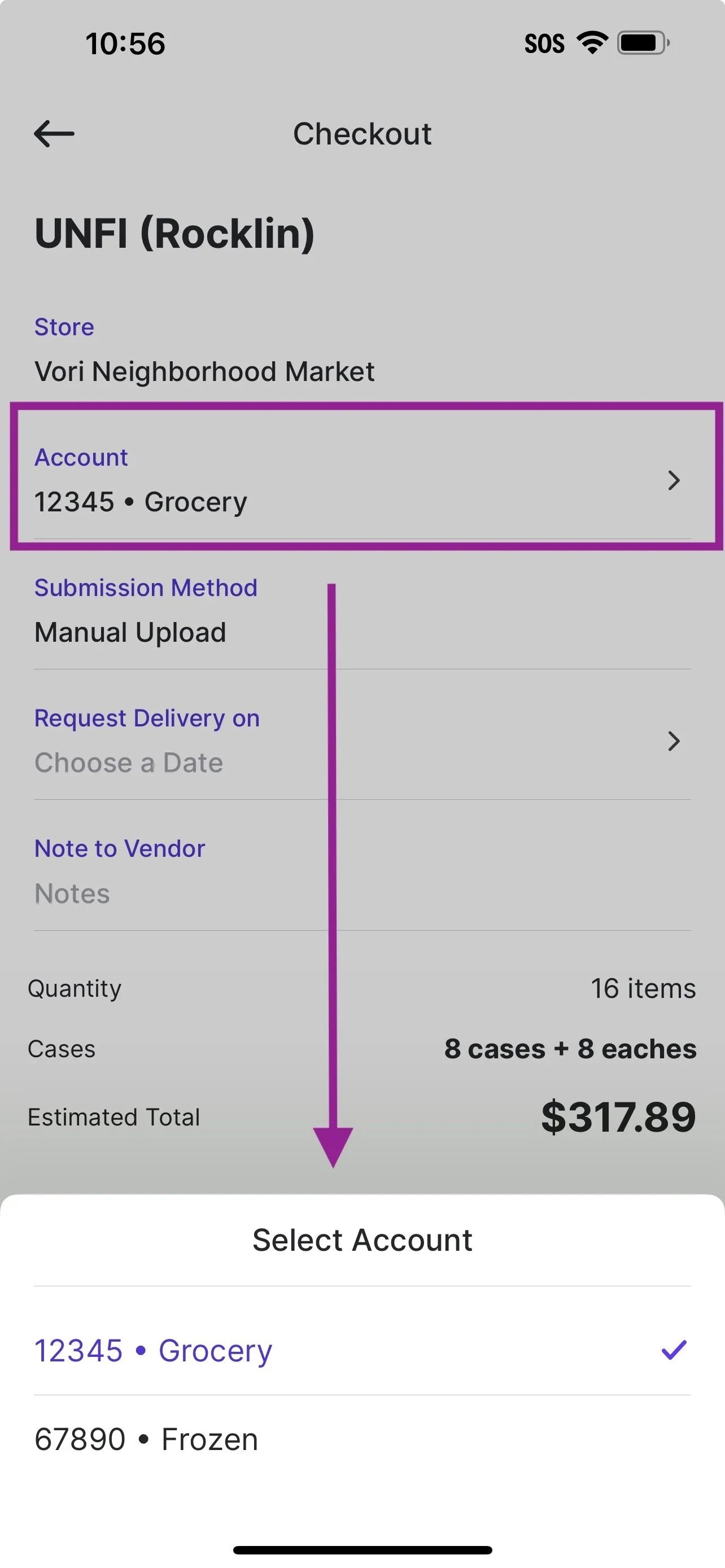
* **Account Number**
* Use this field to select the correct vendor account number for this order. If your store uses different account numbers for specific departments (e.g., Produce, Grocery, Deli), choose the one that matches the products in your cart.
#### Checkout Screen
On the **checkout screen**, you’ll see:
* Your **store name.**
* **Account Number**
* Use this field to select the correct vendor account number for this order. If your store uses different account numbers for specific departments (e.g., Produce, Grocery, Deli), choose the one that matches the products in your cart.
 * **Send Order To:** Use this field to enter an email address, either your own or the vendor’s, if the order should be sent by email.
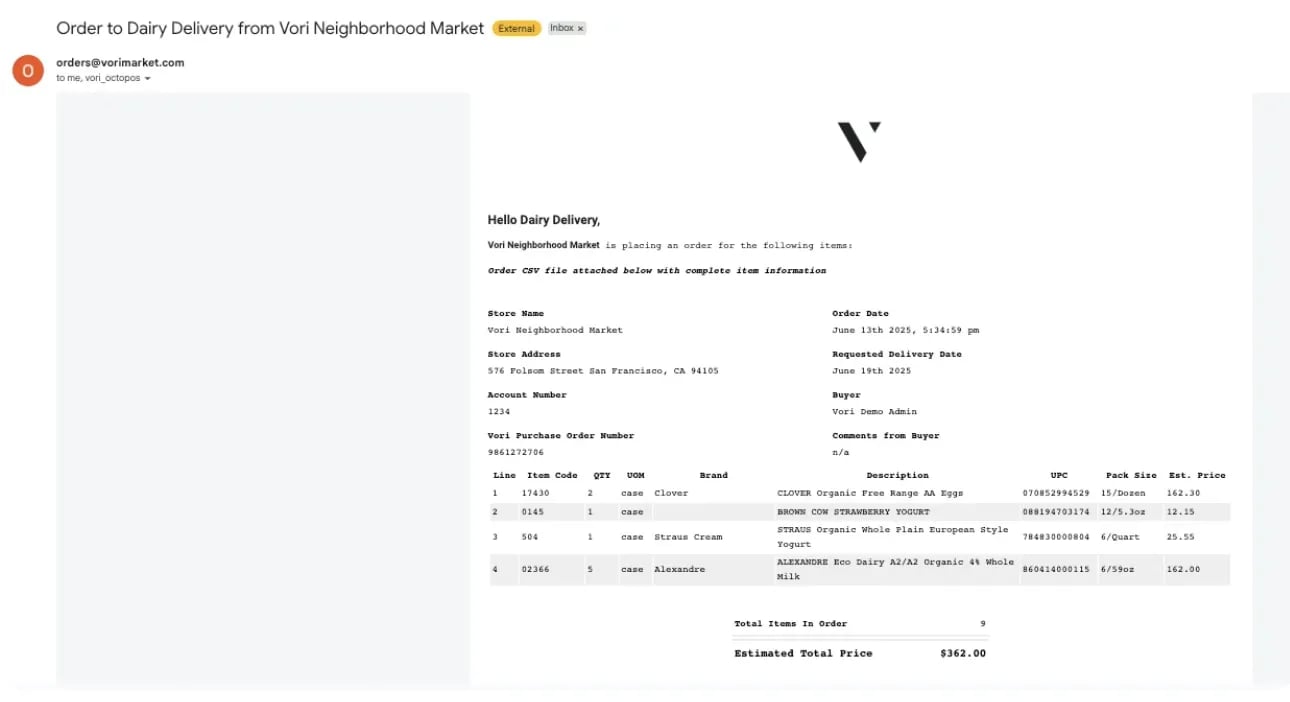
**✏️ Note:** If you enter an email address in the **Send Order To** field during checkout, that recipient will receive an order confirmation email. This includes store details, order info, delivery date, buyer comments, and a CSV attachment. The confirmation email is automatically CC’d to the email address associated with the VoriOS login used to place the order.
* **Send Order To:** Use this field to enter an email address, either your own or the vendor’s, if the order should be sent by email.
**✏️ Note:** If you enter an email address in the **Send Order To** field during checkout, that recipient will receive an order confirmation email. This includes store details, order info, delivery date, buyer comments, and a CSV attachment. The confirmation email is automatically CC’d to the email address associated with the VoriOS login used to place the order.
 * A **delivery date picker.**
* A **notes field** (optional).
* A **Summary**: Estimated total, item count, and quantity.
* A **delivery date picker.**
* A **notes field** (optional).
* A **Summary**: Estimated total, item count, and quantity.
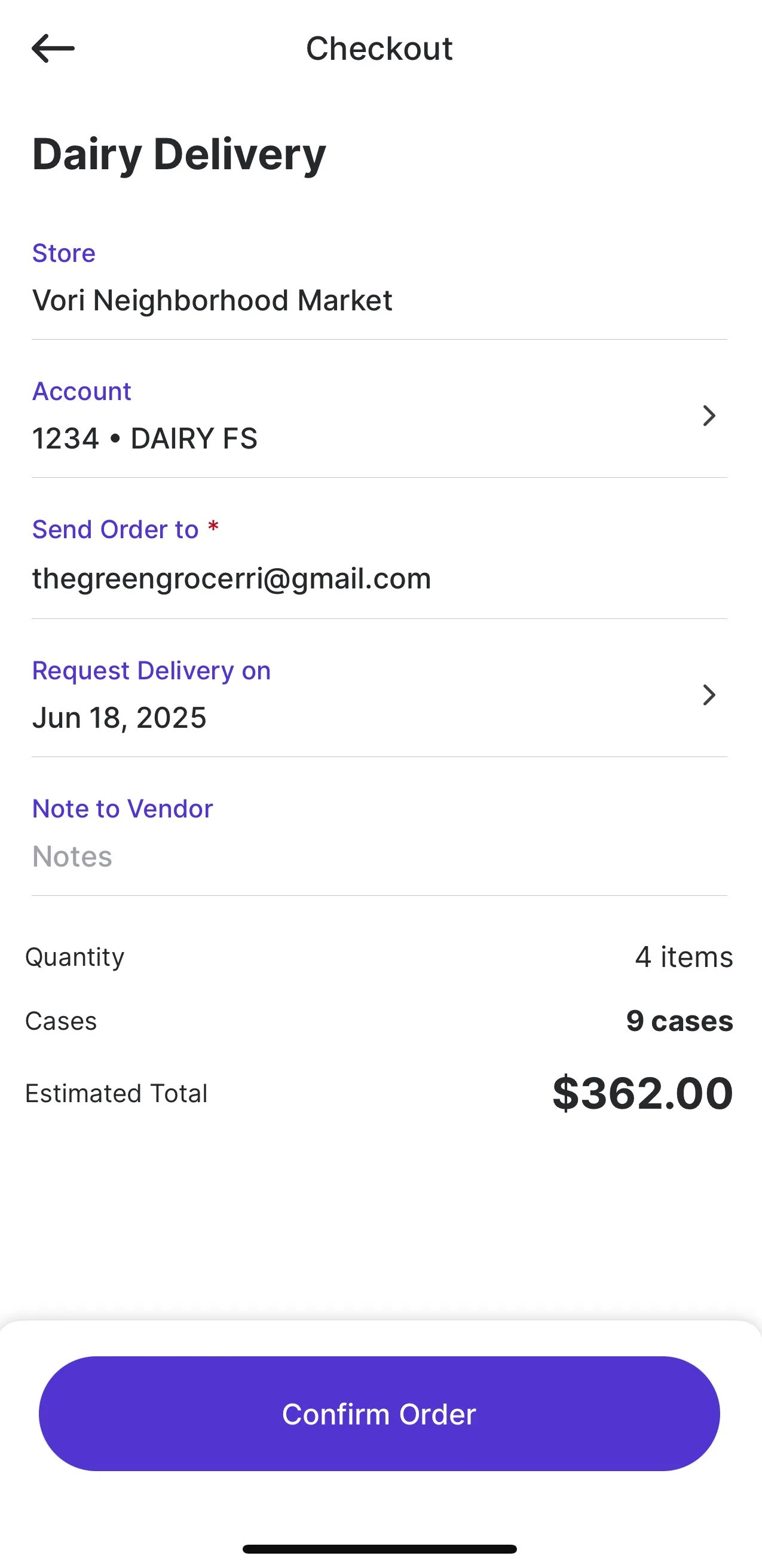 **🚨 Warning:** Be sure the email address and delivery date are correct before submitting.
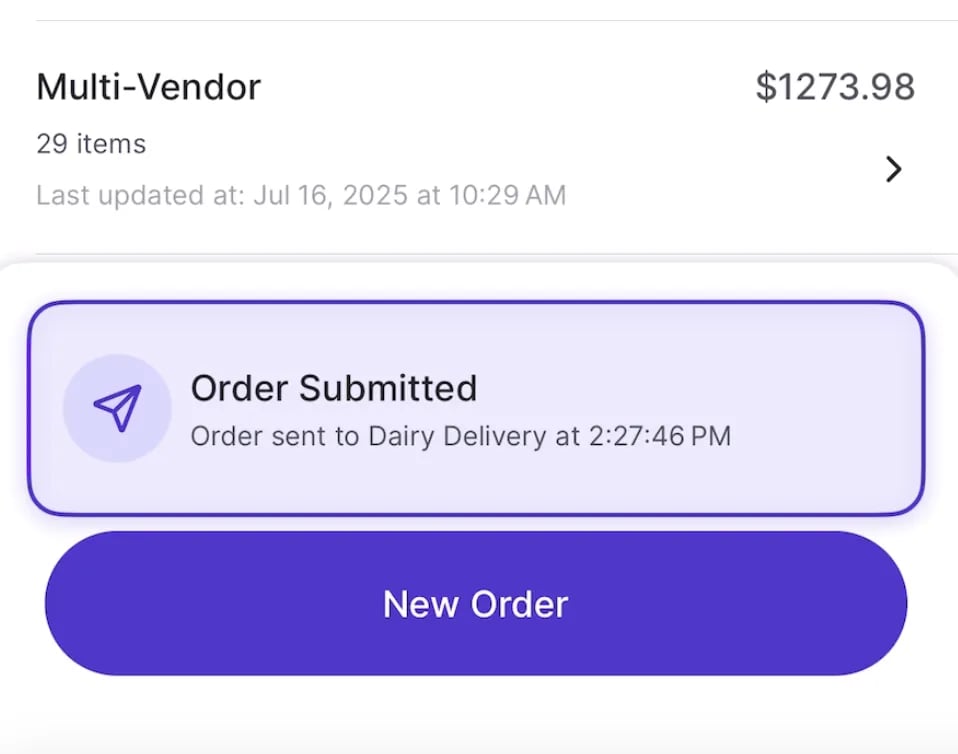
* Select **Confirm Order** to submit and leave the app open until you see the purple "**Order Submitted" confirmation** message on the **Order Dashboard.**\\
**🚨 Warning:** Be sure the email address and delivery date are correct before submitting.
* Select **Confirm Order** to submit and leave the app open until you see the purple "**Order Submitted" confirmation** message on the **Order Dashboard.**\\
 **💡 Tip:** Learn how to view and edit a vendor's details (like email address) in the **[Store Vendor & Products](/vendors-and-vendor-products/vendor-management/manage-vendors-and-contacts)** article.
***
### Special Note for UNFI Orders
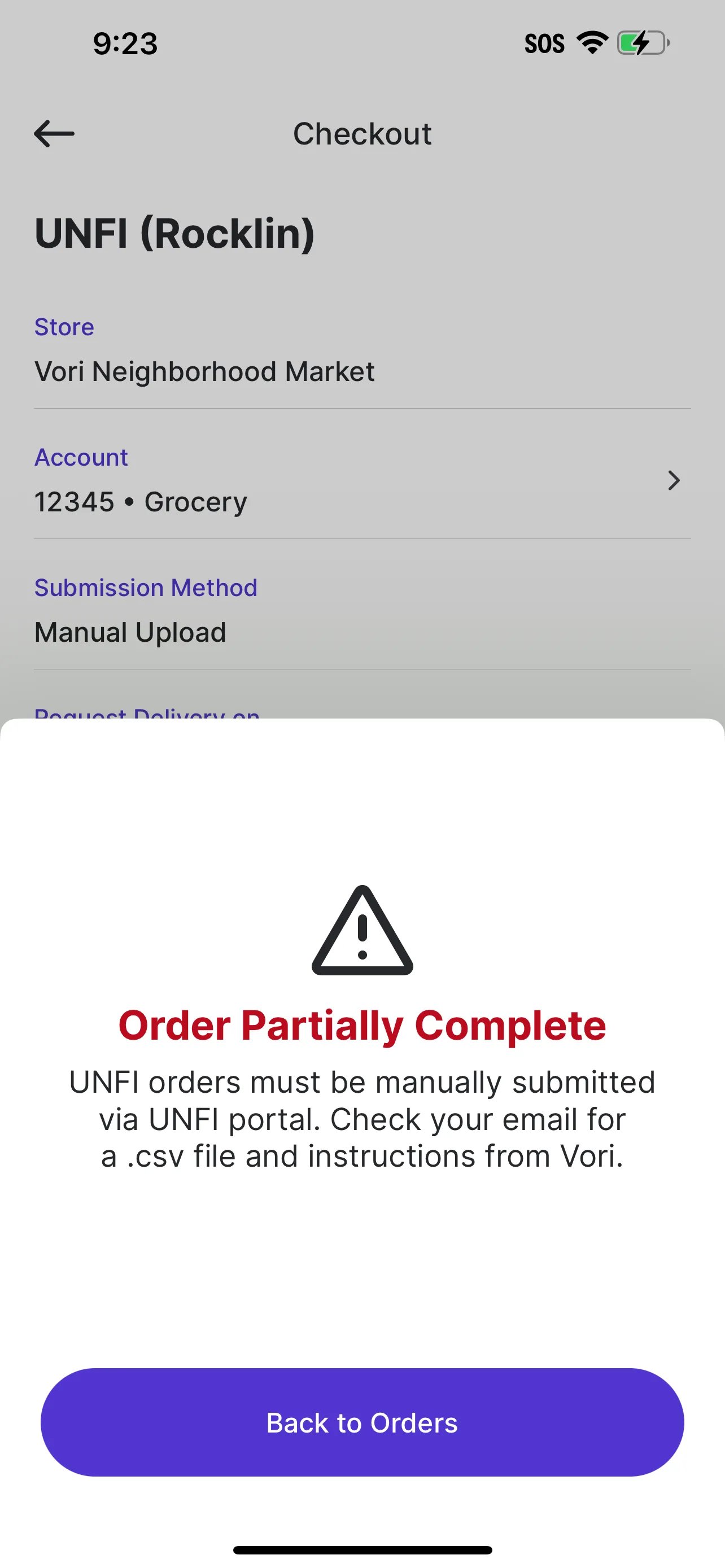
Some vendors, including **UNFI and its subsidiaries** (such as **Tony’s** and **Supervalu**), do **not accept orders via email or direct EDI integration** from Vori. Because of this, the **Submission Method** is automatically set to **Manual Upload** at checkout.
* If the **Submission Method** is set to **Manual Upload**, check your email for the .csv file and follow the instructions provided by Vori.
1. **Do not open the CSV file.** Opening it in Excel or another program may remove leading zeros from item codes.
2. **Simply download the file** as-is.
3. **Drag and drop the CSV** into the **UNFI portal.** No need to edit or remove columns.
**💡 Tip:** Learn how to view and edit a vendor's details (like email address) in the **[Store Vendor & Products](/vendors-and-vendor-products/vendor-management/manage-vendors-and-contacts)** article.
***
### Special Note for UNFI Orders
Some vendors, including **UNFI and its subsidiaries** (such as **Tony’s** and **Supervalu**), do **not accept orders via email or direct EDI integration** from Vori. Because of this, the **Submission Method** is automatically set to **Manual Upload** at checkout.
* If the **Submission Method** is set to **Manual Upload**, check your email for the .csv file and follow the instructions provided by Vori.
1. **Do not open the CSV file.** Opening it in Excel or another program may remove leading zeros from item codes.
2. **Simply download the file** as-is.
3. **Drag and drop the CSV** into the **UNFI portal.** No need to edit or remove columns.
 **💡Tip:** This export is already formatted to meet UNFI's upload requirements. Just download and upload, no cleanup needed.
***
### View Your Orders
Visit the **Order Dashboard** to view draft and past orders.
You can:
* View **Draft Orders**that have not been completed. **Archive draft orders** by swiping left and tapping the **trash can**.
* **Vendors with an order due that day**, and **no draft order started**, will appear **highlighted on the ordering screen** for quick visibility.
**💡Tip:** This export is already formatted to meet UNFI's upload requirements. Just download and upload, no cleanup needed.
***
### View Your Orders
Visit the **Order Dashboard** to view draft and past orders.
You can:
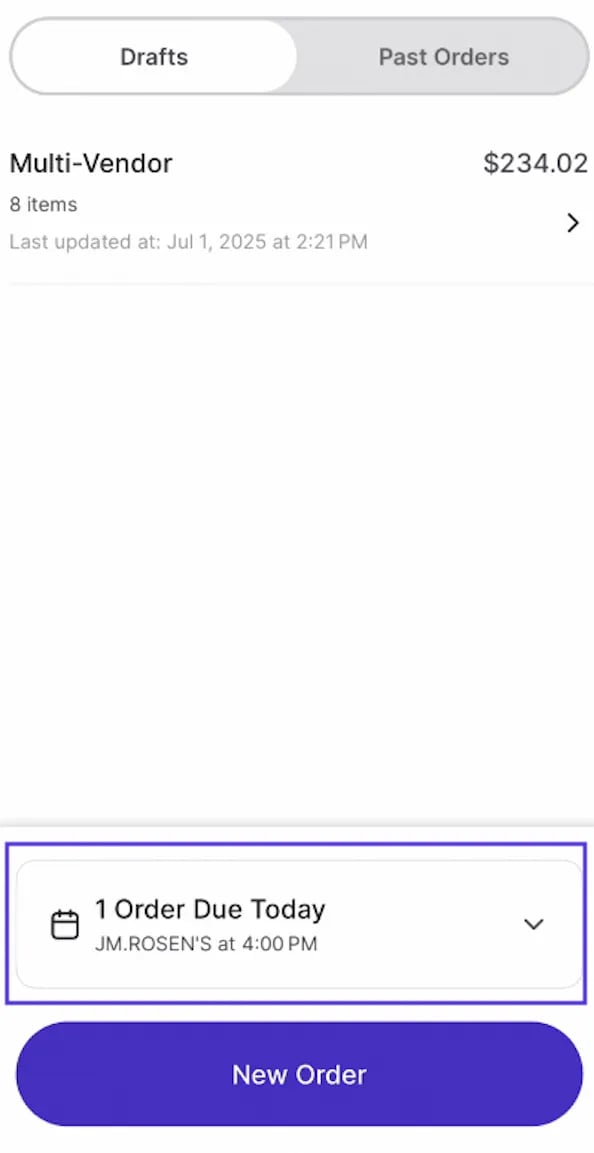
* View **Draft Orders**that have not been completed. **Archive draft orders** by swiping left and tapping the **trash can**.
* **Vendors with an order due that day**, and **no draft order started**, will appear **highlighted on the ordering screen** for quick visibility.
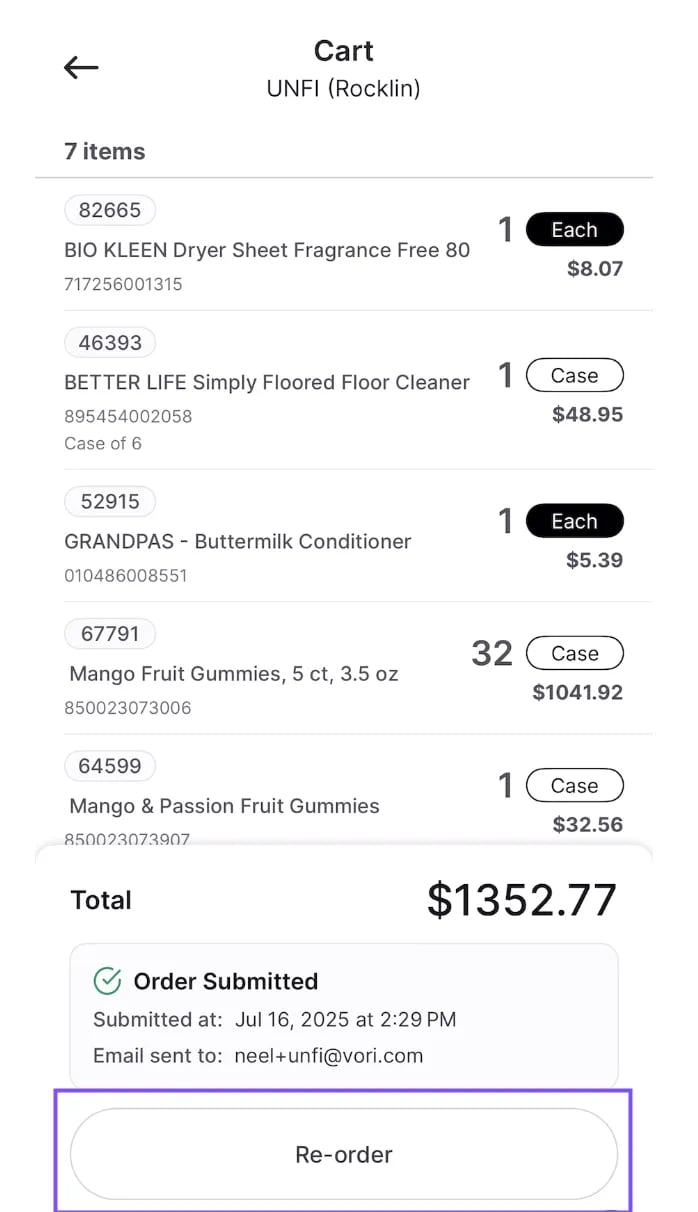
 * You can view and tap into **Past Orders** to review item details, track submission time, and see who received the confirmation email. To quickly reorder, select a past order and tap **Re-order** to add all items, along with their quantities, unit types, and vendor associations, into a new cart without starting from scratch.
 ***
### Troubleshooting
**What if a vendor doesn’t appear?**
* Confirm the vendor is connected in the **[Vendors](https://app.vori.com/retail/vendors)** section of the Back Office site.
**Can I change the email address after submitting an order?**
* Once an order is submitted, **you cannot edit the email address** tied to it.
* **For small orders,** we recommend redoing the order with the correct email.
* **For large orders,** contact Vori Support.
**What if I don't receive a copy of my Purchase order via email?**
* Check which user you were logged in under when submitting the PO. Confirmation emails are automatically sent to the inbox of the signed in user.
* If you want to receive copies of every Purchase Order, make sure your email is added in the Vendor contact and toggle on Ordering Contact.
## Related topics
- [Create Order Guides in VoriOS](/inventory-and-ordering/ordering/create-order-guides-in-vorios.md)
- [Upload Purchase Orders to MyUNFI and KeHE](/inventory-and-ordering/ordering/upload-purchase-orders-to-myunfi-and-kehe.md)
- [Print Promotion Tags on VoriOS](/promotions/print-promotion-tags-on-vori-os.md)
***
### Troubleshooting
**What if a vendor doesn’t appear?**
* Confirm the vendor is connected in the **[Vendors](https://app.vori.com/retail/vendors)** section of the Back Office site.
**Can I change the email address after submitting an order?**
* Once an order is submitted, **you cannot edit the email address** tied to it.
* **For small orders,** we recommend redoing the order with the correct email.
* **For large orders,** contact Vori Support.
**What if I don't receive a copy of my Purchase order via email?**
* Check which user you were logged in under when submitting the PO. Confirmation emails are automatically sent to the inbox of the signed in user.
* If you want to receive copies of every Purchase Order, make sure your email is added in the Vendor contact and toggle on Ordering Contact.
## Related topics
- [Create Order Guides in VoriOS](/inventory-and-ordering/ordering/create-order-guides-in-vorios.md)
- [Upload Purchase Orders to MyUNFI and KeHE](/inventory-and-ordering/ordering/upload-purchase-orders-to-myunfi-and-kehe.md)
- [Print Promotion Tags on VoriOS](/promotions/print-promotion-tags-on-vori-os.md)