> ## Documentation Index
> Fetch the complete documentation index at: https://help.vori.com/llms.txt
> Use this file to discover all available pages before exploring further.
# Import Order Guides in the Back Office
> Learn how to import an order guide CSV to create an order in the back office
### Downloadable CSV Template
To ensure your upload is successful on the first try, we recommend using our pre-formatted template.
📥 **[Download the Vori Order Guide Import Template](https://docs.google.com/spreadsheets/d/1syENSLlpUGQwgjgfcmvHgiYJvjBS5dqxtJ_kUHmGzh8/edit?usp=sharing)**
**✏️ Note:** Once you have filled out the template, ensure you save it as a **.CSV (Comma Separated Values)** file before uploading.
***
### Preparing Your Spreadsheet
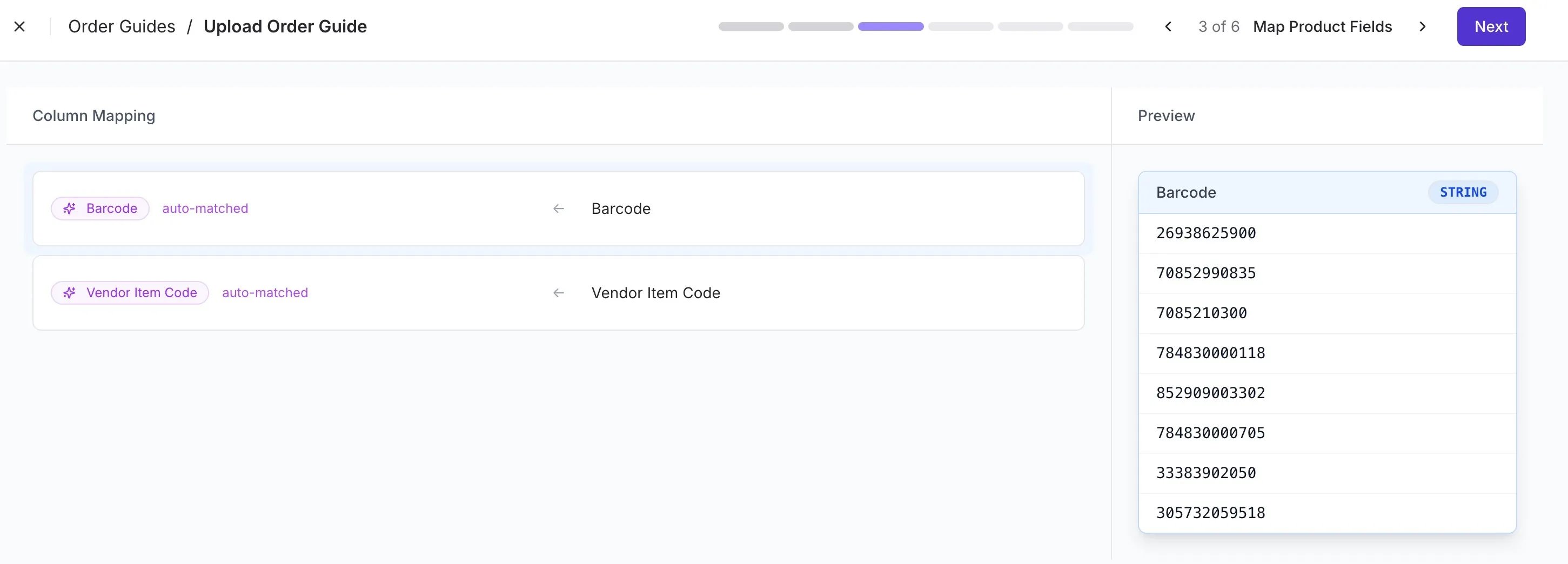
Ensure your file contains a **Barcode** column (required). The following columns are also supported but optional. Headers do not have to match exactly.
| **Column Header** | **Requirement** | **Notes** |
| -------------------- | --------------- | ---------------------------------------------- |
| **Description** | Optional | The name of the product. |
| **Vendor Item Code** | Optional | If your vendor doesn't use these, leave blank. |
| **Barcode** | Required | The UPC or GTIN for the product. |
Items will be uploaded based on their position in the spreadsheet.
***
### How to Upload the CSV
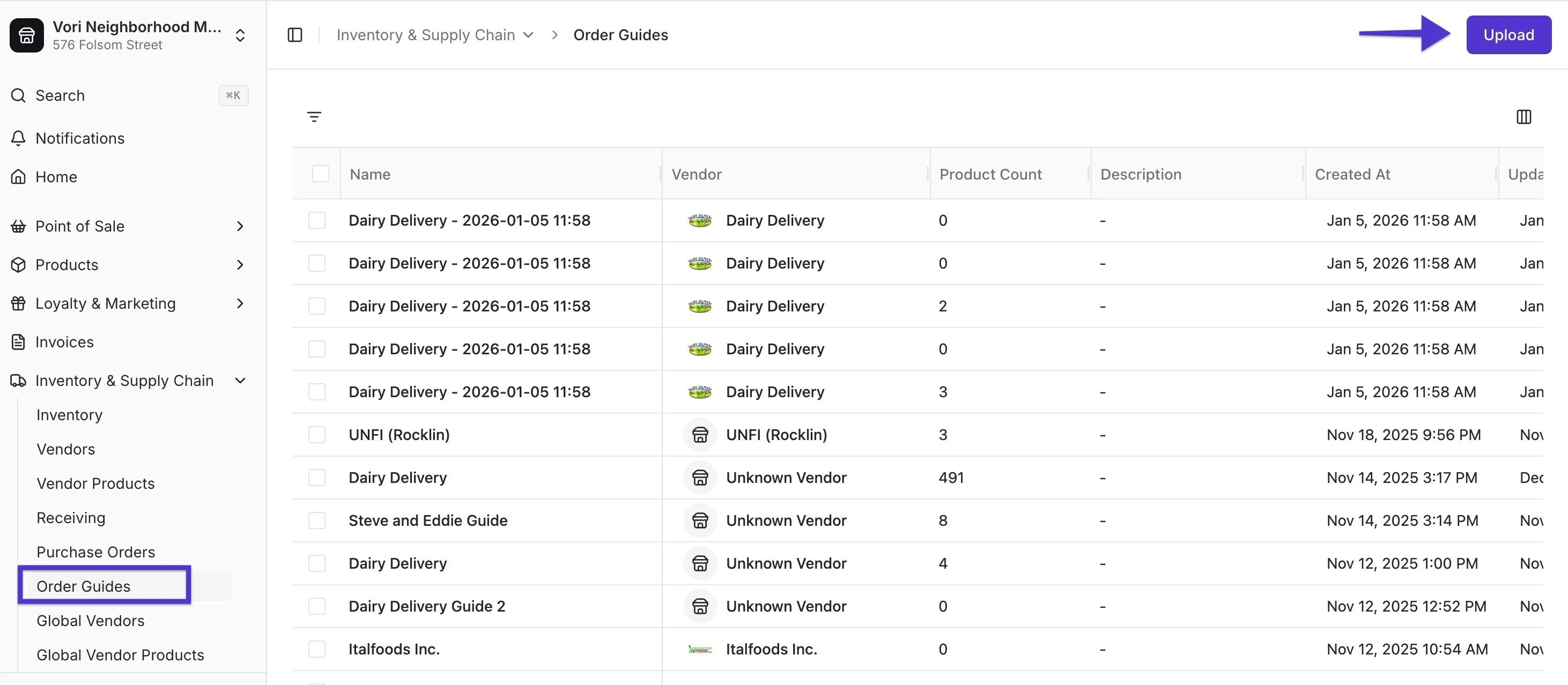
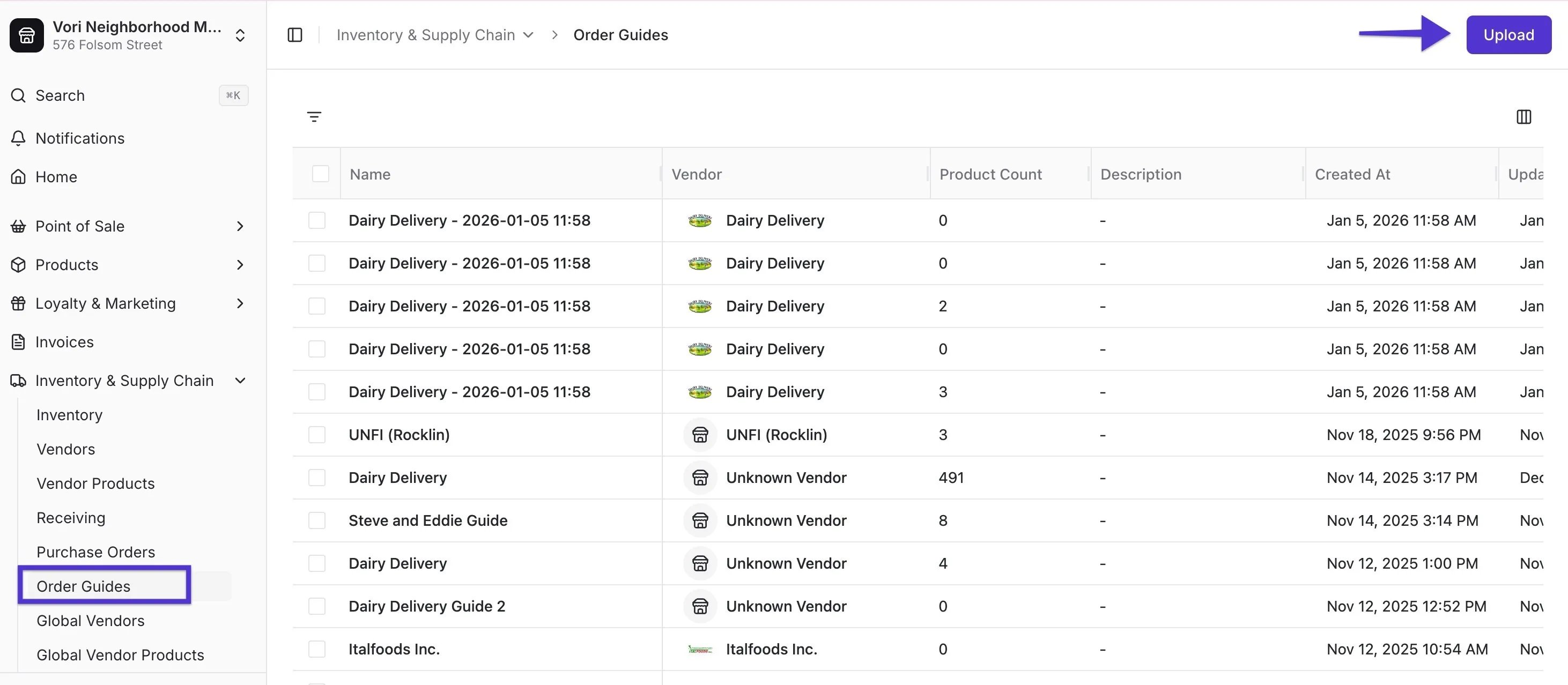
1. Navigate to **Inventory & Supply Chain** > **[Order Guides](https://app.vori.com/retail/order-guides)**.
2. Click the **Upload** button in the top right-hand corner.
 3. Select the **Store Vendor** from the dropdown menu and click **Next**.
 4. Upload your **CSV** file.
5. **Map the Columns:** Vori will attempt to auto-map your headers. If they don't match, manually select the correct Vori field for each column. Click **Next**.
4. Upload your **CSV** file.
5. **Map the Columns:** Vori will attempt to auto-map your headers. If they don't match, manually select the correct Vori field for each column. Click **Next**.
 ***
### Reviewing and Committing Data
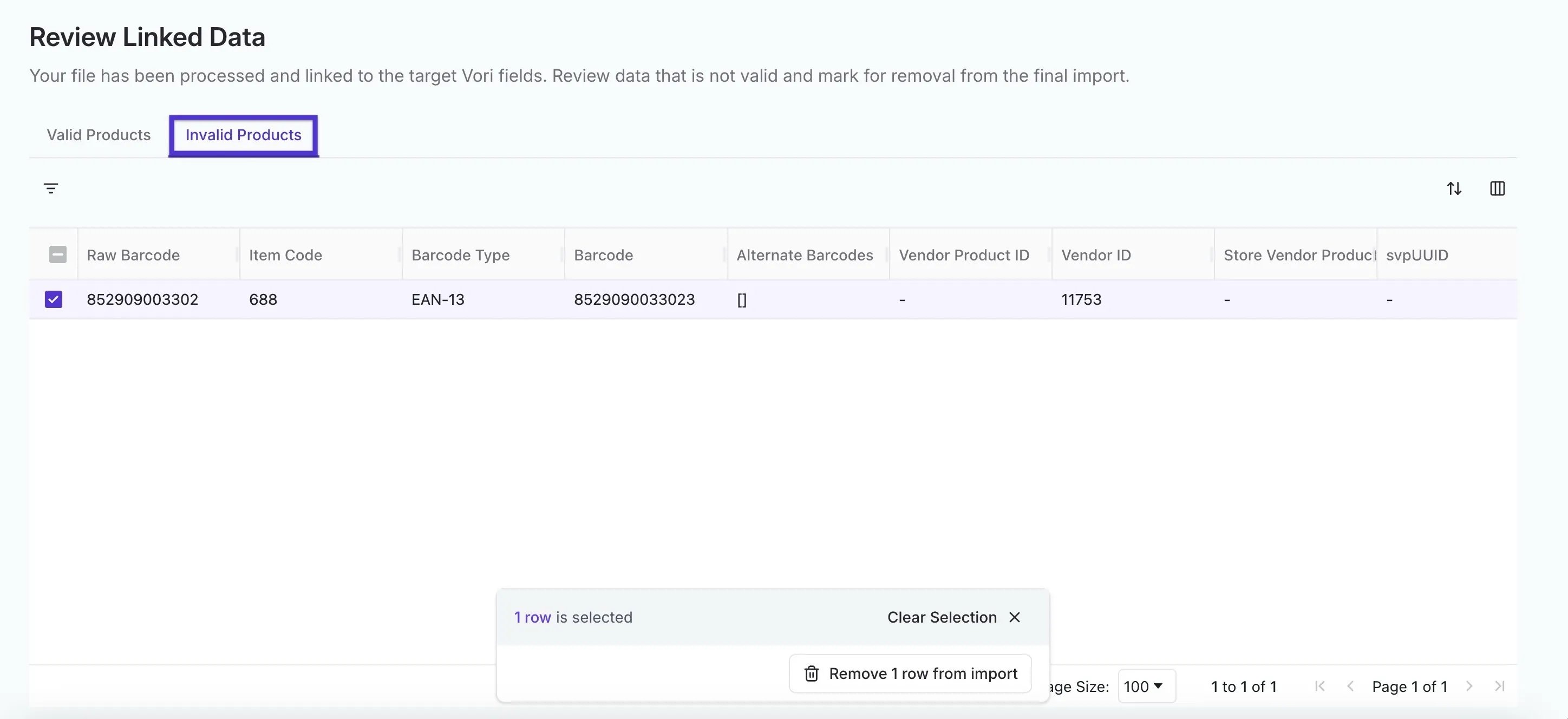
1. **Review Linked Data:** Vori will flag **invalid lines** if a barcode or item code is not found in your store's product catalog.
* You can **remove** the invalid lines to proceed.
* Or, fix the data in your spreadsheet and **re-upload**.
***
### Reviewing and Committing Data
1. **Review Linked Data:** Vori will flag **invalid lines** if a barcode or item code is not found in your store's product catalog.
* You can **remove** the invalid lines to proceed.
* Or, fix the data in your spreadsheet and **re-upload**.
 2. **Commit Summary:** Review the final count of items to be added.
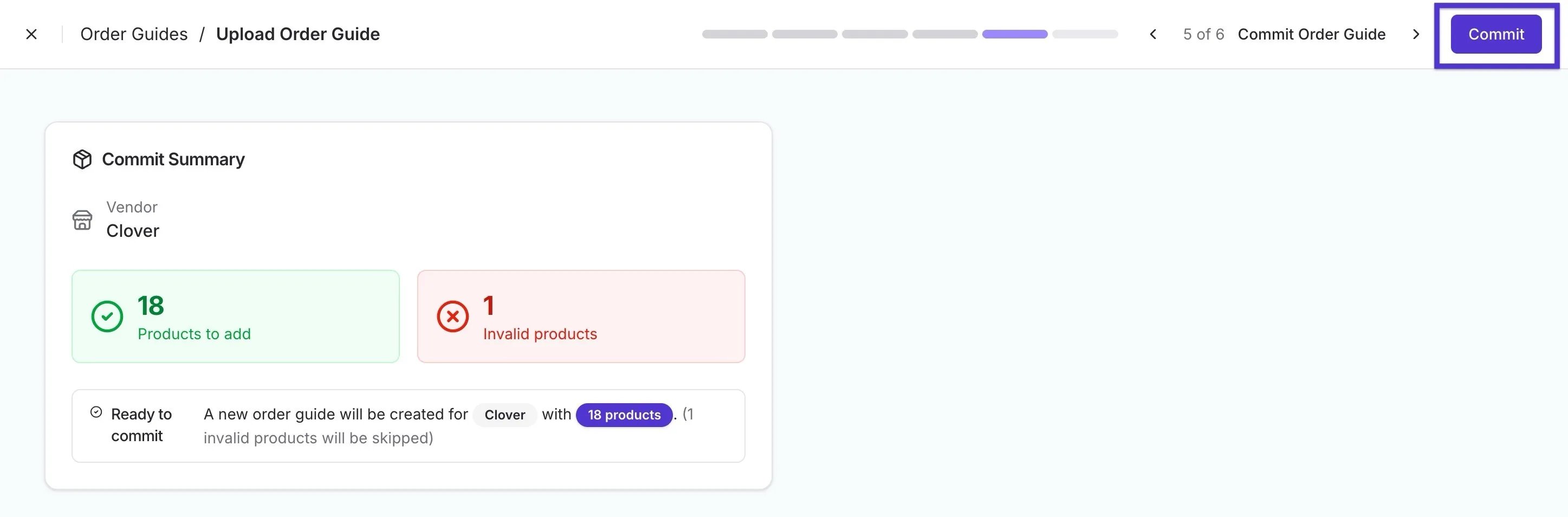 3. **Commit:** Click **Commit**. Your new guide will appear at the top of your Order Guides list.
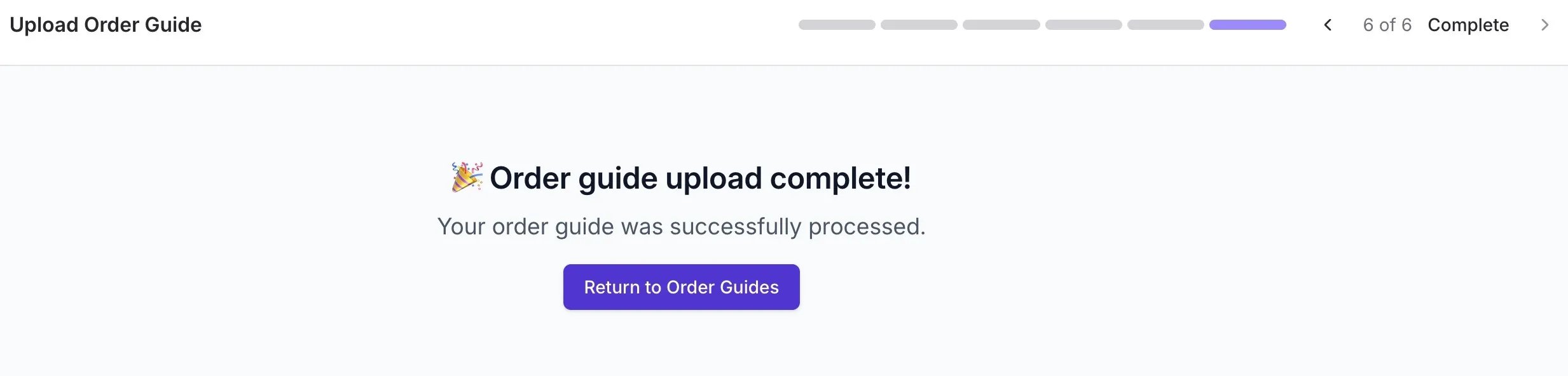 ***
### Syncing to VoriOS
After clicking **Commit**, you must sync the data to your handheld device to begin ordering.
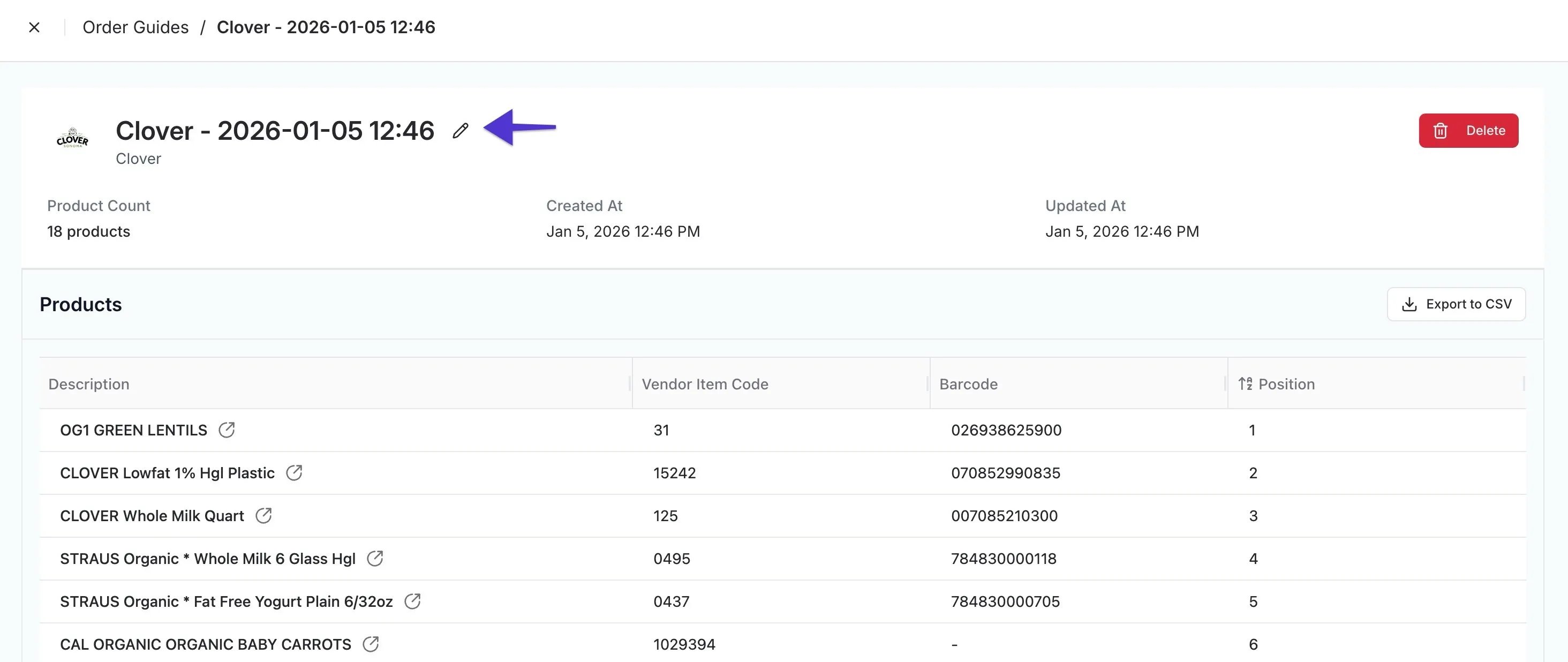
1. **Open the Guide:** Click on the new guide in the Back Office to review the item sequence.
***
### Syncing to VoriOS
After clicking **Commit**, you must sync the data to your handheld device to begin ordering.
1. **Open the Guide:** Click on the new guide in the Back Office to review the item sequence.
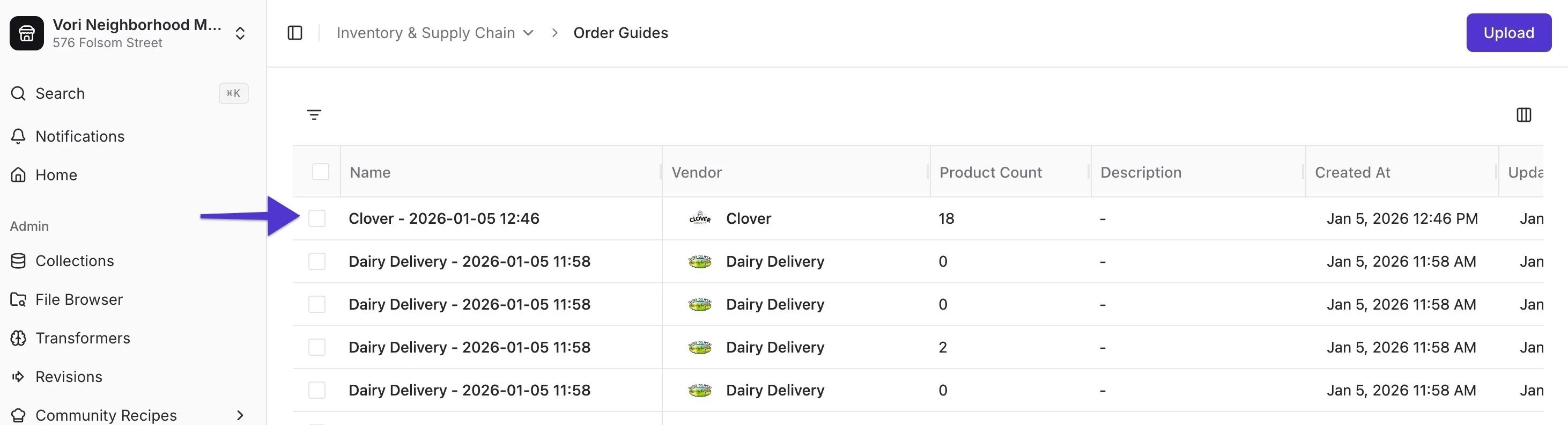 2. **Rename the Guide:** Update the **Name** and **Description** so your team can easily identify it (e.g., "Produce - Main Guide").
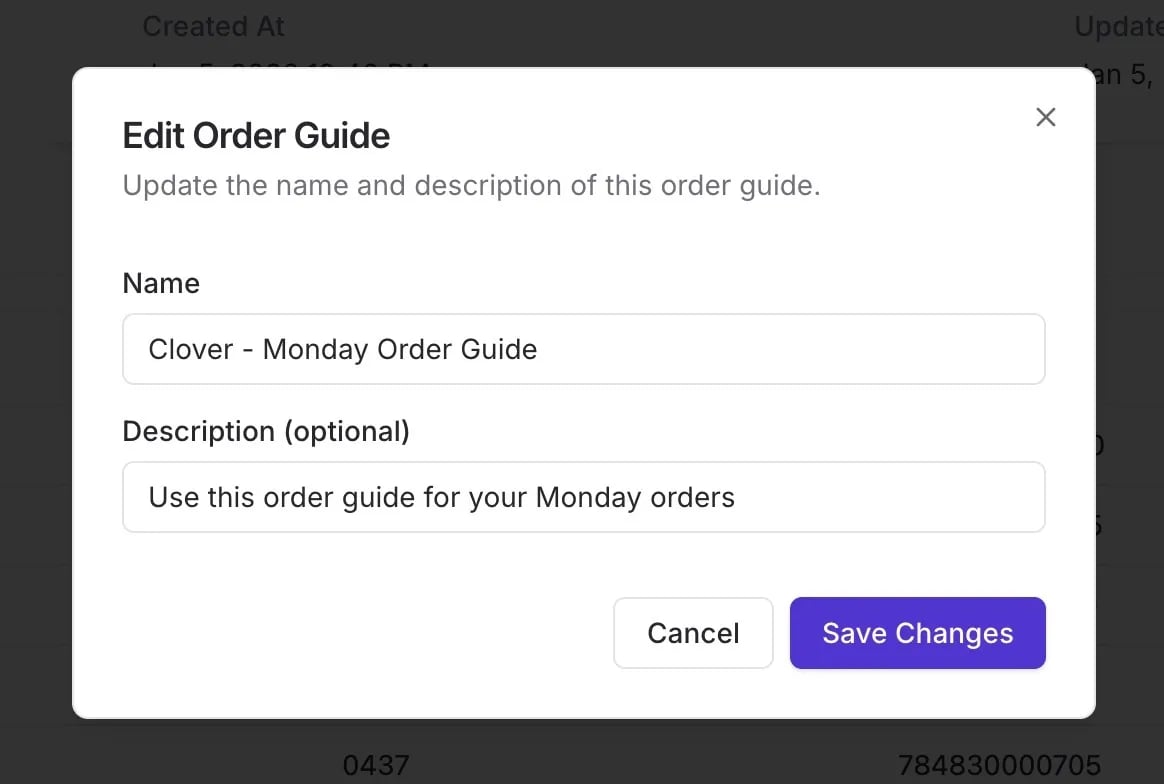 3. **Handheld Resync:** On your handheld device, tap **Resync**. The order guide will now be available for use on **VoriOS**.
## Related topics
- [Vori Webinar Training Hub](/vori-webinar-training-hub/vori-webinartraining-hub.md)
- [A Better Vori Experience: From Back Office to the POS](/whats-new-in-vori/feature-releases/a-better-vori-experience-from-back-office-to-the-pos.md)
- [Build Your Product List (APL) From Scratch – For New Stores](/product-and-product-catalog-management/product-creation-and-set-up/build-your-product-list-apl-from-scratch-for-new-stores.md)
3. **Handheld Resync:** On your handheld device, tap **Resync**. The order guide will now be available for use on **VoriOS**.
## Related topics
- [Vori Webinar Training Hub](/vori-webinar-training-hub/vori-webinartraining-hub.md)
- [A Better Vori Experience: From Back Office to the POS](/whats-new-in-vori/feature-releases/a-better-vori-experience-from-back-office-to-the-pos.md)
- [Build Your Product List (APL) From Scratch – For New Stores](/product-and-product-catalog-management/product-creation-and-set-up/build-your-product-list-apl-from-scratch-for-new-stores.md)