> ## Documentation Index
> Fetch the complete documentation index at: https://help.vori.com/llms.txt
> Use this file to discover all available pages before exploring further.
# Create Order Guides in VoriOS
> Learn how to write Order Guides on VoriOS
## This article explains what order guides are and how to create and manage them in VoriOS.
### What are Order Guides?
Order guides are custom lists of vendor products that make ordering faster and more accurate. Instead of searching for the same items each time, you can build a reusable guide with your commonly ordered products.
Using order guides helps you:
* Save time by reordering frequently purchased items in just a few taps.
* Ensure the correct vendor product is selected for each item.
* Easily add new or suggested items to keep guides up to date.
***
### Create an Order Guide
You can create an order guide from scratch or generate one as you place an order.
#### Create from scratch
1. Open the **Ordering** module in the Vori app.
2. Start a new single or multi-vendor order.
3. Tap the **Order Guide** tab.
1. You will see a list of order guides here. You can select one of the created guides, or hit "Select Another Guide" to create a new order guide.
4. Tap **New Guide**
. 5. Name your guide (e.g., *Dairy Delivery*).
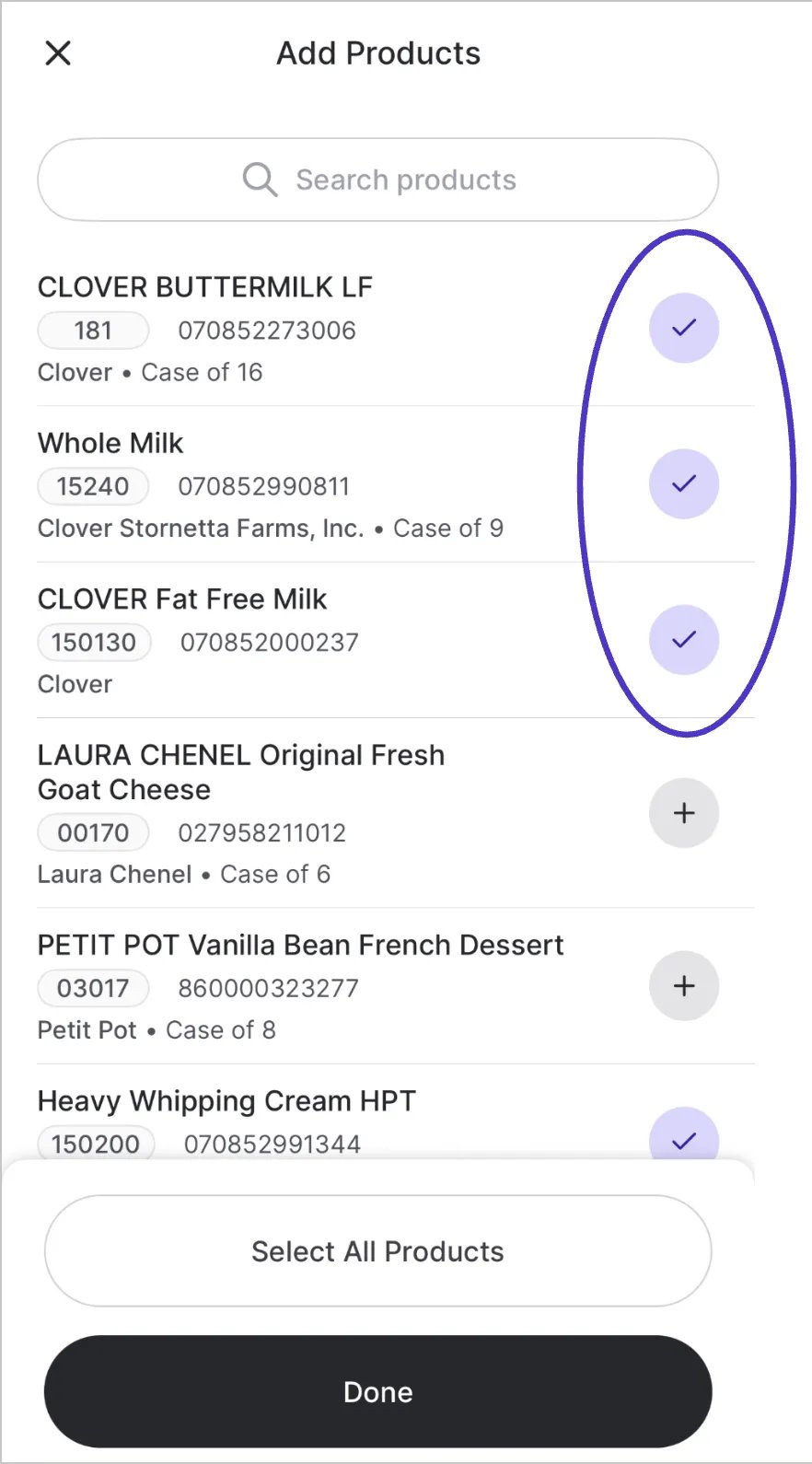
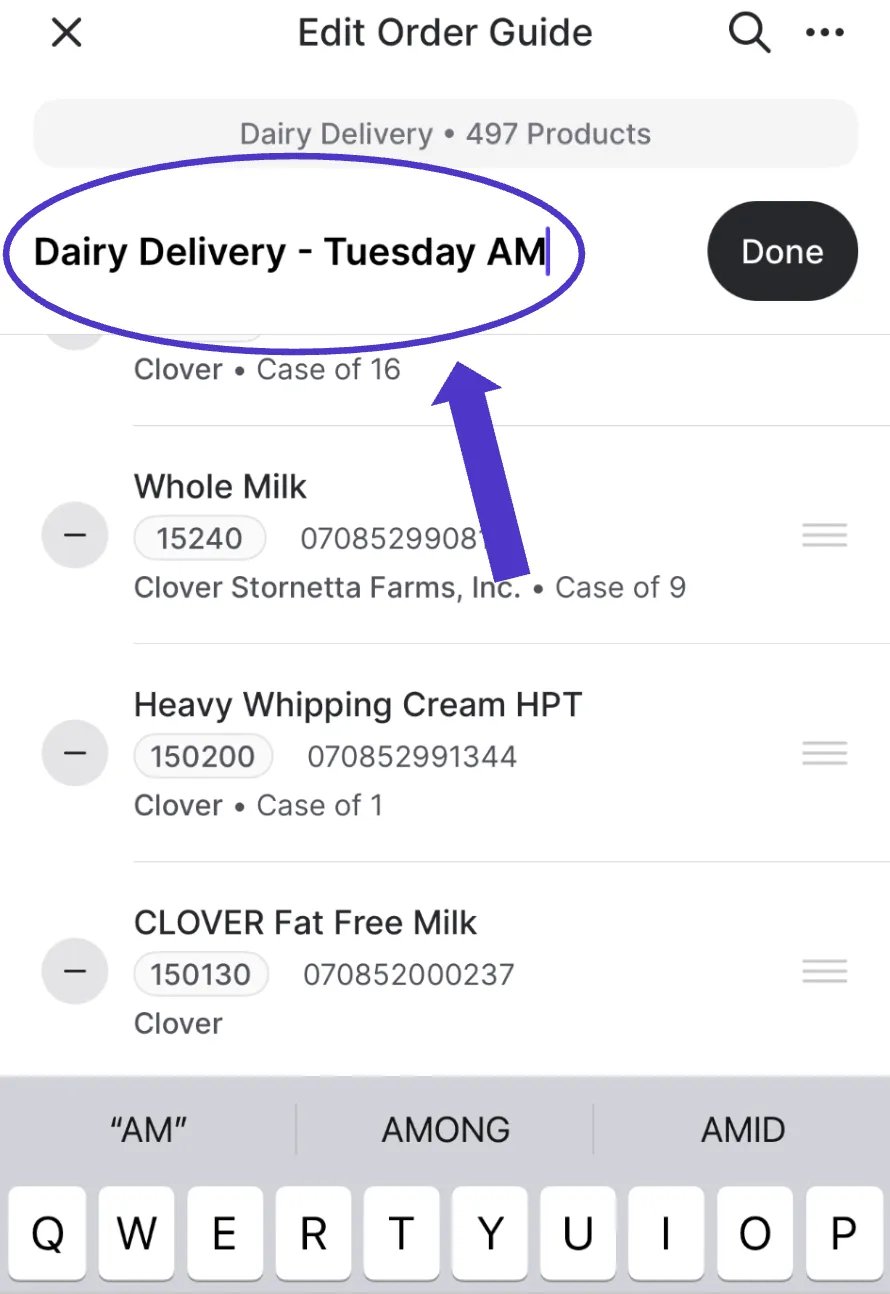 6. Add items by:
* **Scanning barcodes** with your device.
* **Searching products** by description or brand.
* **Manually rearranging** items to match your shelf layout.
7. Tap **Save**. Your guide is now available for future orders
6. Add items by:
* **Scanning barcodes** with your device.
* **Searching products** by description or brand.
* **Manually rearranging** items to match your shelf layout.
7. Tap **Save**. Your guide is now available for future orders
 #### Create at Checkout
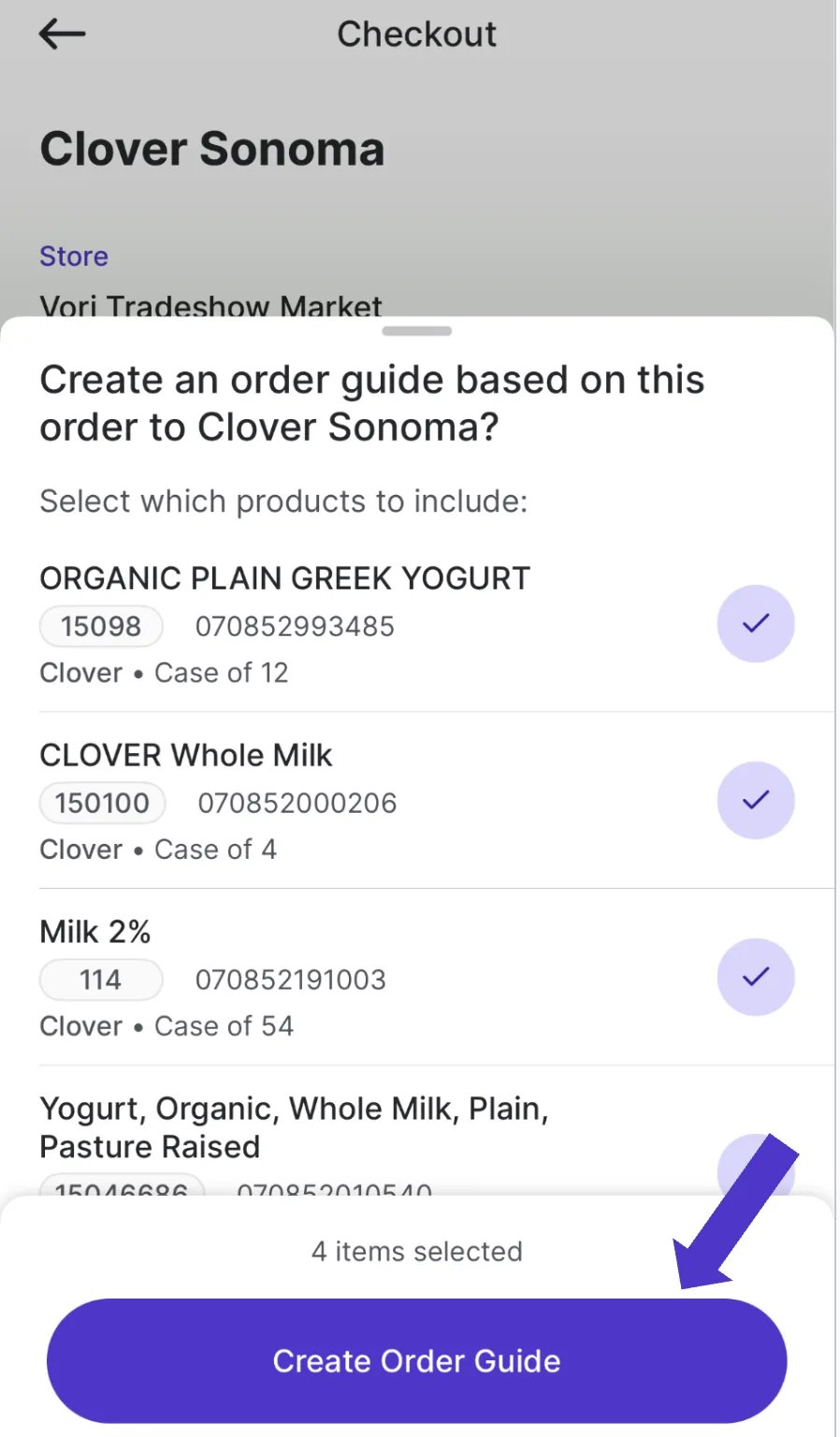
1. Place an order as usual by scanning or searching for items.
2. At checkout, if you don’t already have a guide for that vendor, Vori will ask if you’d like to create one.
3. Confirm to save those items as an order guide for next time. You can always **add more items** to the Order Guide when editing it.
#### Create at Checkout
1. Place an order as usual by scanning or searching for items.
2. At checkout, if you don’t already have a guide for that vendor, Vori will ask if you’d like to create one.
3. Confirm to save those items as an order guide for next time. You can always **add more items** to the Order Guide when editing it.
 #### Delete an Order Guide
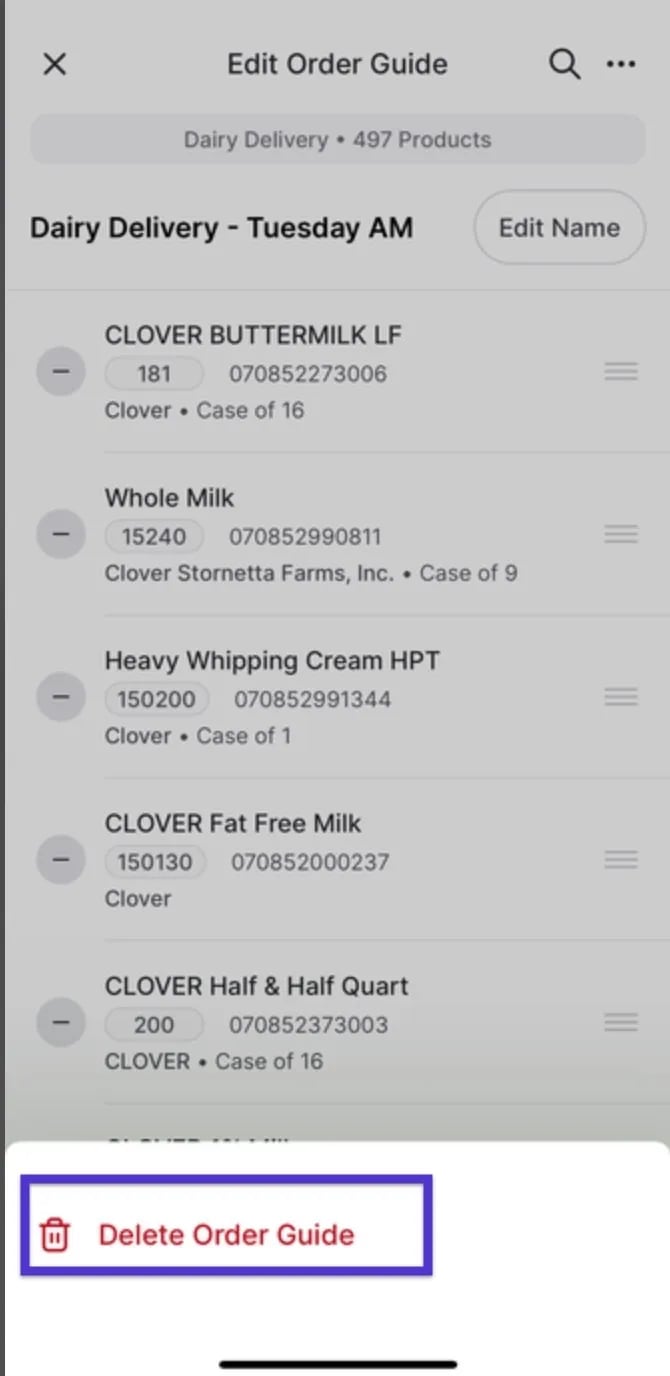
If you create an Order Guide, you no longer need it; you can delete it at any time.
1. Navigate to the Order Guide you wish to delete.
2. Click "**Edit**" to edit the Order Guide.
3. Tap the three dots in the right-hand corner.
4. Select **"Delete Order Guide"** when the field pops up.
#### Delete an Order Guide
If you create an Order Guide, you no longer need it; you can delete it at any time.
1. Navigate to the Order Guide you wish to delete.
2. Click "**Edit**" to edit the Order Guide.
3. Tap the three dots in the right-hand corner.
4. Select **"Delete Order Guide"** when the field pops up.
 ***
### Use an Order Guide
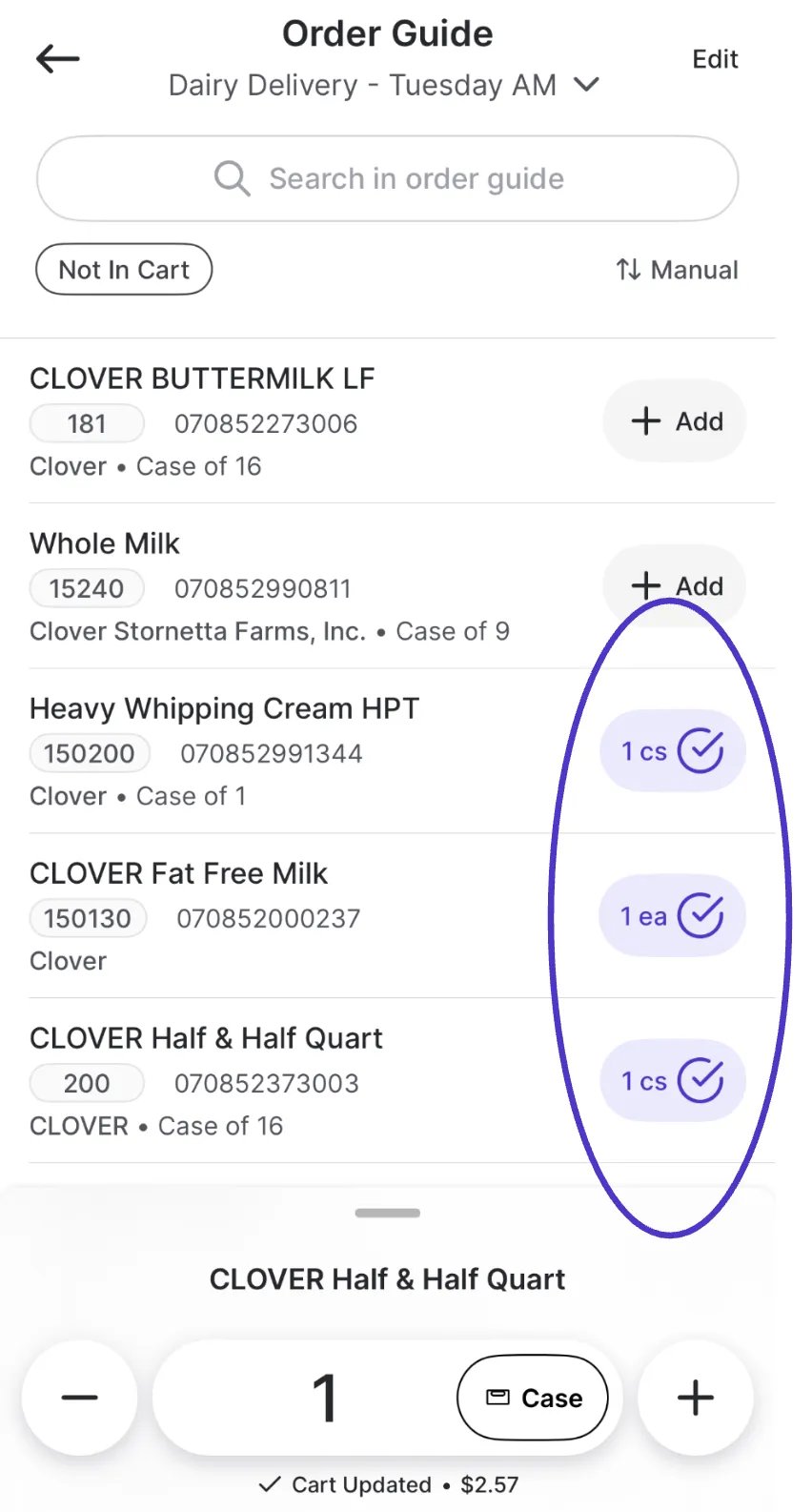
1. From the **Order Guide** tab, select a saved guide.
2. Tap **Add** next to items you want to include in your order
***
### Use an Order Guide
1. From the **Order Guide** tab, select a saved guide.
2. Tap **Add** next to items you want to include in your order
 3. Adjust quantities as needed (cases or units).
4. Swipe left to remove items from the cart.
5. At checkout, your cart will reflect everything you selected from the guide.
***
### Manage Order Guides
* **Edit an existing guide**: Rename it, add or remove items, and rearrange the order.
* **Suggested products**: Vori recommends items that may be missing from your guide, such as:
* Products from your last order with that vendor.
* Newly added items in the past two weeks.
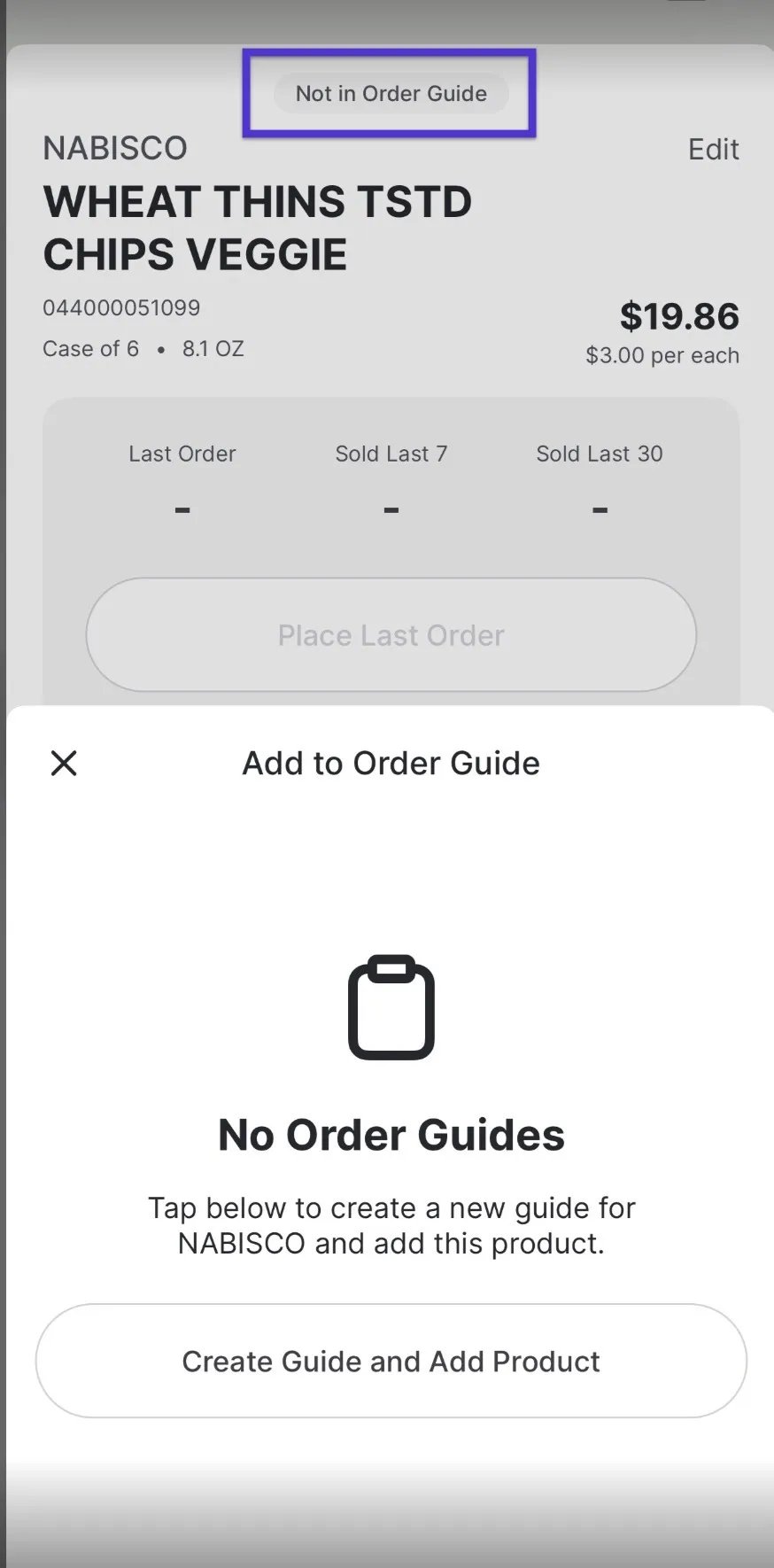
* **Add on the fly**: When scanning or searching, tap **Add to Order Guide** to save an item for future use.
3. Adjust quantities as needed (cases or units).
4. Swipe left to remove items from the cart.
5. At checkout, your cart will reflect everything you selected from the guide.
***
### Manage Order Guides
* **Edit an existing guide**: Rename it, add or remove items, and rearrange the order.
* **Suggested products**: Vori recommends items that may be missing from your guide, such as:
* Products from your last order with that vendor.
* Newly added items in the past two weeks.
* **Add on the fly**: When scanning or searching, tap **Add to Order Guide** to save an item for future use.
 * **Multiple guides per vendor**: You can create more than one guide for the same vendor (e.g., *Coffee* and *Snacks*).
***
### Additional Features
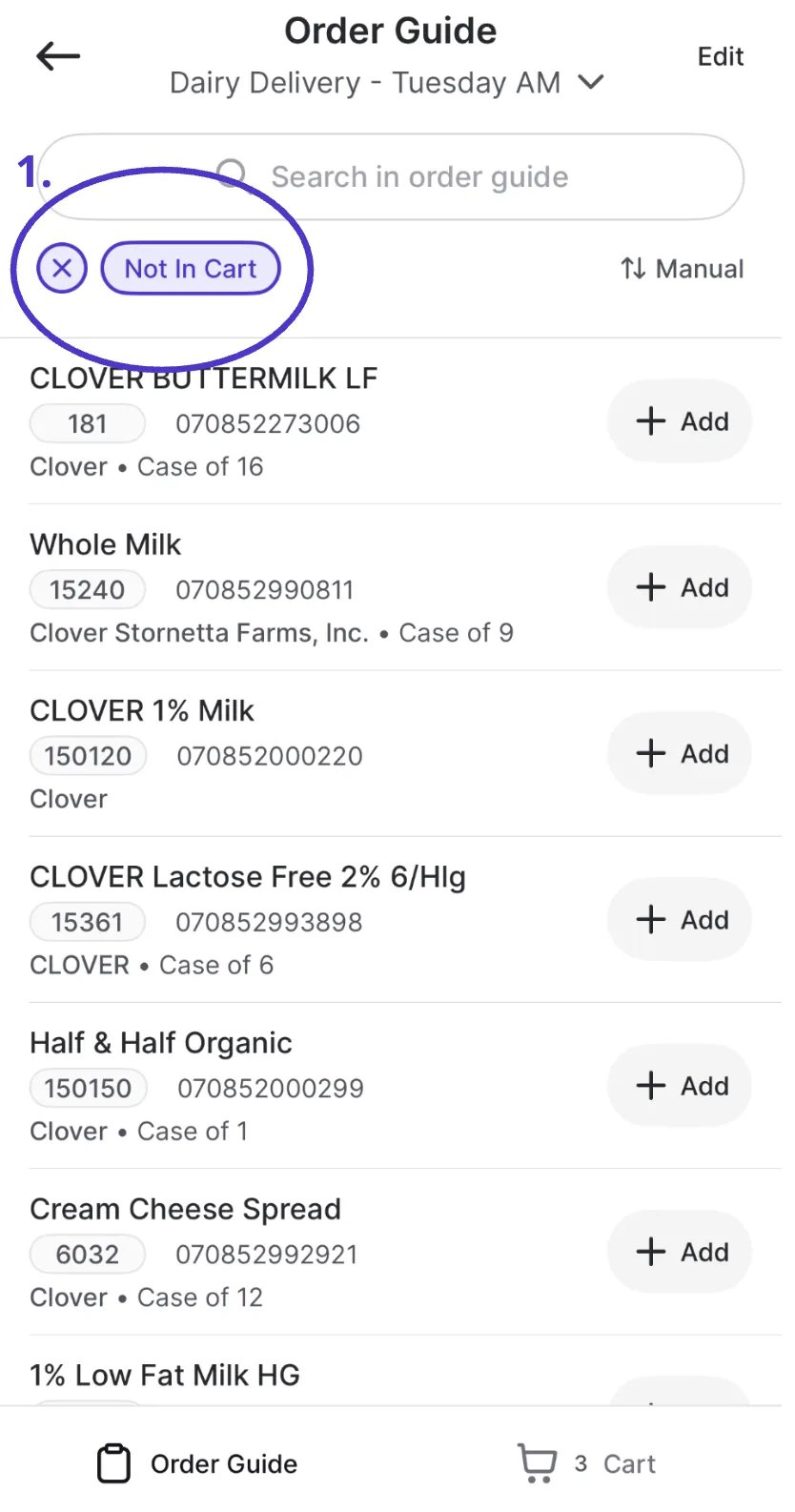
* **Filters**: Sort items in your guide (e.g., “Not in Cart”) to quickly see what you may have missed
.
* **Multiple guides per vendor**: You can create more than one guide for the same vendor (e.g., *Coffee* and *Snacks*).
***
### Additional Features
* **Filters**: Sort items in your guide (e.g., “Not in Cart”) to quickly see what you may have missed
. * **Primary products**: When duplicate vendor products exist, Vori prioritizes the most relevant option (e.g., the one last ordered or marked as primary).
* **Contacts**: Choose who should receive the order when you check out.
## Related topics
- [Place Orders on VoriOS](/inventory-and-ordering/ordering/place-orders-in-vori-operating-system.md)
- [Upload Purchase Orders to MyUNFI and KeHE](/inventory-and-ordering/ordering/upload-purchase-orders-to-myunfi-and-kehe.md)
- [Create and Manage Promotions in VoriOS](/promotions/create-and-manage-promotions-in-vori-os.md)
* **Primary products**: When duplicate vendor products exist, Vori prioritizes the most relevant option (e.g., the one last ordered or marked as primary).
* **Contacts**: Choose who should receive the order when you check out.
## Related topics
- [Place Orders on VoriOS](/inventory-and-ordering/ordering/place-orders-in-vori-operating-system.md)
- [Upload Purchase Orders to MyUNFI and KeHE](/inventory-and-ordering/ordering/upload-purchase-orders-to-myunfi-and-kehe.md)
- [Create and Manage Promotions in VoriOS](/promotions/create-and-manage-promotions-in-vori-os.md)