> ## Documentation Index
> Fetch the complete documentation index at: https://help.vori.com/llms.txt
> Use this file to discover all available pages before exploring further.
# Manually Manage and Bulk Upload Inventory
> Learn how to upload inventory adjustments and set inventory levels in the Back Office.
## Learn how to track movement, adjust stock levels for single items, and use CSV uploads for bulk inventory updates.
### Understanding Inventory Movement
Keeping accurate counts is essential as we prepare for the official rollout of **Perpetual Inventory**. You can monitor how your stock levels change in real-time.
1. Navigate to **Inventory & Supply Chain** > **[Inventory](https://app.vori.com/retail/inventory)**.
2. View the list of products to see recent movement.
3. Click into any item to see if the movement was a **Manual Adjustment** or a **Purchase**. If it was a purchase, a link to the specific order will be available in this view.
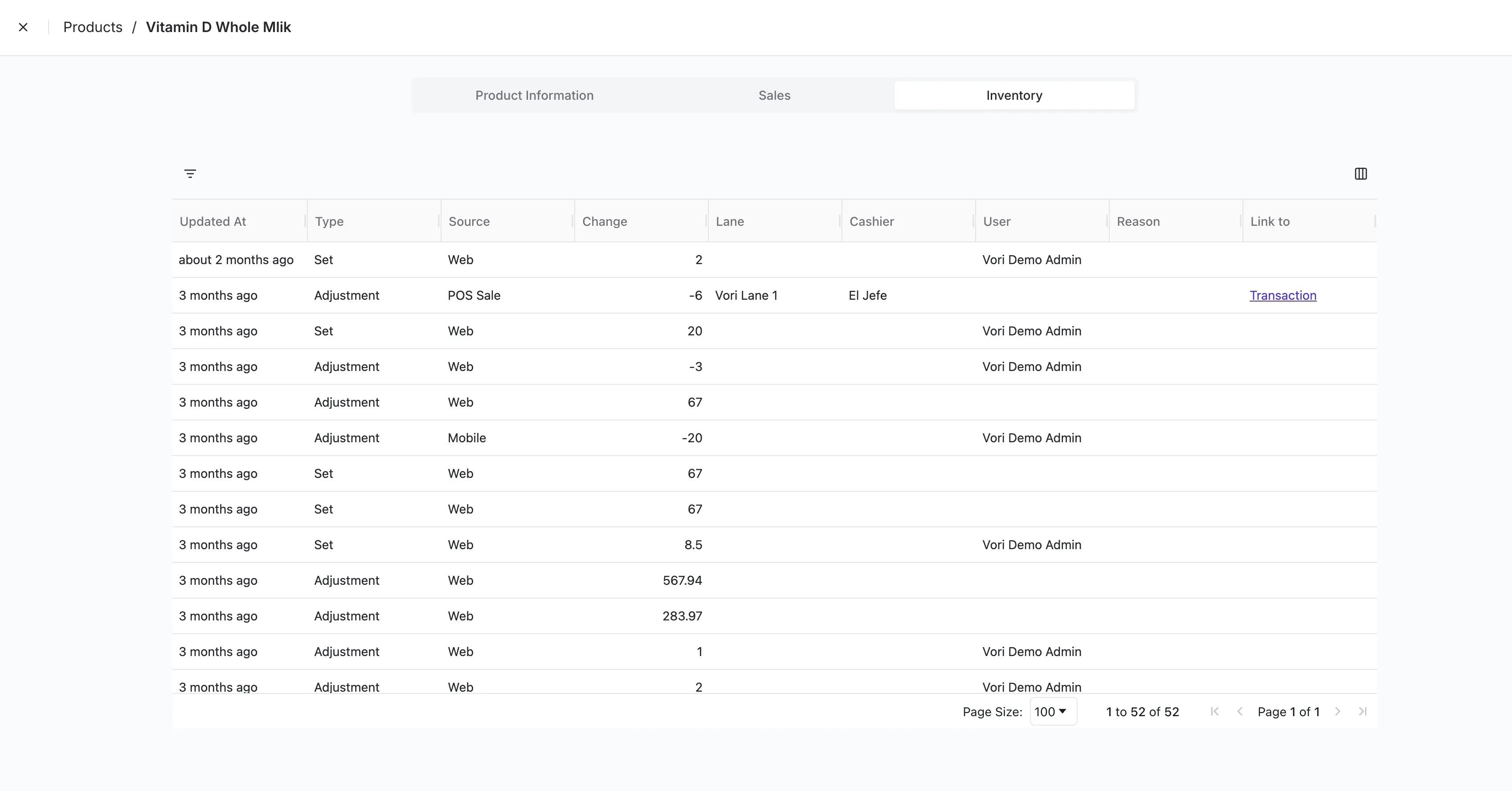 💡 **Tip:** Click the **Hamburger Icon** (three horizontal lines) on the table to show or hide specific columns to customize your view.
***
### Adjusting Single or Multiple Items
You can quickly update a handful of products directly from the main view without an upload.
1. Use the **Search Bar** or **Filters** to find your products.
2. Tick the checkbox next to the item(s) you wish to update.
💡 **Tip:** Click the **Hamburger Icon** (three horizontal lines) on the table to show or hide specific columns to customize your view.
***
### Adjusting Single or Multiple Items
You can quickly update a handful of products directly from the main view without an upload.
1. Use the **Search Bar** or **Filters** to find your products.
2. Tick the checkbox next to the item(s) you wish to update.
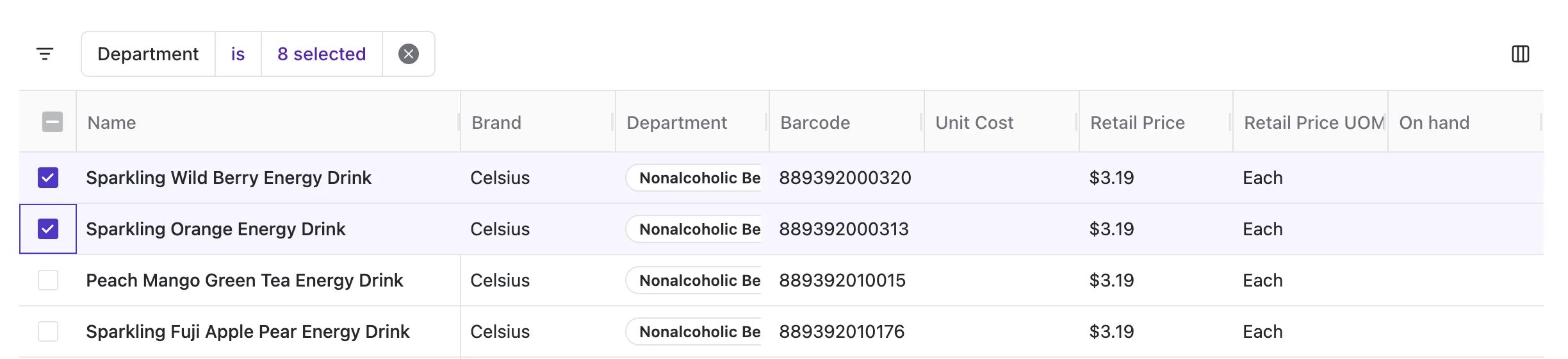 3. A menu will pop up at the bottom.
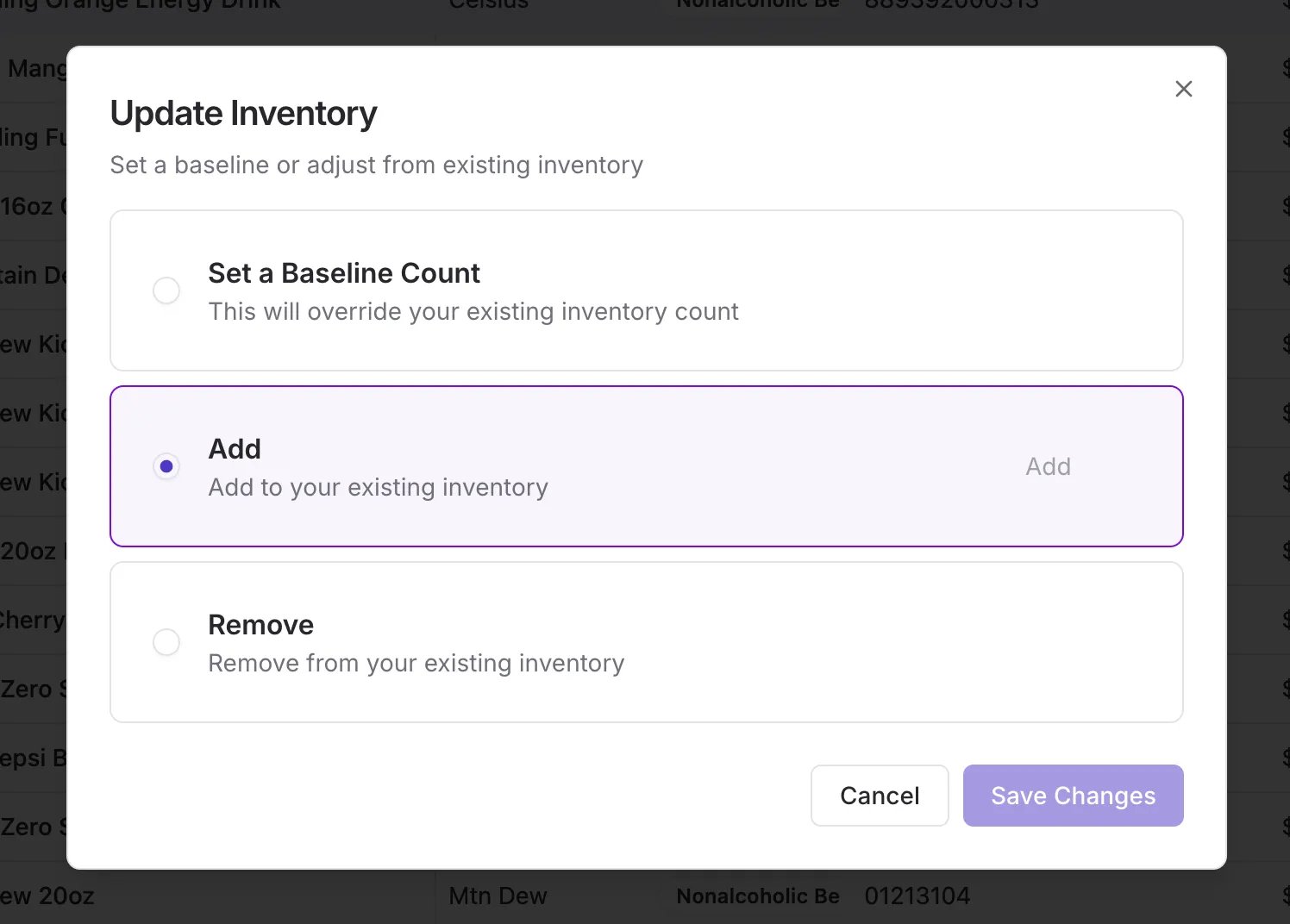 4. **On-Hand Adjustments:**
* **Set Baseline:** Overwrite the current count with a new total.
* **Add:** Increase the current count.
* **Remove:** Decrease the current count.
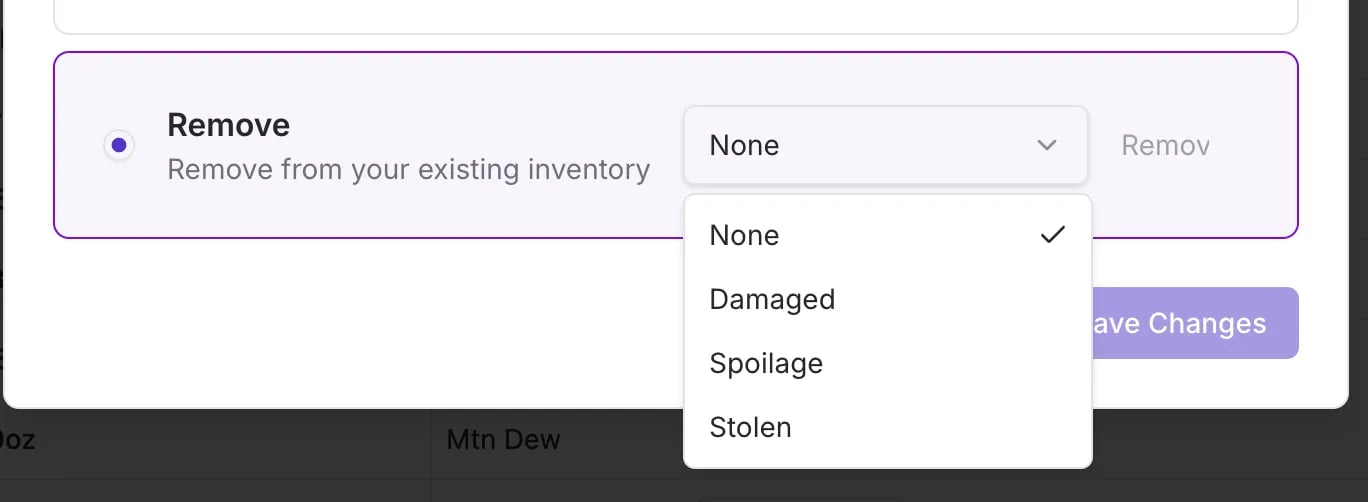
**✏️ Note:** If you select **Remove**, you can assign a "Reason for Shrink." This data will automatically populate your **Shrink Report** in Inventory Reporting.
4. **On-Hand Adjustments:**
* **Set Baseline:** Overwrite the current count with a new total.
* **Add:** Increase the current count.
* **Remove:** Decrease the current count.
**✏️ Note:** If you select **Remove**, you can assign a "Reason for Shrink." This data will automatically populate your **Shrink Report** in Inventory Reporting.
 ***
### Bulk Updating Inventory via CSV
For store-wide updates or post-receiving adjustments, use the CSV upload tool.
#### Step 1: Prepare your File
Your CSV must contain a **Barcode** and at least one of the following: **On Hand**, **Min Par**, or **Max Stock**.
[📥 **Download the Vori Inventory Import Template**](https://docs.google.com/spreadsheets/d/1uKVMJ59rmjIroyi-o0z8ORbA6a5UJc0YFCKBqL5FWXk/edit?gid=0#gid=0)
#### Step 2: Upload and Map
1. On the **[Inventory](https://app.vori.com/retail/inventory)** page, click **Upload** in the top right-hand corner.
2. Select your file and click **Upload**.
3. **Select Adjustment Type:**
* **Set:** Replaces current quantities with the file's values. (Unlisted products remain unchanged).
* **Adjust:** Adds or subtracts from current quantities. Use negative numbers for subtraction.
4. **Map Columns:** Match your spreadsheet headers to the Vori fields. Click **Next**.
#### Step 3: Review and Commit
1. **Review Rows:** Vori will show valid and invalid rows.
* **Invalid:** Investigate the barcode or fix the spreadsheet and re-upload.
* **Valid:** You can manually delete any valid rows you do not wish to update.
2. **Unmatched/Ignored:** Review any items the system could not link.
3. **Commit:** Review the final summary and hit **Commit**. Your inventory levels are now updated.
***
### Troubleshooting
#### Why is my "On Hand" count not changing?
Ensure you selected the correct **Adjustment Type**. If you chose "Adjust" and uploaded a "5", it will add 5 to your current stock. If you meant for the total to be 5, you must select "Set."
#### How do I see my Shrink data?
Any time you "Remove" inventory via the manual adjustment tool and provide a reason, it is tracked. Navigate to **Reporting** > **Inventory** > **Shrink Report** to view these losses.
## Related topics
- [Preparing Your Store for Advanced Inventory Launch](/inventory-and-ordering/inventory/preparing-your-store-for-advanced-inventory-launch.md)
- [Bulk Upload Vendors](/vendors-and-vendor-products/vendor-management/bulk-upload-vendors.md)
- [Manage Inventory with Sessions in VoriOS](/inventory-and-ordering/inventory/manage-inventory-with-sessions-in-vori-os.md)
***
### Bulk Updating Inventory via CSV
For store-wide updates or post-receiving adjustments, use the CSV upload tool.
#### Step 1: Prepare your File
Your CSV must contain a **Barcode** and at least one of the following: **On Hand**, **Min Par**, or **Max Stock**.
[📥 **Download the Vori Inventory Import Template**](https://docs.google.com/spreadsheets/d/1uKVMJ59rmjIroyi-o0z8ORbA6a5UJc0YFCKBqL5FWXk/edit?gid=0#gid=0)
#### Step 2: Upload and Map
1. On the **[Inventory](https://app.vori.com/retail/inventory)** page, click **Upload** in the top right-hand corner.
2. Select your file and click **Upload**.
3. **Select Adjustment Type:**
* **Set:** Replaces current quantities with the file's values. (Unlisted products remain unchanged).
* **Adjust:** Adds or subtracts from current quantities. Use negative numbers for subtraction.
4. **Map Columns:** Match your spreadsheet headers to the Vori fields. Click **Next**.
#### Step 3: Review and Commit
1. **Review Rows:** Vori will show valid and invalid rows.
* **Invalid:** Investigate the barcode or fix the spreadsheet and re-upload.
* **Valid:** You can manually delete any valid rows you do not wish to update.
2. **Unmatched/Ignored:** Review any items the system could not link.
3. **Commit:** Review the final summary and hit **Commit**. Your inventory levels are now updated.
***
### Troubleshooting
#### Why is my "On Hand" count not changing?
Ensure you selected the correct **Adjustment Type**. If you chose "Adjust" and uploaded a "5", it will add 5 to your current stock. If you meant for the total to be 5, you must select "Set."
#### How do I see my Shrink data?
Any time you "Remove" inventory via the manual adjustment tool and provide a reason, it is tracked. Navigate to **Reporting** > **Inventory** > **Shrink Report** to view these losses.
## Related topics
- [Preparing Your Store for Advanced Inventory Launch](/inventory-and-ordering/inventory/preparing-your-store-for-advanced-inventory-launch.md)
- [Bulk Upload Vendors](/vendors-and-vendor-products/vendor-management/bulk-upload-vendors.md)
- [Manage Inventory with Sessions in VoriOS](/inventory-and-ordering/inventory/manage-inventory-with-sessions-in-vori-os.md)