> ## Documentation Index
> Fetch the complete documentation index at: https://help.vori.com/llms.txt
> Use this file to discover all available pages before exploring further.
# Manage Inventory with Sessions in VoriOS
> Learn how to run bulk inventory updates on the floor using inventory sessions in VoriOS, then review and commit changes in the Back Office.
Inventory sessions let you make bulk inventory updates across multiple products in a single, trackable workflow — instead of updating items one at a time. Start a session on the floor, scan or search for items, record your changes, then either commit everything instantly or send it to a manager for review in the Back Office.
***
### Where to find inventory sessions
1. Open the **Vori operating system** on your handheld.
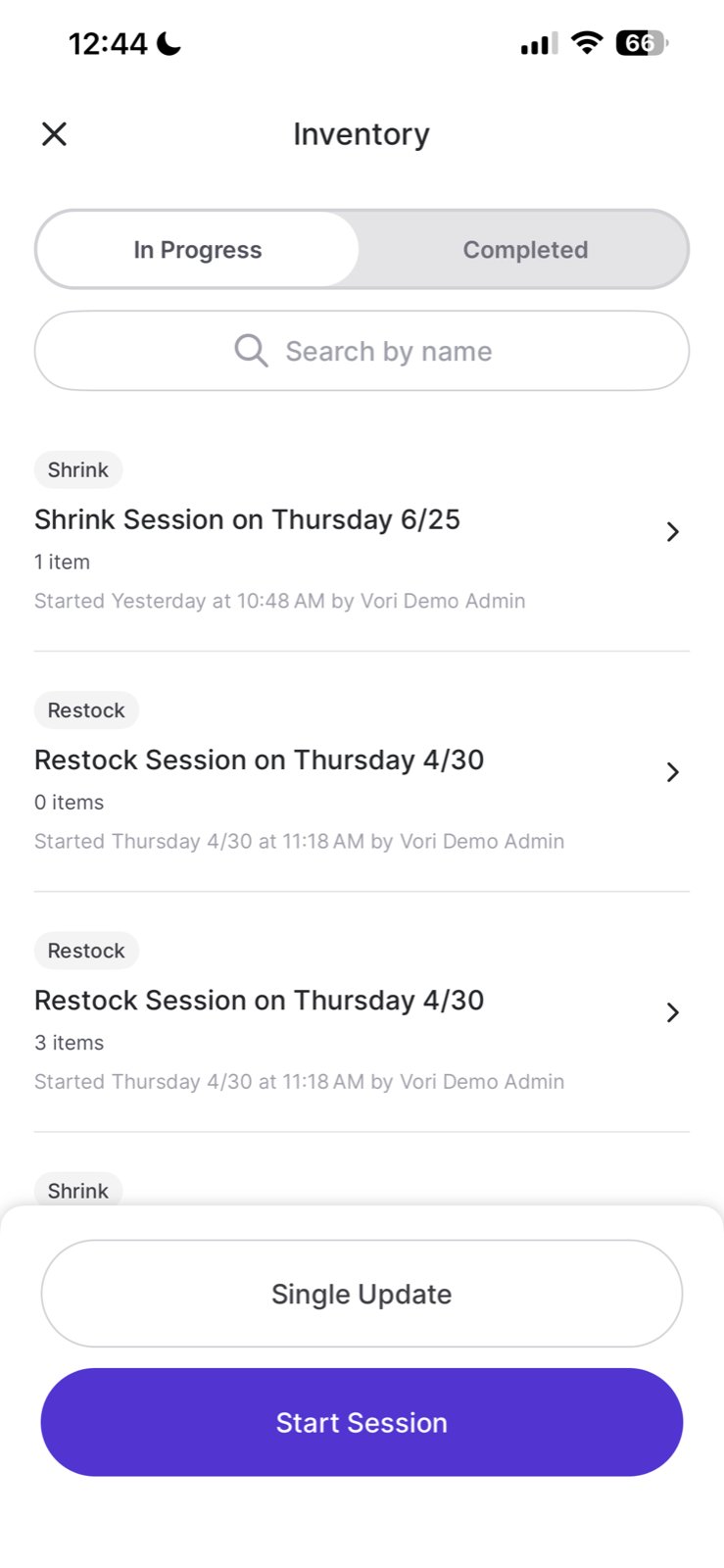
2. From the home screen, tap **Inventory**.
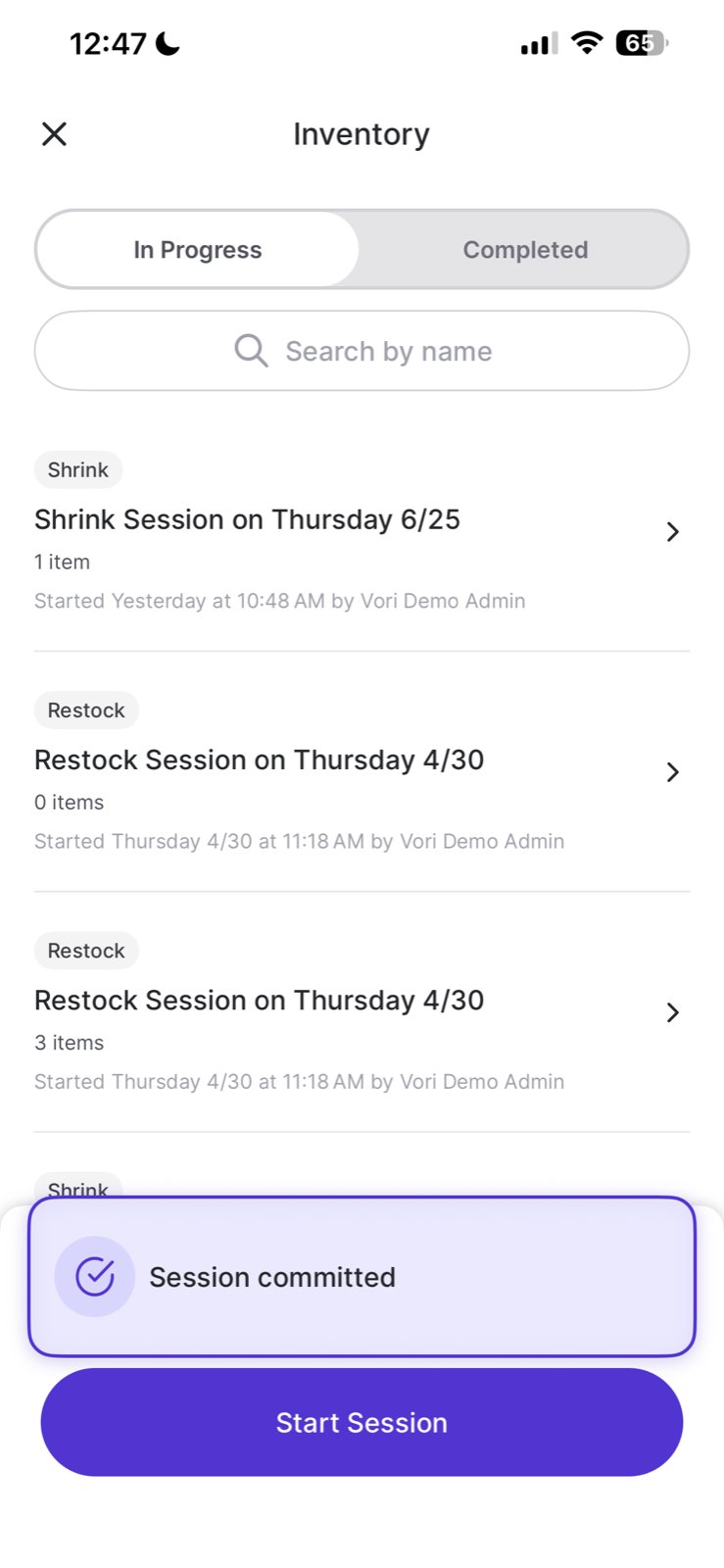
3. The Inventory screen shows two tabs: **In Progress** and **Completed**.
 ***
### Start a new session
1. From the **Inventory** screen, tap **Start Session**.
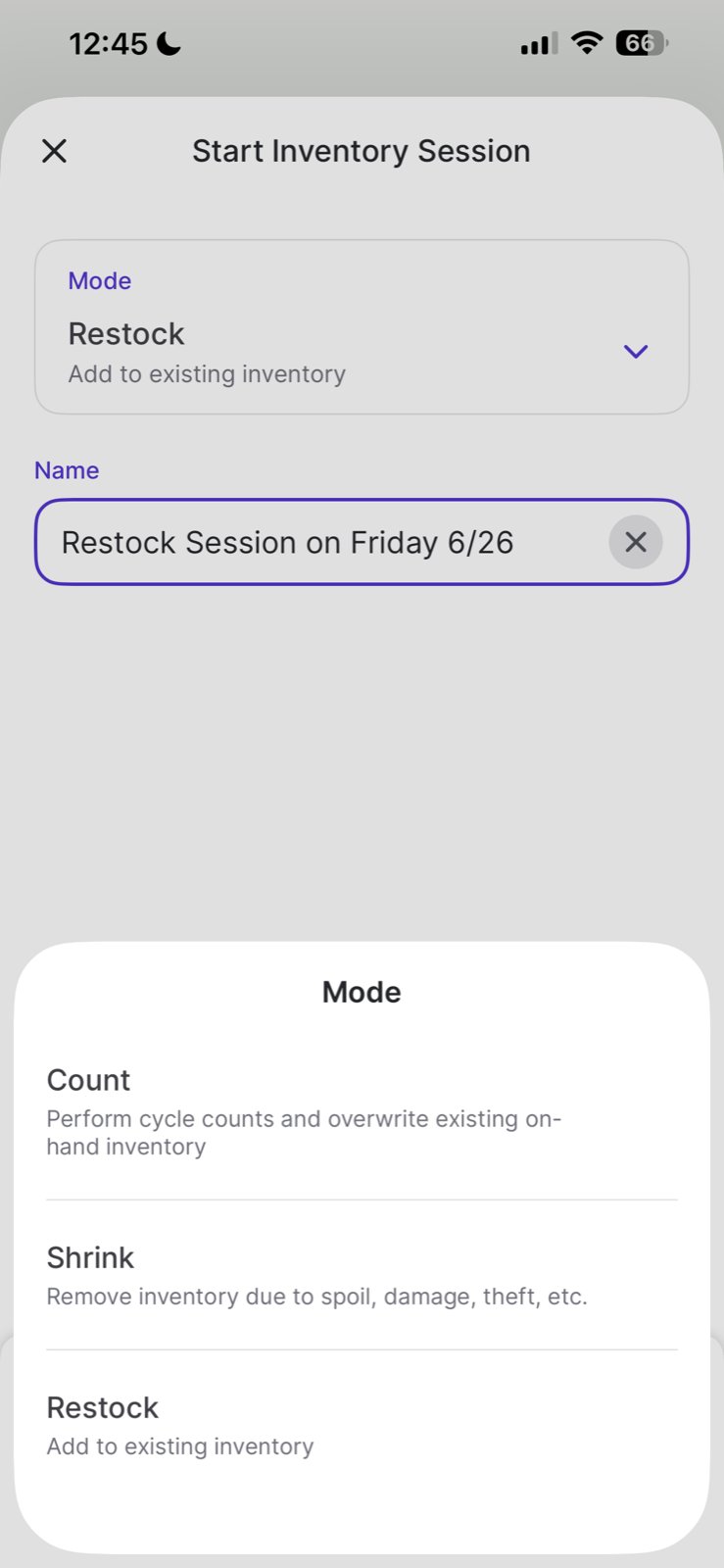
2. Select a **Mode** for the session. (See [Session modes](#session-modes) below.)
3. Give the session a **Name** — a descriptive name makes it easier to find later.
4. Tap **Begin** to start.
***
### Start a new session
1. From the **Inventory** screen, tap **Start Session**.
2. Select a **Mode** for the session. (See [Session modes](#session-modes) below.)
3. Give the session a **Name** — a descriptive name makes it easier to find later.
4. Tap **Begin** to start.
 #### Session modes
| Mode | What it does |
| ----------- | -------------------------------------------------------------------------------------------------------------------------------------------------------------------------------- |
| **Count** | Performs a cycle count. Your entered quantity **overwrites** the existing on-hand inventory for each item. Use this when you want the system to reflect an exact physical count. |
| **Shrink** | Records inventory lost to spoilage, damage, theft, or waste. Quantities entered are **subtracted** from on-hand inventory. |
| **Restock** | Records inventory you're adding to the shelf. Quantities entered are **added** to existing on-hand inventory. |
***
### Add items to your session
Once your session is open, you can add items in two ways:
**Scan an item barcode** — point the handheld's camera at a product's barcode to add it instantly.
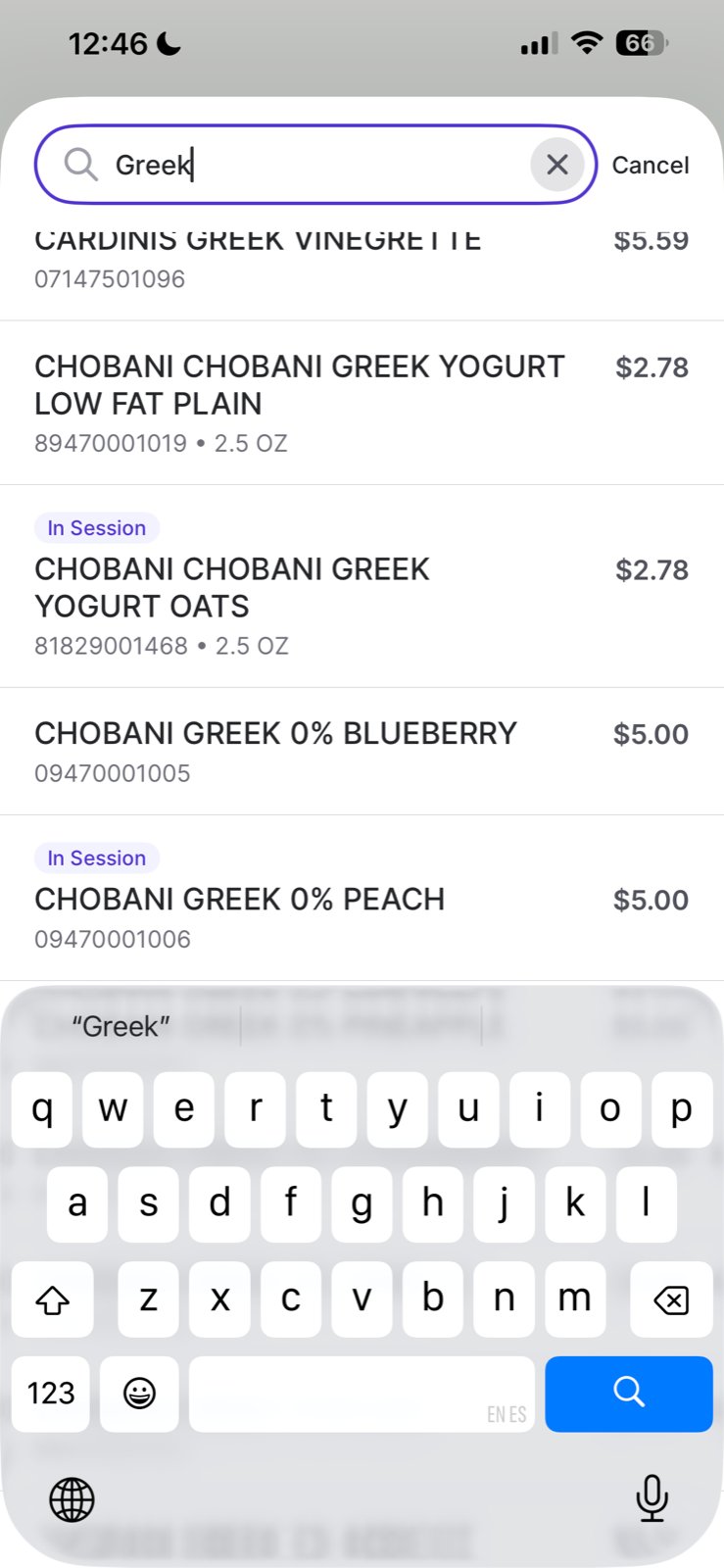
**Search for an item** — tap the **search icon** (🔍) in the top right to search by product name. Items already added to the session are marked **In Session** so you can spot them at a glance.
#### Session modes
| Mode | What it does |
| ----------- | -------------------------------------------------------------------------------------------------------------------------------------------------------------------------------- |
| **Count** | Performs a cycle count. Your entered quantity **overwrites** the existing on-hand inventory for each item. Use this when you want the system to reflect an exact physical count. |
| **Shrink** | Records inventory lost to spoilage, damage, theft, or waste. Quantities entered are **subtracted** from on-hand inventory. |
| **Restock** | Records inventory you're adding to the shelf. Quantities entered are **added** to existing on-hand inventory. |
***
### Add items to your session
Once your session is open, you can add items in two ways:
**Scan an item barcode** — point the handheld's camera at a product's barcode to add it instantly.
**Search for an item** — tap the **search icon** (🔍) in the top right to search by product name. Items already added to the session are marked **In Session** so you can spot them at a glance.
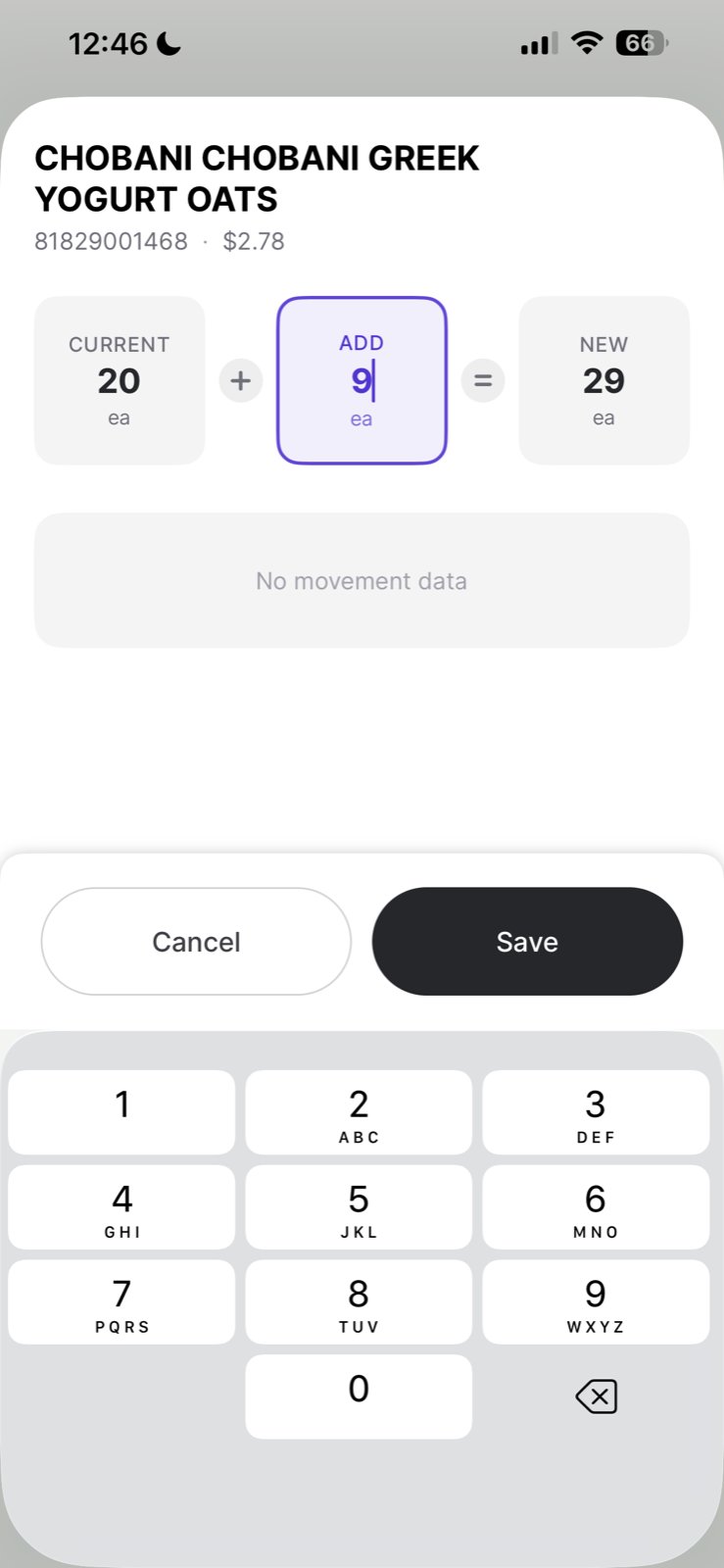
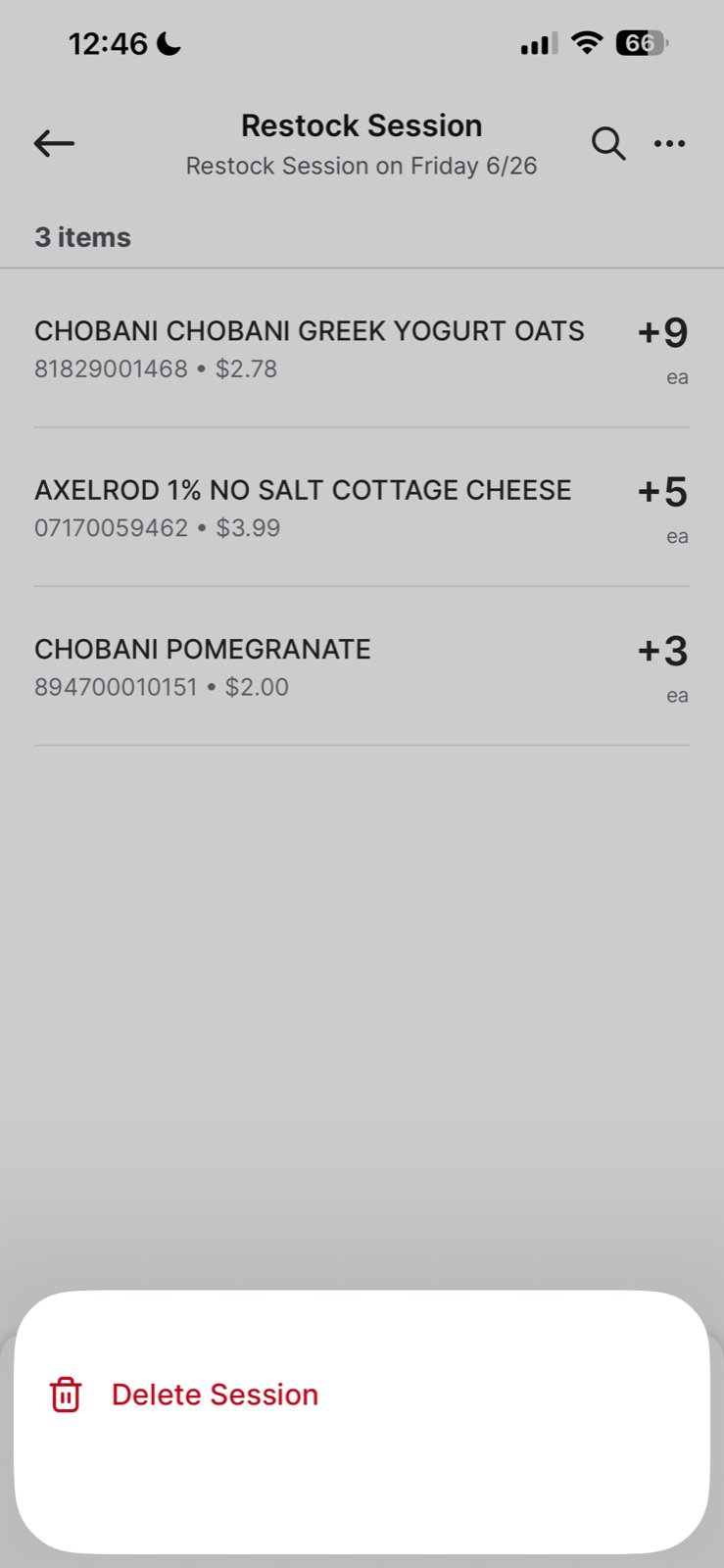
 After selecting an item, enter the quantity and tap **Save**. The screen shows you the **Current** on-hand count, the quantity you're **Adding** (or counting/removing), and the resulting **New** total.
 Repeat for every item you want to include. Your session list updates as you go.
 ***
### Review and submit your session
When you're done adding items, tap **Submit and Review**. You'll see a summary of the session:
* **Mode** (Count, Shrink, or Restock)
* **Started by** — the user who opened the session
* **Items** — total number of products included
* **Departments** — breakdown of which departments are affected
***
### Review and submit your session
When you're done adding items, tap **Submit and Review**. You'll see a summary of the session:
* **Mode** (Count, Shrink, or Restock)
* **Started by** — the user who opened the session
* **Items** — total number of products included
* **Departments** — breakdown of which departments are affected
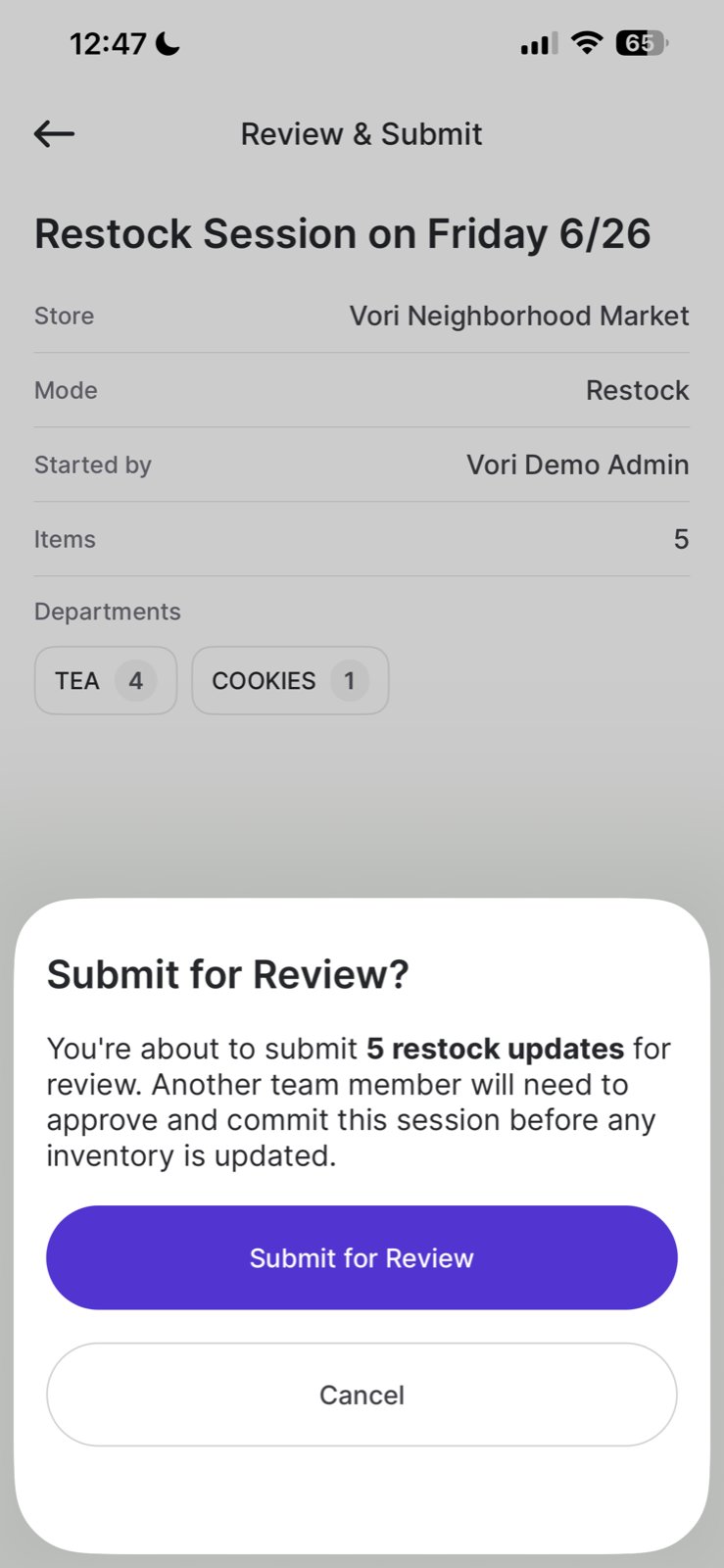
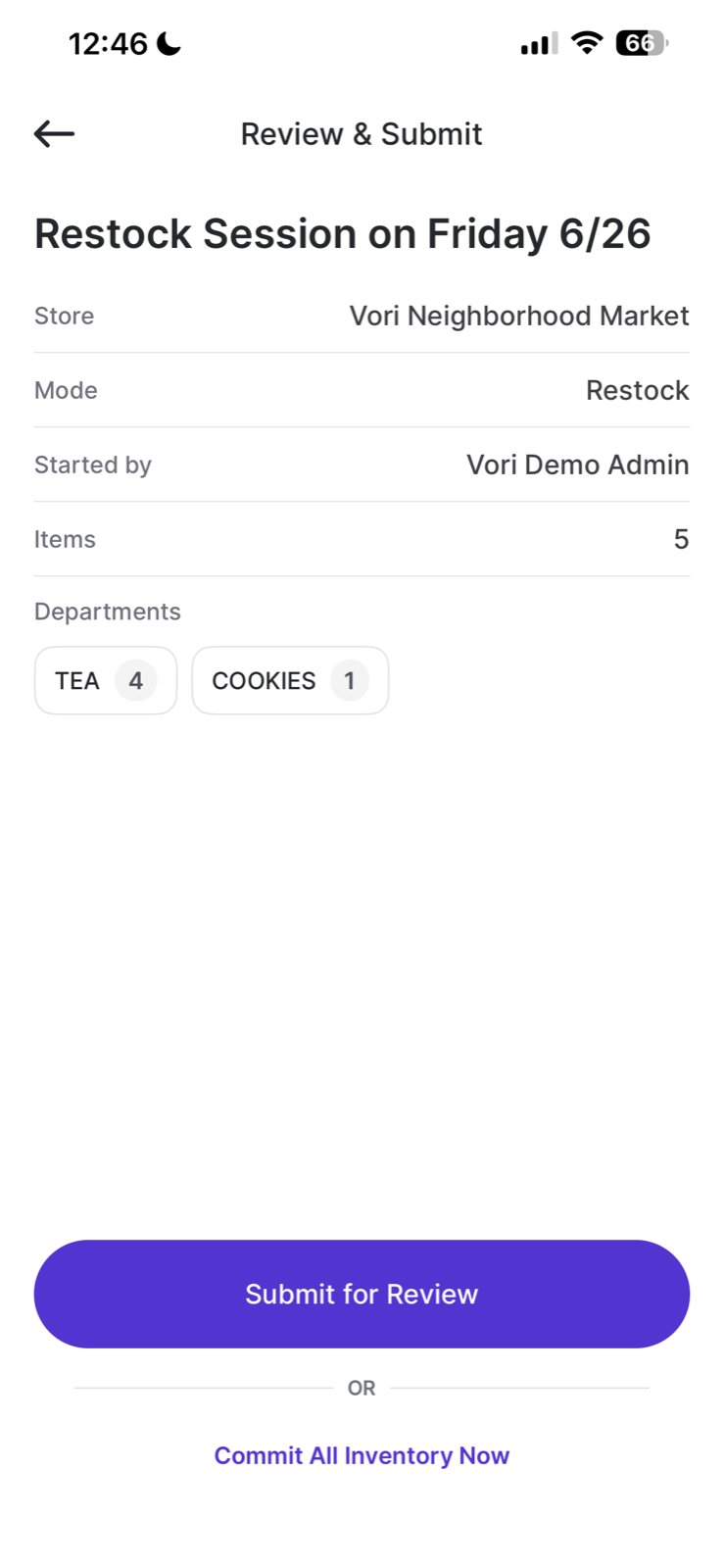 You have two options to finalize:
**Submit for review** — sends the session to the Back Office for a manager or teammate to review before any inventory is updated. No changes are applied until someone commits the session there.
You have two options to finalize:
**Submit for review** — sends the session to the Back Office for a manager or teammate to review before any inventory is updated. No changes are applied until someone commits the session there.
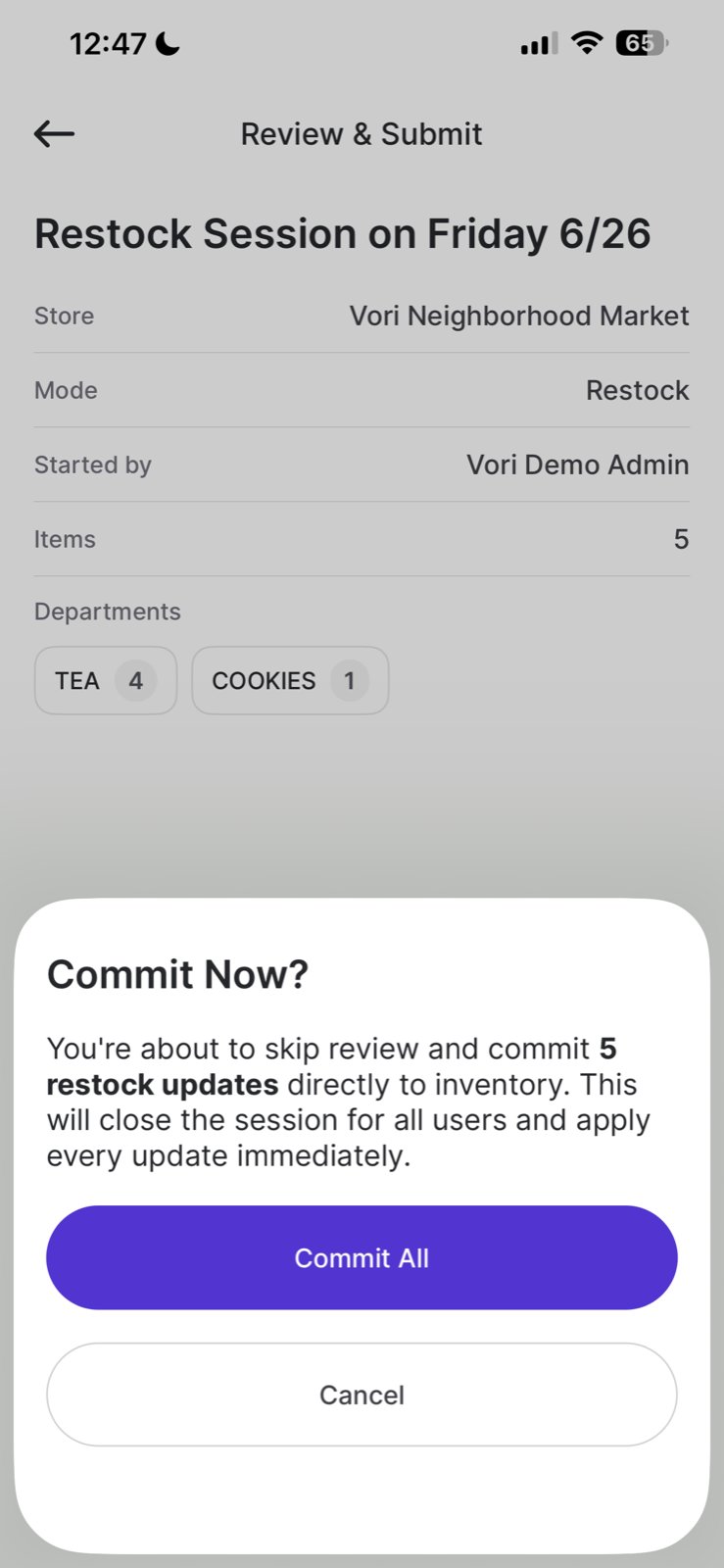
 **Commit all inventory now** — skips the review step and applies all inventory changes immediately. The session closes for all users as soon as you confirm.
 Once committed, you'll see a **Session committed** confirmation on the Inventory screen.
 ***
### Review sessions in the Back Office
If a session was submitted for review, a manager can open it in the Back Office to inspect the changes before committing.
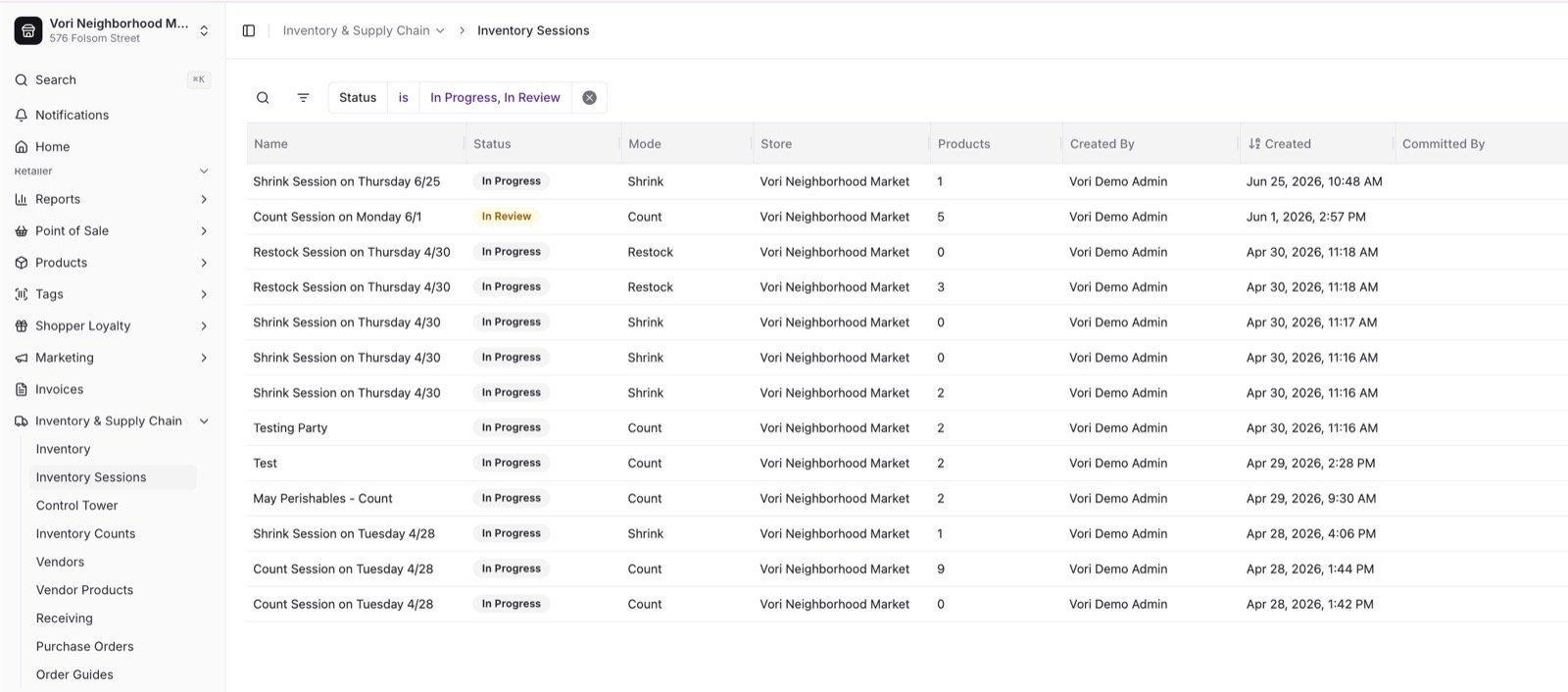
1. In the **Back Office**, go to **Inventory & Supply Chain** → **Inventory Sessions**.
2. Find the session — sessions submitted for review show the status **In Review**.
***
### Review sessions in the Back Office
If a session was submitted for review, a manager can open it in the Back Office to inspect the changes before committing.
1. In the **Back Office**, go to **Inventory & Supply Chain** → **Inventory Sessions**.
2. Find the session — sessions submitted for review show the status **In Review**.
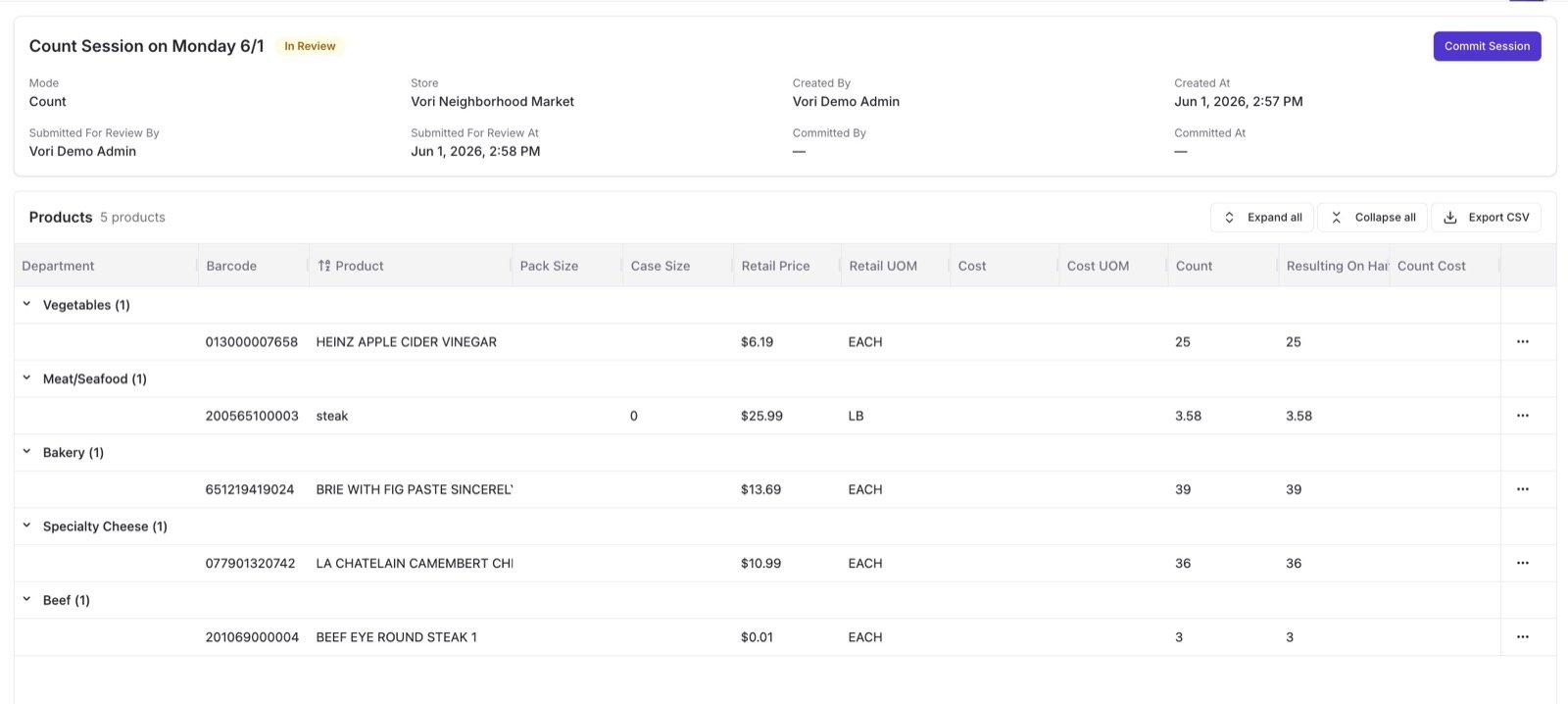
 3. Click into the session to see a full product table: department, barcode, product name, quantity entered, and the resulting on-hand count.
4. When everything looks right, click **Commit Session** to apply the inventory changes.
3. Click into the session to see a full product table: department, barcode, product name, quantity entered, and the resulting on-hand count.
4. When everything looks right, click **Commit Session** to apply the inventory changes.
 **✏️ Note:** Only one person needs to commit a session. Once committed, the session closes and inventory updates immediately across the system.