> ## Documentation Index
> Fetch the complete documentation index at: https://help.vori.com/llms.txt
> Use this file to discover all available pages before exploring further.
# Manage Inventory on the Floor with VoriOS
> Learn how to use Vori’s new inventory and shrink tracking tools to manage your products more efficiently.
The **Inventory Module in VoriOS** gives you immediate control over your product counts right from the aisle. It is designed to be fast and practical, allowing you to perform critical actions—like checking a price or recording shrink—without running to the back office.
### Start an Inventory Action
There are two ways to access inventory tools in the app:
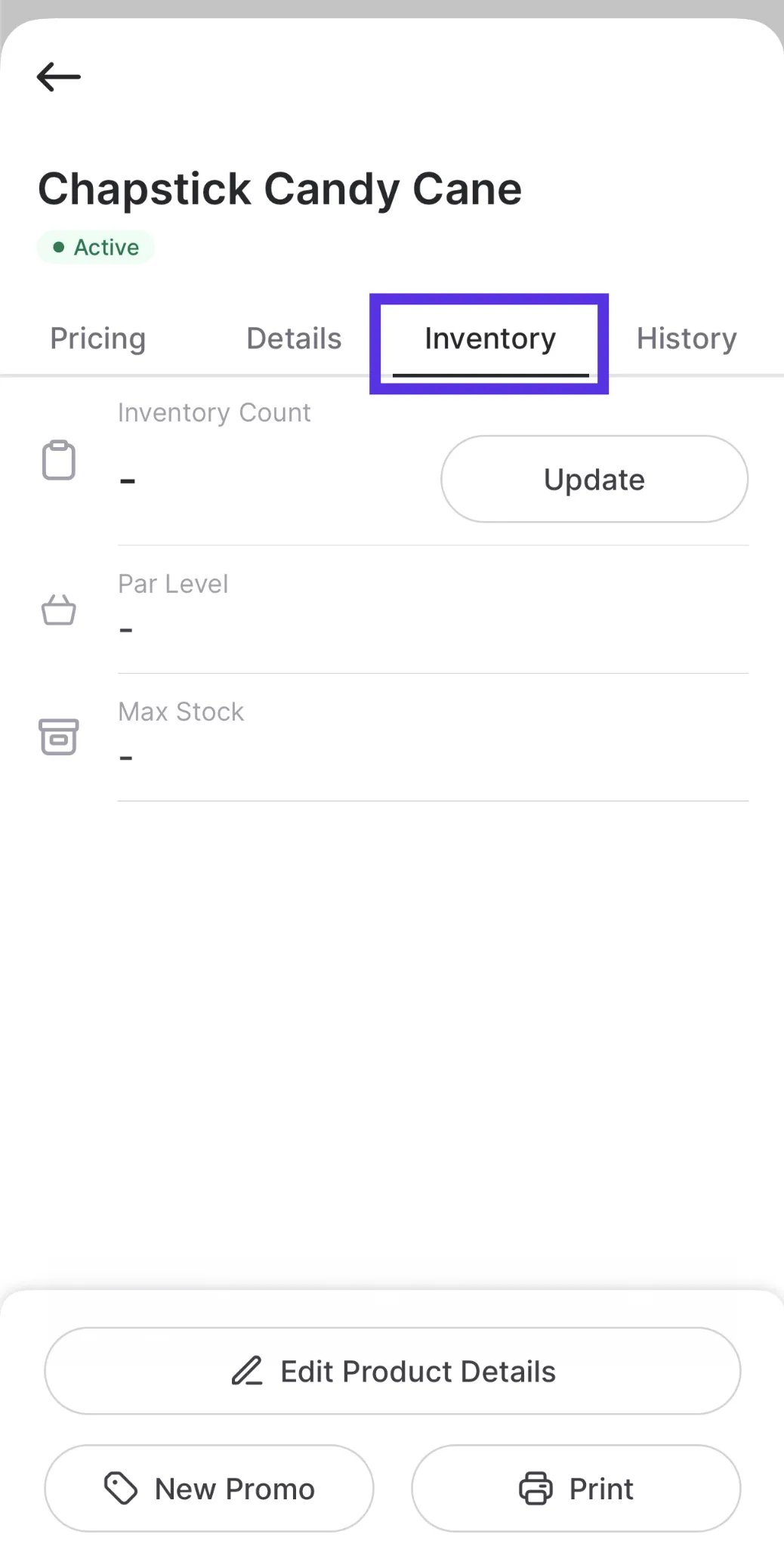
1. **From a Product Page:** Navigate to any product’s details, tap the **Inventory** tab, and tap **Update** to adjust that specific item immediately.
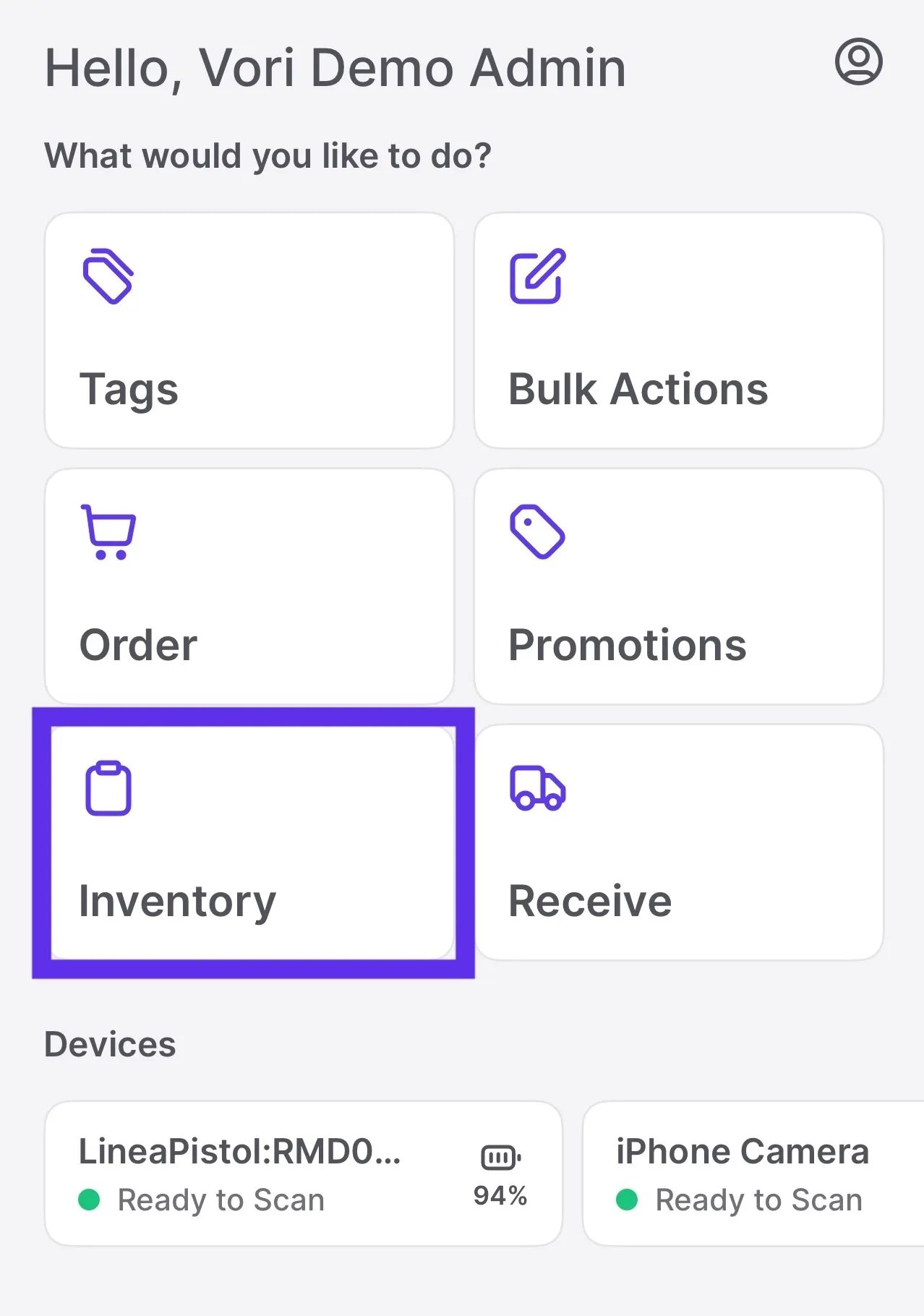
 2. **From the Dashboard:** Tap **Inventory** on the main menu to select a mode (Restock, Shrink, etc.) and then scan products.
 ***
### Scan to View Status
You don't always need to start a specific task to check on an item. Simply scan a product to view its current snapshot.
* **Scan:** Use the dashboard scanner or search bar to find an item.
* **Select Inventory:** Tap the **Inventory** tab next to Details.
* **View Count:** See the real-time **Inventory Count** (based on the last manual count minus POS sales).
***
### Scan to View Status
You don't always need to start a specific task to check on an item. Simply scan a product to view its current snapshot.
* **Scan:** Use the dashboard scanner or search bar to find an item.
* **Select Inventory:** Tap the **Inventory** tab next to Details.
* **View Count:** See the real-time **Inventory Count** (based on the last manual count minus POS sales).
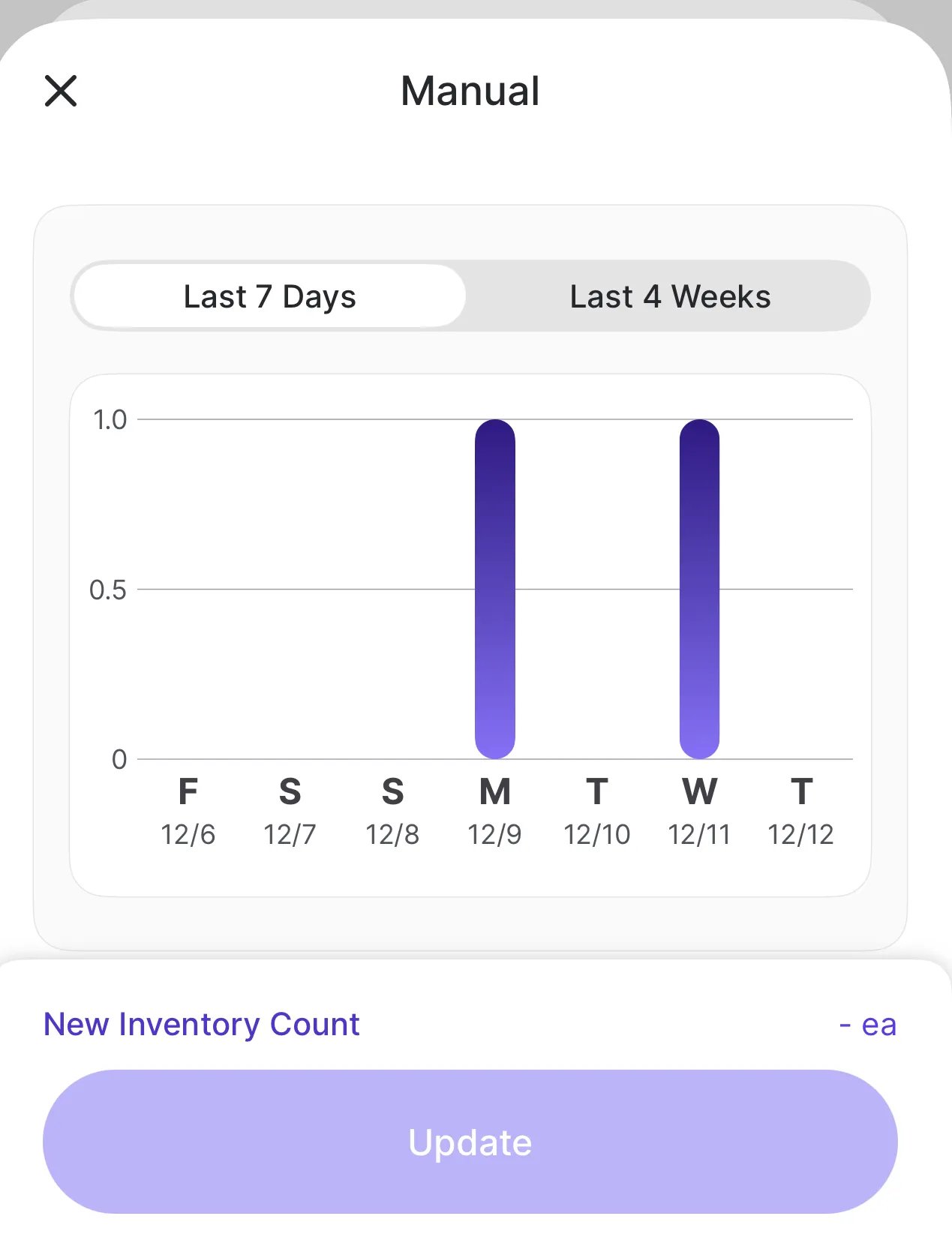
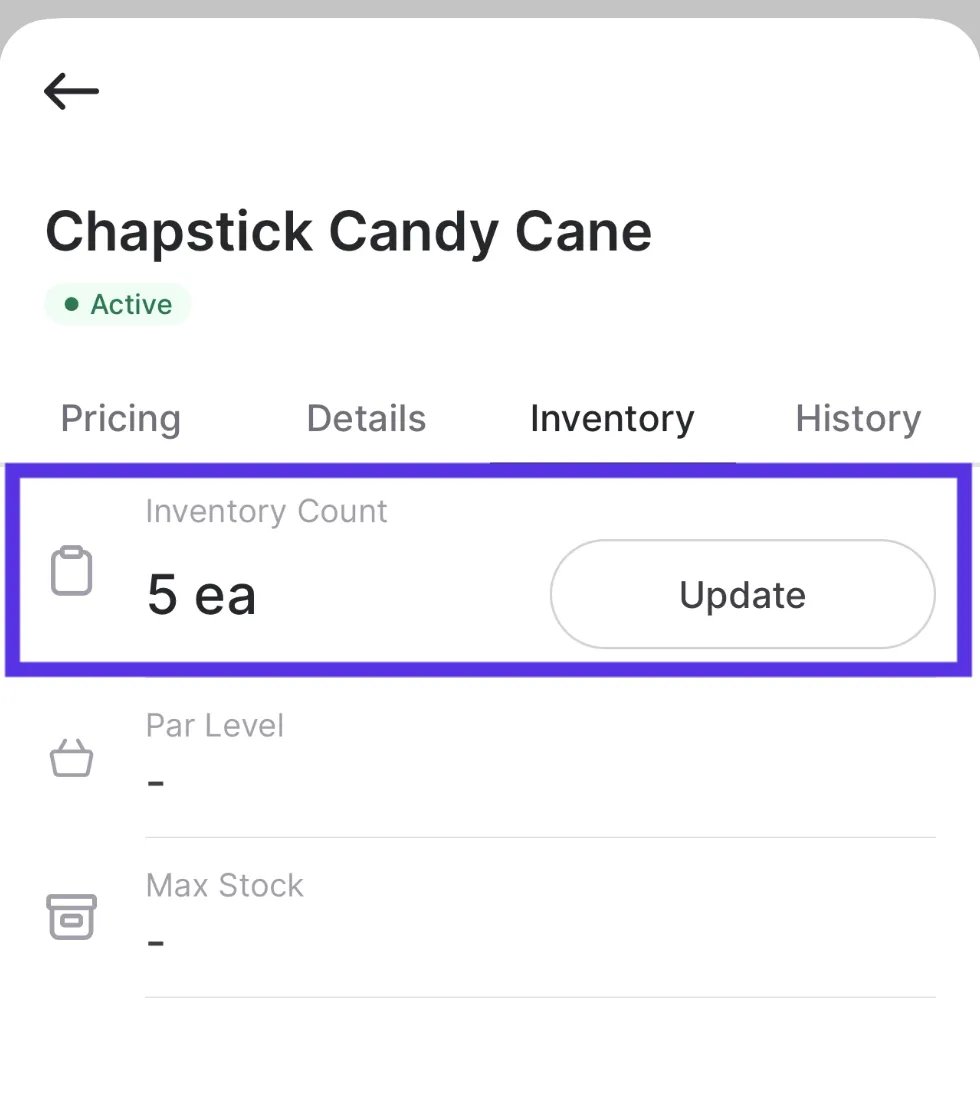 * **Take Action:** If you need to make a change, tap the **Update** button to open the adjustment options.
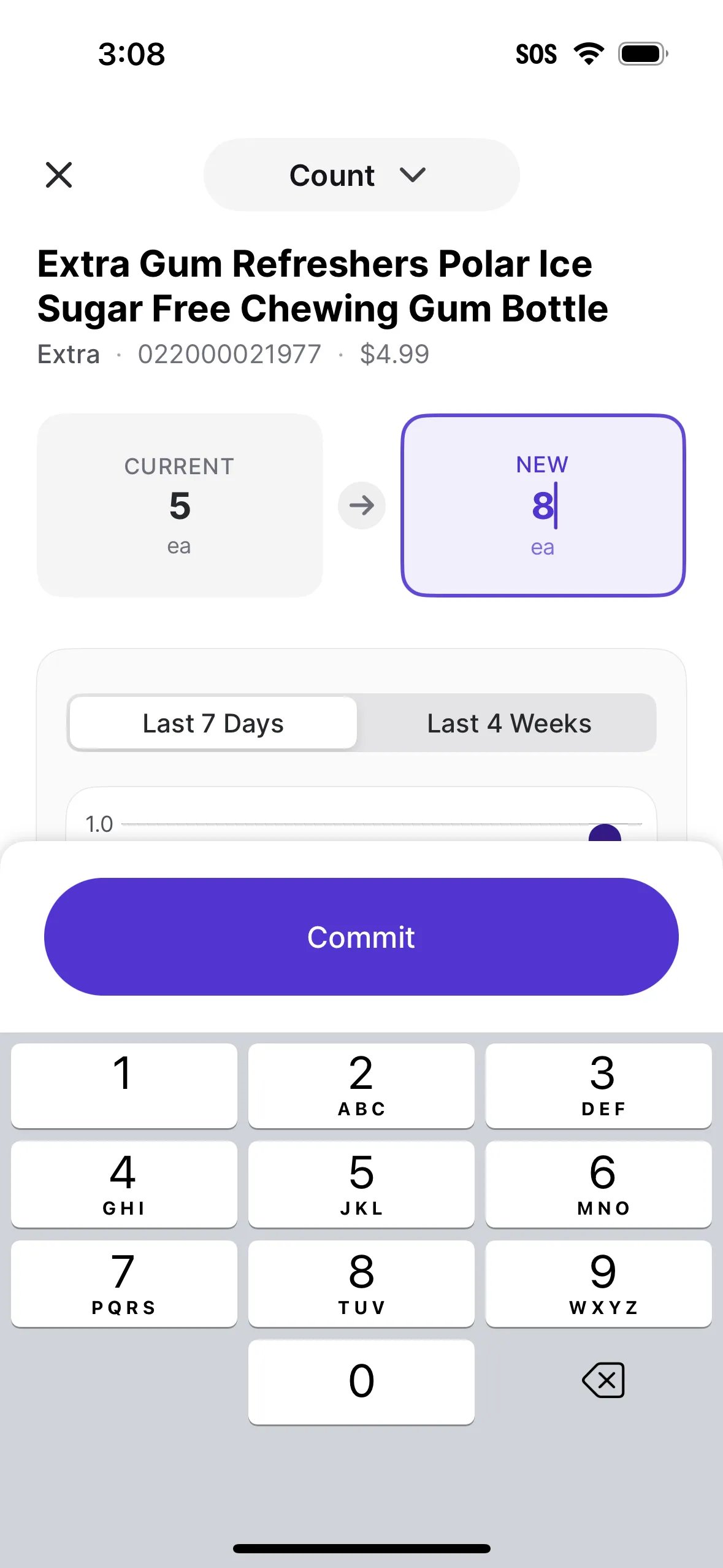 * **Check Movement:** Use the Movement Graph to visualize sales trends (Last 7 Days vs. Last 4 Weeks) to decide if you need to reorder.
 ***
### Choose Your Inventory Mode
If you need to update counts, select a mode based on what you are doing on the floor.
#### Restock
Use this when you are receiving a delivery or replenishing the shelf.
* **Action:** Adds the quantity you enter to your existing on-hand count.
***
### Choose Your Inventory Mode
If you need to update counts, select a mode based on what you are doing on the floor.
#### Restock
Use this when you are receiving a delivery or replenishing the shelf.
* **Action:** Adds the quantity you enter to your existing on-hand count.
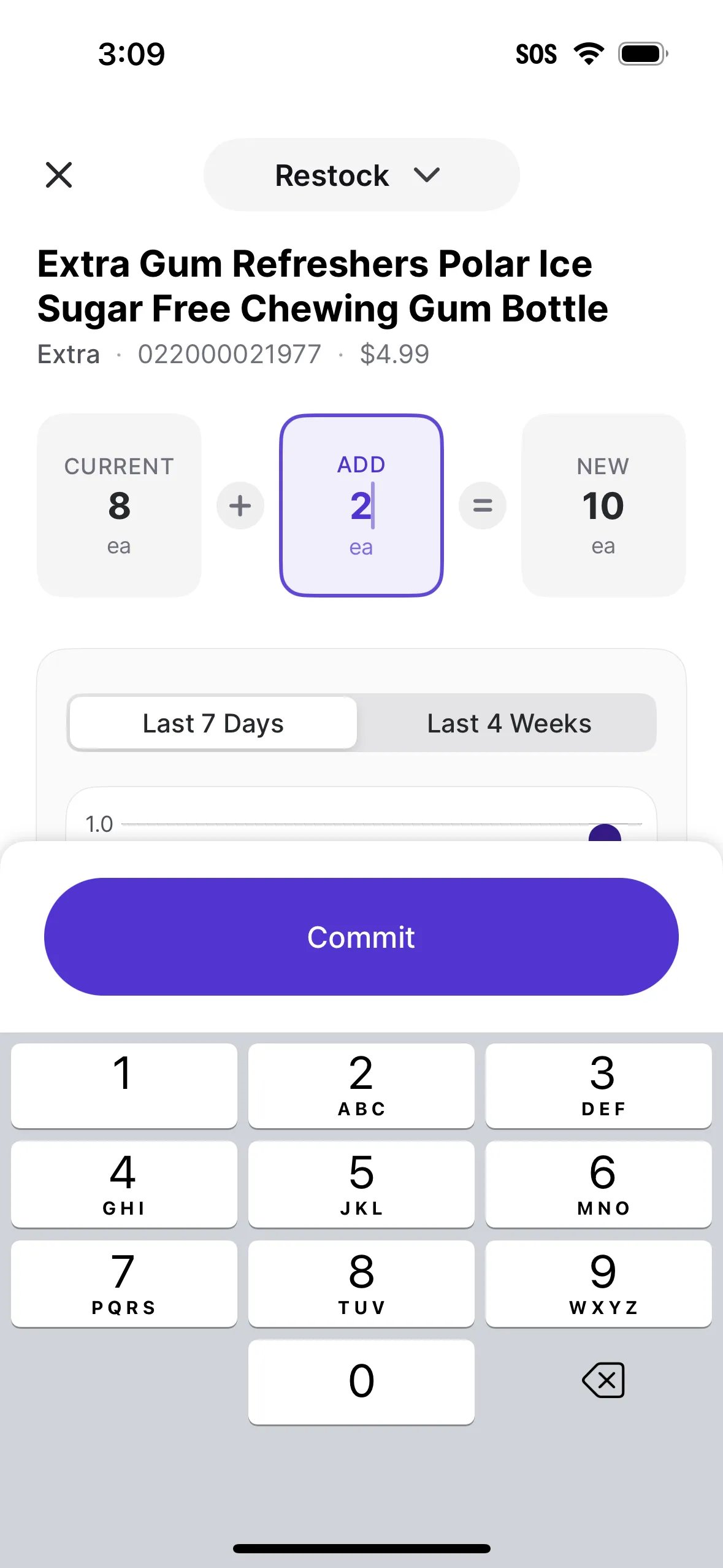 This is not full Invoice Receiving. Use this when you simply want to add quantity to your count.
#### Shrink (Protect Your Margin)
Use Shrink mode to remove items that cannot be sold. This is critical for Essentials users to track where money is being lost.
* **Action:** Select a **Reason** from the list (**Damage**, **Spoilage**, **Theft**, or **Other**).
* **Quantity:** Enter the amount to remove from inventory.
This is not full Invoice Receiving. Use this when you simply want to add quantity to your count.
#### Shrink (Protect Your Margin)
Use Shrink mode to remove items that cannot be sold. This is critical for Essentials users to track where money is being lost.
* **Action:** Select a **Reason** from the list (**Damage**, **Spoilage**, **Theft**, or **Other**).
* **Quantity:** Enter the amount to remove from inventory.
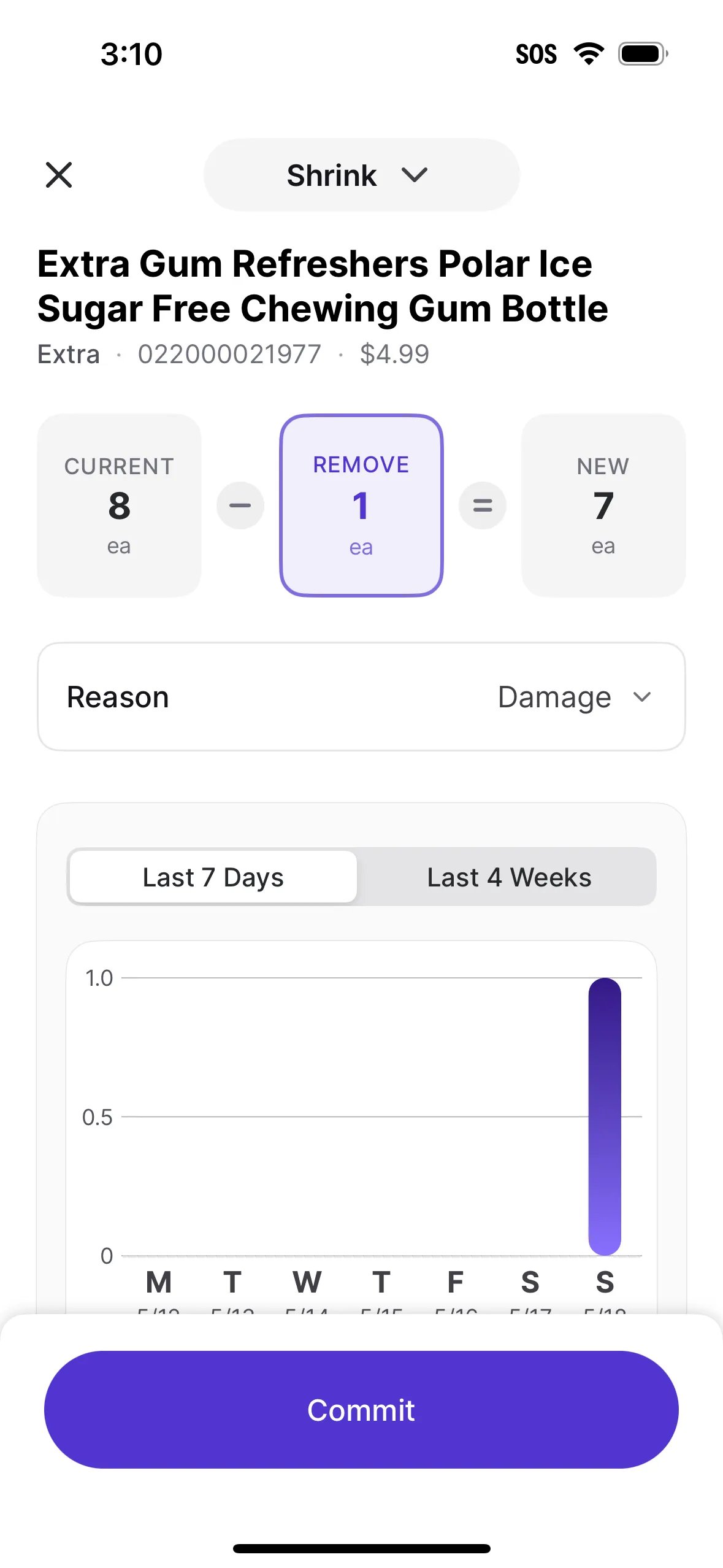 Unlike the Back Office, the Mobile App allows you to select specific reason codes or enter custom "Other" reasons. This is critical for workflows such as transferring stock from one department to another *(e.g., transferring produce to the deli)*.
#### Count
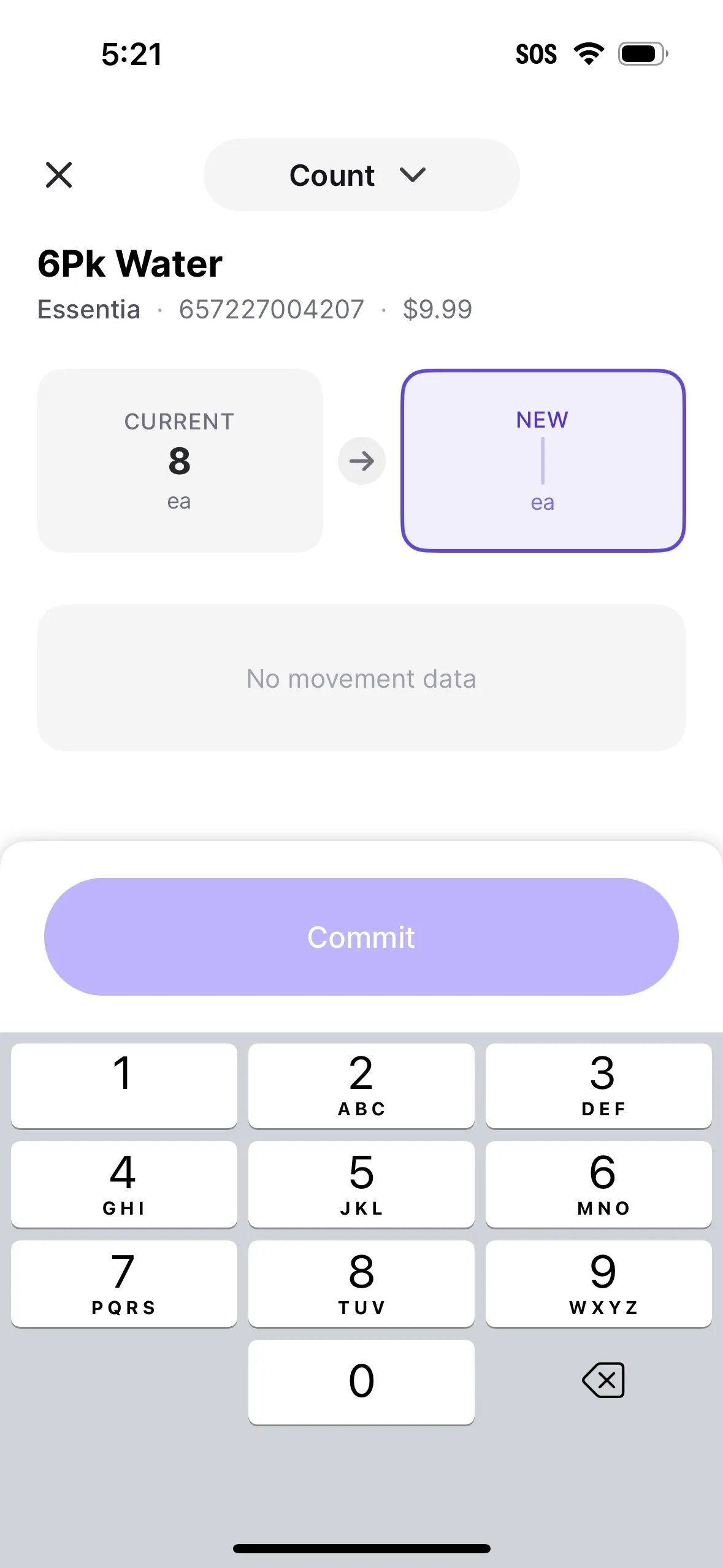
Use this for cycle counts or resetting a baseline.
* **Action:** Sets a new, absolute total for an item, overwriting the previous number.
Unlike the Back Office, the Mobile App allows you to select specific reason codes or enter custom "Other" reasons. This is critical for workflows such as transferring stock from one department to another *(e.g., transferring produce to the deli)*.
#### Count
Use this for cycle counts or resetting a baseline.
* **Action:** Sets a new, absolute total for an item, overwriting the previous number.
 #### Scanning & Searching
Once you select a mode, you will see the **Scan a Product** screen.
* **Scan With Linea Pro:** Use the connected Linea Pro scanner to scan the product barcode.
* **Scan With Camera:** Use your device's camera to scan the barcode for fast entry.
* **Search For Product:** If an item won't scan, tap this to look it up by name or SKU manually.
## Related topics
- [Manage Inventory with Sessions in VoriOS](/inventory-and-ordering/inventory/manage-inventory-with-sessions-in-vori-os.md)
- [Create and Manage Promotions in VoriOS](/promotions/create-and-manage-promotions-in-vori-os.md)
- [Manage EBT Eligibility in the Back Office, VoriOS, and the POS](/point-of-sale-pos/ebt-electronic-benefit-transfer/manage-ebt-eligibility-in-the-back-office-vori-os-and-the-pos.md)
#### Scanning & Searching
Once you select a mode, you will see the **Scan a Product** screen.
* **Scan With Linea Pro:** Use the connected Linea Pro scanner to scan the product barcode.
* **Scan With Camera:** Use your device's camera to scan the barcode for fast entry.
* **Search For Product:** If an item won't scan, tap this to look it up by name or SKU manually.
## Related topics
- [Manage Inventory with Sessions in VoriOS](/inventory-and-ordering/inventory/manage-inventory-with-sessions-in-vori-os.md)
- [Create and Manage Promotions in VoriOS](/promotions/create-and-manage-promotions-in-vori-os.md)
- [Manage EBT Eligibility in the Back Office, VoriOS, and the POS](/point-of-sale-pos/ebt-electronic-benefit-transfer/manage-ebt-eligibility-in-the-back-office-vori-os-and-the-pos.md)