> ## Documentation Index
> Fetch the complete documentation index at: https://help.vori.com/llms.txt
> Use this file to discover all available pages before exploring further.
# Manage Expiration Dates with Date Check in VoriOS
> Learn how to track, filter, and resolve product expiration dates using the Date Check tool in VoriOS.
**Date Check** helps you stay on top of products nearing their expiration date, right from the handheld. Scan items as you spot them, and Date Check keeps a running, auto-sorted list so you always know what needs attention next.
### Start Date Check
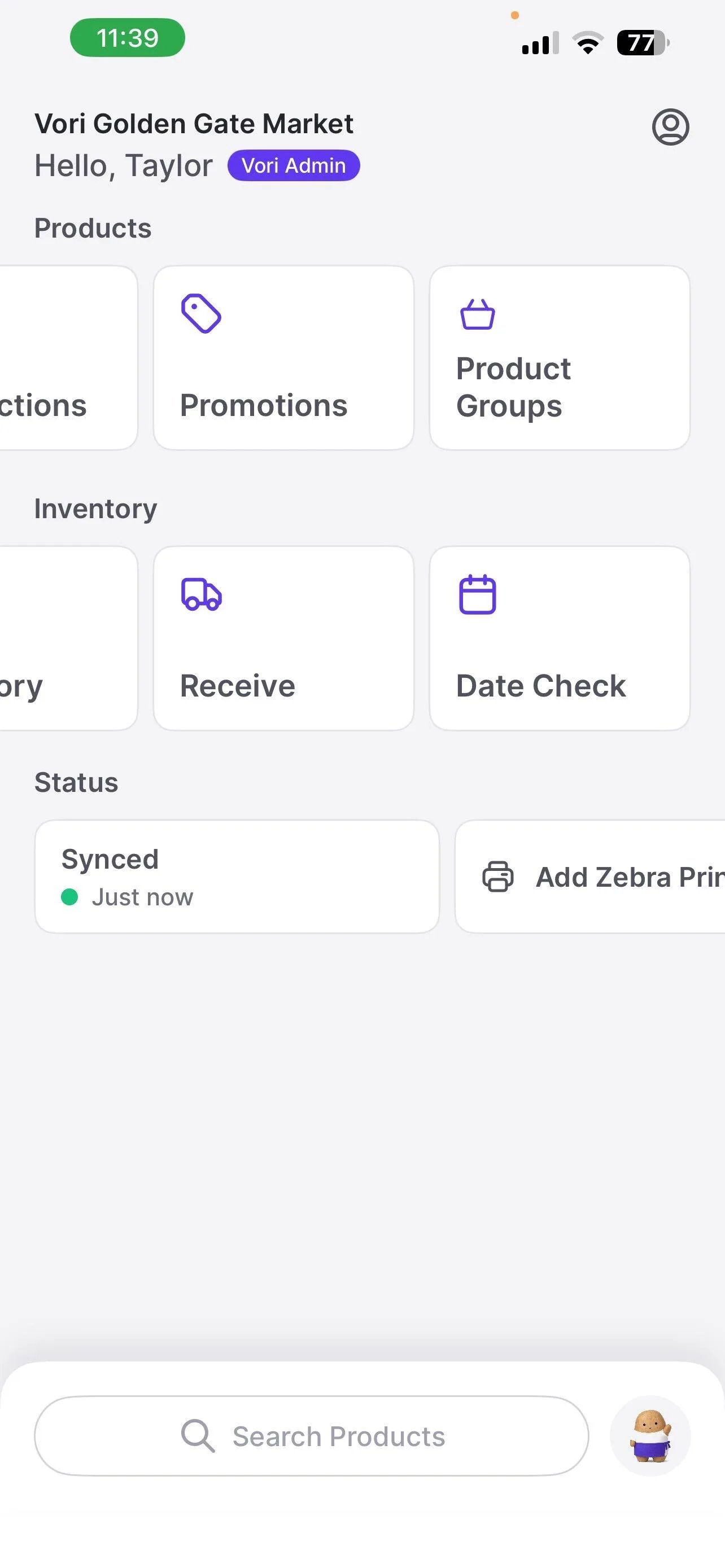
1. From the VoriOS home screen, tap **Date Check** under **Inventory**.
 2. Scan a product's barcode, or search for it by name.
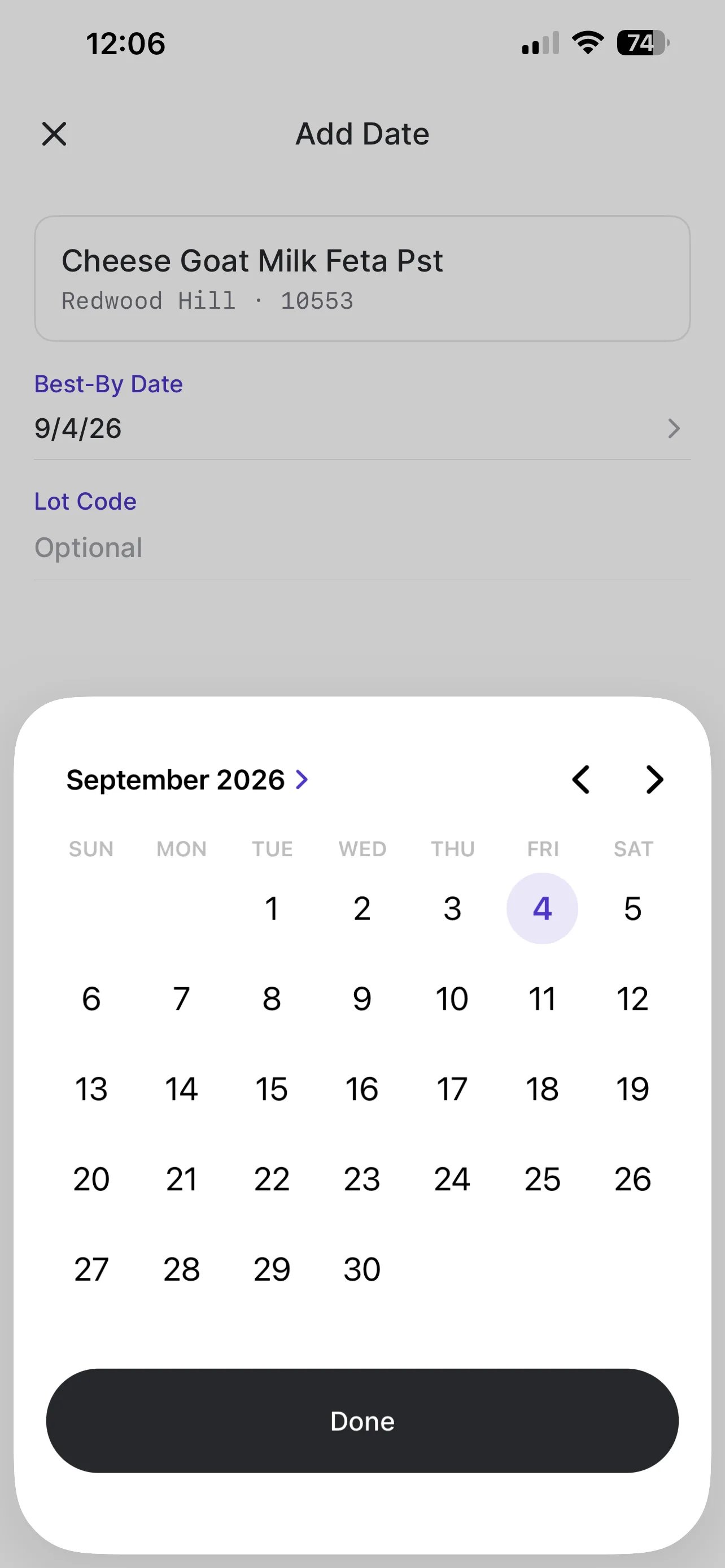
3. Enter the **Best-By Date** for that item.
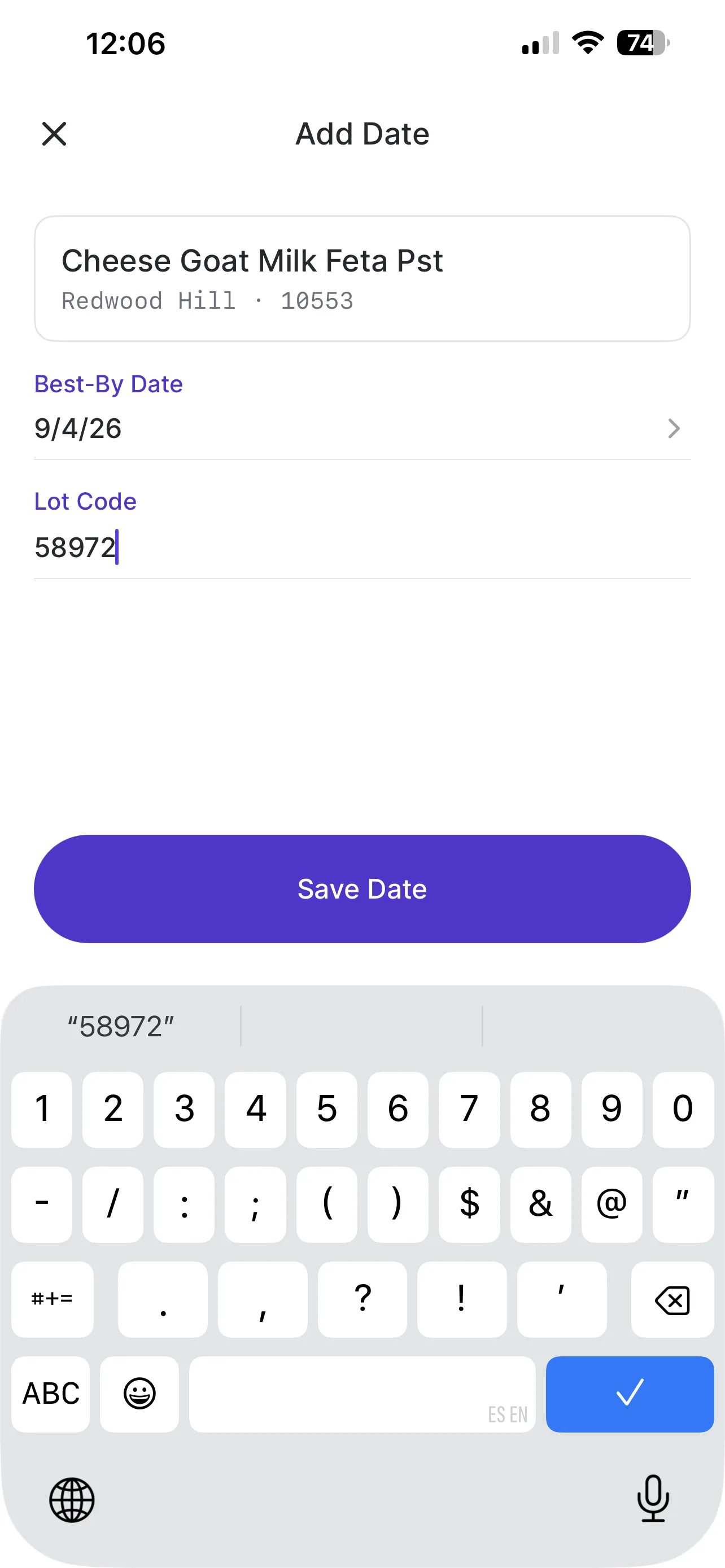
4. Optionally, add a **Lot Code** to distinguish this batch from others of the same product.
5. Tap **Save Date**.
**✏️ Note:** You can track more than one date for the same product — useful when you've got items from different shipments on the shelf at once. Scan the barcode again to add another date; Date Check keeps each one separate until it's resolved.
***
### How Date Check Sorts Your List
Every item you add is grouped automatically:
* **Expiring Soon** — under 7 days until the Best-By Date
* **Later** — 7 days or more out
2. Scan a product's barcode, or search for it by name.
3. Enter the **Best-By Date** for that item.
4. Optionally, add a **Lot Code** to distinguish this batch from others of the same product.
5. Tap **Save Date**.
**✏️ Note:** You can track more than one date for the same product — useful when you've got items from different shipments on the shelf at once. Scan the barcode again to add another date; Date Check keeps each one separate until it's resolved.
***
### How Date Check Sorts Your List
Every item you add is grouped automatically:
* **Expiring Soon** — under 7 days until the Best-By Date
* **Later** — 7 days or more out
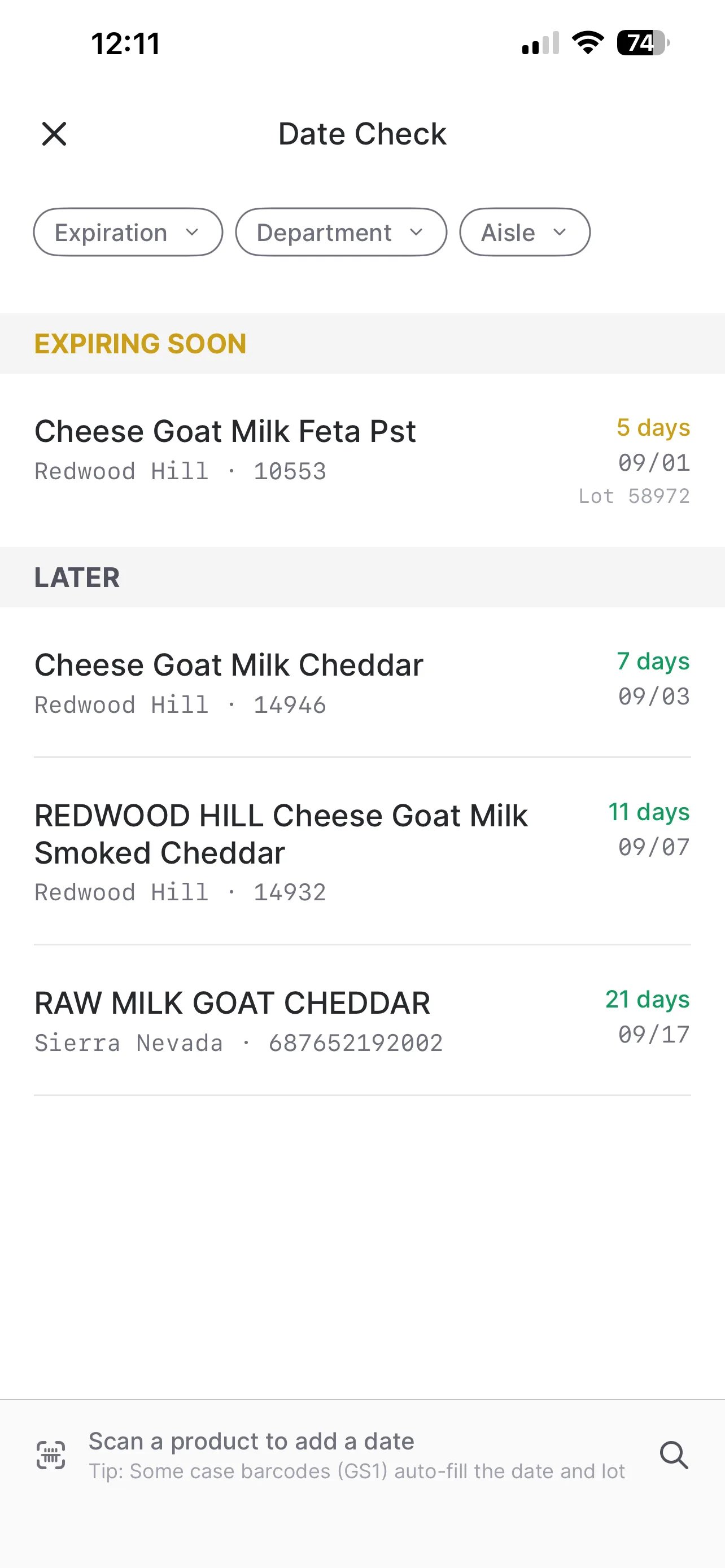 Within each group, the item closest to expiring (or already expired) always sits at the top, so you can just work down the list without hunting for the most urgent item.
**✏️ Note:** Check Date Check regularly and work from the top of the list — it's your source of truth for what needs attention next.
***
### Filter and Sort Your List
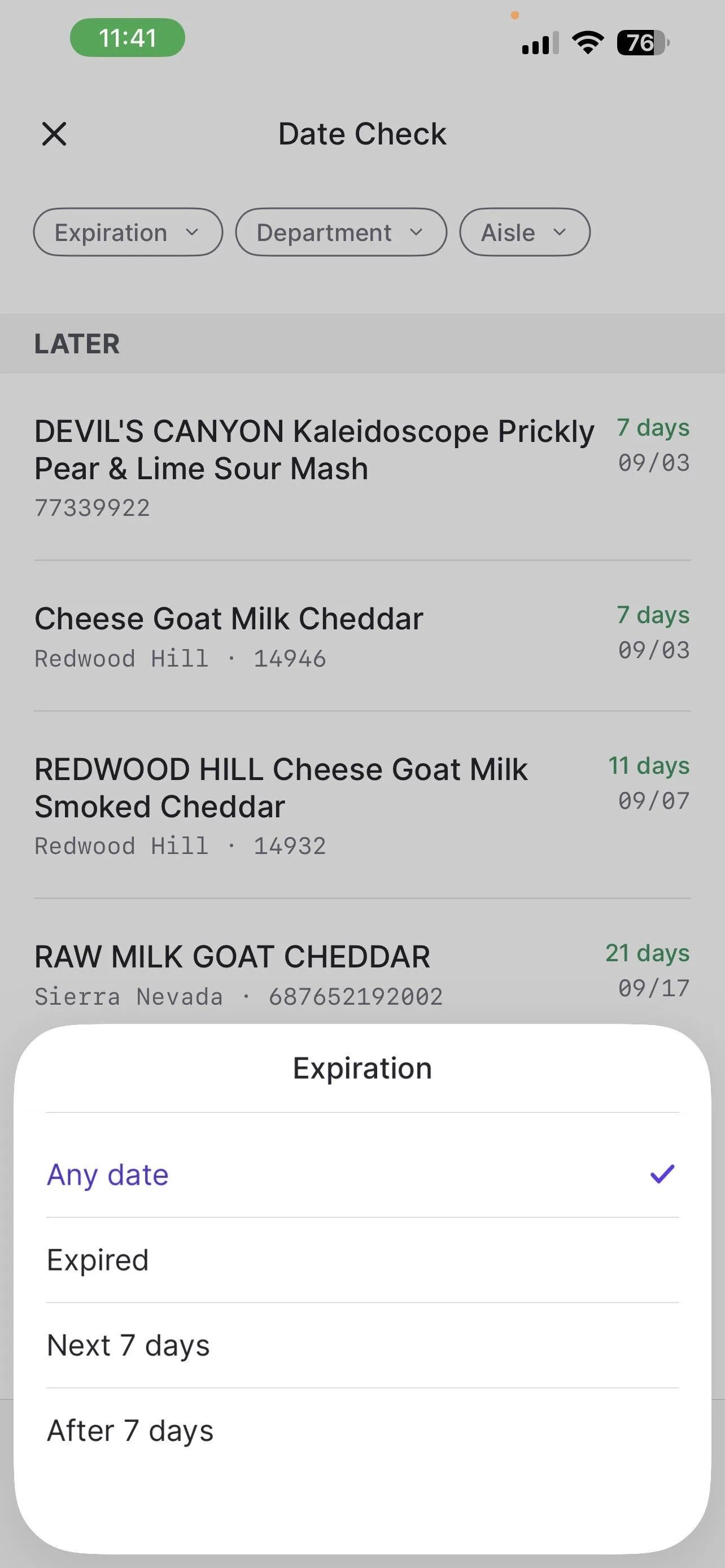
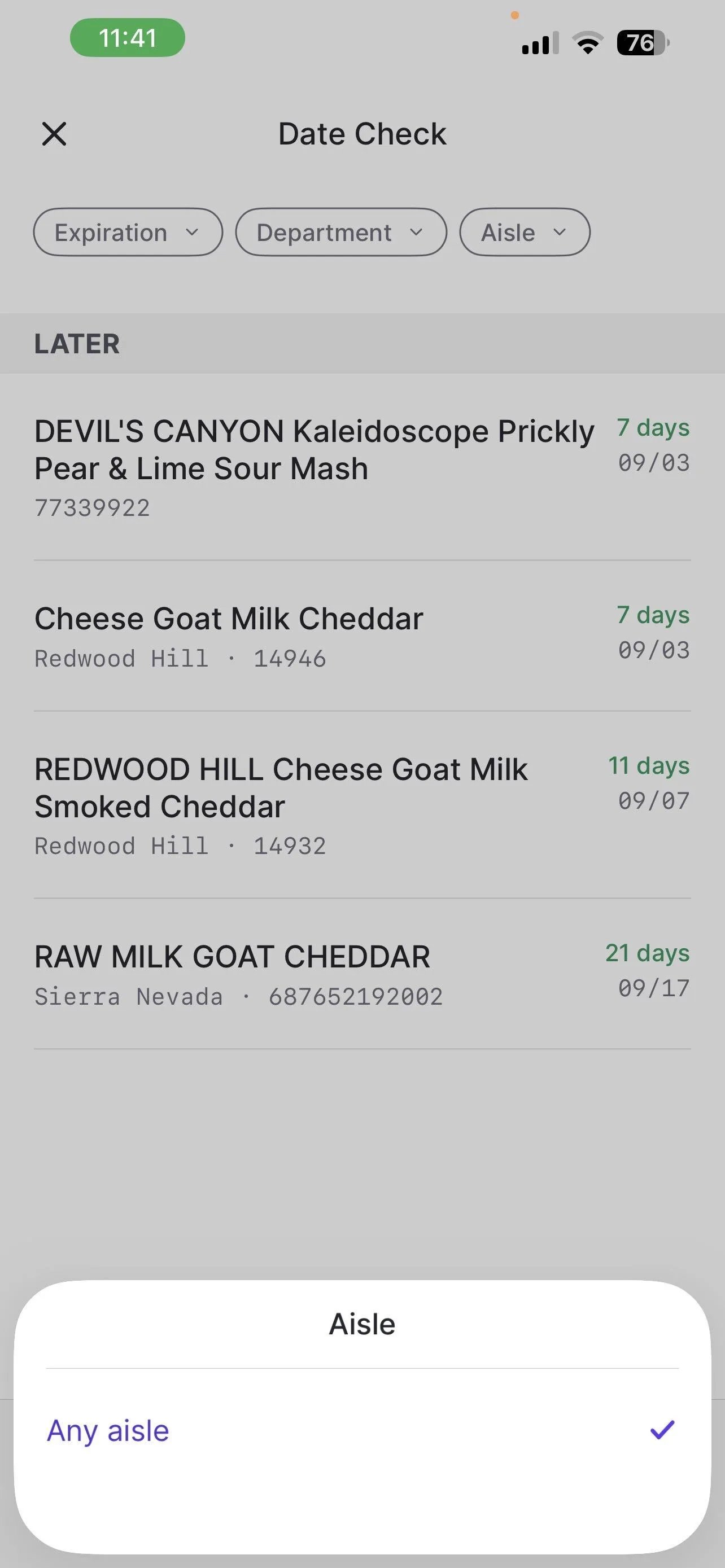
Use the three filters at the top of Date Check to narrow the list down to what you're working on:
* **Expiration:** Any Date, Expired, Next 7 Days, or After 7 Days
* **Department:** Limit the list to a specific department
* **Aisle:** Limit the list to a specific aisle
***
### Resolve an Item
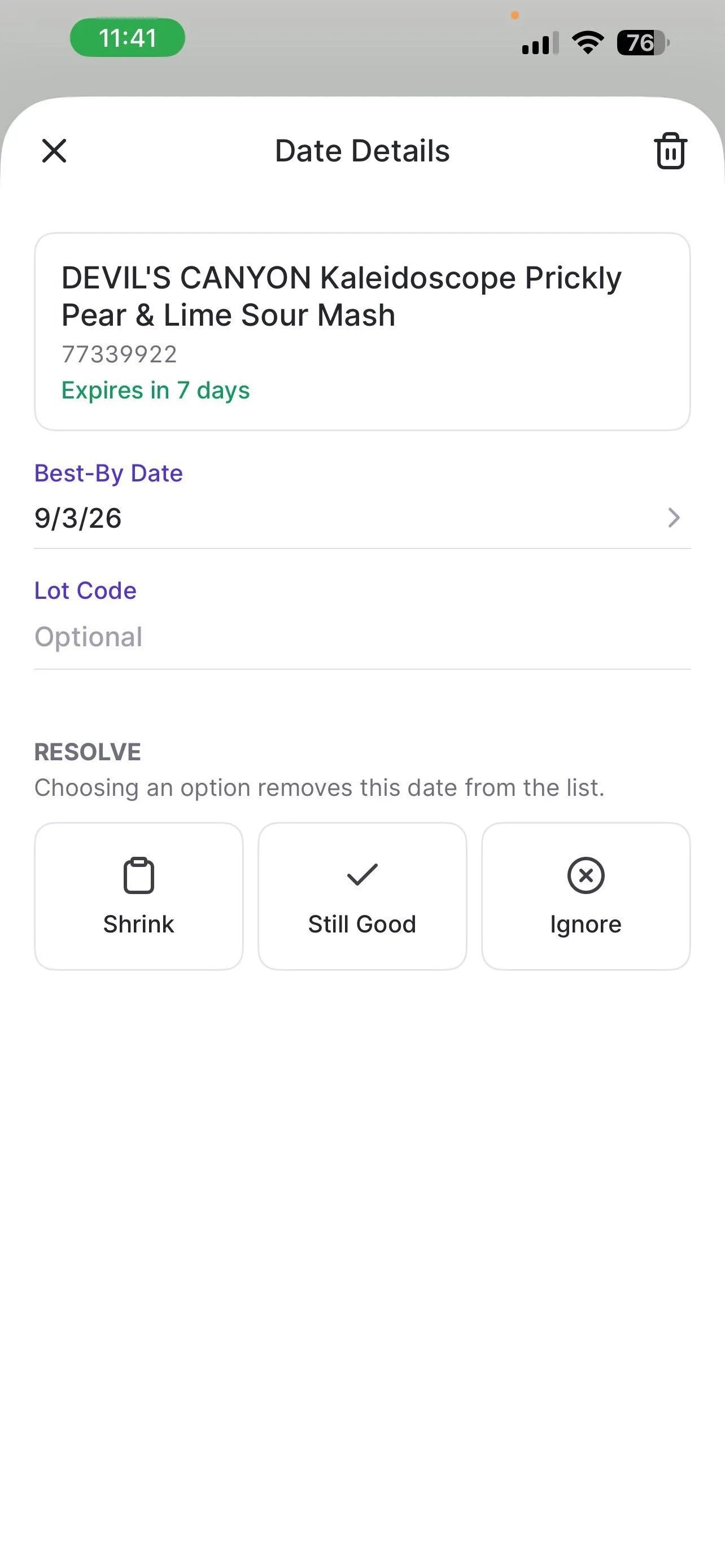
Tap an item to open its **Date Details**, then choose how to resolve it. Choosing an option removes it from the list.
Within each group, the item closest to expiring (or already expired) always sits at the top, so you can just work down the list without hunting for the most urgent item.
**✏️ Note:** Check Date Check regularly and work from the top of the list — it's your source of truth for what needs attention next.
***
### Filter and Sort Your List
Use the three filters at the top of Date Check to narrow the list down to what you're working on:
* **Expiration:** Any Date, Expired, Next 7 Days, or After 7 Days
* **Department:** Limit the list to a specific department
* **Aisle:** Limit the list to a specific aisle
***
### Resolve an Item
Tap an item to open its **Date Details**, then choose how to resolve it. Choosing an option removes it from the list.
 | Action | What It Does |
| -------------- | -------------------------------------------------------------------- |
| **Shrink** | Opens the Shrink screen to remove the item from inventory as a loss. |
| **Still Good** | Confirms the item is fine for now and removes it from the list. |
| **Ignore** | Dismisses the item without changing inventory. |
**💡 Tip:** After resolving an item, give the list a refresh (pull down or re-open Date Check) — it doesn't always update instantly.
***
### Shrink an Item from Date Check
Tapping **Shrink** takes you to the Shrink screen, where you set the quantity to remove and a reason, then tap **Commit**.
| Action | What It Does |
| -------------- | -------------------------------------------------------------------- |
| **Shrink** | Opens the Shrink screen to remove the item from inventory as a loss. |
| **Still Good** | Confirms the item is fine for now and removes it from the list. |
| **Ignore** | Dismisses the item without changing inventory. |
**💡 Tip:** After resolving an item, give the list a refresh (pull down or re-open Date Check) — it doesn't always update instantly.
***
### Shrink an Item from Date Check
Tapping **Shrink** takes you to the Shrink screen, where you set the quantity to remove and a reason, then tap **Commit**.
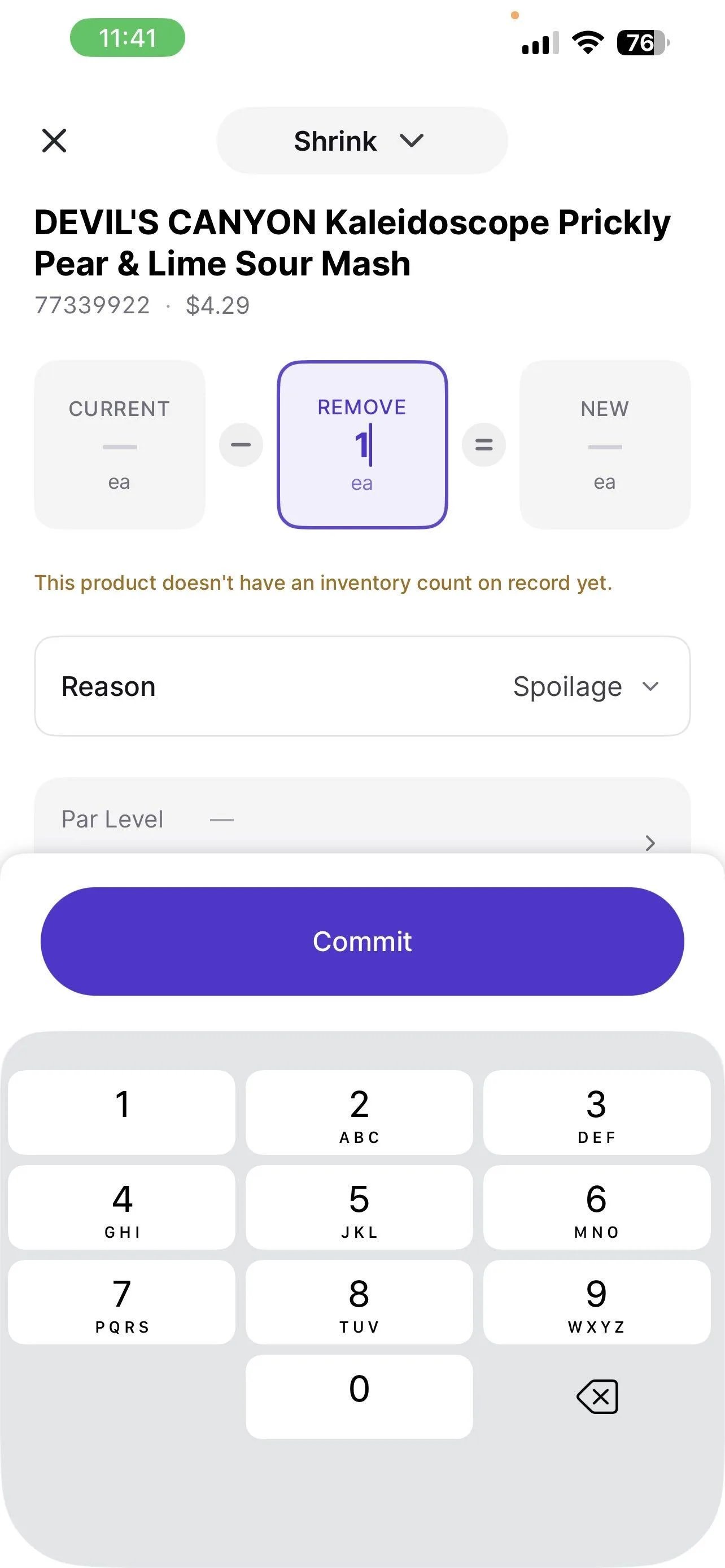 **✏️ Note:** If the product doesn't have an inventory count on record yet, Date Check flags that on the Shrink screen before you commit.
Once you commit, Date Check confirms the inventory adjustment and that the shrink was recorded — and gives you a shortcut to log a new date for the same item right away.
**✏️ Note:** If the product doesn't have an inventory count on record yet, Date Check flags that on the Shrink screen before you commit.
Once you commit, Date Check confirms the inventory adjustment and that the shrink was recorded — and gives you a shortcut to log a new date for the same item right away.
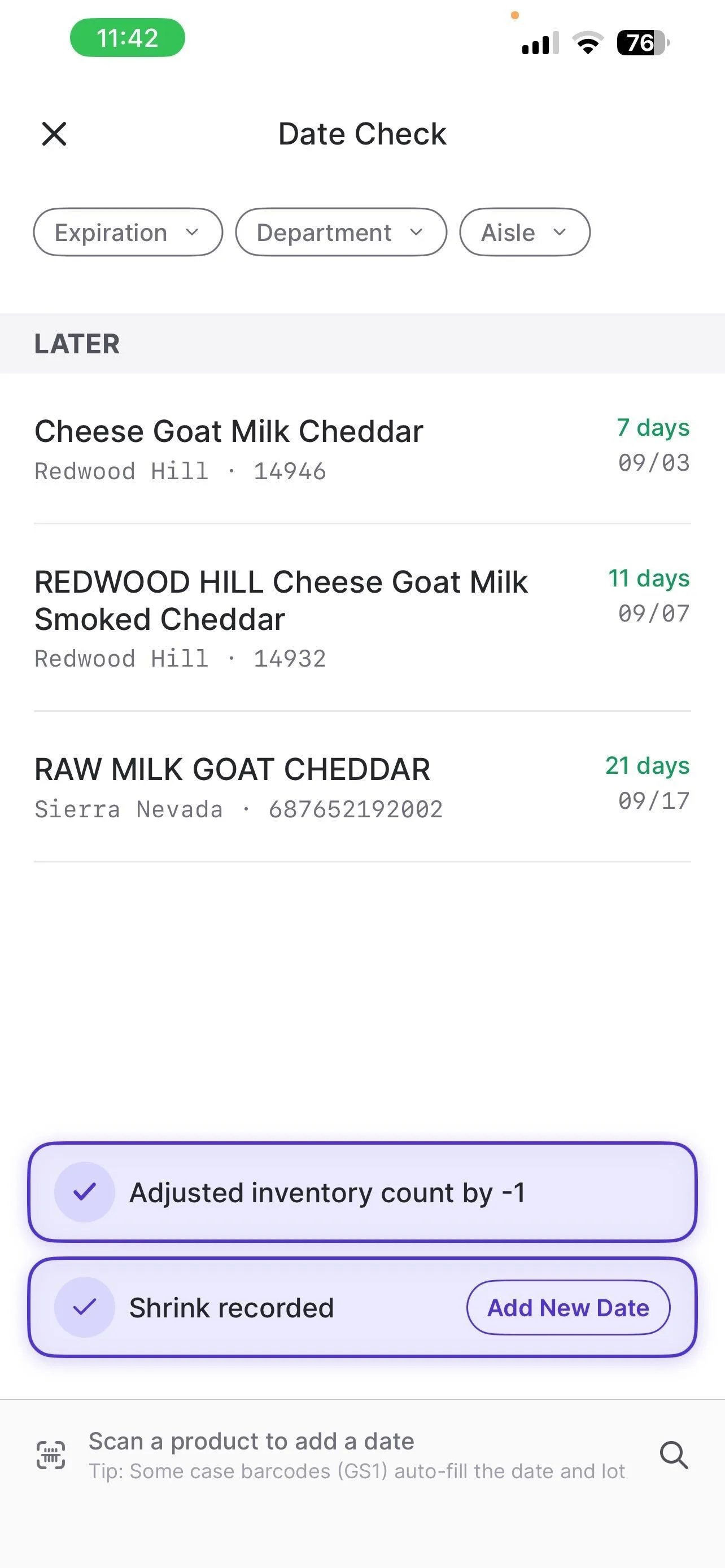 **💡 Tip:** Tap **Add New Date** on the confirmation banner to jump straight into adding a new expiration date for that same product — no need to rescan. This is useful when you're only shrinking part of a lot (the rest is still good) or you've just shelved a new shipment on a different date.
## Related topics
- [Double Up Food Bucks (OR, MS, and CA)](/double-up-bucks/in-beta-double-up-food-bucks-or-and-ms-only.md)
- [Create and Manage Promotions in VoriOS](/promotions/create-and-manage-promotions-in-vori-os.md)
- [Place Orders on VoriOS](/inventory-and-ordering/ordering/place-orders-in-vori-operating-system.md)
**💡 Tip:** Tap **Add New Date** on the confirmation banner to jump straight into adding a new expiration date for that same product — no need to rescan. This is useful when you're only shrinking part of a lot (the rest is still good) or you've just shelved a new shipment on a different date.
## Related topics
- [Double Up Food Bucks (OR, MS, and CA)](/double-up-bucks/in-beta-double-up-food-bucks-or-and-ms-only.md)
- [Create and Manage Promotions in VoriOS](/promotions/create-and-manage-promotions-in-vori-os.md)
- [Place Orders on VoriOS](/inventory-and-ordering/ordering/place-orders-in-vori-operating-system.md)