![vori-logo-black-horizontal-01 (1).png]](https://help.vori.com/hs-fs/hubfs/vori-logo-black-horizontal-01%20(1).png?height=42&name=vori-logo-black-horizontal-01%20(1).png)
Table of Contents
- Before You Start
- Dealer-Led Setup (Required Before Vori Activation)
- Vori Activation Steps
Before You Start
Make sure you have the following in place:
Compatible Scales
-
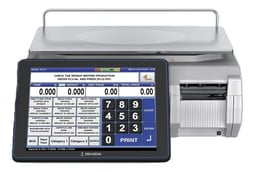
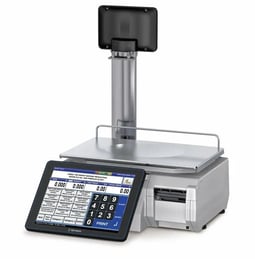
Ishida Uni Series (Uni-3, Uni-8, Uni-10)
-
Or any Ishida model compatible with Scale Link Pro
Dedicated Windows Computer
-
Windows 7–11 or Windows Server 2008–2019
-
1 GHz processor or faster
-
Connected to the same network as your scales
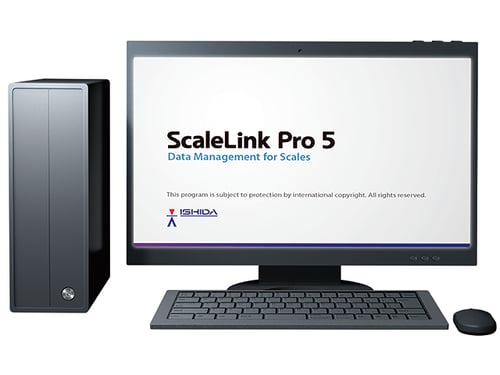
Scale Link Pro Software
-
Installed and fully configured on your dedicated Windows machine
If you’re unsure about compatibility, your local Ishida dealer can confirm.
Dealer-Led Setup (Required Before Vori Activation)
These first two steps must be completed by your authorized Ishida dealer before Vori can activate the integration.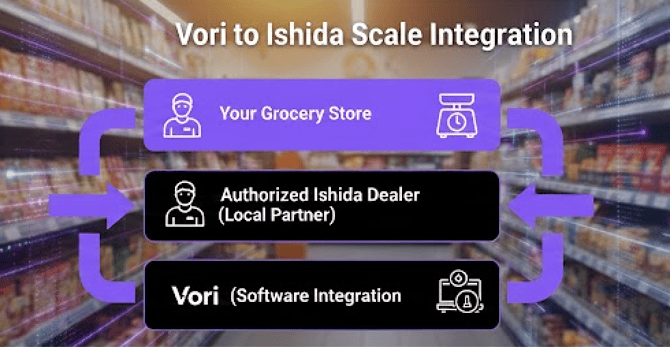
Step 1: Partner with a Local Dealer
Vori provides the software integration. Physical hardware, certifications, and ongoing maintenance are handled by authorized Ishida dealers.
-
Contact a local dealer: Purchase your hardware and software through an authorized Ishida dealer in your area.
-
Discuss full service: Ensure your Ishida dealer provides installation, training, and ongoing maintenance support.
-
Verify compliance: Your Ishida dealer must complete the required Weights & Measures certification for legal trade.
✏️ Note: Vori does not perform hardware installation or physical certifications. Your Ishida Scale dealer completes these steps. Additional fees may apply for installation, maintenance, or support.
Step 2: Install and Configure Hardware
Your Ishida dealer must fully install and configure the scales before Vori can connect the system.
We recommend completing this at least 3 days before your scheduled go-live to prevent delays.
Dealer checklist:
-
Install and calibrate scales
-
Confirm compliance with local regulations
-
Install and configure Scale Link Pro
-
Verify scale-to-software communication
Before moving forward, confirm that your scales are successfully communicating with Scale Link Pro.
Vori Activation Steps
Once your dealer has completed setup, Vori takes over to activate the integration.
Step 3: Connect Vori to Your Scale System (Vori-Led)
After hardware installation is complete, contact Vori Support or your Onboarding Manager.
We’ll install ScreenConnect, a secure remote access tool, on the computer running Scale Link Pro.
On your computer:
-
Vori will share a download link.
-
Paste the link into your browser.
-
Run the downloaded file on the machine running Scale Link Pro.
-
ScreenConnect will run quietly in the background.
Once installed, notify your Vori representative so we can validate the connection.
This step securely connects your POS, Vori Back Office, and scale system.
Step 4: Enable Department Syncing (Final Activation Step)
Once Vori confirms the connection, you’ll enable department syncing.
-
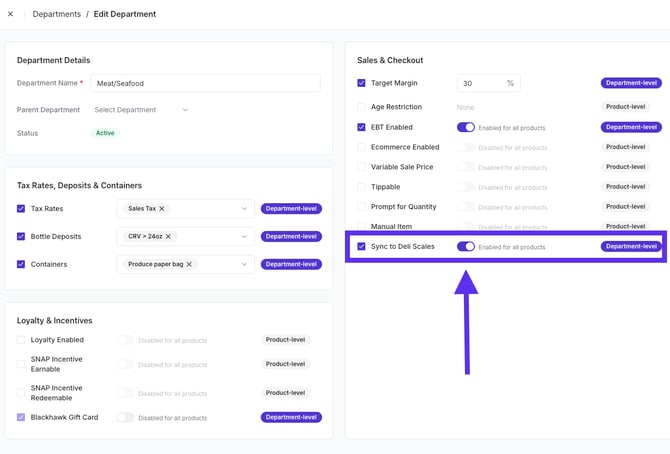
Log in to the Back Office and navigate to Products -> Departments.
-
Select the department you would like to send to the scale (e.g., Meat or Deli).
-
Locate the Sales & Checkout section.
-
Toggle Sync to Deli Scales to Enabled.