![vori-logo-black-horizontal-01 (1).png]](https://help.vori.com/hs-fs/hubfs/vori-logo-black-horizontal-01%20(1).png?height=42&name=vori-logo-black-horizontal-01%20(1).png)
The Inventory Module in Vori OS gives you immediate control over your product counts right from the aisle. It is designed to be fast and practical, allowing you to perform critical actions—like checking a price or recording shrink—without running to the back office.
Table of Contents:
Start an Inventory Action
There are two ways to access inventory tools in the app:
-
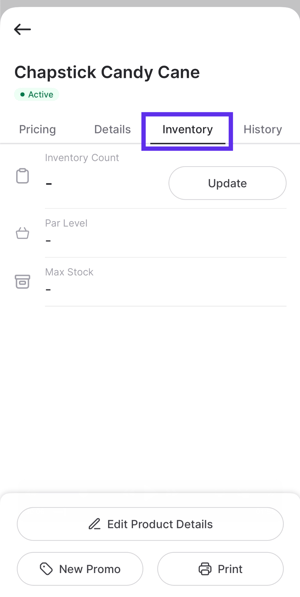
From a Product Page: Navigate to any product’s details, tap the Inventory tab, and tap Update to adjust that specific item immediately.
-
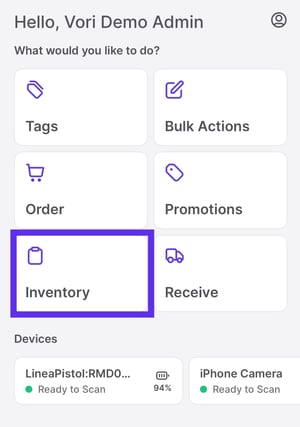
From the Dashboard: Tap Inventory on the main menu to select a mode (Restock, Shrink, etc.) and then scan products.
Scan to View Status
You don't always need to start a specific task to check on an item. Simply scan a product to view its current snapshot.
-
Scan: Use the dashboard scanner or search bar to find an item.
-
Select Inventory: Tap the Inventory tab next to Details.
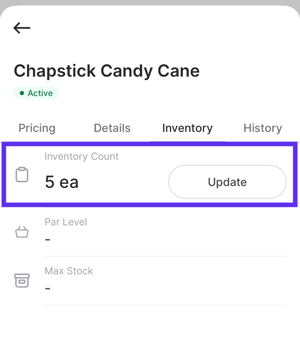
- View Count: See the real-time Inventory Count (based on the last manual count minus POS sales).
-
Take Action: If you need to make a change, tap the Update button to open the adjustment options.
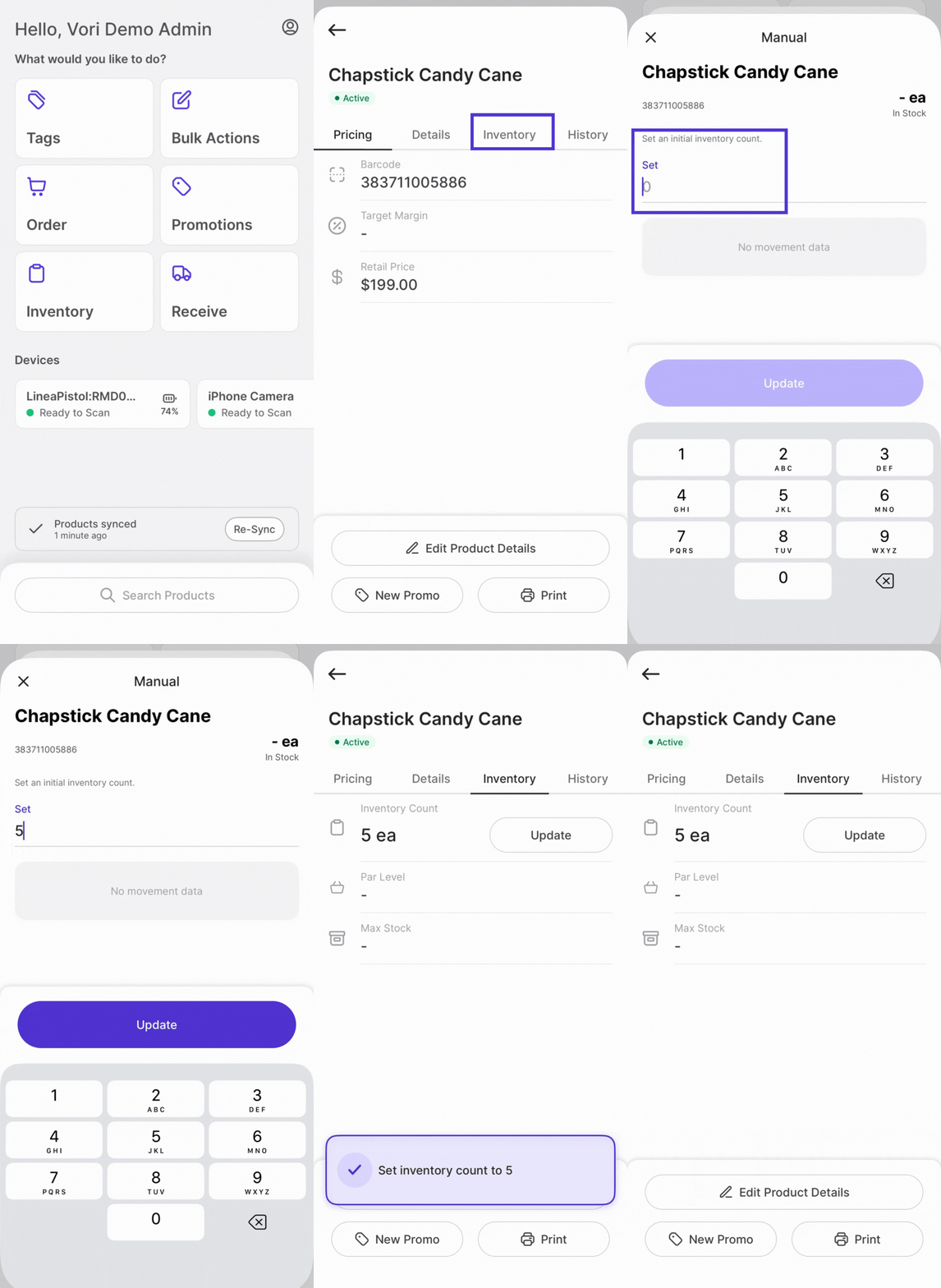
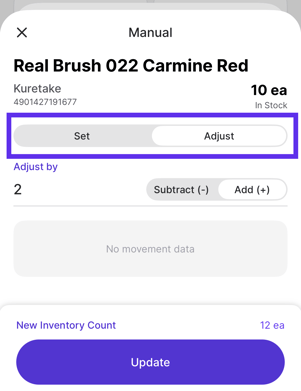
✏️ Note: When you set a product’s inventory from the Product Detail page for the first time, you’ll see only the Set option. After the initial inventory is saved, scanning the product again will display both Set and Adjust options.
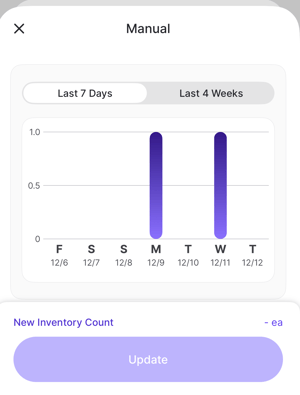
- Check Movement: Use the Movement Graph to visualize sales trends (Last 7 Days vs. Last 4 Weeks) to decide if you need to reorder.
Choose Your Inventory Mode
If you need to update counts, select a mode based on what you are doing on the floor.
Manual
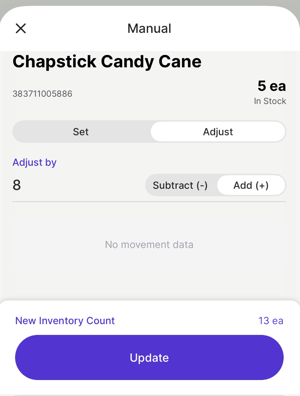
This is the most flexible option for on-the-fly corrections. It offers two specific tabs:
-
Set: Type the final total number you see on the shelf. Use this to establish a new "Source of Truth" snapshot.
-
Adjust: Allows you to Add (+) or Subtract (-) from the current count without doing the math yourself.
Count
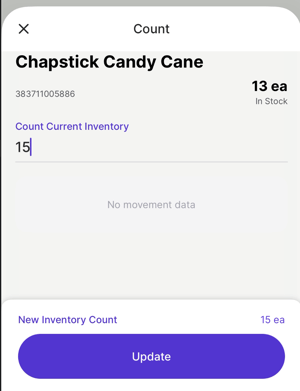
Use this for cycle counts or resetting a baseline.
-
Action: Sets a new, absolute total for an item, overwriting the previous number.
Shrink (Protect Your Margin)
Use Shrink mode to remove items that cannot be sold. This is critical for Essentials users to track where money is being lost.
-
Action: Select a Reason from the list (Damage, Spoilage, Theft, or Other).
-
Quantity: Enter the amount to remove from inventory.
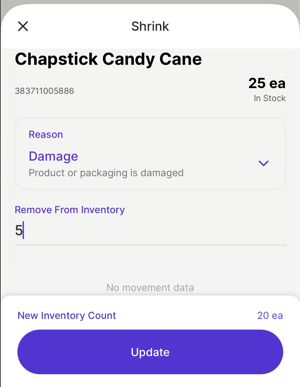
✏️ Note: Unlike the Back Office, the Mobile App allows you to select specific reason codes or enter custom "Other" reasons. This is critical for workflows such as transferring stock from one department to another (e.g., transferring produce to the deli).
Restock
Use this when you are receiving a delivery or replenishing the shelf.
-
Action: Adds the quantity you enter to your existing on-hand count.
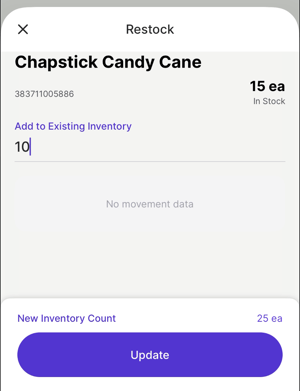
✏️ Note: This is not full Invoice Receiving. Use this when you simply want to add quantity to your count.
Scanning & Searching
Once you select a mode, you will see the Scan a Product screen.
- Scan With Linea Pro: Use the connected Linea Pro scanner to scan the product barcode.
-
Scan With Camera: Use your device's camera to scan the barcode for fast entry.
-
Search For Product: If an item won't scan, tap this to look it up by name or SKU manually.