![vori-logo-black-horizontal-01 (1).png]](https://help.vori.com/hs-fs/hubfs/vori-logo-black-horizontal-01%20(1).png?height=42&name=vori-logo-black-horizontal-01%20(1).png)
Offers live inside a Promotion container and allow you to set precise discount rules and qualifying conditions.
✏️ Note: This article describes features in New Back Office and is launching with select stores (in beta testing). For instructions on accessing New Back Office, view our guide: Access New Back Office.
Table of Contents
Buy X Get Y Free
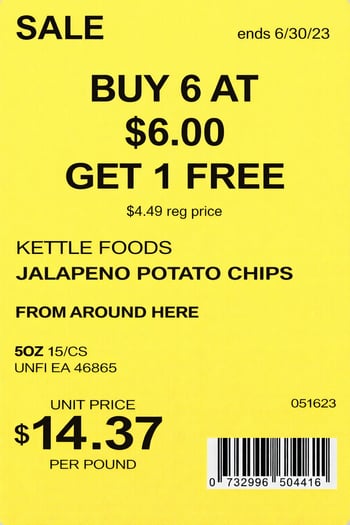
This offer type allows for flexible configurations beyond "buy one, get one". Use this when the Shopper receives a free quantity from your selected range of qualifying products.
- Example: "Buy 2, Get 2 Free."
-
Range Logic: The deal works across the entire selected range of products, not just individual items.
Visualizing A Buy X Get Y Free Deal:
Back Office
-
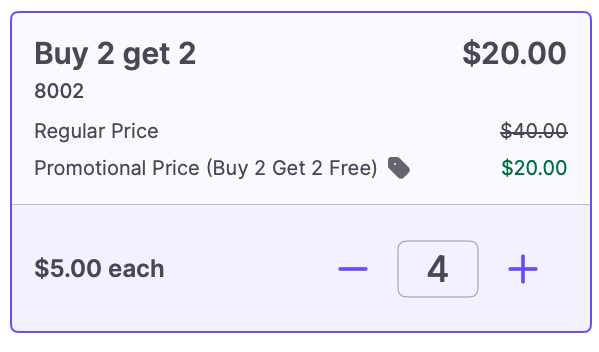
Shoppers can buy any 2 qualifying products to get 2 items free.

Point of Sale
-
In a Buy 2 Get 2 Free deal on a $10.00 item, the POS displays all items at $5.00 each.

- If a shopper buys 3 items, they still qualify for the deal, and the savings are spread evenly across those items to ensure accurate taxes and refunds.
Shelf Tags
✏️Note: Vori splits the discount evenly across all items in the basket, based on each item’s share of the total. That way, if a shopper returns just one item from a deal, the system can refund only the portion of the discount and taxes that applied to that specific item.
Mix Match
Mix Match allows Shoppers to combine different products from a group to unlock a discount.
-
Example: "2 for $5.00" on various individual snacks or beverages.
Discount Methods:
-
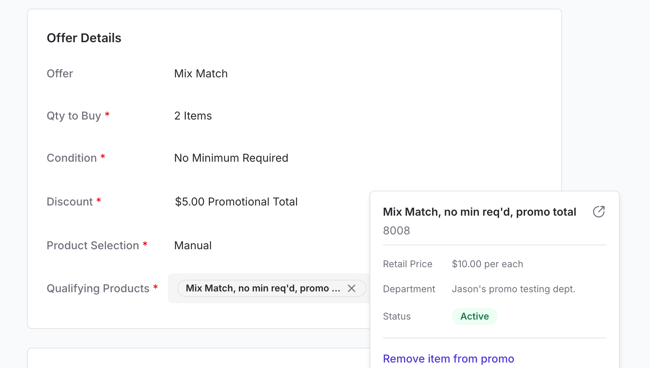
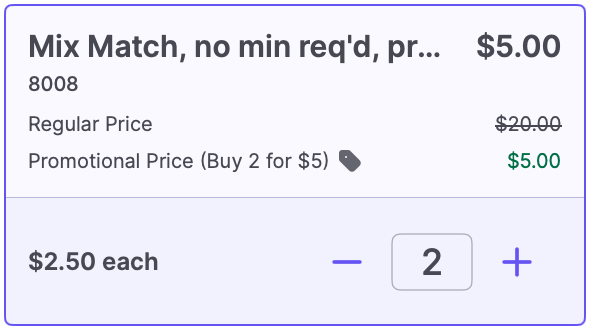
Promotional Total: Set a specific price for a group of items (e.g., "2 for $5.00").
-
Fixed $ Off: Give a specific dollar amount off the total (e.g., "Buy 2, save $2.00").
-
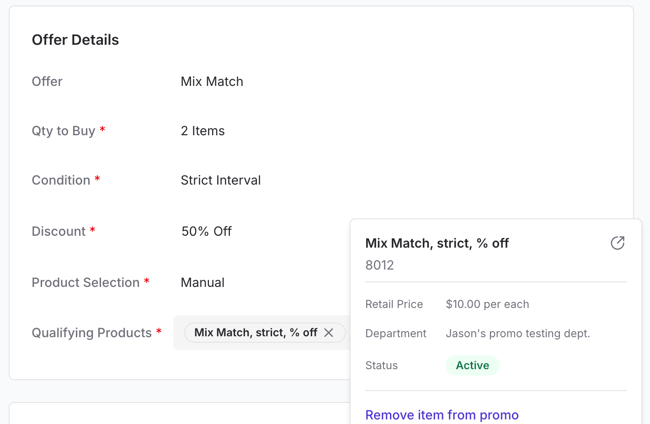
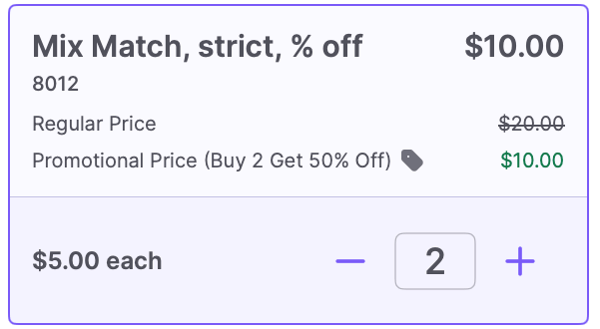
Percentage Off: Apply a percentage discount (e.g., "Buy 2, save 10%").
Conditions:
-
No Minimum Required: Acts like a standard Price Reduction but uses "Buy X" language for psychological encouragement.
- Strict Interval: The deal applies only to exact multiples. For a "2 for $9" deal, the 1st item is full price, the 2nd triggers the deal, but the 3rd item is full price again.
-
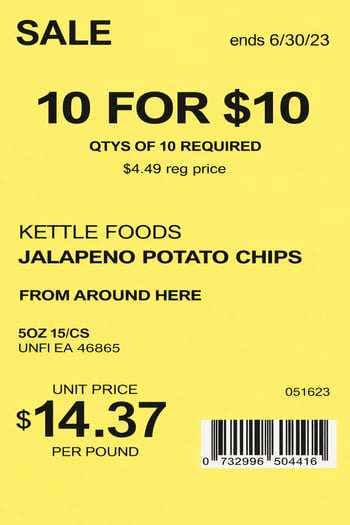
Minimum Required: Shoppers must buy at least the specified quantity to earn the discount on every qualifying item in the basket.
Visualizing a Mix Match Deal:
Back Office
Point of Sale
Shelf Tags
Combo Offers
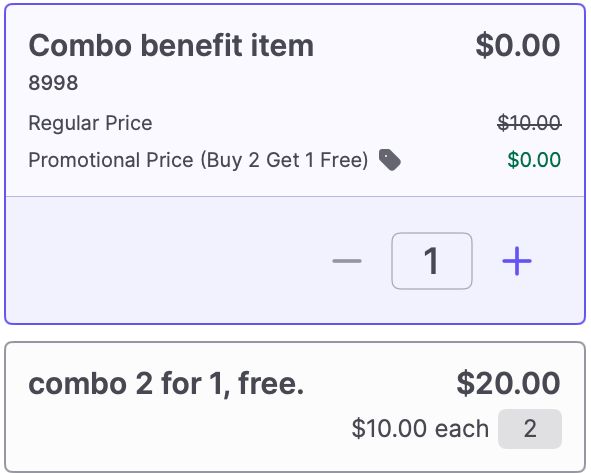
Use Combo offers when the qualifying item and the discounted item are distinctly different groups.
- Example: "Buy a sandwich, get a free drink."
-
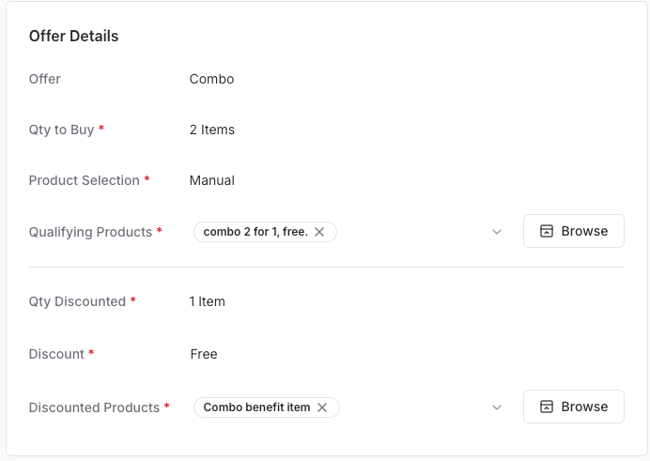
Configuration: You define a "Qualifying" group (what they must buy) and a "Discounted" group (what they get a deal on).
-
Discount Types: You can offer the second item for free, a dollar amount off, or a percentage off.
Visualizing a Combo Deal:
Back Office
Point of Sale
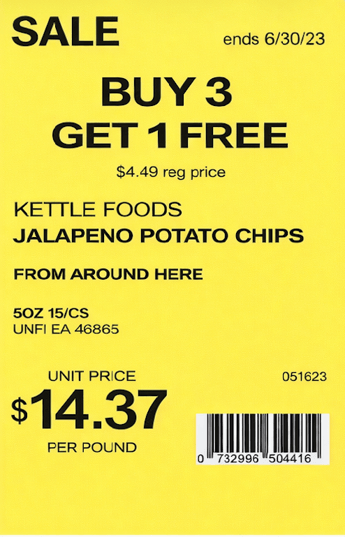
Shelf Tags
✏️Note: If you are discounting the same item being bought, use Buy X Get Y instead.
Minimum Item Spend
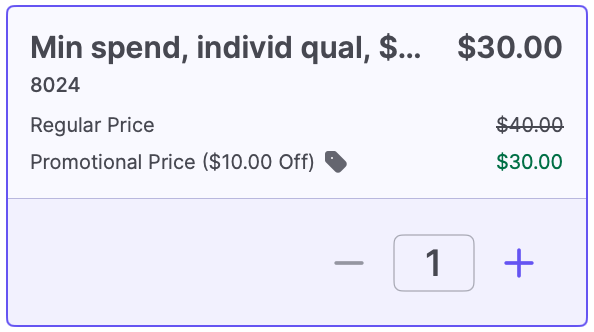
Encourage volume by rewarding Shoppers who reach a specific spending threshold on selected items.
-
Example: "Spend $25.00 on cereal and get $5.00 off".
Modes:
-
Total Qualifying Products: The discount triggers when the total spent across all items in a specific group (e.g., the cereal aisle) reaches the threshold.
-
Individual Qualifying Product: The price of a single item must exceed the threshold. This is ideal for Type 2 (random weight) items like "Save $5 on any turkey over $50."
Visualizing a Minimum Item Spend Deal:
Back Office

Point of Sale
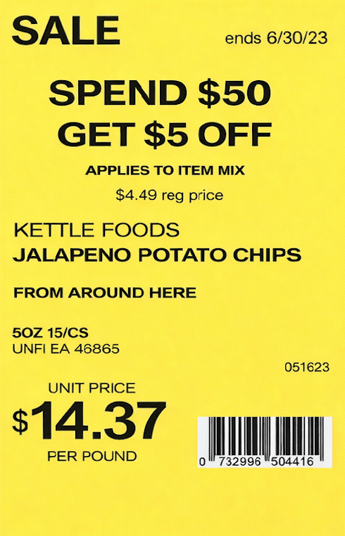
Shelf Tags
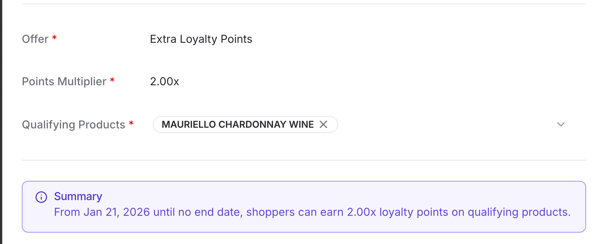
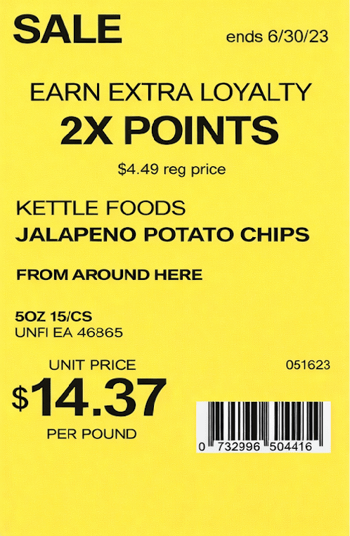
Extra Loyalty Points
Offer modifiers on how Loyalty Members earn points. This is perfect for driving traffic on slow days or launching new products.
- Example: "Double Point Tuesdays" or "Triple Point Wine Happy Hours".
-
Logic: Use a Points Multiplier to increase points earned on specific products or departments.
-
Configuration: The multiplier uses a decimal format. For example, entering 2 adds double extra loyalty points to the transaction.
💡 Tip: Driving Traffic: Use Sales Overview Reporting to identify "slow days" (e.g., Tuesdays from 12 PM – 9 PM) and schedule point multipliers during those specific windows to encourage shoppers to visit.
Visualizing an Extra Loyalty Points Deal:
Back Office
Point of Sale
Shelf Tags
✏️ Note: You cannot use the "Limit Per Basket" condition for this offer type because the calculation is based on the line-item subtotal.
Price Reduction (TPR)
The most common deal type. It communicates a specific, lower price to the Shopper.
-
Example: "All Lay's Chips are $1.69."
-
Department or Brand Discount: Use "Percent Off" to apply the same discount across many SKUs in the same department or brand at once (e.g., "20% off all Chobani items").
Troubleshooting & Tips
-
Type 2 UPCs: Temporary Price Reductions (TPRs) do not currently apply to Type 2 (random weight) items at the register.
-
Deleted vs. Canceled: You can only Delete a Draft promotion. Once a promotion has been Active, it can only be Canceled to preserve your reporting data.
-
ROI Strategy: Remember that while a 10% discount on a 10% higher basket size may "break even" on that specific transaction, it helps form long-term shopping habits that keep Shoppers coming back to your store.
➡️ Next Step: Learn How to use Product Selection (Manual vs. Dynamic) to finish building your offer.