![vori-logo-black-horizontal-01 (1).png]](https://help.vori.com/hs-fs/hubfs/vori-logo-black-horizontal-01%20(1).png?height=42&name=vori-logo-black-horizontal-01%20(1).png)
Whether you need surgical precision for a few items or automated category-wide rules, Vori gives you the power to control your selection so you can focus on running your store.
✏️ Note: This article describes features in the New Back Office and is launching with select stores (in beta testing). For instructions on accessing New Back Office, view our guide: Access New Back Office.
Table of Contents
🚨 Before you begin: Ensure you have access to the New Back Office and have already created a Promotion and Offer. If you haven't done this yet, please see Creating a Promotion for instructions.
Manual Selection: Picking Specific SKUs
Use Manual Selection when a deal only applies to a handful of specific items that do not share a single brand or department.
-
Locate the Product Selection field within your Offer details and select Manual.
-
Click into the Qualifying Products search bar to type in a product name or barcode.
-
Select the desired item from the dropdown list to add it to the offer.
-
For larger lists, click Browse to open the full product table and filter to narrow down the list.
-
Check the box next to each item you want to include and click Done.
Dynamic Selection: Automating Category Deals
Dynamic Selection is a powerful "set-it-and-forget-it" tool. Instead of picking items one by one, you set rules (e.g., "All Alcohol department items except Beer"), Vori automatically includes matching items now and in the future as your inventory grows.
⚠️ Visibility Note: To access Dynamic Selection, you must click the Full Details button at the bottom of the New Offer window. If you remain in the Quick Create view, the system defaults to Manual product selection.
-
Set the Product Selection field to Dynamic.
-
Click Set Conditions and Add Condition(s) like:
-
Department: (e.g., "Dairy" or "Meat").
-
Brand: (e.g., "contains Olipop").
-
Price/Margin: (e.g., "Retail Price is greater than $10.00").
-
-
Review the X products included count (marked with the purple 👁️ icon). This shows exactly what currently matches your criteria. Open it to double-check that your conditions aren’t accidentally pulling in unwanted items.

Reviewing and Excluding Items from the Product Table
Even with broad Dynamic rules, you may want to remove specific items from a deal (e.g., "10% off Dairy, except for specific milk types").
-
After setting your Dynamic conditions, click the X products included link at the bottom of the condition window.
-
Vori will open a snapshot of all products matching your current rules.
-
Scroll through the list or use the search bar to find the specific product you wish to remove.
-
Click Exclude next to that item.
-
The item remains in your catalog but is ignored by this specific promotion.
-
-
Click Done to save your selection.
Pro-Tips for Selection Accuracy
-
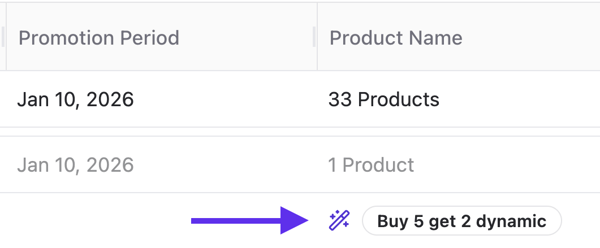
The Wand Icon: On your main Promotions dashboard, look for the Wand Icon. This indicates an item was added via Dynamic Selection, while items with no icon were added manually.
-
Automatic Updates: If you use Dynamic Selection for a specific brand and add a matching new product next month, Vori automatically adds it to the promotion for you.
➡️ Next Step: Complete your setup by Adding Conditional Rules like Loyalty-only pricing or Minimum Basket totals.