![vori-logo-black-horizontal-01 (1).png]](https://help.vori.com/hs-fs/hubfs/vori-logo-black-horizontal-01%20(1).png?height=42&name=vori-logo-black-horizontal-01%20(1).png)
Managing thousands of SKUs shouldn’t mean making thousands of individual manual changes. Product Groups are built for convenience and speed. Whether you’re syncing prices across thirty flavors of yogurt or grouping different barcodes for the same pint of raspberries, Product Groups ensure that when you change one item, you change them all.
Table of Contents
What are Product Groups?
Product Groups allow you to link specific attributes of products so they always stay the same. Think of it as a "change once, update everywhere" tool.
Common use cases include:
-
Line Pricing: Ensure all 5.3oz Chobani yogurts are always the same price. If the retail changes for one flavor, Vori updates the entire line.
-
Alt Barcodes: You might have multiple barcodes for the exact same product (like different pints of raspberries). Grouping them allows you to treat them as one single entity for pricing, inventory, and reporting.
-
Narrower Margins: Create specific target margins for a small group of items that are more granular than your broader Department or Sub-department Templates.
Create a New Product Group
All groups begin in the Product Catalog. This allows you to gather your "like" items before locking them in.
-
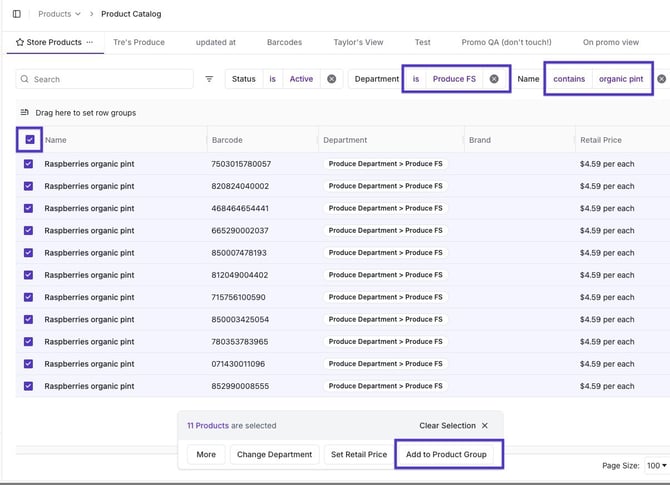
Open the Product Catalog from the side navigation.
-
Filter your set: Use the search bar or filters to find the products you want (e.g., filter by Brand: Quaker or Department/Sub-department: Produce).
-
Select Items: Check the boxes for all items you want to include.
-
Click Bulk Actions at the bottom of the screen.
-
Select Add to Product Group.
-
Name your group (e.g., "Raspberry Pints") and click Create.
✏️ Note: Rules vs. Groups: > Rules are for enforcement; Groups are for convenience. If a Department Template (a "Rule") exists, it will always override a Product Group. For example, if the department or sub-department the item(s) are in is disabled for EBT, the group cannot force it to "Yes."
Linking Properties & Attributes
Once the group is created, you decide what information should be shared across the items.
-
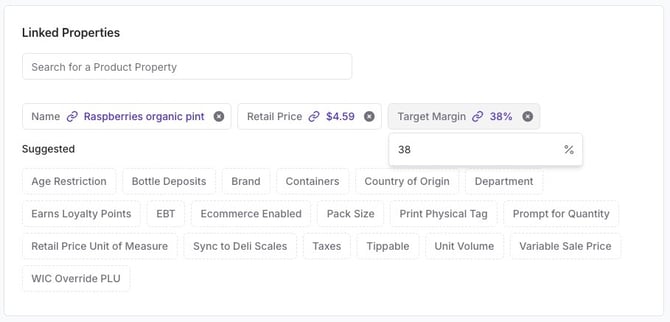
Navigate to the Linked Properties section within your group's detail page.
-
Toggle on the attributes you want to stay in sync (e.g., Retail Price, Target Margin, Brand, Pack Size, or EBT Eligibility).
-
Set the Value: * You can enter a specific value (like 35% margin) right there to update all items immediately.
-
Click Create Product Group.
Manage Sales & Inventory Reporting
During the Product Group setup, you can choose how Vori tracks these items to make your data more "findable and discoverable."
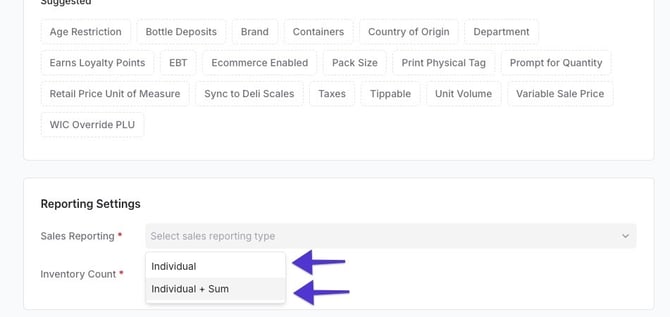
When creating the product group, you can choose if you'd like the reporting to show as Individual or Individual + Sum for sales reporting or inventory counts.
-
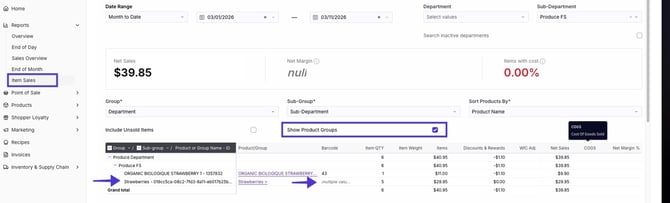
Sales Reporting: Choose Individual to see flavor-by-flavor data, or Individual + Sum to see the total sales for the entire group. This is ideal for pre-packed fruit where the specific SKU matters less than the total volume sold.
-
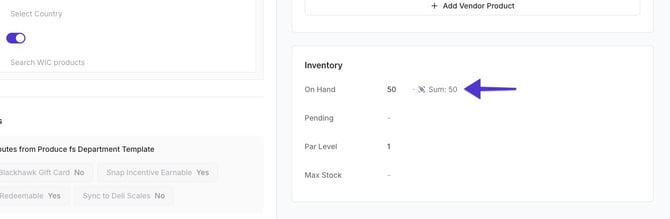
Inventory Count: Toggle this to see the total on-hand count for the whole group. This provides a much better view of your actual inventory (e.g., how many total pints of raspberries you have across all barcodes) to help you make faster, more accurate ordering decisions. You can view this under the Inventory section of the product details page for one item in the group.
Resolve Conflicts (Multi-Group Linking)
Vori allows a single product to live in multiple groups (e.g., a "Raspberry Pints Org" group and a "Berries" group).
The "Super Group" Effect: If Group A links Brand and Group B links Price, but both groups link Target Margin, they effectively become a "Super Group." A change to the target margin in Group A will propagate through the product and update every item in Group B as well.
-
If you add an item to a second group that links a property already in use, a Resolver pop-up will appear.
-
Select which value you want to "win," or enter a net-new value.
-
Vori treats this as a union link—a change to that attribute in either group will now update all products across both groups.
Remove Products from a Group
If an item no longer fits the line, you can pull it out without affecting the rest of the group.
-
Go to the Product Catalog table or the specific Product Detail page.
-
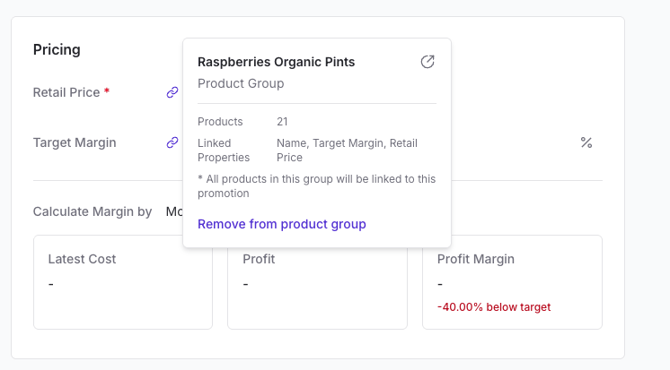
Find the attribute with the Link Icon 🔗.
-
Hover over the icon to see which group is managing the attribute and what other properties are linked.
-
Select Remove from Group.
-
Confirm the change. The item will keep its current values but will no longer be updated when the group changes.
Frequently Asked Questions
Does this work for Banners? Yes, Product Groups work for banners. However, you cannot create specific "Banner Groups" at this time—groups are managed at the store level.
How long does it take for a change to propagate? Most changes sync across the group in under a minute. We are working on "Lightning Updates" to make these changes near-instant.
Will this affect my Cost Changes? Currently, Product Groups focus on Retail attributes. Cost-linking is planned for a future update. For now, if a cost change is applied to only one item in a group, the Retail Price will stay synced, but the calculated margins for the other items may vary.
Can I put an entire Group on Promotion? Yes. When creating a Dynamic Promotion in the Back Office, you can select a Product Group Name as a condition to apply a discount to the entire line at once.