![vori-logo-black-horizontal-01 (1).png]](https://help.vori.com/hs-fs/hubfs/vori-logo-black-horizontal-01%20(1).png?height=42&name=vori-logo-black-horizontal-01%20(1).png)
Updating your vendor product information doesn't have to be a manual, one-by-one process. By using Vori's self-service upload tool, you can update your entire vendor catalog in seconds, ensuring your item details are accurate and your team can work more efficiently.
Table of Contents
Before You Begin
Before starting your upload, ensure your store meets these requirements:
-
File Format: Your product list must be saved as a .CSV file.
-
Vendor Setup: The vendor must already be registered to your store in Vori.
-
Scope: This tool is designed for updating basic product information (e.g., names, barcodes, and pack sizes).
✏️ Note: This tool does not currently support uploading vendor costs.
Prepare Your Upload File
To ensure a successful upload, your CSV file should include the following information:
| Field Name | Requirement | Notes |
| Barcode | Required | The unique UPC or EAN for the product. |
| Description | Required | The name of the product as it should appear in your catalog. |
| Vendor Item Code | Required | The unique ID assigned by the vendor for that specific product. |
| Item Case Size | Required | The number of units per case (e.g., 12). |
| Pack Size | Required | The individual unit volume or size (e.g., 9.5 oz). |
| Brand Name | Optional | The brand associated with the product. |
Upload and Map Your Data
Once your file is ready, you can upload it directly into the Vendor Products section.
-
Navigate to Inventory & Supply Chain on the left-hand menu in Back Office and select Vendor Products.
-
Click Upload in the top right corner.
-
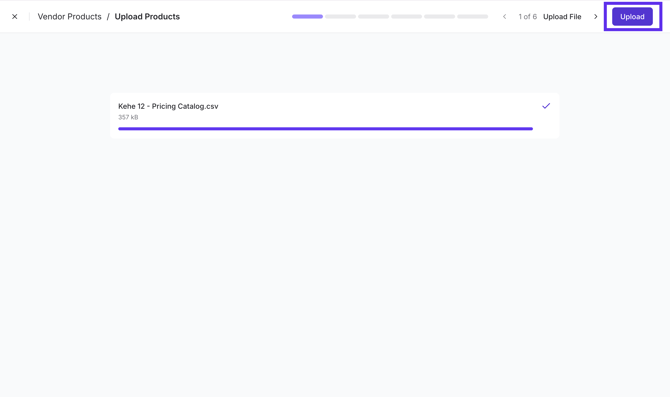
Drag and drop your CSV file into the upload area, or click Select File to browse your computer, then click Upload.
-
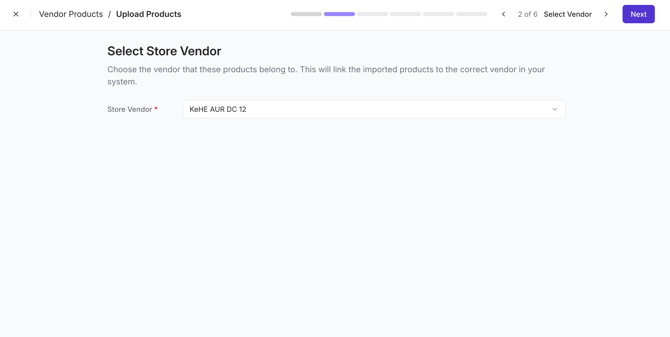
Select Store Vendor: Choose the vendor these products belong to from the dropdown menu and click Next.
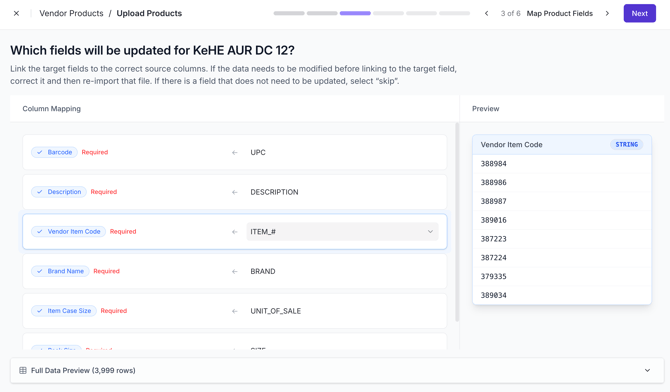
- Map your columns: Vori will attempt to auto-match your file headers to the required fields.
-
Confirm that all required fields (Barcode, Description, Item Code, etc.) are correctly mapped to the appropriate columns in your file.
-
Click Next to proceed to the review screen.
Review and Commit Changes
The review step helps you catch mistakes before they impact your catalog.
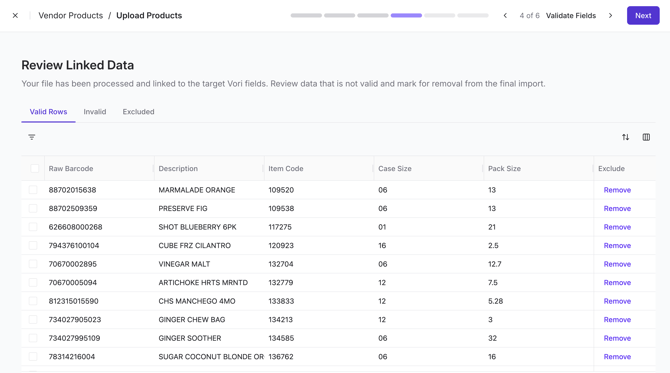
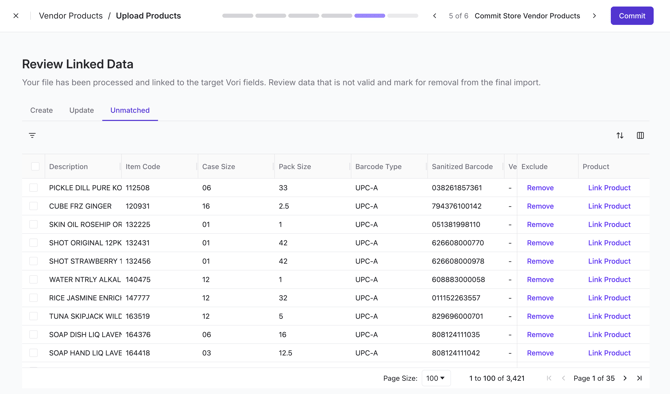
- Review Linked Data: Vori performs a "soft validation" to check for errors.
-
Valid Rows: These items are ready for a successful upload.
-
-
-
Update: These items already exist in your system and will be updated with the new information.
- Unmatched: These items are not yet linked to a product in your store. You can click Link Product to manually pair them.
-
-
Remove Errors: If you see rows you do not wish to import, click Remove on the far right of that row.
-
Click Commit to finish the process and update your vendor products.
Troubleshooting
Why is my row marked as "Invalid"?
-
Missing Required Fields: Every product requires a Barcode, Description, and Vendor Item Code. If these are missing, Vori will skip that row.
-
Duplicate Data: If your file contains the same Vendor Item Code for multiple different barcodes, the system may flag it for review.
What if I need to update costs?
-
Vendor costs cannot be updated via this CSV upload tool at this time. These must be managed through the standard cost change workflow.