![vori-logo-black-horizontal-01 (1).png]](https://help.vori.com/hs-fs/hubfs/vori-logo-black-horizontal-01%20(1).png?height=42&name=vori-logo-black-horizontal-01%20(1).png)
Before You Begin
Before uploading, make sure your file meets these standards. This keeps your import smooth and error-free.
-
File Format: Must be saved as a .CSV.
Prepare Your Import File
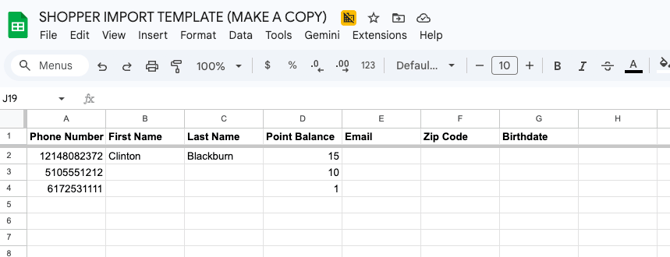
To ensure a successful import, your CSV file must be formatted correctly with the specific required information.
| Column Header | Requirement | Description |
| Phone Number |
Required | The unique identifier for every member. This is the only field Vori requires to create a profile. Use standard 10-digit formats (e.g., 5551234567) or E.164 format (e.g., +15551234567) to avoid import failures. |
| First Name | Optional | Helps you personalize the shopper experience via SMS communication. |
| Last Name | Optional | Recommended for better searchability in your member list. |
| Point Balance |
Optional |
Use this to migrate existing loyalty rewards. It will appear as a record in the shopper's history. The importer currently supports "Point Balances" but does not support importing "Punch" card progress. |
| Optional | Useful for future marketing reach-out. |
|
| Zip Code | Optional | Helps you understand where your shopper lives. |
| Birthdate | Optional | Can be used to track member milestone. |
💡Tip: Open the Shopper Import Template in Google Sheets, select File > Make a copy, and enter your data there to ensure the headers stay perfect.
Upload and Map Your Data
Once your file is ready, you can upload it directly into the Member section.
-
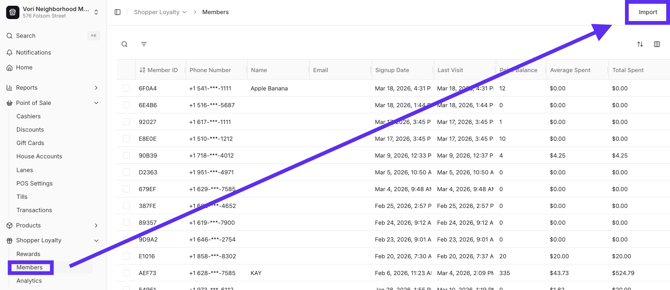
Navigate to the Members section under Shopper Loyalty in New Back Office.
- Click Import in the top right corner.
- Drag and drop your CSV file into the upload area, or click Select File to browse your computer, then click Upload.
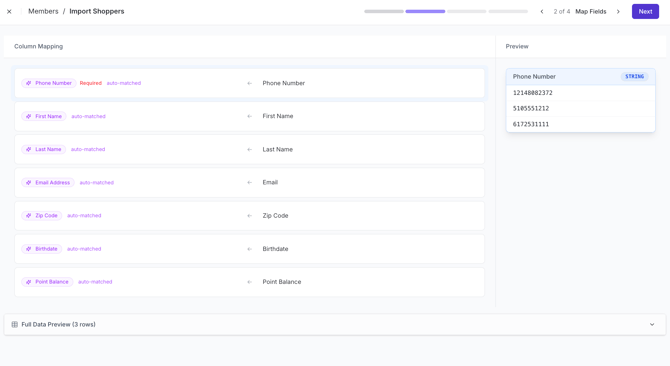
- Map your columns: Vori will attempt to auto-match your file headers to the required fields.
-
Review the mappings and manually select the correct Vori field for any unmatched columns.
-
Click Next.
Review and Commit Changes
-
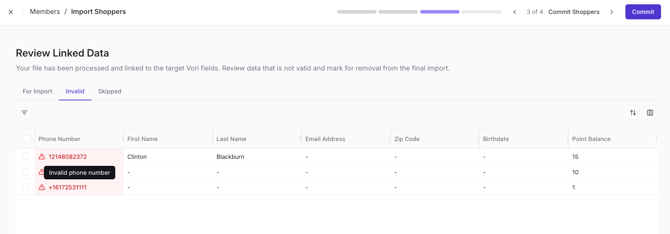
Review the Review Linked Data screen to see a preview of the members being added.
-
In Import: These rows are valid and ready for successful upload.
- Invalid: These rows contain errors (such as missing names or duplicate numbers) and will not be imported.
-
-
Check the Invalid tab to identify rows that Vori cannot process. Common issues include:
-
Duplicate Data: The phone number already exists in your Vori account.
-
Formatting Errors: Phone numbers containing letters or incorrect characters.
-
-
Once you have verified the data, click Commit.
Troubleshooting
-
Points not appearing immediately? Try refreshing your browser or re-sorting the Member list by "Signup Date" to see the most recent additions.
-
Missing Transactions: Imported points appear as a single manual adjustment transaction in the member's point history.

-
Invalid Phone Numbers: Ensure all phone numbers consist only of digits. Any letters or special symbols may cause the row to fail.