![vori-logo-black-horizontal-01 (1).png]](https://help.vori.com/hs-fs/hubfs/vori-logo-black-horizontal-01%20(1).png?height=42&name=vori-logo-black-horizontal-01%20(1).png)
Gift Card imports allow you to quickly upload balances and account numbers so your shoppers can continue using their physical cards or magnetic stripes without interruption.
Table of Contents
- Before You Begin
- Prepare Your Import File
- Upload and Map Your Data
- Review and Commit Changes
- Troubleshooting
Before You Begin
Before uploading, make sure your file meets these standards. This keeps your import smooth and error-free.
-
File Format: Must be saved as a .CSV.
Prepare Your Import File
To ensure a successful upload, your spreadsheet should include the following columns:
-
Balance: (Required) The current monetary value remaining on the card.
-
Barcode: The printed barcode string for physical scanning.
-
Magstripe Account Number: The account number associated with the card's magnetic stripe.
💡Tip: Open the Gift Card Import Template in Google Sheets, select File > Make a copy, and enter your data there to ensure the headers stay perfect.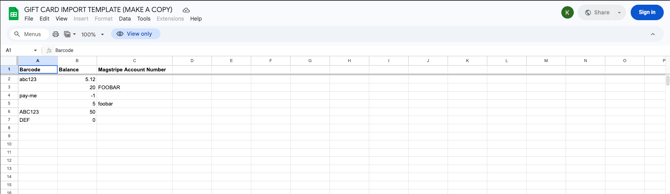
Upload and Map Your Data
-
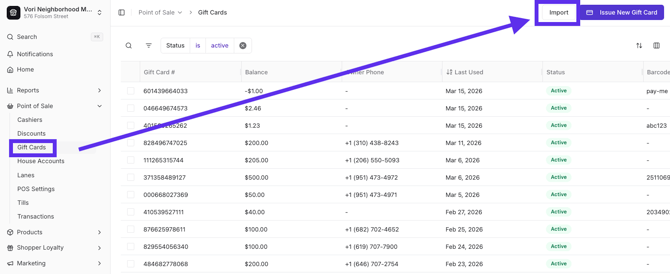
Navigate to the Gift Cards section under Point of Sale in New Back Office.
-
Click the Import button.
-
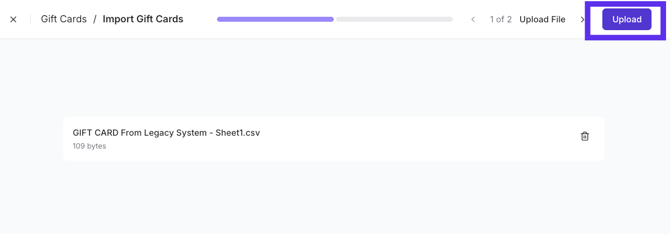
Click Select File and choose your CSV from your computer, then click Upload.
-
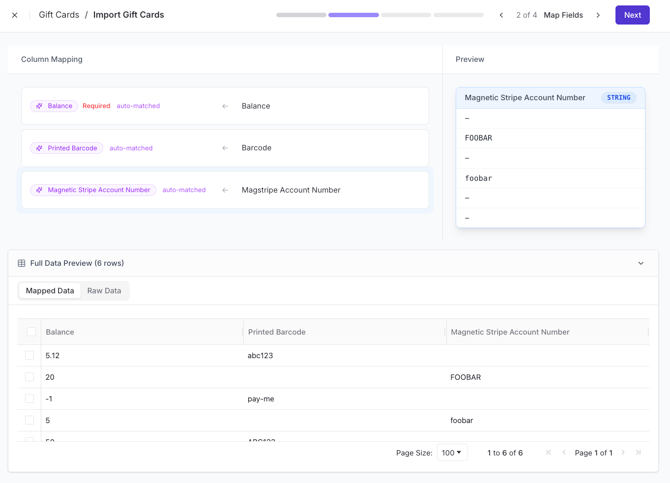
Vori will perform auto-matching to link your file headers to the system's fields.
-
Review the Column Mapping to ensure the balance, barcode, and magnetic stripe account number are correctly identified.
Review and Commit Changes
Before finalized, Vori validates your data in a single frame to prevent duplicates.
-
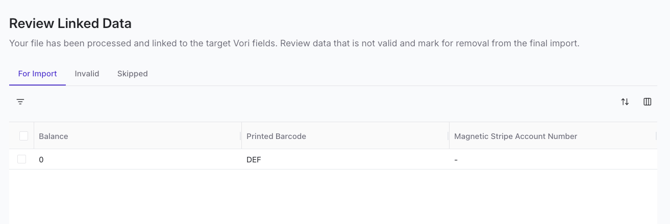
Review the Review Linked Data screen.
-
Check the In Import tab to see valid new cards ready for the system.
-
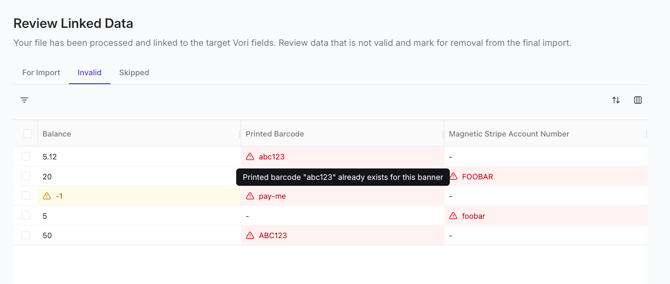
Check the Invalid tab for cards that already exist in your system or have errors.
-
-
Once satisfied, click Commit to finish the process.
✏️ Note: Successfully imported cards will appear in your Gift Card list with their updated balances and status.
Troubleshooting
-
Duplicate Barcodes: If a row is marked Invalid, it is often because that specific barcode or account number already exists in your store's database.
-
Missing Balances: The balance field is required for every row. Ensure no cells in this column are blank before uploading.