![vori-logo-black-horizontal-01 (1).png]](https://help.vori.com/hs-fs/hubfs/vori-logo-black-horizontal-01%20(1).png?height=42&name=vori-logo-black-horizontal-01%20(1).png)
Table of Contents
Before You Begin
Before uploading, make sure your file meets these standards. This keeps your import smooth and error-free.
-
File Format: Must be saved as a .CSV.
-
File Size: Up to 500 lines per file. Got more? Split into multiple files.
-
Date ranges: Create separate files for each selected date range (e.g., 2026-04-09 to 2026-05-12, & 2026-04-09 to 2026-05-25).
✏️Note: Please ensure files are split by date range. The promotion import tool currently supports only one date range per upload.
How to Format Your Promotion File
Headers must match the Vori template to enable auto-matching. Any additional columns can be removed. Refer to this guide for details:
| Column | Description | Format / Notes |
|---|---|---|
| UPC | Product barcode | Required; cannot be blank |
| Desc | Product name | For reference |
| Flyer $ | Promotional price | Use Promotional Price(e.g., $3.79) or Mix and Match(e.g., 2/$4) |
| Flyer Start Date | Promotion start date | YYYY-MM-DD (e.g., 2026-03-01) |
| Flyer End Date | Promotion end date | YYYY-MM-DD (e.g., 2026-03-07) |
💡Tip: Open the Promotion Import Template in Google Sheets, select File → Make a copy. You can use this as a guide or enter your data directly to ensure the headers remain correctly formatted.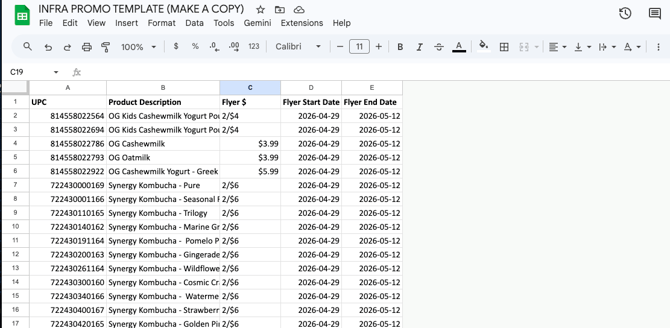
How to Import Your Promotions
-
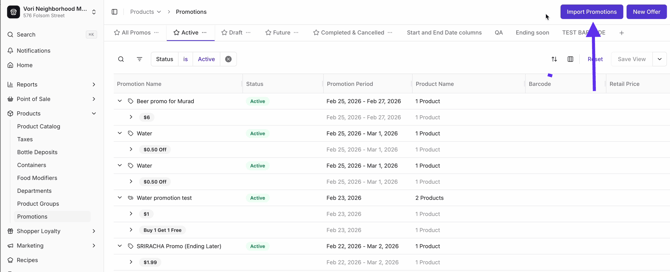
In Back Office, go to Products and select Promotions in the left-hand navigation.
-
Click Import File (top-right).
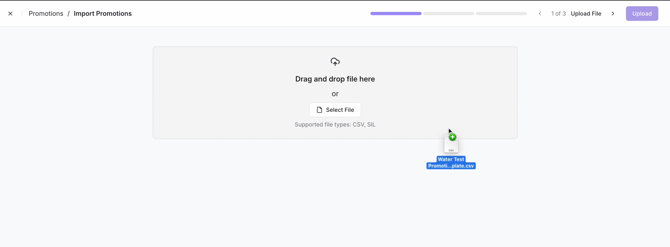
- Drag & drop your CSV or select it from your computer.
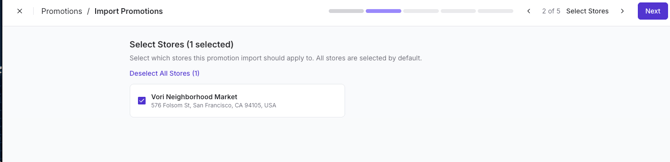
- Select Stores: Choose the stores where these promotions should apply (default: All Stores).
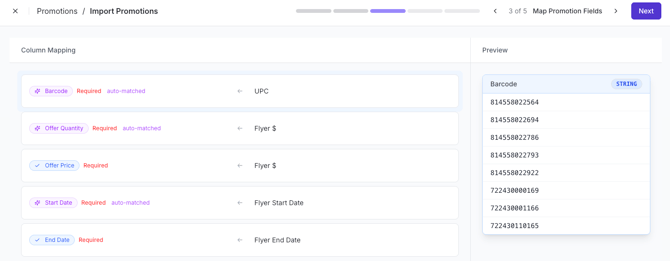
- Map Promotion Fields: Ensure all columns are mapped correctly—do not skip any fields on this page. Map both Offer Quantity and Offer Price to Flyer $, then review your selections and click Next.
- Review Linked Data: Check the Valid Rows and Invalid Rows tabs to ensure everything links correctly.
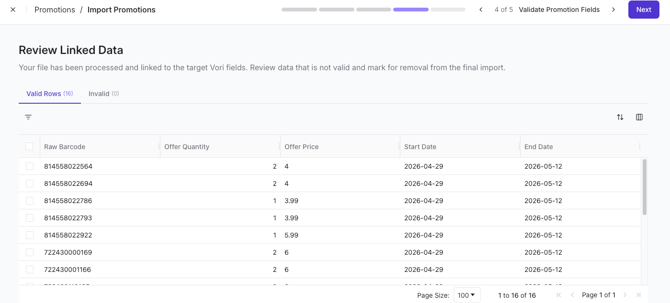
- Review Linked Data: Check For Import and Unmatched tabs to ensure everything links correctly. Select Commit when you're ready to save the promotion as a draft.
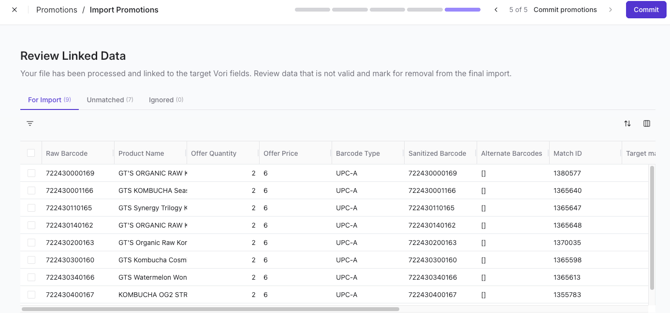
- A confirmation page will appear.
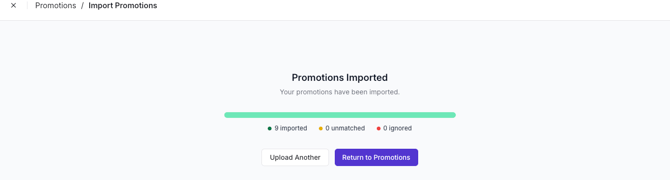
- In order to Publish the promotion, Return to Promotions, navigate to Drafts.
Find the promotion and tap Publish.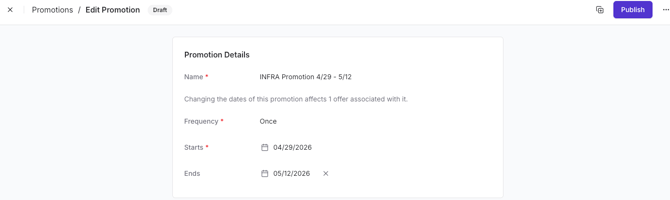
💡Tip: Change the promotion name to easily identify the promotion.
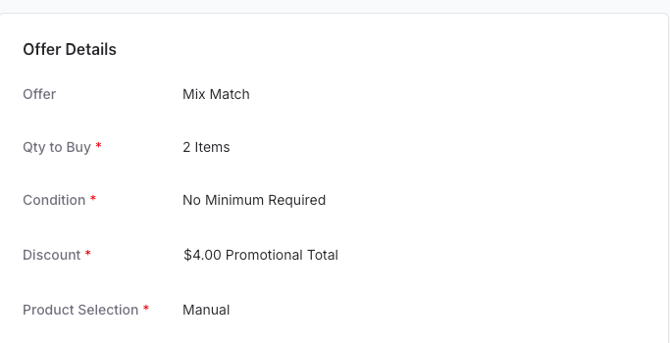
✏️Note: Our system defaults Mix and Match promos to No Minimum Required. If you want to change the Condition, you will need to edit the offer after the import has been committed.
Troubleshooting & FAQs
-
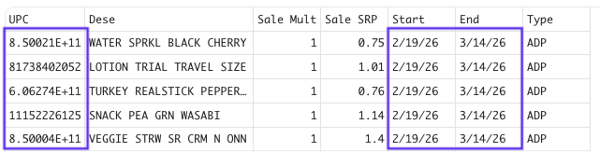
Why did my file fail to upload? Check for blank rows or spreadsheet formulas in the UPC column.
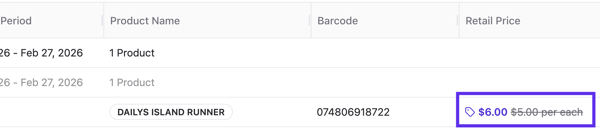
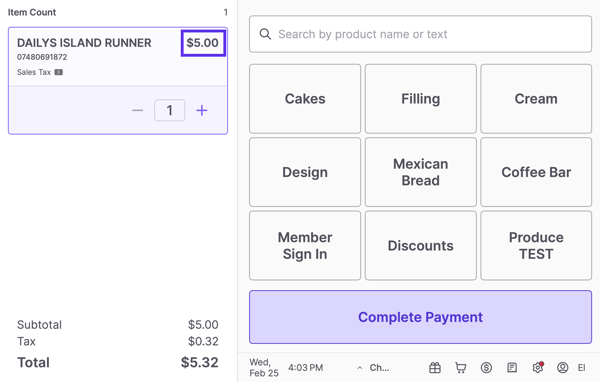
- What if the promo price is higher than the retail price? Vori allows you to import these to save you time. However, to protect your shoppers, the POS is designed to ignore promotional pricing that is higher than the standard retail price.