> ## Documentation Index
> Fetch the complete documentation index at: https://help.vori.com/llms.txt
> Use this file to discover all available pages before exploring further.
# Wide Large 3" x 1.5" Label Tags
> Learn how to use the 3"×1.5" label to display detailed product descriptions, multi-language characters, and custom vendor codes
### Print Enhanced 3" x 1.5" Product Labels in the Back Office
✏️ **Note:** This article describes features ([app.vori.com](http://app.vori.com/)). For instructions on accessing it, view our guide: [Access the New Back Office.](/vori-setup-and-troubleshooting/access-the-new-vori-back-office)
This new, larger tag format was developed to support retailers needing to display alternate product names in languages like Chinese, Japanese, Korean, etc along with other detailed product information.
### How to Set Up Your Product for 3" x 1.5" Labels
Before you can print, you must first add the necessary information to the vendor and product details pages in the **New** **Back Office** ([app.vori.com](http://app.vori.com)) **or the VoriOS app**.
#### **Set the Vendor Code**
The **Vendor Code** field allows you to create a store-friendly short code for vendors. This is useful for internal shorthand and can also help protect sensitive sourcing information from competitors. The code is set once on the vendor's profile, not per-product.
**To set the vendor code:**
1. From the main menu, navigate to **Inventory & Supply Chain** > **[Vendors](https://app.vori.com/retail/vendors)**.
2. Click on the vendor you wish to edit.
3. In the **Vendor Details** section, enter your code in the **Vendor Code** field.
4. Click **Save**.
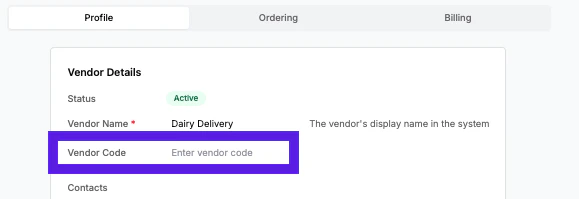 ✏️ **Note:** The printed tag supports a maximum of 16 characters in the **Vendor Name** or **Vendor Code** field. Text longer than this limit will be cropped on the final printed tag.
#### **Set the Product Description**
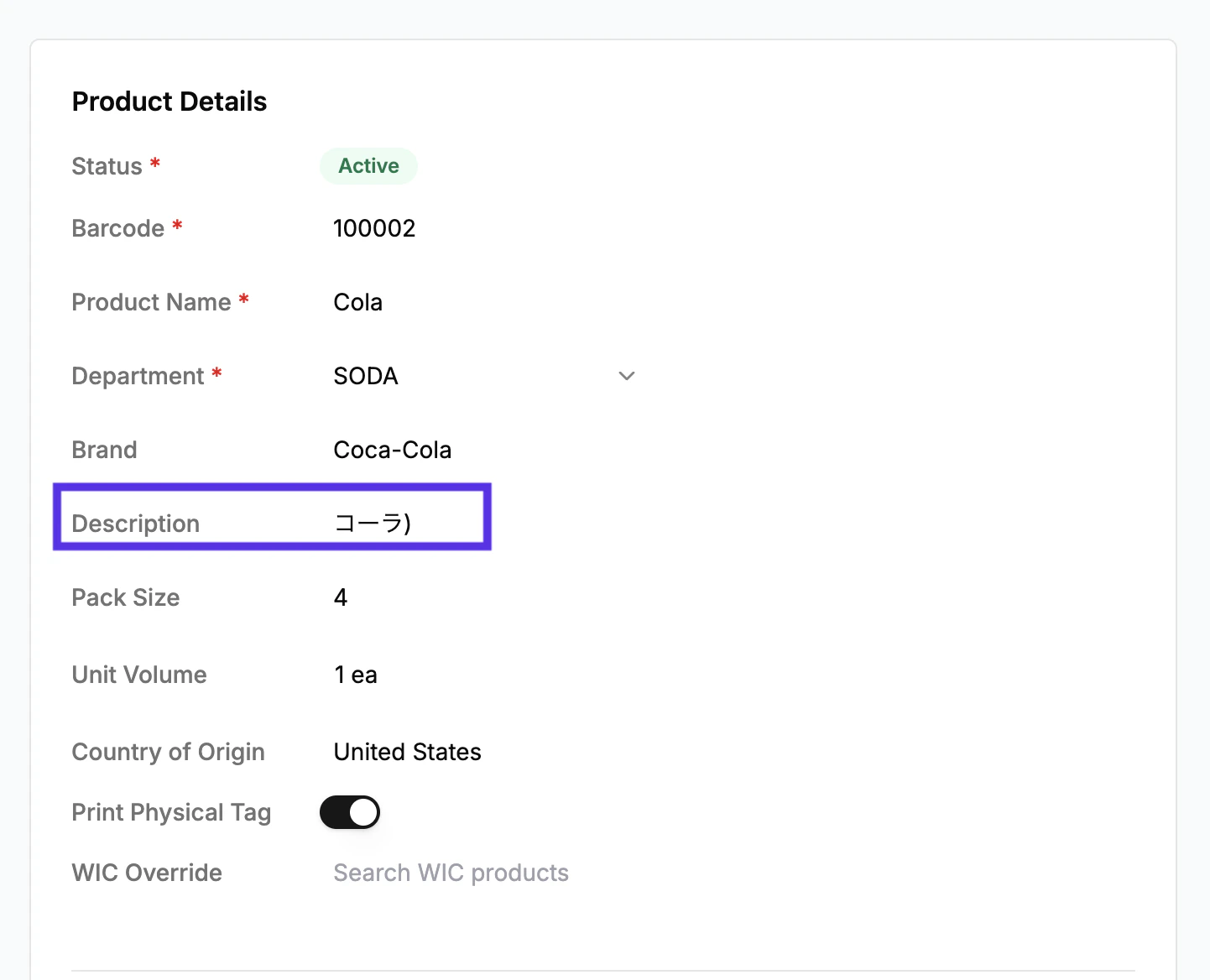
You can now add a product description using English or any of the supported languages. This larger format was specifically designed to accommodate the font weights of Asian characters, ensuring they print clearly without looking cramped.
**In the New Back Office:**
1. Navigate to the product you wish to edit in the **Back Office**.
2. In the **Description** field, enter your text.
3. All changes are saved automatically.
✏️ **Note:** The printed tag supports a maximum of 16 characters in the **Vendor Name** or **Vendor Code** field. Text longer than this limit will be cropped on the final printed tag.
#### **Set the Product Description**
You can now add a product description using English or any of the supported languages. This larger format was specifically designed to accommodate the font weights of Asian characters, ensuring they print clearly without looking cramped.
**In the New Back Office:**
1. Navigate to the product you wish to edit in the **Back Office**.
2. In the **Description** field, enter your text.
3. All changes are saved automatically.
 **In the VoriOS App:**
1. Search for and tap on a product to open its details screen.
2. Tap **Edit Product Details** at the bottom of the screen.
3. Scroll down to the **Description** field and enter your text.
4. Tap **Save** to confirm your changes.
✏️ **Note:** The description field is **only available** on the large 3” x 1.5” shelf labels, and it’s **included by default** on that label format. It isn’t something that can be toggled on for smaller label sizes.
#### **Set the Vendor Item Code**
To set the Vendor Item Code, enter the code in the **Vendor Item Code** field on the product details page under Vendor Products.
**In the VoriOS App:**
1. Search for and tap on a product to open its details screen.
2. Tap **Edit Product Details** at the bottom of the screen.
3. Scroll down to the **Description** field and enter your text.
4. Tap **Save** to confirm your changes.
✏️ **Note:** The description field is **only available** on the large 3” x 1.5” shelf labels, and it’s **included by default** on that label format. It isn’t something that can be toggled on for smaller label sizes.
#### **Set the Vendor Item Code**
To set the Vendor Item Code, enter the code in the **Vendor Item Code** field on the product details page under Vendor Products.
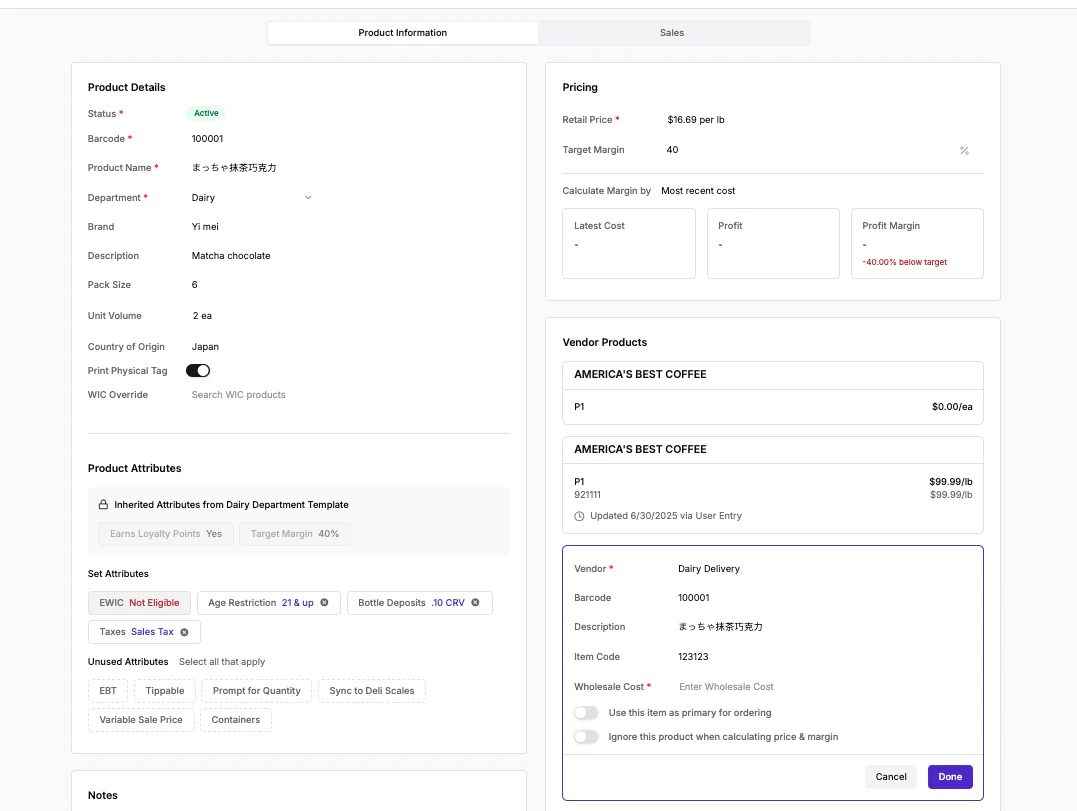 **✏️Note:** The **Vendor Item Code** (the specific product number from that vendor) can be automatically populated when ingesting invoices.
***
### Printing Your Labels
Once your product information is set, you are ready to print your tags.
**✏️Note:** The **Vendor Item Code** (the specific product number from that vendor) can be automatically populated when ingesting invoices.
***
### Printing Your Labels
Once your product information is set, you are ready to print your tags.
 #### **Printer Settings & Configuration**
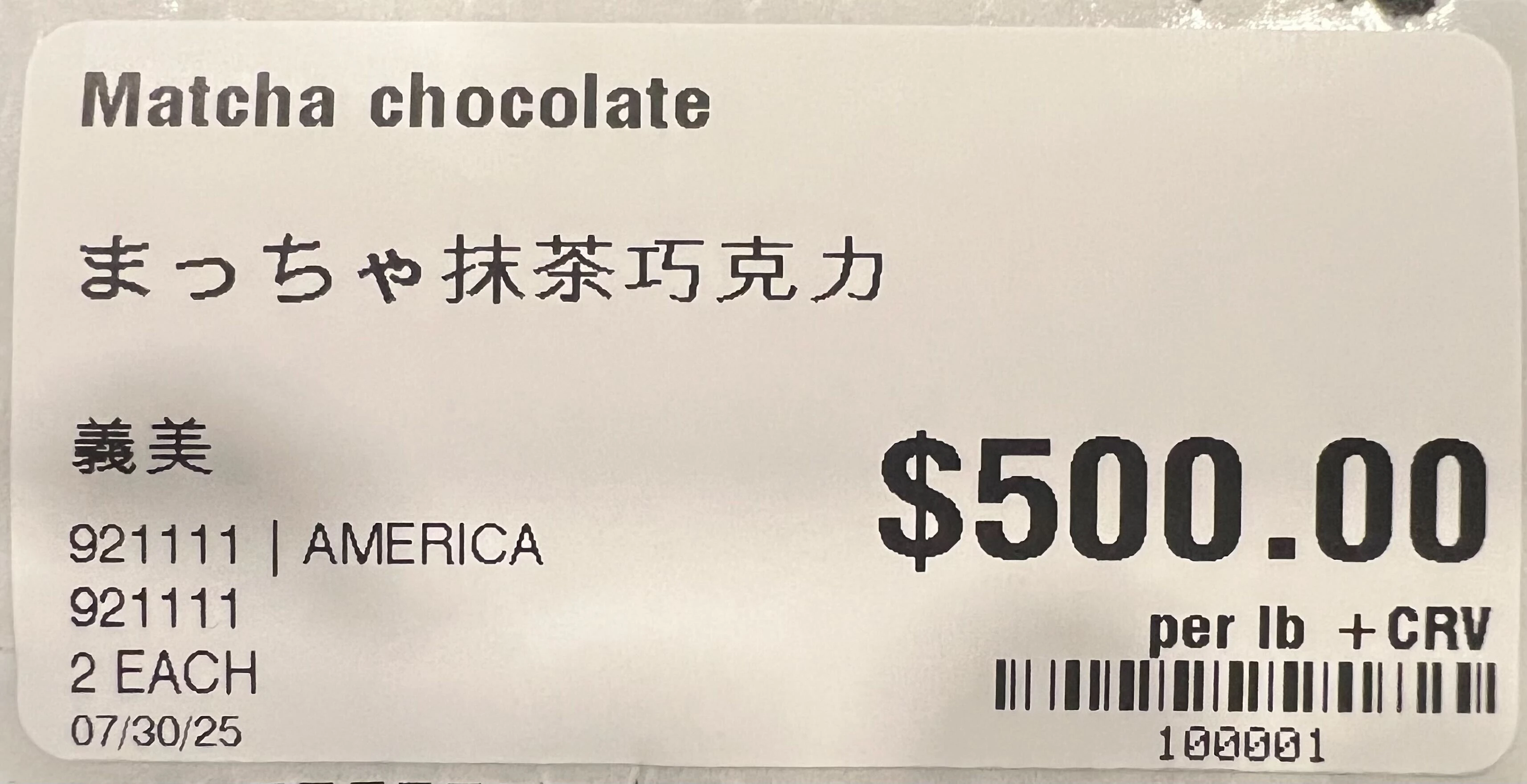
These labels are designed for a standard 3"×1.5" tag. Ensure your printer settings are configured for this specific label size for proper alignment.
⚠️ **Caution:** Zebra printers require special pre-configuration to print non-English characters (e.g., Chinese, Japanese, Korean). This setup must be performed by Vori. We will work with you to complete this configuration and print a test batch of tags before a full store installation.
#### **Using the Vendor Code vs. Vendor Name Flag**
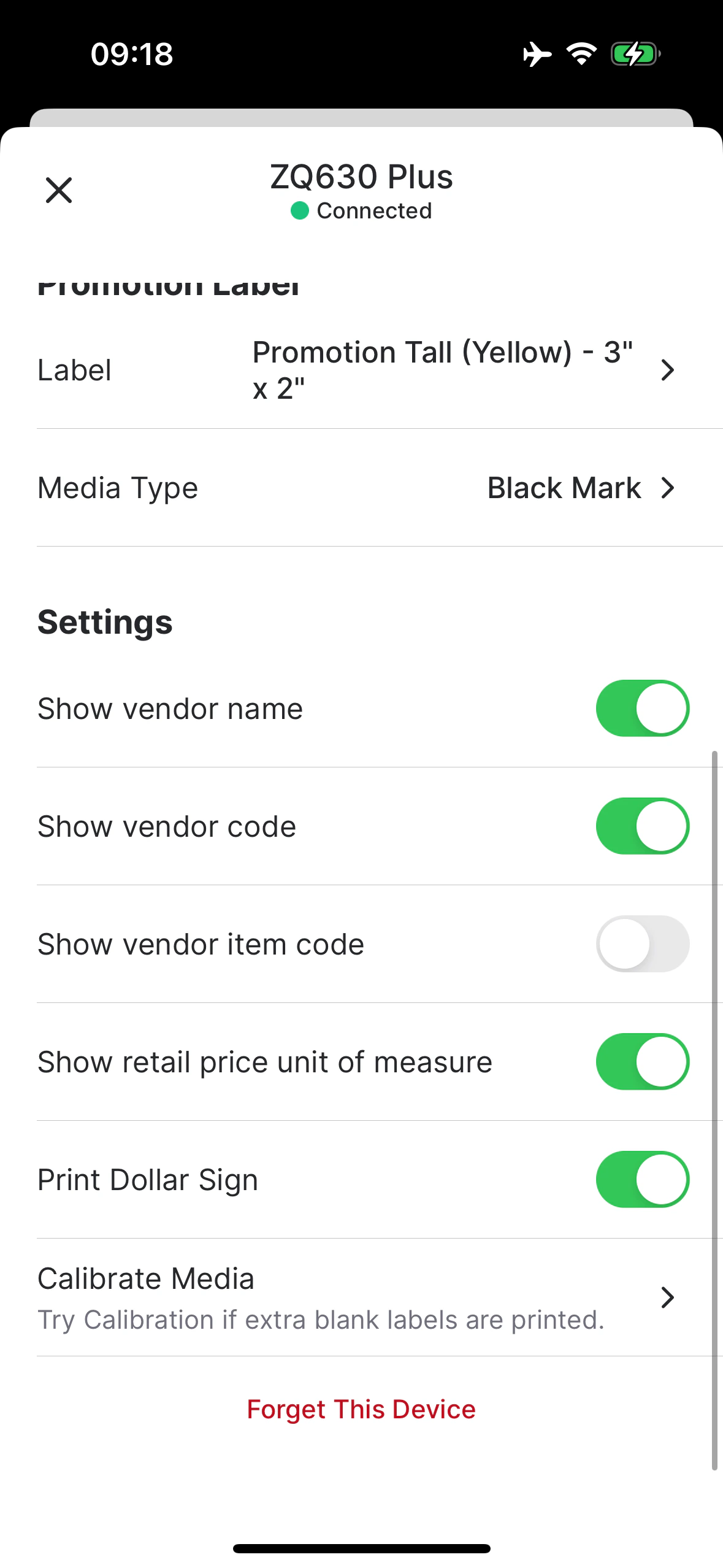
You have the flexibility to choose what vendor information appears on the tag. During the print process, you can select a flag to display the **Vendor Code, Vendor Item Code**, and/or the full **Vendor Name**.
#### **Printer Settings & Configuration**
These labels are designed for a standard 3"×1.5" tag. Ensure your printer settings are configured for this specific label size for proper alignment.
⚠️ **Caution:** Zebra printers require special pre-configuration to print non-English characters (e.g., Chinese, Japanese, Korean). This setup must be performed by Vori. We will work with you to complete this configuration and print a test batch of tags before a full store installation.
#### **Using the Vendor Code vs. Vendor Name Flag**
You have the flexibility to choose what vendor information appears on the tag. During the print process, you can select a flag to display the **Vendor Code, Vendor Item Code**, and/or the full **Vendor Name**.
 ***
### Frequently Asked Questions
**Do these tags come in multiple options (e.g., yellow or orange price boxes)?**
* No. The current design is for white label stock only and does not support printing colored sections like yellow or orange price boxes.
**What are the supported languages/characters?**
* The system is optimized for the following:
* Simplified Chinese
* Traditional Chinese
* Japanese
* Korean
* While other tag formats *can* print these characters, they may appear cramped. The new 3"×1.5" tag provides more space for better readability.
⚠️ **Caution:** Support for some Vietnamese characters is experimental. Please print a test tag first to ensure correct formatting.
**What about EU languages?**
* European Union languages are supported.
**Will this information appear on Electronic Shelf Labels (ESLs)?**
* No, these label features do not transfer to ESLs. ESL integration was not prioritized for this development cycle.
**Where can I get these new labels?**
* Vori will supply 3 rolls in the Back Office kit. You can buy more at this link: [Buy from Discount Thermal Labels](https://www.discountthermallabels.com/product/3-x-1-5-thermal-labels/)
**Does the vendor code auto-generate?**
* No, the main **Vendor Code** (the short name for the supplier) must be entered manually on the vendor's profile.
***
### Frequently Asked Questions
**Do these tags come in multiple options (e.g., yellow or orange price boxes)?**
* No. The current design is for white label stock only and does not support printing colored sections like yellow or orange price boxes.
**What are the supported languages/characters?**
* The system is optimized for the following:
* Simplified Chinese
* Traditional Chinese
* Japanese
* Korean
* While other tag formats *can* print these characters, they may appear cramped. The new 3"×1.5" tag provides more space for better readability.
⚠️ **Caution:** Support for some Vietnamese characters is experimental. Please print a test tag first to ensure correct formatting.
**What about EU languages?**
* European Union languages are supported.
**Will this information appear on Electronic Shelf Labels (ESLs)?**
* No, these label features do not transfer to ESLs. ESL integration was not prioritized for this development cycle.
**Where can I get these new labels?**
* Vori will supply 3 rolls in the Back Office kit. You can buy more at this link: [Buy from Discount Thermal Labels](https://www.discountthermallabels.com/product/3-x-1-5-thermal-labels/)
**Does the vendor code auto-generate?**
* No, the main **Vendor Code** (the short name for the supplier) must be entered manually on the vendor's profile.