> ## Documentation Index
> Fetch the complete documentation index at: https://help.vori.com/llms.txt
> Use this file to discover all available pages before exploring further.
# How to troubleshoot Zebra label printer connection issues
> This article provides a step-by-step guide to resolving communication issues between the Zebra label printer and the store handheld using the VoriOS app.
### Introduction
If the store's Zebra label printer is having communication issues with the store handheld, follow these troubleshooting steps below to troubleshoot.
🚨 **Warning -** Do not try to connect the Zebra printer through the iOS bluetooth menu. It creates a constant disconnection failure.
### **Find the connection status of the printer**
1. Open the VoriOS app.
2. On the **Devices** row of the app's main screen, use the reference below to determine the connection status of the label printer:
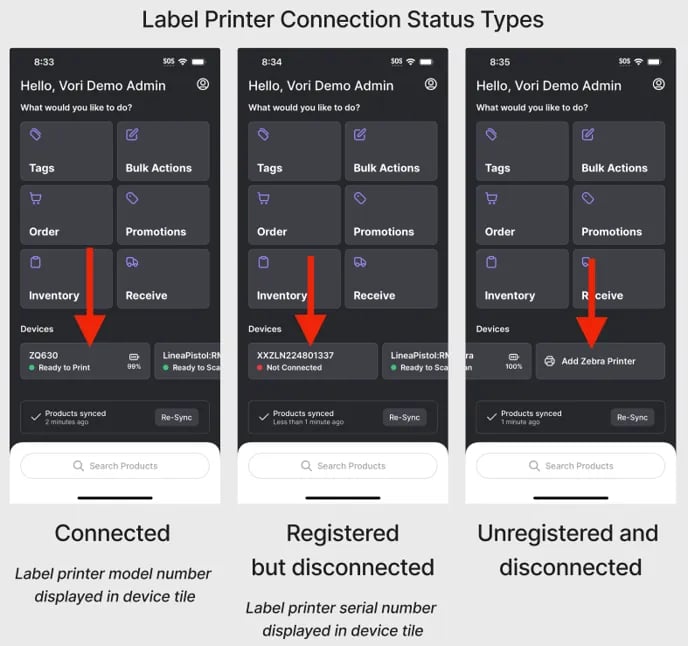 * **Connected** - click [**here**](#troubleshooting-a-label-printer-with-the-connected-status) to proceed through troubleshooting steps.
* **Registered by disconnected** - click [**here**](#troubleshooting-a-label-printer-with-the-registered-by-disconnected-status) to proceed through troubleshooting steps.
* **Unregistered and disconnected** - click [here](/hardware-and-peripherals/tag-printer/connect-the-zebra-printer-to-the-vorios-app) to proceed through the normal connection steps before attempting to troubleshoot.
***
### Troubleshooting a label printer with the "Connected" status
Proceed through the steps below if Zebra label printer appears to be connected to the VoriOS app, but tags are not printing when expected.
#### **Restart the label printer and the store handheld**
1. **Label printer -** Press and hold the unit's power button until the unit powers down.
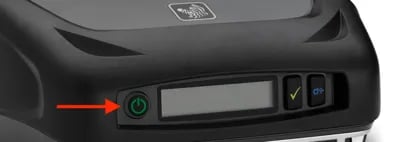
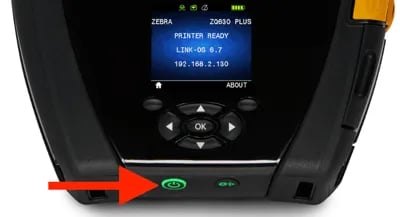
1. Stores may have one of two Zebra printer models with power buttons in different locations. Example photos below:
1. **Zebra ZQ521**
* **Connected** - click [**here**](#troubleshooting-a-label-printer-with-the-connected-status) to proceed through troubleshooting steps.
* **Registered by disconnected** - click [**here**](#troubleshooting-a-label-printer-with-the-registered-by-disconnected-status) to proceed through troubleshooting steps.
* **Unregistered and disconnected** - click [here](/hardware-and-peripherals/tag-printer/connect-the-zebra-printer-to-the-vorios-app) to proceed through the normal connection steps before attempting to troubleshoot.
***
### Troubleshooting a label printer with the "Connected" status
Proceed through the steps below if Zebra label printer appears to be connected to the VoriOS app, but tags are not printing when expected.
#### **Restart the label printer and the store handheld**
1. **Label printer -** Press and hold the unit's power button until the unit powers down.
1. Stores may have one of two Zebra printer models with power buttons in different locations. Example photos below:
1. **Zebra ZQ521**
 2. **Zebra ZQ630**
 2. \*\*Label printer -\*\*Wait 10 seconds once the unit is fully powered down
3. **Label printer -** Press and hold the unit's power button until the unit powers back on.
4. **Store handheld -** Press and hold the iPhone's side and volume up buttons down at the same time for 3-5 seconds.
5. **Store handheld -** Move the **slide to power off** slider to the right.
6. **Store handheld -** Wait 10 seconds.
7. **Store handheld -** Press and hold the iPhone's side button until it powers back on.
8. **Store handheld -** Open and log into the VoriOS app.
1. If the Zebra printer automatically reconnects, attempt to print a tag to test the connection.
2. If the Zebra printer does not automatically reconnect, select the **Zebra printer** in the VoriOS Device row and walk through the in-app setup instructions.
**✏️** **Note -** If the label printer is **connected** but tags do not print, proceed to the next section.
If the label printer does not reconnect, instead click here the next troubleshooting step.
#### Forget the device, then reconnect
1. On the device row of the VoriOS app, select the zebra printer's device tile.
2. Scroll to the bottom of the Zebra printers device detail page and select **Forget this device.
2. \*\*Label printer -\*\*Wait 10 seconds once the unit is fully powered down
3. **Label printer -** Press and hold the unit's power button until the unit powers back on.
4. **Store handheld -** Press and hold the iPhone's side and volume up buttons down at the same time for 3-5 seconds.
5. **Store handheld -** Move the **slide to power off** slider to the right.
6. **Store handheld -** Wait 10 seconds.
7. **Store handheld -** Press and hold the iPhone's side button until it powers back on.
8. **Store handheld -** Open and log into the VoriOS app.
1. If the Zebra printer automatically reconnects, attempt to print a tag to test the connection.
2. If the Zebra printer does not automatically reconnect, select the **Zebra printer** in the VoriOS Device row and walk through the in-app setup instructions.
**✏️** **Note -** If the label printer is **connected** but tags do not print, proceed to the next section.
If the label printer does not reconnect, instead click here the next troubleshooting step.
#### Forget the device, then reconnect
1. On the device row of the VoriOS app, select the zebra printer's device tile.
2. Scroll to the bottom of the Zebra printers device detail page and select **Forget this device.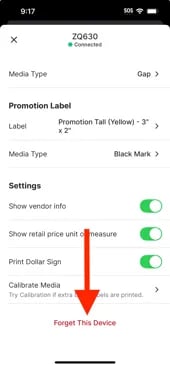 **
3. Swipe down from the handheld's upper right corner to open the Control Center.
**
3. Swipe down from the handheld's upper right corner to open the Control Center.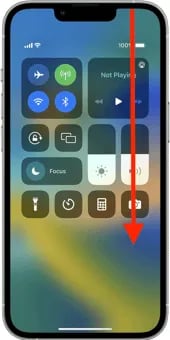 4. Tap and hold on the **Bluetooth** icon.
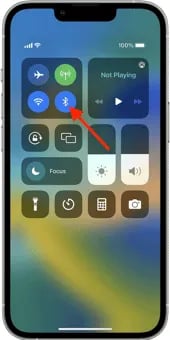 5. Tap and hold on the **Bluetooth** icon again.
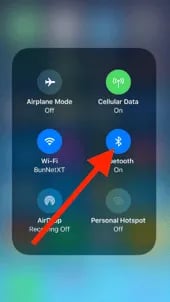 6. Tap **`Bluetooth Settings`** at the bottom of the popup.
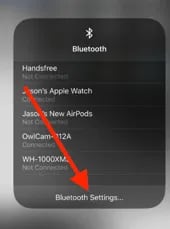 7. Find the Bluetooth device with the long alphanumeric string and tap the blue icon next to its name.
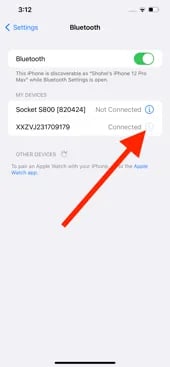 8. Tap **`Forget This Device`.
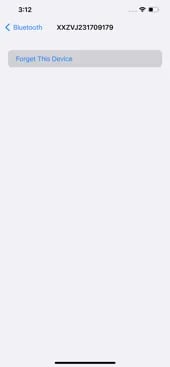 **
9. Swipe up from to close the bluetooth menu.
10. Reopen the VoriOS app, select the **`Zebra printer`** in the VoriOS Device row, and walk through the in-app setup instructions. Then, attempt to test print a tag.
**✏️** **Note -** If the label printer is still connected but tags do not print, proceed through the following steps again:
* Restart the handheld.
* Restart the Zebra printer.
* Forget the Zebra printer through the handheld's Bluetooth menu.
* Reopen the VoriOS app and reconnect the Zebra printer.
* Attempt to test print a tag.
**If these steps have been repeated and the issue persists, contact [support@vori.com](mailto:support@vori.com) for further support.**
***
### Troubleshooting a label printer with the "Registered by disconnected" status
#### **Check if the label printer is charged**
1. Press the Zebra printer's power button to make sure it is turned on.
1. Stores may have one of two Zebra printer models with power buttons in different locations. Example photos below:
1. **Zebra ZQ521**
2. **Zebra ZQ630**
2. If the printer does not turn on, ensure the unit is fully plugged into its charging cable, then recheck the connection.
**✏️** **Note -** If the label printer is turned on but not connecting, proceed to the next step.
#### Restart bluetooth on the handheld
1. Close the VoriOS app.
2. Swipe down from the handheld's upper right corner to open the Control Center.
3. Tap the Bluetooth icon to turn off Bluetooth.
**
9. Swipe up from to close the bluetooth menu.
10. Reopen the VoriOS app, select the **`Zebra printer`** in the VoriOS Device row, and walk through the in-app setup instructions. Then, attempt to test print a tag.
**✏️** **Note -** If the label printer is still connected but tags do not print, proceed through the following steps again:
* Restart the handheld.
* Restart the Zebra printer.
* Forget the Zebra printer through the handheld's Bluetooth menu.
* Reopen the VoriOS app and reconnect the Zebra printer.
* Attempt to test print a tag.
**If these steps have been repeated and the issue persists, contact [support@vori.com](mailto:support@vori.com) for further support.**
***
### Troubleshooting a label printer with the "Registered by disconnected" status
#### **Check if the label printer is charged**
1. Press the Zebra printer's power button to make sure it is turned on.
1. Stores may have one of two Zebra printer models with power buttons in different locations. Example photos below:
1. **Zebra ZQ521**
2. **Zebra ZQ630**
2. If the printer does not turn on, ensure the unit is fully plugged into its charging cable, then recheck the connection.
**✏️** **Note -** If the label printer is turned on but not connecting, proceed to the next step.
#### Restart bluetooth on the handheld
1. Close the VoriOS app.
2. Swipe down from the handheld's upper right corner to open the Control Center.
3. Tap the Bluetooth icon to turn off Bluetooth.
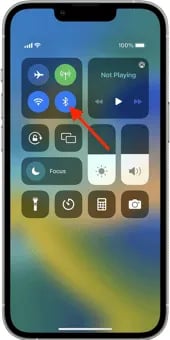 4. Wait 10 seconds.
5. Tap the Bluetooth icon to turn Bluetooth back on.
6. Swipe up from to close the bluetooth menu.
7. Reopen the VoriOS app, select the **`Zebra printer`** in the VoriOS Device row, and walk through the in-app setup instructions. Then, attempt to test print a tag.
**✏️** **Note -** If the label printer is still not connecting to the app after bluetooth on the handheld has been reset, proceed to the next section.
#### **Restart the label printer and the store handheld**
1. **Label printer -** Press and hold the unit's power button until the unit powers down.
2. \*\*Label printer -\*\*Wait 10 seconds once the unit is fully powered down
3. **Label printer -** Press and hold the unit's power button until the unit powers back on.
4. **Store handheld -** Press and hold the iPhone's side and volume up buttons down at the same time for 3-5 seconds.
5. **Store handheld -** Move the **slide to power off** slider to the right.
6. **Store handheld -** Wait 10 seconds.
7. **Store handheld -** Press and hold the iPhone's side button until it powers back on.
8. **Store handheld -** Open and log into the VoriOS app.
1. If the Zebra printer automatically reconnects, attempt to print a tag to test the connection.
2. If the Zebra printer does not automatically reconnect, select the **Zebra printer** in the VoriOS Device row and walk through the in-app setup instructions.
**✏️** **Note -** If the label printer and store handheld have been restarted and the label printer still fails to connect, proceed to the next section.
#### Forget the device, then reconnect
1. On the device row of the VoriOS app, select the zebra printer's device tile.
2. Scroll to the bottom of the Zebra printers device detail page and select **Forget this device.**
3. Swipe down from the handheld's upper right corner to open the Control Center.
4. Tap and hold on the **Bluetooth** icon.
5. Tap and hold on the **Bluetooth** icon again.
6. Tap **`Bluetooth Settings`** at the bottom of the popup.
7. Find the Bluetooth device with the long alphanumeric string and tap the blue icon next to its name.
8. Tap **`Forget This Device`.
**
9. Swipe up from to close the bluetooth menu.
10. Reopen the VoriOS app, select the **`Zebra printer`** in the VoriOS Device row, and walk through the in-app setup instructions. Then, attempt to test print a tag.
**✏️** **Note -** If the label printer is still connected but tags do not print, proceed through the following steps again:
* Restart the handheld.
* Restart the Zebra printer.
* Forget the Zebra printer through the handheld's Bluetooth menu.
* Reopen the VoriOS app and reconnect the Zebra printer.
* Attempt to test print a tag.
**If these steps have been repeated and the issue persists, contact [support@vori.com](mailto:support@vori.com) for further support.**
## Related topics
- [Connect the Zebra Printer to the VoriOS App](/hardware-and-peripherals/tag-printer/connect-the-zebra-printer-to-the-vorios-app.md)
- [Troubleshoot the Zebra MP7000 Scanner Scale](/hardware-and-peripherals/cashier-handheld-scanner-and-countertop-scale/troubleshoot-the-zebra-mp7000-scanner-scale.md)
- [How to load and print promotional label from the VoriOS app](/hardware-and-peripherals/tag-printer/how-to-load-and-print-promotional-label-from-the-vori-os-app.md)
4. Wait 10 seconds.
5. Tap the Bluetooth icon to turn Bluetooth back on.
6. Swipe up from to close the bluetooth menu.
7. Reopen the VoriOS app, select the **`Zebra printer`** in the VoriOS Device row, and walk through the in-app setup instructions. Then, attempt to test print a tag.
**✏️** **Note -** If the label printer is still not connecting to the app after bluetooth on the handheld has been reset, proceed to the next section.
#### **Restart the label printer and the store handheld**
1. **Label printer -** Press and hold the unit's power button until the unit powers down.
2. \*\*Label printer -\*\*Wait 10 seconds once the unit is fully powered down
3. **Label printer -** Press and hold the unit's power button until the unit powers back on.
4. **Store handheld -** Press and hold the iPhone's side and volume up buttons down at the same time for 3-5 seconds.
5. **Store handheld -** Move the **slide to power off** slider to the right.
6. **Store handheld -** Wait 10 seconds.
7. **Store handheld -** Press and hold the iPhone's side button until it powers back on.
8. **Store handheld -** Open and log into the VoriOS app.
1. If the Zebra printer automatically reconnects, attempt to print a tag to test the connection.
2. If the Zebra printer does not automatically reconnect, select the **Zebra printer** in the VoriOS Device row and walk through the in-app setup instructions.
**✏️** **Note -** If the label printer and store handheld have been restarted and the label printer still fails to connect, proceed to the next section.
#### Forget the device, then reconnect
1. On the device row of the VoriOS app, select the zebra printer's device tile.
2. Scroll to the bottom of the Zebra printers device detail page and select **Forget this device.**
3. Swipe down from the handheld's upper right corner to open the Control Center.
4. Tap and hold on the **Bluetooth** icon.
5. Tap and hold on the **Bluetooth** icon again.
6. Tap **`Bluetooth Settings`** at the bottom of the popup.
7. Find the Bluetooth device with the long alphanumeric string and tap the blue icon next to its name.
8. Tap **`Forget This Device`.
**
9. Swipe up from to close the bluetooth menu.
10. Reopen the VoriOS app, select the **`Zebra printer`** in the VoriOS Device row, and walk through the in-app setup instructions. Then, attempt to test print a tag.
**✏️** **Note -** If the label printer is still connected but tags do not print, proceed through the following steps again:
* Restart the handheld.
* Restart the Zebra printer.
* Forget the Zebra printer through the handheld's Bluetooth menu.
* Reopen the VoriOS app and reconnect the Zebra printer.
* Attempt to test print a tag.
**If these steps have been repeated and the issue persists, contact [support@vori.com](mailto:support@vori.com) for further support.**
## Related topics
- [Connect the Zebra Printer to the VoriOS App](/hardware-and-peripherals/tag-printer/connect-the-zebra-printer-to-the-vorios-app.md)
- [Troubleshoot the Zebra MP7000 Scanner Scale](/hardware-and-peripherals/cashier-handheld-scanner-and-countertop-scale/troubleshoot-the-zebra-mp7000-scanner-scale.md)
- [How to load and print promotional label from the VoriOS app](/hardware-and-peripherals/tag-printer/how-to-load-and-print-promotional-label-from-the-vori-os-app.md)