> ## Documentation Index
> Fetch the complete documentation index at: https://help.vori.com/llms.txt
> Use this file to discover all available pages before exploring further.
# How to load and print promotional label from the VoriOS app
> This article explains how to set up and print promotional labels using the VoriOS handheld and Zebra printer.
### Introduction
Promotional labels can be printed directly from the VoriOS handheld using the Zebra printer. This guide walks through setting up the printer and selecting the correct label batch.
***
### Directions
1. On the Zebra printer, open the label roll compartment and replace the current label roll with a roll of yellow promotional labels.
2. Log in to the VoriOS appl on the store handheld.
3. Turn on the Zebra printer and connect it to the VoriOS app.
4. Once the label printer connected, click on the device tile of the label printer to view printer label settings.
.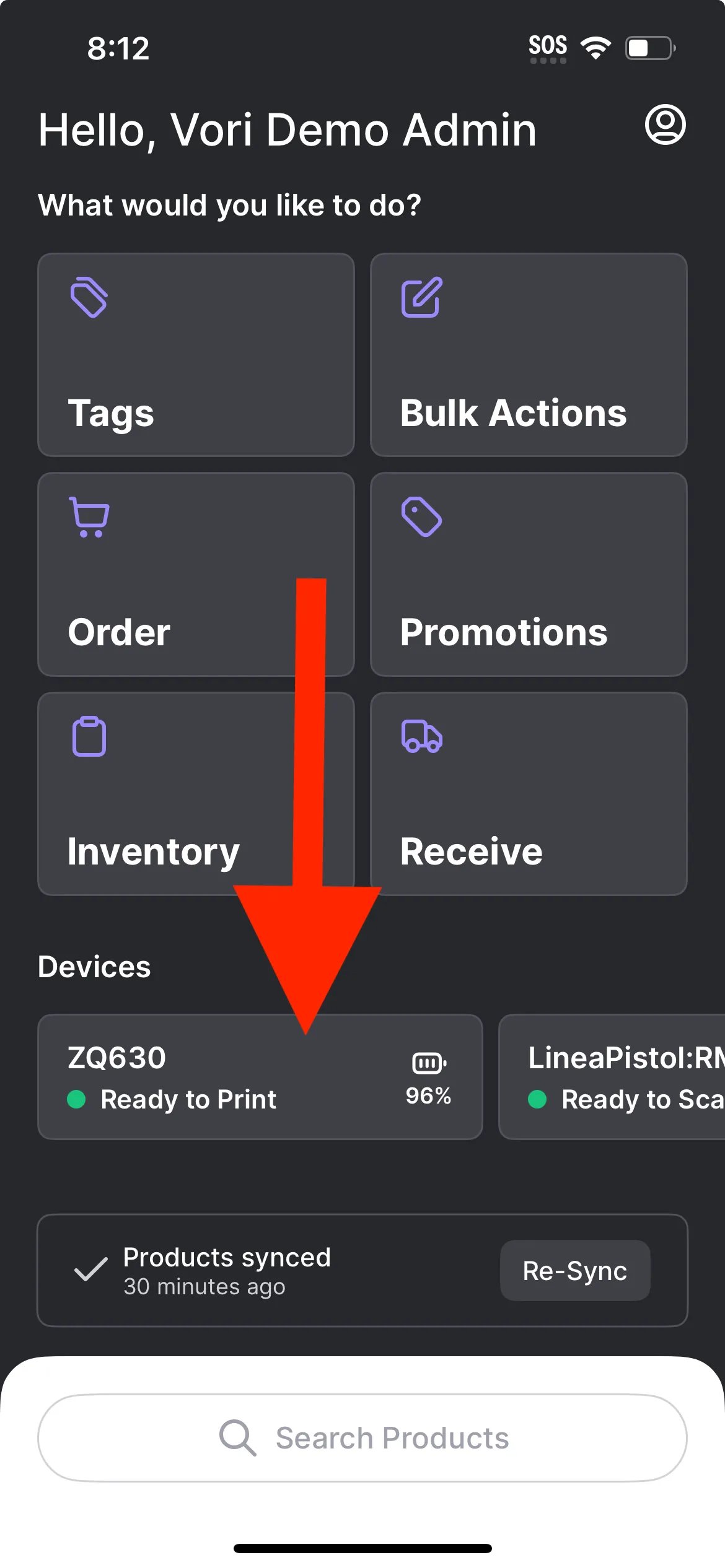 5. Within printer label settings, scroll down to the **Promotion Label section**, and make the following setting changes:
1. Set Label as `Promotion (yellow box)`.
2. Set Media Type as `Black Mark`.
3. Run `Calibrate Media` to align the paper.
4. Under `Promotional Label.`
6. Navigate back to the **Home Screen** and select the `Tags` tile.
7. Under the **Pending** tab, there will be tags that haven’t been printed yet. There should be **two** batches:
1. The first batch with a date range is the `Promotional` batch → use this batch for demo purposes.
2. The second batch that says `Ending:` is the **Retail** price batch for when that item comes off of sale.
5. Within printer label settings, scroll down to the **Promotion Label section**, and make the following setting changes:
1. Set Label as `Promotion (yellow box)`.
2. Set Media Type as `Black Mark`.
3. Run `Calibrate Media` to align the paper.
4. Under `Promotional Label.`
6. Navigate back to the **Home Screen** and select the `Tags` tile.
7. Under the **Pending** tab, there will be tags that haven’t been printed yet. There should be **two** batches:
1. The first batch with a date range is the `Promotional` batch → use this batch for demo purposes.
2. The second batch that says `Ending:` is the **Retail** price batch for when that item comes off of sale.
 ## Related topics
- [How to reprint a product's promotional label](/hardware-and-peripherals/tag-printer/how-to-reprint-a-products-promotional-label.md)
- [Print Promotion Tags on VoriOS](/promotions/print-promotion-tags-on-vori-os.md)
- [Connect the Zebra Printer to the VoriOS App](/hardware-and-peripherals/tag-printer/connect-the-zebra-printer-to-the-vorios-app.md)
## Related topics
- [How to reprint a product's promotional label](/hardware-and-peripherals/tag-printer/how-to-reprint-a-products-promotional-label.md)
- [Print Promotion Tags on VoriOS](/promotions/print-promotion-tags-on-vori-os.md)
- [Connect the Zebra Printer to the VoriOS App](/hardware-and-peripherals/tag-printer/connect-the-zebra-printer-to-the-vorios-app.md)