> ## Documentation Index
> Fetch the complete documentation index at: https://help.vori.com/llms.txt
> Use this file to discover all available pages before exploring further.
# Run Get Parameters on the Payment Terminal
> This article explains how to run Get Parameters on the payment terminal to download the latest updates from the payment gateway
## Download the latest configurations from the payment gateway to ensure your terminal stays connected.
Running **Get Parameters** (or **EMVParamDownload**) forces the payment terminal to check for and download the latest updates from the payment gateway. This is a critical troubleshooting step if your terminal has connectivity issues, isn’t processing transactions correctly, or needs to refresh its settings.
### Method 1: Date & Time Shortcut
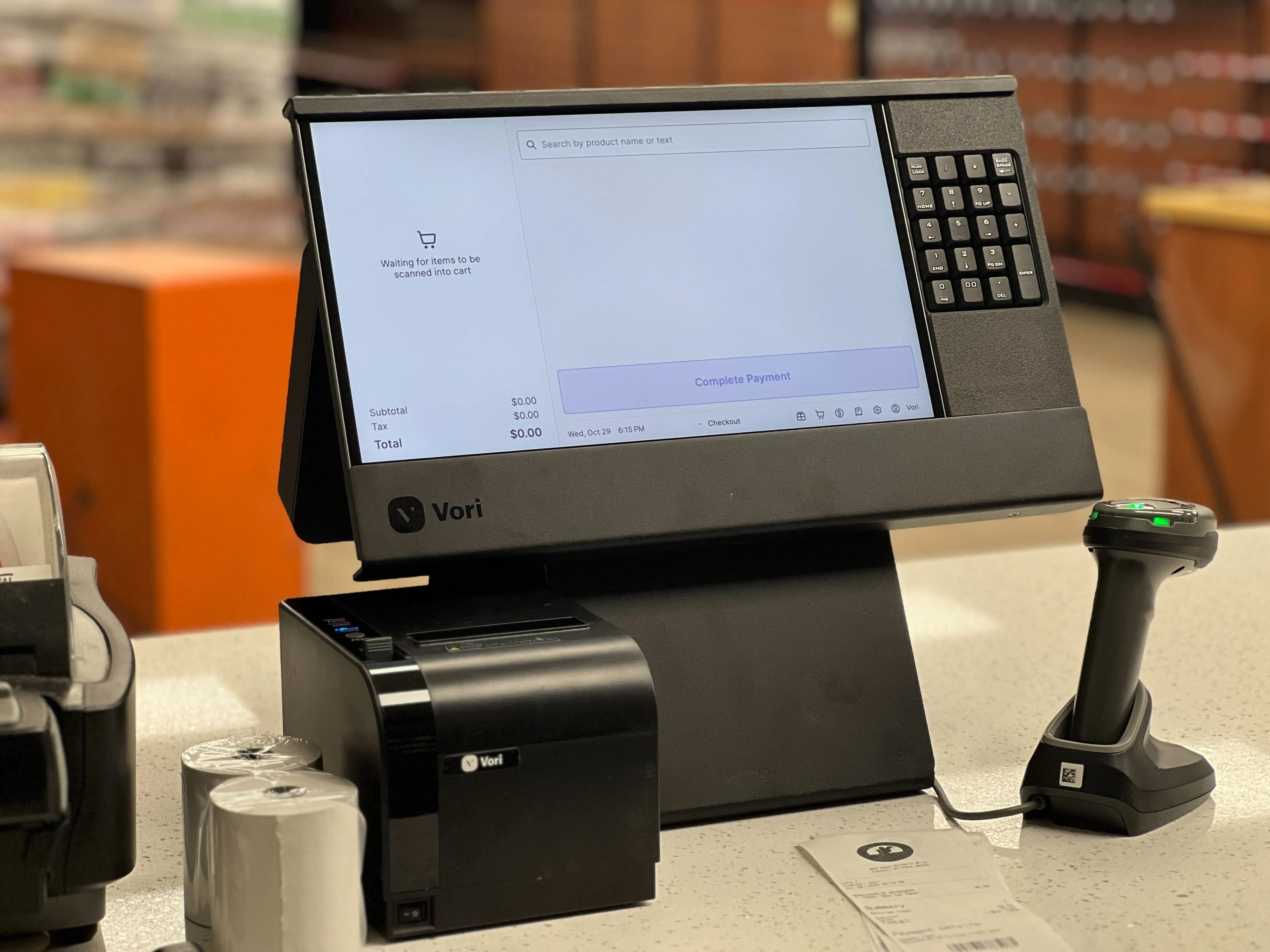
**💡 Start here:** These steps are performed on the **POS Cashier Screen** (the large monitor facing the employee that shows the product grid).

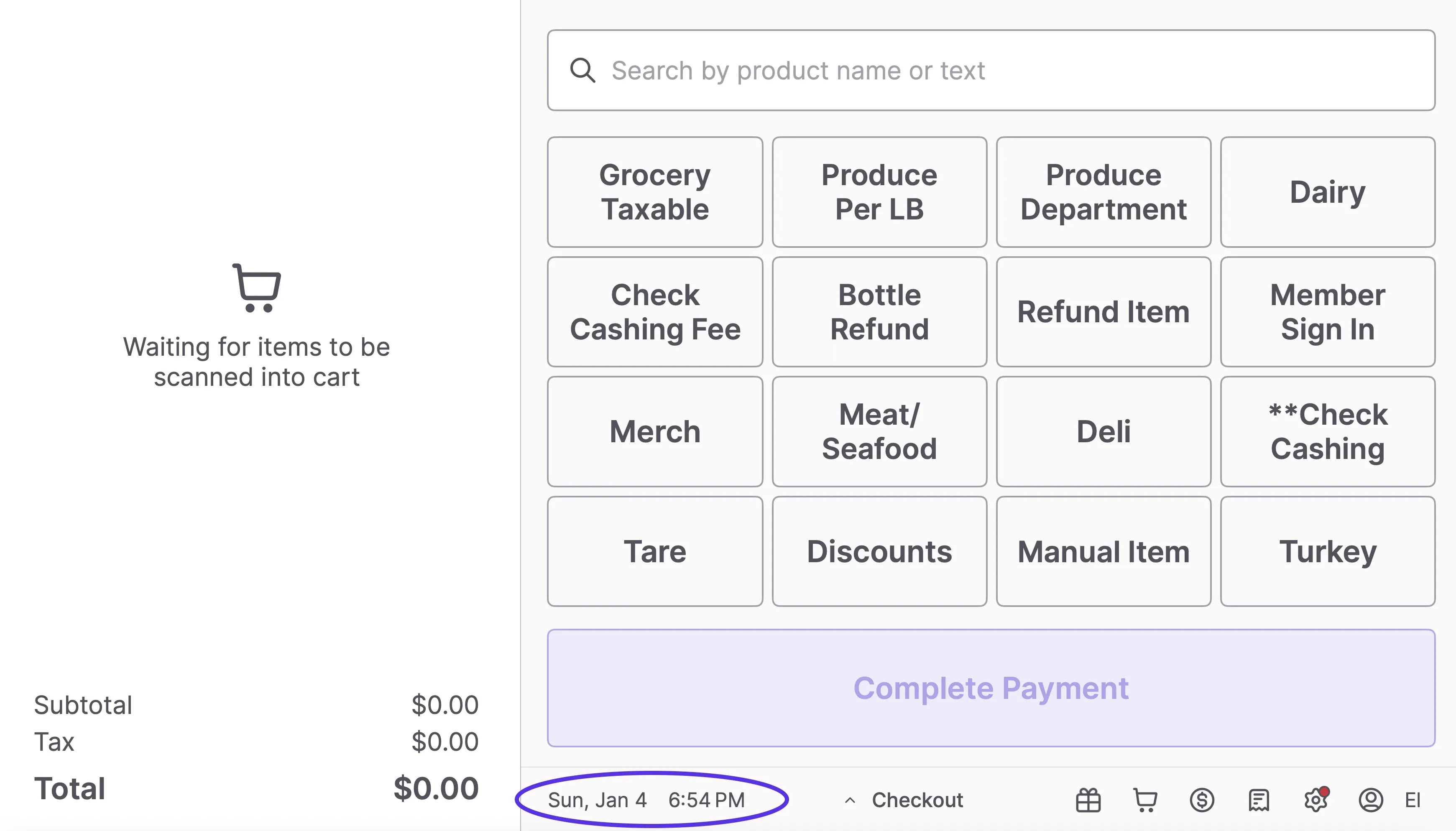
 If the payment terminal is connected, you may run parameters directly through the hidden settings menu on the cashier screen.
1. Navigate to the main cashier screen (where you scan items).
2. Locate the **Date and Time** in the bottom left corner of the screen.
3. Tap the **Date and Time** 3 times quickly.
If the payment terminal is connected, you may run parameters directly through the hidden settings menu on the cashier screen.
1. Navigate to the main cashier screen (where you scan items).
2. Locate the **Date and Time** in the bottom left corner of the screen.
3. Tap the **Date and Time** 3 times quickly.
 4. A pop-up menu will appear. Select **Terminal**.
5. Scroll down to the bottom of the list.
6. Tap **Run EMVParamDownload**.
4. A pop-up menu will appear. Select **Terminal**.
5. Scroll down to the bottom of the list.
6. Tap **Run EMVParamDownload**.
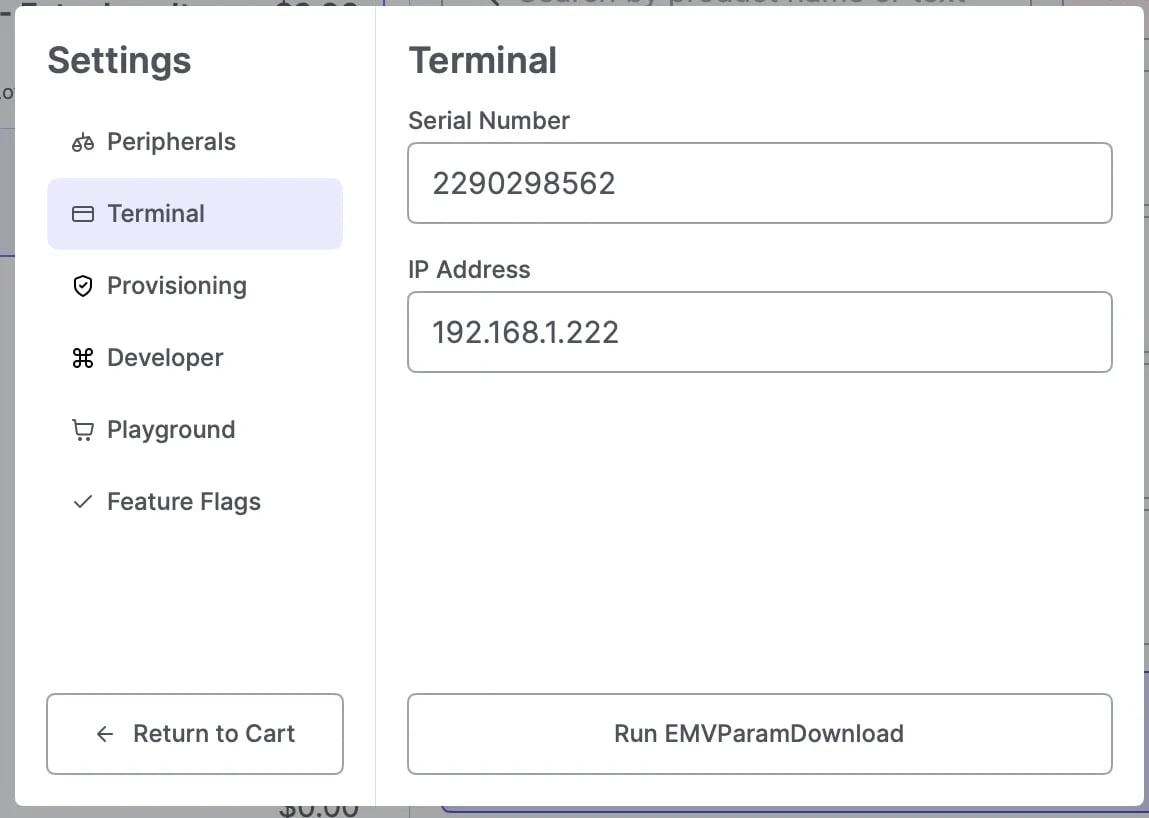 The terminal will initiate the download sequence. Allow the process to finish before attempting a transaction.
***
### Method 2: DCDirect App
**⚠️** These steps are performed directly on the **Payment Terminal** (the small vertical device with the physical number keypad and credit card slot).
The terminal will initiate the download sequence. Allow the process to finish before attempting a transaction.
***
### Method 2: DCDirect App
**⚠️** These steps are performed directly on the **Payment Terminal** (the small vertical device with the physical number keypad and credit card slot).

 Use this method to access the native terminal settings outside of the VoriOS interface.
1. Swipe up from the bottom of the payment terminal touchscreen.
1. The payment terminal touchscreen is very sensitive, so swipe up quickly from the very bottom.
2. A black bar will appear at the bottom of the screen.
3. Quickly tap the **back arrow** icon 2 times.
4. Enter the password: pax9876@@
* Use the on-screen keyboard, not the physical keypad.
5. The payment application will close, and you will be redirected to the main terminal screen.
6. Tap **DCDirect**.
7. Tap **Get Parameters**.
⚠️ **Caution:** Multiple windows will pop up during this process. Do not tap or select anything. Wait for the screen to reload automatically.
The download is complete when the "Welcome" page appears on the payment terminal. This may take up to a minute.
## Related topics
- [Fix Your POS Payment Terminal](/hardware-and-integrations/payment-terminals/fix-your-pos-payment-terminal.md)
- [Set Up a Standalone Payment Terminal (PAX A920)](/hardware-and-peripherals/payment-terminals/set-up-a-standalone-payment-terminal-pax-a920.md)
- [How to finalize terminal setup for Offline Payments](/point-of-sale-pos/pos-customization-and-setup/how-to-finalize-terminal-setup-for-offline-payments.md)
Use this method to access the native terminal settings outside of the VoriOS interface.
1. Swipe up from the bottom of the payment terminal touchscreen.
1. The payment terminal touchscreen is very sensitive, so swipe up quickly from the very bottom.
2. A black bar will appear at the bottom of the screen.
3. Quickly tap the **back arrow** icon 2 times.
4. Enter the password: pax9876@@
* Use the on-screen keyboard, not the physical keypad.
5. The payment application will close, and you will be redirected to the main terminal screen.
6. Tap **DCDirect**.
7. Tap **Get Parameters**.
⚠️ **Caution:** Multiple windows will pop up during this process. Do not tap or select anything. Wait for the screen to reload automatically.
The download is complete when the "Welcome" page appears on the payment terminal. This may take up to a minute.
## Related topics
- [Fix Your POS Payment Terminal](/hardware-and-integrations/payment-terminals/fix-your-pos-payment-terminal.md)
- [Set Up a Standalone Payment Terminal (PAX A920)](/hardware-and-peripherals/payment-terminals/set-up-a-standalone-payment-terminal-pax-a920.md)
- [How to finalize terminal setup for Offline Payments](/point-of-sale-pos/pos-customization-and-setup/how-to-finalize-terminal-setup-for-offline-payments.md)