> ## Documentation Index
> Fetch the complete documentation index at: https://help.vori.com/llms.txt
> Use this file to discover all available pages before exploring further.
# Re-provision the Payment Terminal
> How to re-provision your payment terminal to pull an updated merchant configuration, and when you should (and shouldn't) do it
### Only re-provision when Vori Support tells you to
🚨 **Warning:** Only re-provision your payment terminal when Vori Support has told you to. Re-provisioning pulls a brand new merchant configuration onto your POS. Running it without instruction can disconnect your payment terminal or point it at the wrong merchant account.
If your payment terminal isn't processing payments correctly and Vori Support hasn't asked you to re-provision, see [Fix Your POS Payment Terminal](/hardware-and-integrations/payment-terminals/fix-your-pos-payment-terminal) or [Run Get Parameters on the Payment Terminal](/hardware-and-peripherals/payment-terminals/run-get-parameters-on-the-payment-terminal) instead.
### Re-provision the payment terminal
These steps are performed on the POS Cashier Screen (the large monitor facing the employee that shows the product grid).
1. Navigate to the main cashier screen (where you scan items).
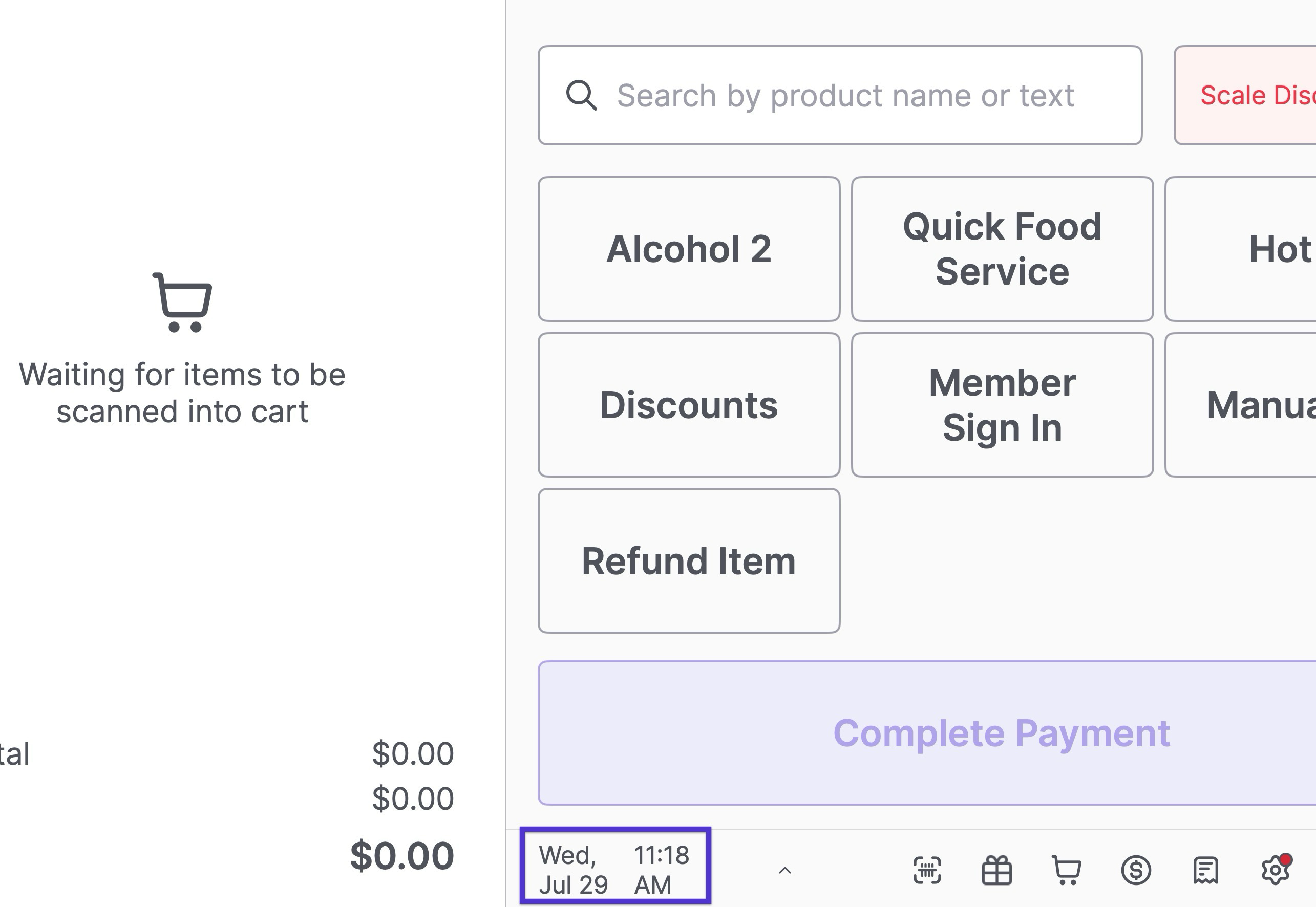
2. Locate the **Date and Time** in the bottom left corner of the screen.
3. Tap the **Date and Time** 3 times quickly.
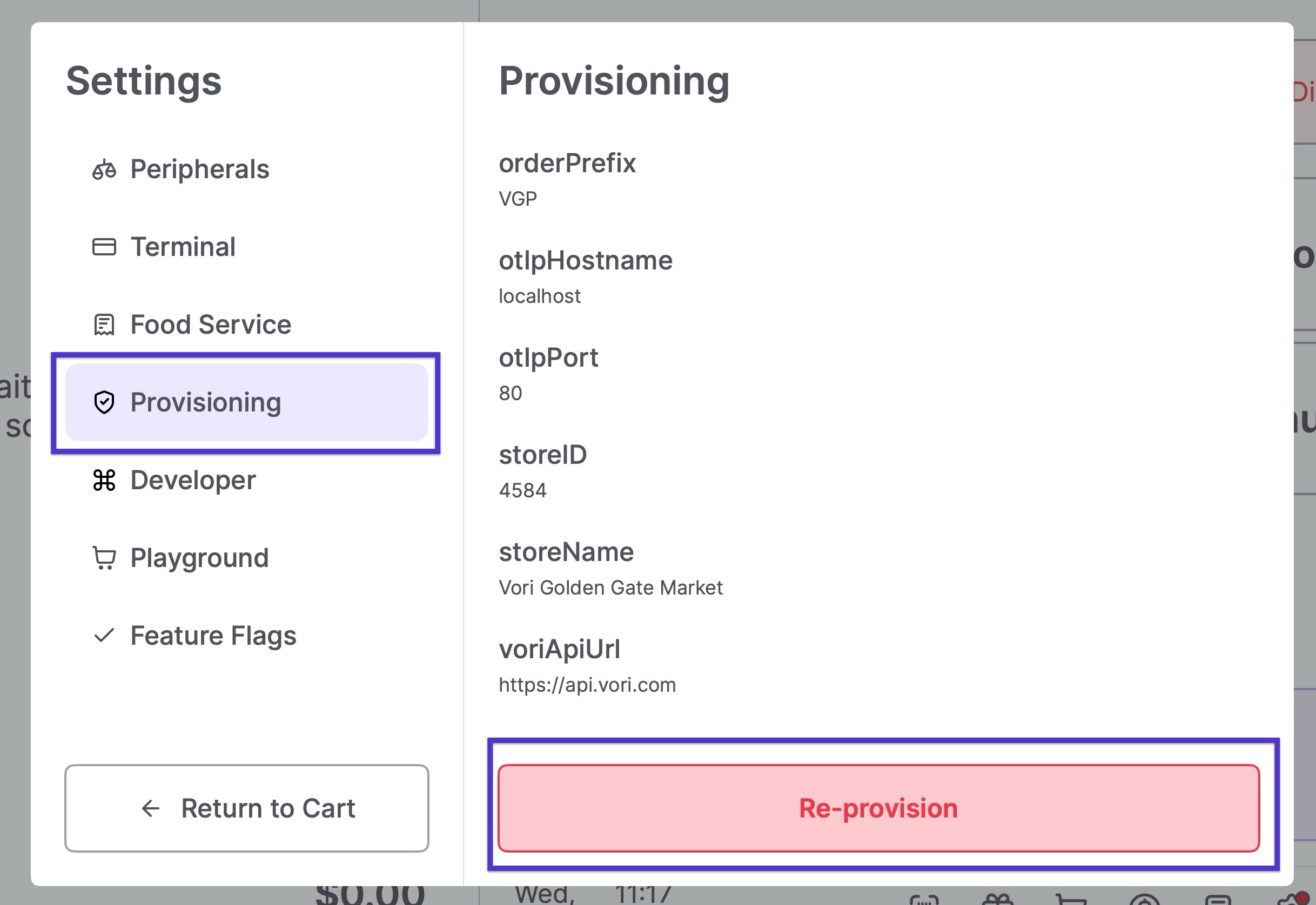
 4. A pop-up menu will appear. Select **Provisioning** from the list on the left.
5. Tap **Re-provision** at the bottom of the Provisioning panel.
4. A pop-up menu will appear. Select **Provisioning** from the list on the left.
5. Tap **Re-provision** at the bottom of the Provisioning panel.
 6. The payment terminal pulls the new configuration and restarts automatically.
7. Once it reconnects, run a test transaction to confirm it's processing payments correctly.
✏️ **Note:** If the terminal doesn't restart on its own after tapping **Re-provision**, contact Vori Support.
## Related topics
- [Fix Your POS Payment Terminal](/hardware-and-integrations/payment-terminals/fix-your-pos-payment-terminal.md)
- [Payment Terminal Error Messages](/point-of-sale-pos/basic-cashier-functions/payment-terminal-error-messages.md)
- [Troubleshooting Common EBT Errors](/point-of-sale-pos/ebt-electronic-benefit-transfer/troubleshooting-common-ebt-errors.md)
6. The payment terminal pulls the new configuration and restarts automatically.
7. Once it reconnects, run a test transaction to confirm it's processing payments correctly.
✏️ **Note:** If the terminal doesn't restart on its own after tapping **Re-provision**, contact Vori Support.
## Related topics
- [Fix Your POS Payment Terminal](/hardware-and-integrations/payment-terminals/fix-your-pos-payment-terminal.md)
- [Payment Terminal Error Messages](/point-of-sale-pos/basic-cashier-functions/payment-terminal-error-messages.md)
- [Troubleshooting Common EBT Errors](/point-of-sale-pos/ebt-electronic-benefit-transfer/troubleshooting-common-ebt-errors.md)