> ## Documentation Index
> Fetch the complete documentation index at: https://help.vori.com/llms.txt
> Use this file to discover all available pages before exploring further.
# Pair and Troubleshoot the Linea Pro Barcode Scanner
> Learn how to connect and troubleshoot the Linea Pro barcode scanner with the VoriOS app.
### Linea Pro Introduction
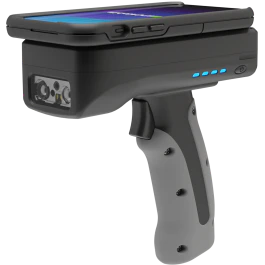 The **Linea Pro** is a barcode scanner attachment used with Vori’s store iPhones to scan and manage products in the **VoriOS** app.
* The Linea Pro must be paired directly within the **VoriOS** app, not through the iPhone’s Bluetooth settings.
* When connected, the Linea Pro also **charges the iPhone through its physical connection**, ensuring uninterrupted use during shifts.
💡 **Tip:** If your handheld phone device is not compatible with the Linea Pro, use the built-in **camera scanner** in VoriOS.
***
### Pair the Linea Pro with the Store Handheld
Follow these steps to connect your Linea Pro to your handheld phone device.
1. **Enable Bluetooth on your handheld phone device**
1. Swipe down from the upper-right corner to open the **Control Center**.
2. Check the Bluetooth icon:
1. **Blue** = Bluetooth is enabled.
2. **White** = Bluetooth is disabled. Tap to enable Bluetooth if needed.
2. **Power on the Linea Pro**
1. Hold the **power button** (left side of the device) for 2 seconds until you hear a beep.
3. **Pair the scanner in VoriOS**
1. Open the black VoriOS app and log in.
2. Scroll right in the **Devices** section and tap **Add Linea Pro.**
3. Tap, **I heard the ring tone** once the scanner powers on.
4. Tap the Linea Pro from the available devices.
5. The scanner will automatically connect.
Once paired, the Linea Pro appears in the **Devices** section of the home screen
💡 **Tip:** If the **Linea Pro** device tile is missing in the VoriOS app, update the app by searching for **VoriOS** in the App Store and selecting **Update.**
**🎥 Watch a quick walkthrough below.**
***
### Troubleshoot Common Scanner Issues
If your Linea Pro scanner isn’t working as expected, follow the steps below to diagnose the issue.
**Confirm the scanner is turned on and paired with the VoriOS app.**
1. 1. Press and hold the power button. If no laser appears, check the Pair the scanner in VoriOS steps to ensure the device is successfully paired.
**Check if the scanner is charged.**
1. 1. Press and hold the power button and look for the blue LED lights on the side of the device. If no lights appear, charge the Linea Pro using the provided USB-C cable.
1. If only one blue light is blinking, the battery is critically low.
**Reset Bluetooth Connection ('Forget this Device')** If the scanner is on but VoriOS cannot find it, the device may be incorrectly connected to the iPhone's internal settings rather than the app.
1. 1. Open the **iPhone Settings** app and select **Bluetooth**.
2. Find the Linea Pro in the list of **My Devices.**
1. **Note:** It may be listed as "LineaPro," or a code such as "QL," "X," or similar.
3. Tap the blue **(i) icon** next to the device name.
The **Linea Pro** is a barcode scanner attachment used with Vori’s store iPhones to scan and manage products in the **VoriOS** app.
* The Linea Pro must be paired directly within the **VoriOS** app, not through the iPhone’s Bluetooth settings.
* When connected, the Linea Pro also **charges the iPhone through its physical connection**, ensuring uninterrupted use during shifts.
💡 **Tip:** If your handheld phone device is not compatible with the Linea Pro, use the built-in **camera scanner** in VoriOS.
***
### Pair the Linea Pro with the Store Handheld
Follow these steps to connect your Linea Pro to your handheld phone device.
1. **Enable Bluetooth on your handheld phone device**
1. Swipe down from the upper-right corner to open the **Control Center**.
2. Check the Bluetooth icon:
1. **Blue** = Bluetooth is enabled.
2. **White** = Bluetooth is disabled. Tap to enable Bluetooth if needed.
2. **Power on the Linea Pro**
1. Hold the **power button** (left side of the device) for 2 seconds until you hear a beep.
3. **Pair the scanner in VoriOS**
1. Open the black VoriOS app and log in.
2. Scroll right in the **Devices** section and tap **Add Linea Pro.**
3. Tap, **I heard the ring tone** once the scanner powers on.
4. Tap the Linea Pro from the available devices.
5. The scanner will automatically connect.
Once paired, the Linea Pro appears in the **Devices** section of the home screen
💡 **Tip:** If the **Linea Pro** device tile is missing in the VoriOS app, update the app by searching for **VoriOS** in the App Store and selecting **Update.**
**🎥 Watch a quick walkthrough below.**
***
### Troubleshoot Common Scanner Issues
If your Linea Pro scanner isn’t working as expected, follow the steps below to diagnose the issue.
**Confirm the scanner is turned on and paired with the VoriOS app.**
1. 1. Press and hold the power button. If no laser appears, check the Pair the scanner in VoriOS steps to ensure the device is successfully paired.
**Check if the scanner is charged.**
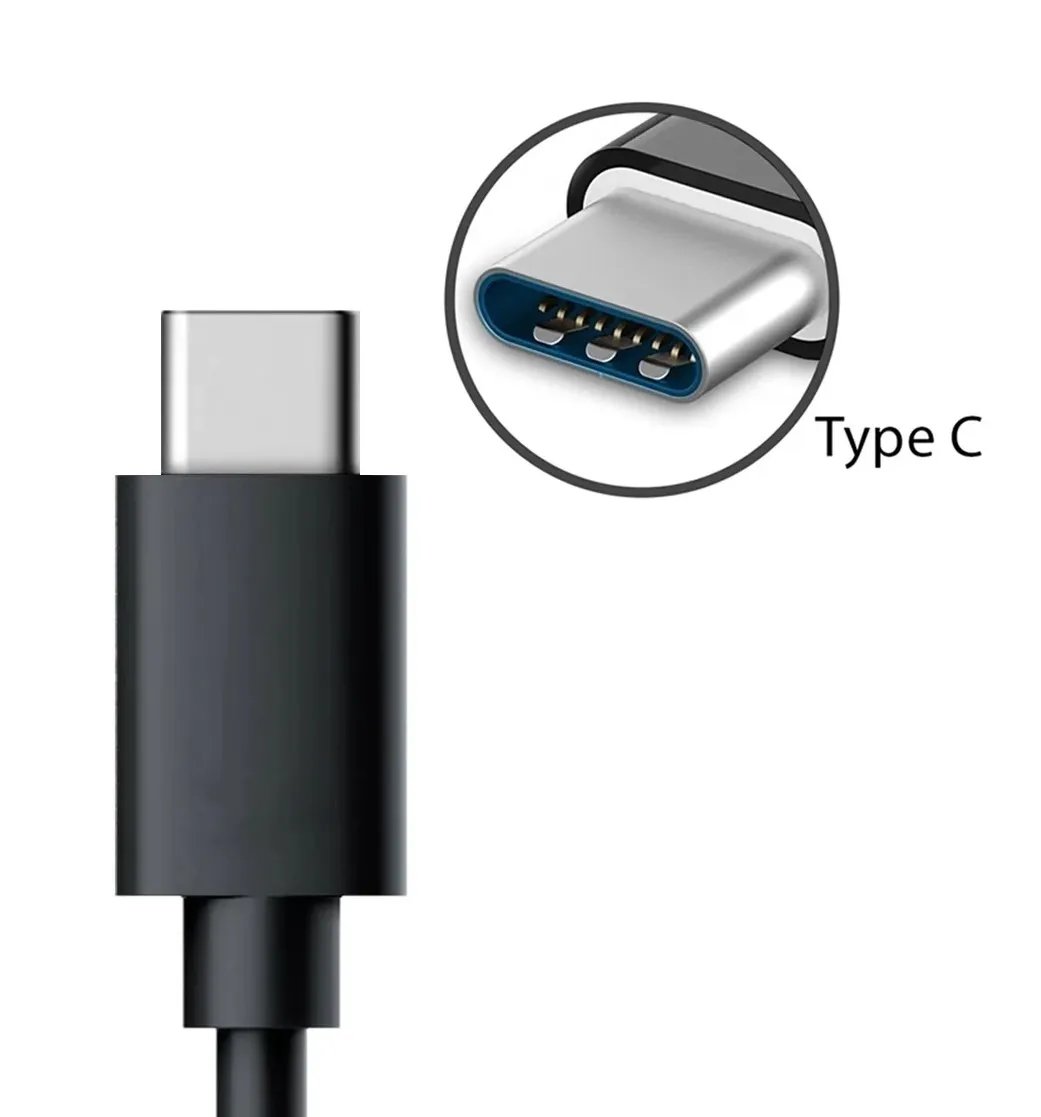
1. 1. Press and hold the power button and look for the blue LED lights on the side of the device. If no lights appear, charge the Linea Pro using the provided USB-C cable.
1. If only one blue light is blinking, the battery is critically low.
**Reset Bluetooth Connection ('Forget this Device')** If the scanner is on but VoriOS cannot find it, the device may be incorrectly connected to the iPhone's internal settings rather than the app.
1. 1. Open the **iPhone Settings** app and select **Bluetooth**.
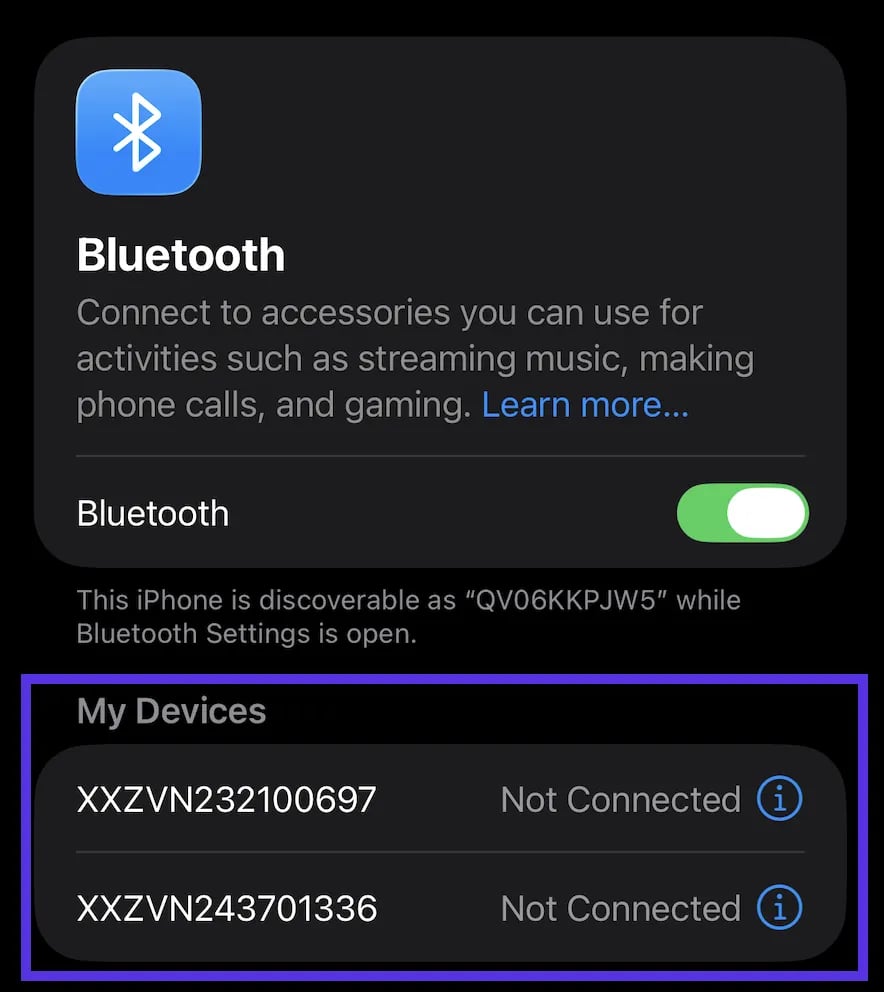
2. Find the Linea Pro in the list of **My Devices.**
1. **Note:** It may be listed as "LineaPro," or a code such as "QL," "X," or similar.
3. Tap the blue **(i) icon** next to the device name.
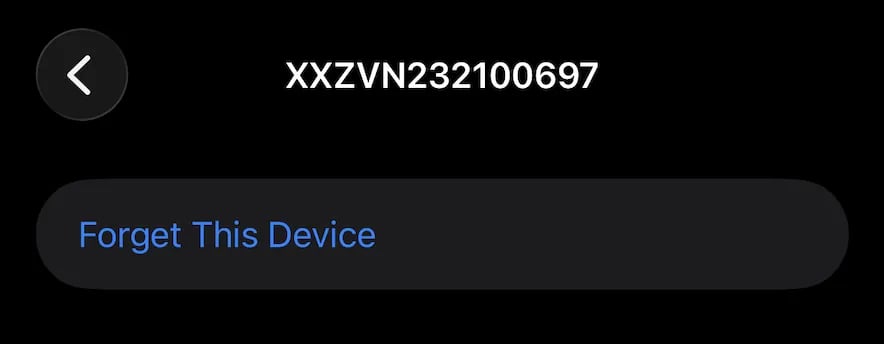
 4. Select **Forget This Device**.
 5. Return to the VoriOS app and try the Pair the scanner steps again.
**Check for successful pairing in the VoriOS app.**
1. 1. Open the app and look for the Linea Pro tile under the Devices section.
If the tile does not appear, update the app from the App Store, then tap Add Linea Pro to repeat the pairing process.
✏️ **Note:** If the Linea Pro doesn’t appear to charge, unplug it and try using a different Vori **USB-C charging cable**. Do not swap in third-party or non-Vori USB-C cables to test charging issues. Using incompatible cables may damage the device and void the warranty.
5. Return to the VoriOS app and try the Pair the scanner steps again.
**Check for successful pairing in the VoriOS app.**
1. 1. Open the app and look for the Linea Pro tile under the Devices section.
If the tile does not appear, update the app from the App Store, then tap Add Linea Pro to repeat the pairing process.
✏️ **Note:** If the Linea Pro doesn’t appear to charge, unplug it and try using a different Vori **USB-C charging cable**. Do not swap in third-party or non-Vori USB-C cables to test charging issues. Using incompatible cables may damage the device and void the warranty.
 💡 **Tip:** If the scanner is paired and the laser works, but no data transmits to the app, use the **camera scanner** as a temporary backup. To access it, tap the **Search Product** bar on the home screen, then tap **Open Camera** to scan barcodes using the iPhone’s camera.
**🚨Warning:** If the Linea Pro is **charged**, **powered on**, **paired correctly**, and still not functioning, it may be defective. Please contact **Vori Support.**
***
### Troubleshooting iPhone Charging Issues
If the connected iPhone is not charging from the Linea Pro, follow the steps below.
✏️ **Note:** The mounted iPhone is only expected to charge when the Linea Pro itself is plugged into a power source and actively charging.
1. **Confirm the Linea Pro is charging.**
* The Linea Pro's LED battery indicators should light up when connected to power. If they don’t, the charging cable or power source may not be working correctly.
2. **Check if the iPhone is fully mounted.**
* If the iPhone is not fully seated in the Linea Pro's cradle, the charging connection may not be aligned. Ensure it is securely mounted.
3. **Use the official Linea Pro charging cable and AC adapter.**
* Some third-party cables or adapters may provide enough power for the Linea Pro but not enough to also charge the connected iPhone. Always use the official Vori-provided accessories.
## Related topics
- [How to fix the barcode scanner on the store handheld (Socket Mobile version)](/hardware-and-peripherals/handheld-and-mobile-devices/how-to-fix-the-barcode-scanner-on-the-store-handheld-socket-mobile-version.md)
- [Troubleshoot Handheld Barcode Scanner Connectivity](/hardware-and-peripherals/cashier-handheld-scanner-and-countertop-scale/troubleshoot-handheld-barcode-scanner-connectivity.md)
- [Troubleshoot Camera Scanner Connection Issues with the VoriOS app](/hardware-and-peripherals/handheld-and-mobile-devices/troubleshoot-camera-scanner-connection-issues-with-the-vori-os-app.md)
💡 **Tip:** If the scanner is paired and the laser works, but no data transmits to the app, use the **camera scanner** as a temporary backup. To access it, tap the **Search Product** bar on the home screen, then tap **Open Camera** to scan barcodes using the iPhone’s camera.
**🚨Warning:** If the Linea Pro is **charged**, **powered on**, **paired correctly**, and still not functioning, it may be defective. Please contact **Vori Support.**
***
### Troubleshooting iPhone Charging Issues
If the connected iPhone is not charging from the Linea Pro, follow the steps below.
✏️ **Note:** The mounted iPhone is only expected to charge when the Linea Pro itself is plugged into a power source and actively charging.
1. **Confirm the Linea Pro is charging.**
* The Linea Pro's LED battery indicators should light up when connected to power. If they don’t, the charging cable or power source may not be working correctly.
2. **Check if the iPhone is fully mounted.**
* If the iPhone is not fully seated in the Linea Pro's cradle, the charging connection may not be aligned. Ensure it is securely mounted.
3. **Use the official Linea Pro charging cable and AC adapter.**
* Some third-party cables or adapters may provide enough power for the Linea Pro but not enough to also charge the connected iPhone. Always use the official Vori-provided accessories.
## Related topics
- [How to fix the barcode scanner on the store handheld (Socket Mobile version)](/hardware-and-peripherals/handheld-and-mobile-devices/how-to-fix-the-barcode-scanner-on-the-store-handheld-socket-mobile-version.md)
- [Troubleshoot Handheld Barcode Scanner Connectivity](/hardware-and-peripherals/cashier-handheld-scanner-and-countertop-scale/troubleshoot-handheld-barcode-scanner-connectivity.md)
- [Troubleshoot Camera Scanner Connection Issues with the VoriOS app](/hardware-and-peripherals/handheld-and-mobile-devices/troubleshoot-camera-scanner-connection-issues-with-the-vori-os-app.md)