> ## Documentation Index
> Fetch the complete documentation index at: https://help.vori.com/llms.txt
> Use this file to discover all available pages before exploring further.
# Troubleshoot Cash Drawer Issues on the POS
> Follow steps to resolve connection or mechanical issues preventing the drawer from opening
This article guides you through fixing a cash drawer that will not open when triggered by the POS.
**✏️ Note:** The cash drawer connects to the POS through the receipt printer. If the receipt printer is off or disconnected, the drawer cannot open.
### Test for a Click Sound
When you trigger the **Open Cash Drawer** command, the drawer should make a distinct "click" sound. This sound confirms the POS is communicating with the drawer.
**Firmly push the drawer back into its enclosure** before starting.
1. On the main cashier screen, tap the **\$** icon in the bottom right corner to open the **Till Details** window.
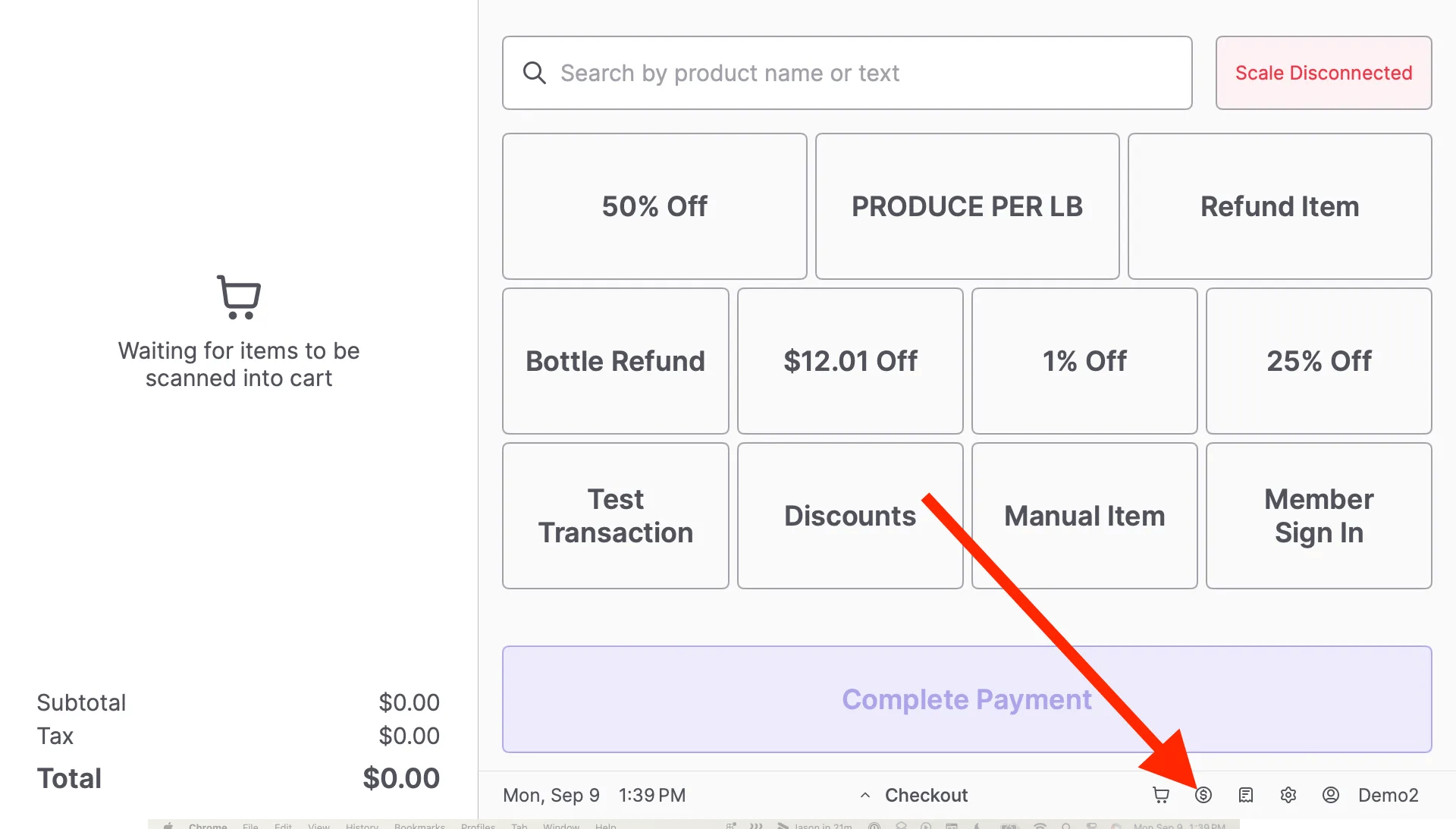 2. Tap **Open Cash Drawer**.
3. Listen closely for a click sound. You can repeat this step if you are unsure.
Proceed to the section below that matches your result.
***
### No Click Sound: Troubleshoot Connection Issues
If the drawer is silent, the POS is not communicating with the hardware. Follow these steps to restore the connection.
#### 1. Check Power and UPS Status
The cash drawer relies on the receipt printer, which is powered by a UPS (Uninterruptible Power Supply). You must confirm both devices have power.
**Check the Receipt Printer**
* Verify the status LED on the top left of the printer is lit.
2. Tap **Open Cash Drawer**.
3. Listen closely for a click sound. You can repeat this step if you are unsure.
Proceed to the section below that matches your result.
***
### No Click Sound: Troubleshoot Connection Issues
If the drawer is silent, the POS is not communicating with the hardware. Follow these steps to restore the connection.
#### 1. Check Power and UPS Status
The cash drawer relies on the receipt printer, which is powered by a UPS (Uninterruptible Power Supply). You must confirm both devices have power.
**Check the Receipt Printer**
* Verify the status LED on the top left of the printer is lit.
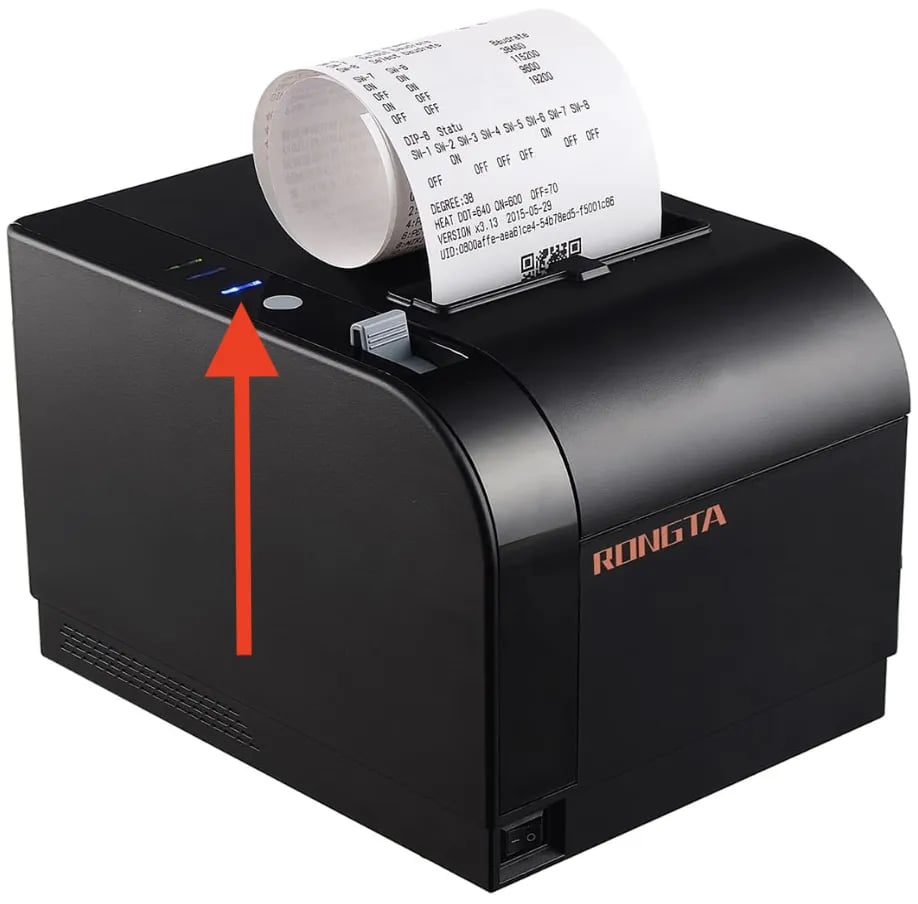 * If unlit, flip the power switch on the front left to the **On** position.
* If the switch is **On** but the LED is unlit, ensure the power cable is securely inserted on both ends.
**Check the UPS (Battery Backup)**
* **Confirm the UPS is on.** Ensure the LED indicator on the UPS unit is lit.
* **Check the UPS LED behavior:**
* **Solid Light:** The UPS functions normally.
* **Flashing Light:** The power source is offline, and the UPS is in battery backup mode. Troubleshoot the store's electricity (e.g., check the wall outlet or circuit breaker).
**Test the Drawer**
* Attempt to open the cash drawer through the POS again.
**✏️ Note:** If the printer and UPS are powered on but the drawer won't open, proceed to the next step.
#### 2. Restart the POS App
1. On the main cashier screen, tap the **gear icon** in the bottom right corner.
2. Select **Restart App** in the System Status window.
3. Log back into the POS app.
4. Attempt to open the cash drawer to test if the issue is resolved.
**✏️ Note:** If restarting does not fix the issue, proceed to the next step.
#### 3. Verify Cable Connections
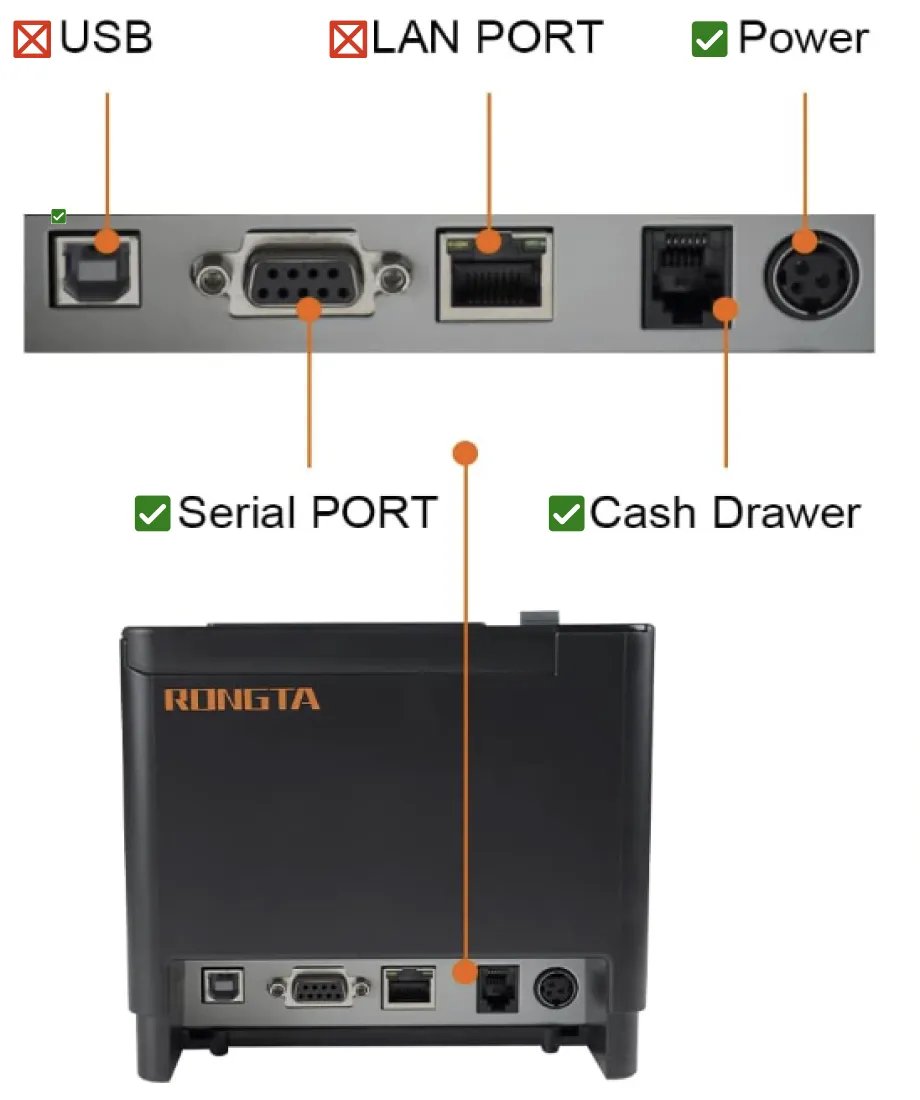
Check the back of the receipt printer to ensure the cables are plugged into the correct ports. **Important:** The cash drawer cable is small enough to insert into the larger Ethernet (LAN) port, but this is the wrong connection.
* **Cash Drawer Port (RJ12):** This is the **smaller, 6-pin port** (often black). The cash drawer cable **must** be plugged in here.
* **LAN Port (Ethernet):** This is the **larger, 8-pin port**. This should remain **empty** for this setup.
Moving from left to right on the back of the printer, confirm the connections:
* **USB:** Empty.
* **Serial Port:** Plugged in (Connects to the POS).
* **LAN Port:** Empty.
* **Cash Drawer:** Plugged in (Connects to the Cash Drawer).
* **Power:** Plugged in.
\_
* If unlit, flip the power switch on the front left to the **On** position.
* If the switch is **On** but the LED is unlit, ensure the power cable is securely inserted on both ends.
**Check the UPS (Battery Backup)**
* **Confirm the UPS is on.** Ensure the LED indicator on the UPS unit is lit.
* **Check the UPS LED behavior:**
* **Solid Light:** The UPS functions normally.
* **Flashing Light:** The power source is offline, and the UPS is in battery backup mode. Troubleshoot the store's electricity (e.g., check the wall outlet or circuit breaker).
**Test the Drawer**
* Attempt to open the cash drawer through the POS again.
**✏️ Note:** If the printer and UPS are powered on but the drawer won't open, proceed to the next step.
#### 2. Restart the POS App
1. On the main cashier screen, tap the **gear icon** in the bottom right corner.
2. Select **Restart App** in the System Status window.
3. Log back into the POS app.
4. Attempt to open the cash drawer to test if the issue is resolved.
**✏️ Note:** If restarting does not fix the issue, proceed to the next step.
#### 3. Verify Cable Connections
Check the back of the receipt printer to ensure the cables are plugged into the correct ports. **Important:** The cash drawer cable is small enough to insert into the larger Ethernet (LAN) port, but this is the wrong connection.
* **Cash Drawer Port (RJ12):** This is the **smaller, 6-pin port** (often black). The cash drawer cable **must** be plugged in here.
* **LAN Port (Ethernet):** This is the **larger, 8-pin port**. This should remain **empty** for this setup.
Moving from left to right on the back of the printer, confirm the connections:
* **USB:** Empty.
* **Serial Port:** Plugged in (Connects to the POS).
* **LAN Port:** Empty.
* **Cash Drawer:** Plugged in (Connects to the Cash Drawer).
* **Power:** Plugged in.
\_
 \_
Reinsert any loose or incorrectly placed cables. Attempt to open the drawer again.
#### 4. Verify Peripheral Settings
On the main cashier screen, locate the **Date & Time** display at the bottom.
1. Quickly tap the Date 3 times to open the peripheral settings. (A hidden peripheral settings pop up window should appear.)
\_
Reinsert any loose or incorrectly placed cables. Attempt to open the drawer again.
#### 4. Verify Peripheral Settings
On the main cashier screen, locate the **Date & Time** display at the bottom.
1. Quickly tap the Date 3 times to open the peripheral settings. (A hidden peripheral settings pop up window should appear.)
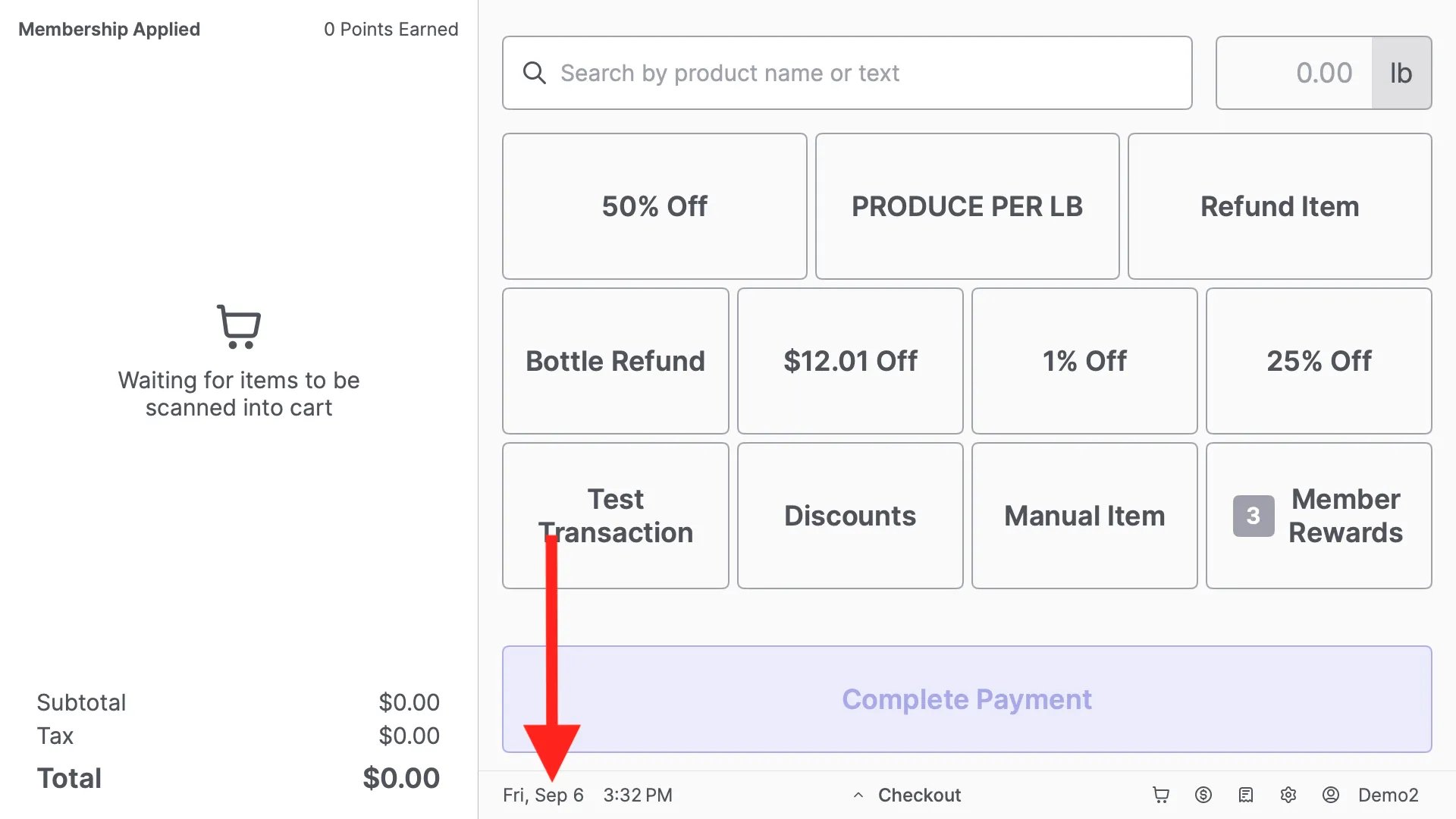 2. Tap the **Receipt Printer Port** dropdown menu.
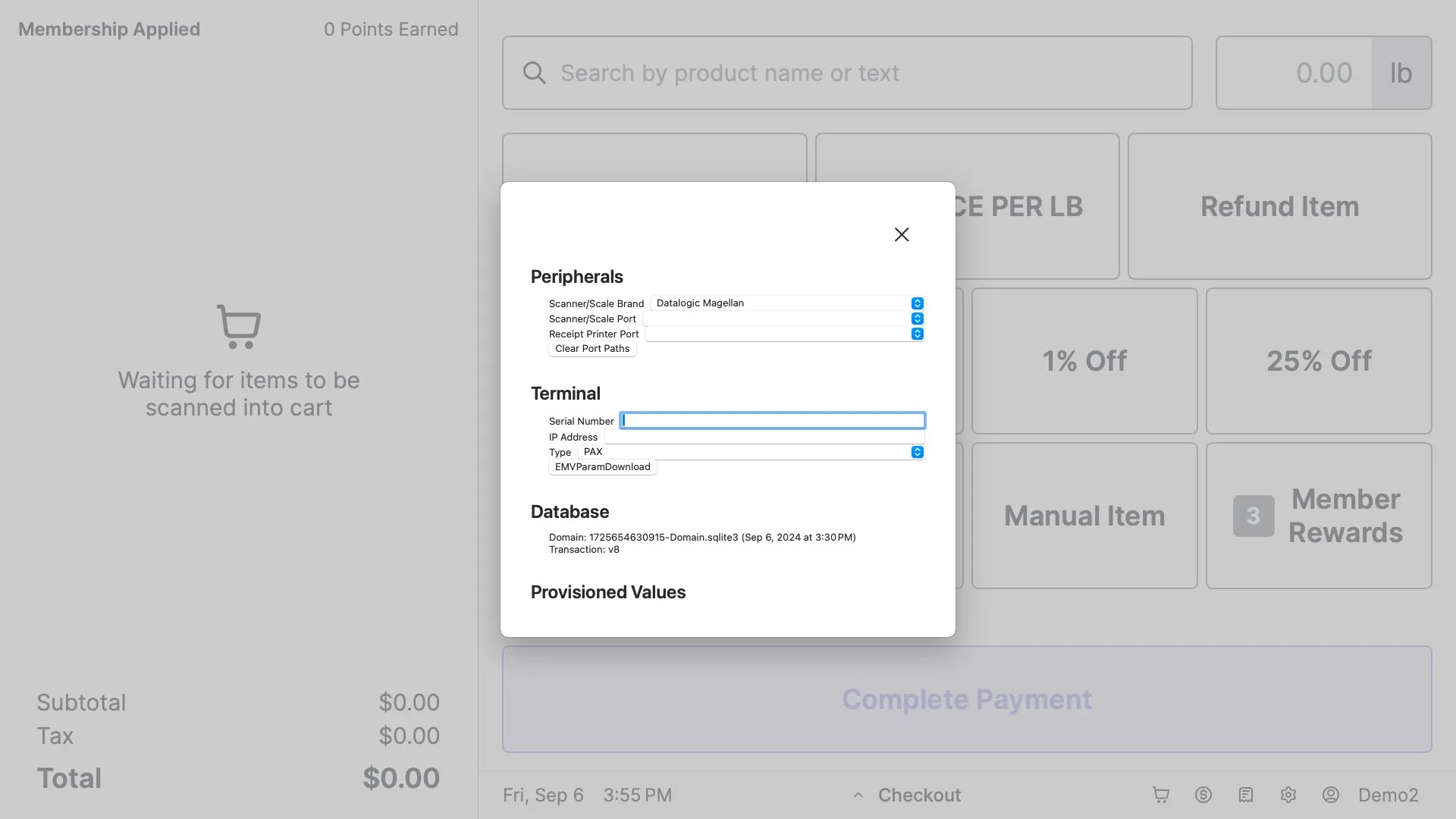 3. Select the port path that follows this format: /dev/cu.usbserial-########
1. The alphanumeric string ######## is unique to every POS lane (e.g., usbserial-AB1234). Select the one available in your list.
3. Select the port path that follows this format: /dev/cu.usbserial-########
1. The alphanumeric string ######## is unique to every POS lane (e.g., usbserial-AB1234). Select the one available in your list.
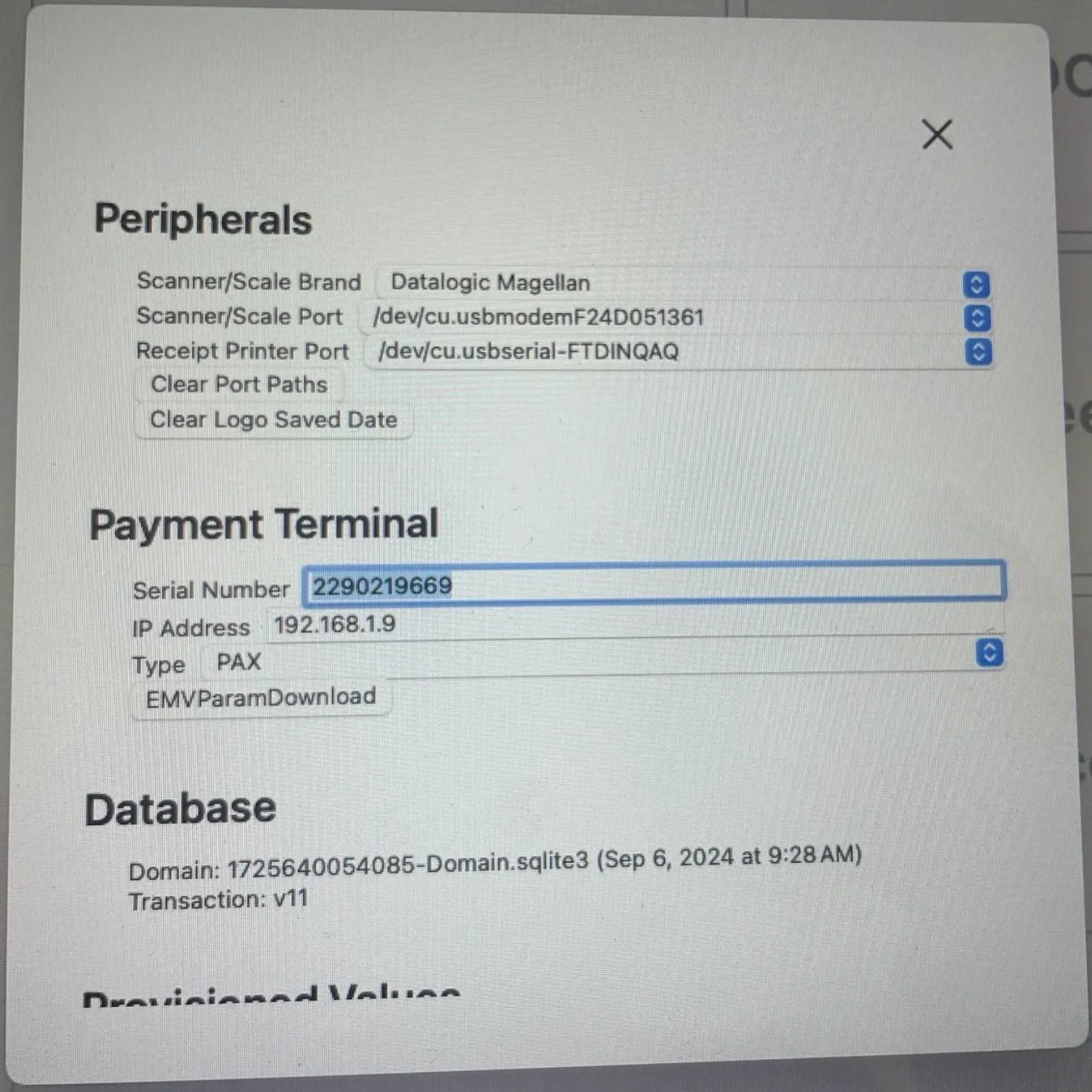 4. **Tap **X** to exit, then **Restart the POS App** (see instructions above).**
5. Log back in and test the drawer.
**✏️ Note:** If the drawer still does not open, the hardware or cable may be damaged. Contact Vori Support for further assistance.
***
### Click Sound: Troubleshoot Mechanical Issues
If the drawer clicks, it is receiving a signal but is physically stuck.
#### 1. Check the Lock Position
Inspect the lock on the front of the drawer.
* **Locked (Vertical):** The drawer is locked and requires the key to open.
* **Unlocked (Horizontal):** The drawer is ready to open electronically.
*(Insert Example diagram of lock positions)*
*
4. **Tap **X** to exit, then **Restart the POS App** (see instructions above).**
5. Log back in and test the drawer.
**✏️ Note:** If the drawer still does not open, the hardware or cable may be damaged. Contact Vori Support for further assistance.
***
### Click Sound: Troubleshoot Mechanical Issues
If the drawer clicks, it is receiving a signal but is physically stuck.
#### 1. Check the Lock Position
Inspect the lock on the front of the drawer.
* **Locked (Vertical):** The drawer is locked and requires the key to open.
* **Unlocked (Horizontal):** The drawer is ready to open electronically.
*(Insert Example diagram of lock positions)*
*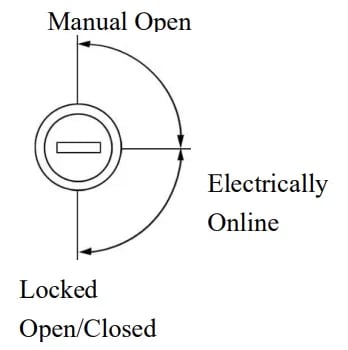 *
If the lock is **Vertical**, insert the key and turn it counterclockwise to the **Horizontal** position. Test the drawer via the POS.
#### 2. Manually Open and Reset
1. Insert the key into the front lock.
2. Rotate the key counterclockwise to the **Manual Open** position until the drawer pops open.
*
If the lock is **Vertical**, insert the key and turn it counterclockwise to the **Horizontal** position. Test the drawer via the POS.
#### 2. Manually Open and Reset
1. Insert the key into the front lock.
2. Rotate the key counterclockwise to the **Manual Open** position until the drawer pops open.
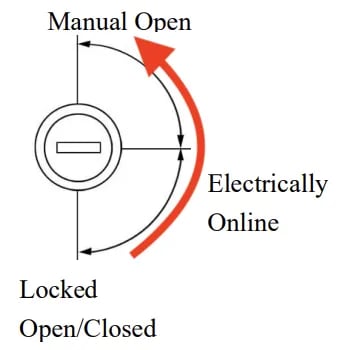 3. Push the drawer back in and return the lock to the **Horizontal** position.
4. Attempt to open the drawer via the POS to test the resolution.
#### 3. Check for Obstructions
Remove the till and check for bills, coins, or debris inside the enclosure that may be jamming the mechanism.
**✏️ Note:** If the drawer is unlocked and free of obstructions but still fails to open, contact Vori support for next steps.
## Related topics
- [Troubleshoot Network Connectivity Issues with the POS](/hardware-and-peripherals/cashier-screen-and-shopper-display/troubleshoot-network-connectivity-issues-with-the-pos.md)
- [Troubleshoot Shopper Display Communication Issues](/hardware-and-integrations/cashier-screen-and-shopper-display/troubleshoot-shopper-display-communication-issues.md)
- [Vori Onboarding Guide](/getting-started-with-vori/meet-vori/vori-onboarding-guide.md)
3. Push the drawer back in and return the lock to the **Horizontal** position.
4. Attempt to open the drawer via the POS to test the resolution.
#### 3. Check for Obstructions
Remove the till and check for bills, coins, or debris inside the enclosure that may be jamming the mechanism.
**✏️ Note:** If the drawer is unlocked and free of obstructions but still fails to open, contact Vori support for next steps.
## Related topics
- [Troubleshoot Network Connectivity Issues with the POS](/hardware-and-peripherals/cashier-screen-and-shopper-display/troubleshoot-network-connectivity-issues-with-the-pos.md)
- [Troubleshoot Shopper Display Communication Issues](/hardware-and-integrations/cashier-screen-and-shopper-display/troubleshoot-shopper-display-communication-issues.md)
- [Vori Onboarding Guide](/getting-started-with-vori/meet-vori/vori-onboarding-guide.md)