> ## Documentation Index
> Fetch the complete documentation index at: https://help.vori.com/llms.txt
> Use this file to discover all available pages before exploring further.
# How to troubleshoot the 10-key cashier keyboard
> This article outlines the troubleshooting steps that should be followed if the POS 10-key cashier keyboard experiences communication issues
### **Restart the POS App**
* On the main cashier screen, select the **gear icon** in the bottom right corner of the screen. This will open the Device Status window.
* Select **Restart App** on the Device Status window.
* Attempt to log back into the POS app using the 10-key to confirm it's working.
**✏️** **Note -** If restarting the POS app does not fix the issue, proceed to the next section.
***
### **Restart the USB Hub**
* Locate the POS computer under the counter.
* The POS Computer is a Mac Mini locked within a security mount.
* Locate the USB hub, which is plugged into one of the back ports of the POS computer.
* The USB hub should have several USB cables plugged into it.
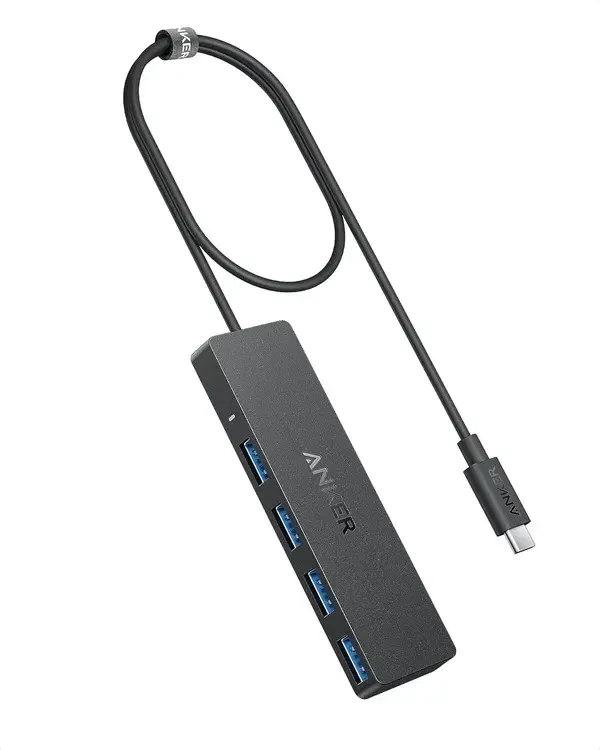 * Unplug the **host cable** of the USB hub from the Mac Mini, then wait 10 seconds.
* The host cable is the main cable that connects all other peripherals to the Mac Mini. It is the only cable that is permanently attached to the USB hub.
* Unplug the **host cable** of the USB hub from the Mac Mini, then wait 10 seconds.
* The host cable is the main cable that connects all other peripherals to the Mac Mini. It is the only cable that is permanently attached to the USB hub.
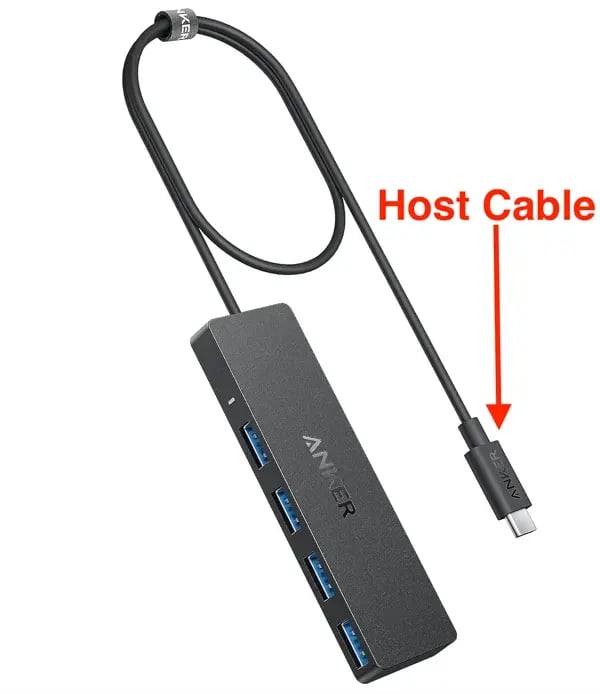 * Plug the USB hub's host cable back into the Mac Mini.
* Test the 10-key to confirm it is communicating.
**✏️** **Note -** If unplugging and plugging back in the USB hub does not fix the issue, proceed to the next section.
***
### **Confirm the 10-key is plugged in**
* Look back under the counter to confirm all cables plugged into the USB hub are securely inserted.
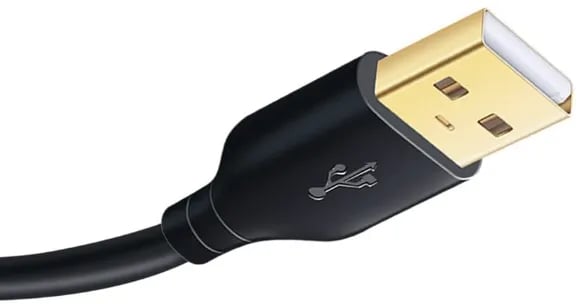
* There should be 2 to 3 USB-A cables leading into the USB hub.
* Receipt Printer
* 10-Key
* **OPTIONAL:** Handheld barcode scanner (not included in all POS installs)
**Example of a USB-A cable head:**
* Plug the USB hub's host cable back into the Mac Mini.
* Test the 10-key to confirm it is communicating.
**✏️** **Note -** If unplugging and plugging back in the USB hub does not fix the issue, proceed to the next section.
***
### **Confirm the 10-key is plugged in**
* Look back under the counter to confirm all cables plugged into the USB hub are securely inserted.
* There should be 2 to 3 USB-A cables leading into the USB hub.
* Receipt Printer
* 10-Key
* **OPTIONAL:** Handheld barcode scanner (not included in all POS installs)
**Example of a USB-A cable head:**
 * If any cables are not secured into the USB, have the store user plug them back in.
* Test the 10-key to confirm it is communicating.
**✏️** **Note -** If all cables are securely connected to the USB hub and the problem isn't resolved, proceed to the next section.
***
### Restart the Mac Mini
* On the cashier screen, use 3 fingers to swipe from the lefthand side of the screen towards the center.
* If done correctly, this will minimize the POS app and display the home screen.
* On the home screen of the Mac Mini, tap and hold on the icon in the top left corner of the screen.
* A dropdown menu should appear below the icon.
* If any cables are not secured into the USB, have the store user plug them back in.
* Test the 10-key to confirm it is communicating.
**✏️** **Note -** If all cables are securely connected to the USB hub and the problem isn't resolved, proceed to the next section.
***
### Restart the Mac Mini
* On the cashier screen, use 3 fingers to swipe from the lefthand side of the screen towards the center.
* If done correctly, this will minimize the POS app and display the home screen.
* On the home screen of the Mac Mini, tap and hold on the icon in the top left corner of the screen.
* A dropdown menu should appear below the icon.
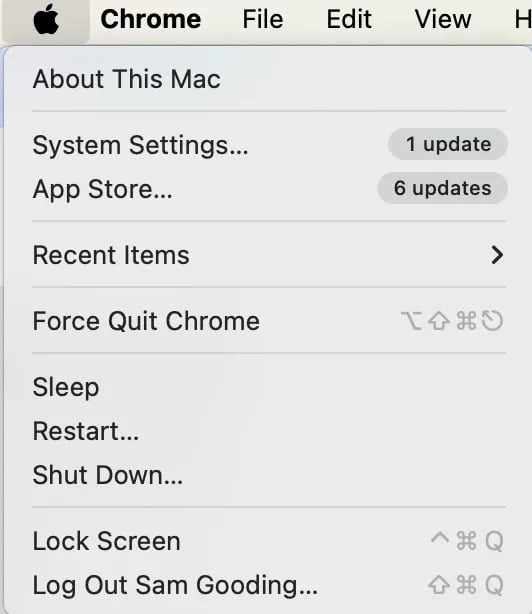 * Drag down to **Restart** on the dropdown menu, and let go to select it.
* A new popup window should appear in the center of the screen.
* Drag down to **Restart** on the dropdown menu, and let go to select it.
* A new popup window should appear in the center of the screen.
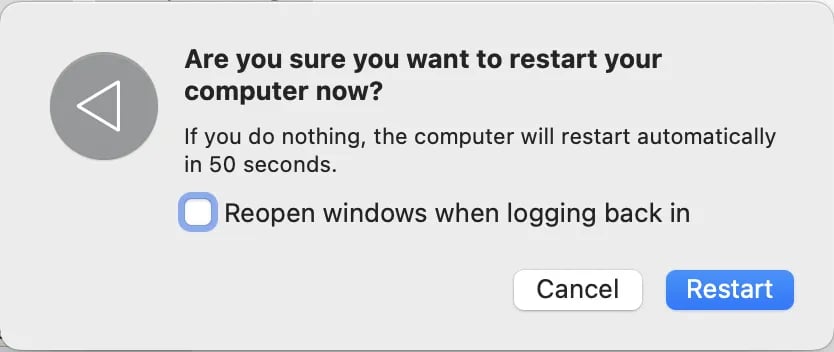 * Tap the **Restart** button on the popup window.
* **IMPORTANT**: The **Reopen windows when logging back in** toggle should be left blank.
* Once the system restarts, enter the admin password when prompted.
* The password is **654321**.
* Log back into the VoriPOS app to confirm the 10-key is working.
**✏️** **Note -** If restarting the POS computer does not fix the issue, the 10-key's communication cable has likely been damaged. Reach out to the Vori support line for help on next steps.
## Related topics
- [Hardware Troubleshooting Guide](/getting-started-with-vori/support/hardware-troubleshooting.md)
- [Fix Admin Password Not Working After POS Restart](/vori-setup-and-troubleshooting/fix-admin-password-not-working-after-pos-restart.md)
- [Troubleshoot Handheld Barcode Scanner Connectivity](/hardware-and-peripherals/cashier-handheld-scanner-and-countertop-scale/troubleshoot-handheld-barcode-scanner-connectivity.md)
* Tap the **Restart** button on the popup window.
* **IMPORTANT**: The **Reopen windows when logging back in** toggle should be left blank.
* Once the system restarts, enter the admin password when prompted.
* The password is **654321**.
* Log back into the VoriPOS app to confirm the 10-key is working.
**✏️** **Note -** If restarting the POS computer does not fix the issue, the 10-key's communication cable has likely been damaged. Reach out to the Vori support line for help on next steps.
## Related topics
- [Hardware Troubleshooting Guide](/getting-started-with-vori/support/hardware-troubleshooting.md)
- [Fix Admin Password Not Working After POS Restart](/vori-setup-and-troubleshooting/fix-admin-password-not-working-after-pos-restart.md)
- [Troubleshoot Handheld Barcode Scanner Connectivity](/hardware-and-peripherals/cashier-handheld-scanner-and-countertop-scale/troubleshoot-handheld-barcode-scanner-connectivity.md)