> ## Documentation Index
> Fetch the complete documentation index at: https://help.vori.com/llms.txt
> Use this file to discover all available pages before exploring further.
# How to adjust the physical display settings of the cashier screen on the POS
> This article explains how the brightness and contrast settings of the cashier screen can be adjusted for easier use or to return them to their original settings.
### Introduction
The cashier screen on the POS is designed to be easy to read in a variety of lighting conditions. Two key settings that affect screen visibility are **brightness** and **contrast**.
* **Brightness** controls how much light the screen emits, which can help make the display easier to see in bright environments or more comfortable to view in dim settings.
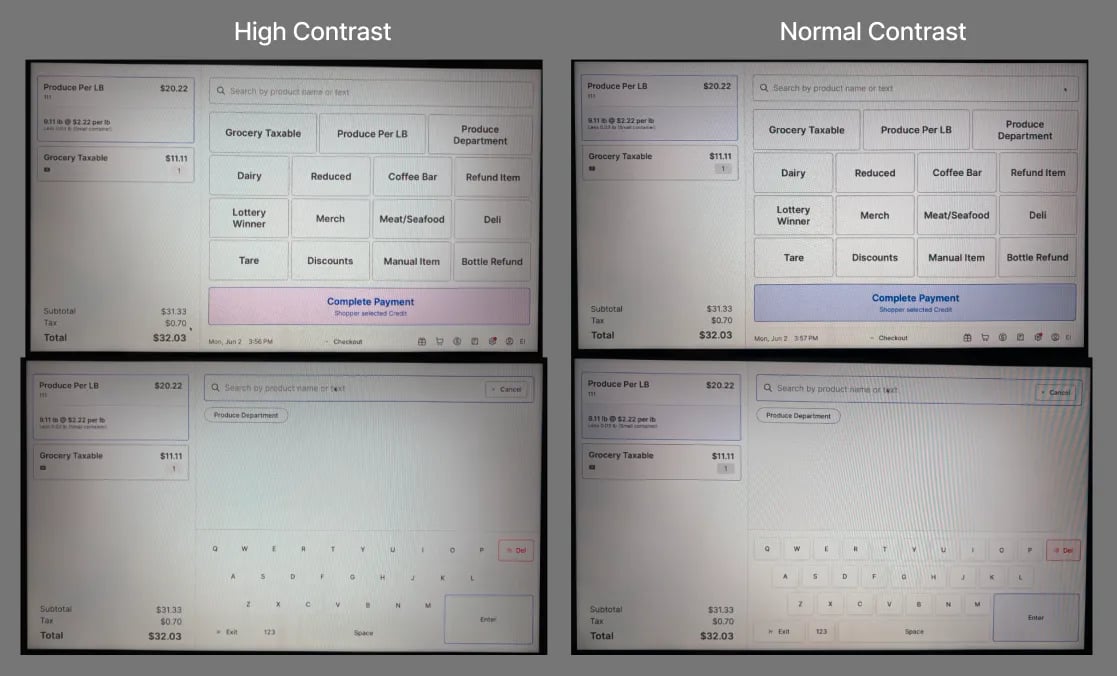
* **Contrast** adjusts the difference between light and dark areas on the screen, improving readability and making text and images appear sharper.
✏️ **Note -** If the cashier screen is unusually bright, or if normally dark parts of the screen appear much lighter and hard to see, then the display settings of the cashier screen may have been adjusted. Use this article as a troubleshooting guide to return the cashier screen to its original settings.
***
### Video overview of controls
***
### Instructions for accessing cashier screen display controls
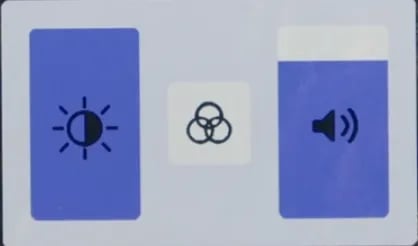
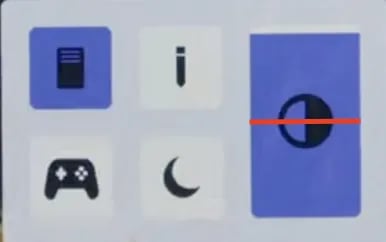
1. On the cashier screen, place two fingers just below the center of the screen and swipe upward about 1–2 inches.
1. If done correctly, a set of display controls will appear along the bottom of the screen.
2. To dismiss the display controls, simply tap anywhere outside of the control area on the touchscreen, or allow a few moments for them to automatically close on their own.
***
### Adjusting the cashier screen's brightness
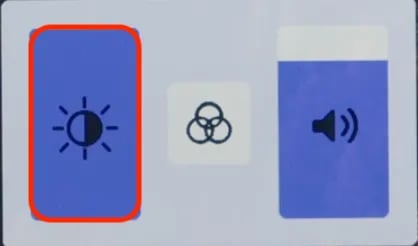
On the display's controls panel, use the display's touch controls to drag up and down on the brightness slider.
***
### Adjusting the cashier screen's contrast
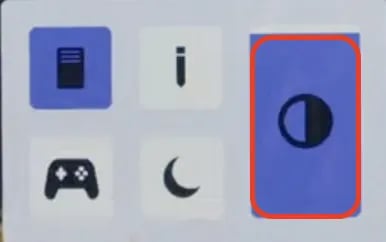
1. Tap the center button on the display's controls panel.
2. On the new control page, use the display's touch controls to drag up and down on the contrast slider.
✏️ **Note -** The default contrast level of the cashier display is at the middle of the contrast slider.
## Related topics
- [Fix a Black or Frozen POS Cashier Screen](/hardware-and-integrations/cashier-screen-and-shopper-display/fix-a-black-or-frozen-pos-cashier-screen.md)
- [Customize Your POS Settings](/cashier-and-till-management/till-management/customize-your-pos-settings.md)
- [Restart a POS Cashier Screen or Shopper Display](/hardware-and-integrations/cashier-screen-and-shopper-display/restart-a-pos-cashier-screen-or-shopper-display.md)
 ***
### Video overview of controls
***
### Instructions for accessing cashier screen display controls
1. On the cashier screen, place two fingers just below the center of the screen and swipe upward about 1–2 inches.
1. If done correctly, a set of display controls will appear along the bottom of the screen.
***
### Video overview of controls
***
### Instructions for accessing cashier screen display controls
1. On the cashier screen, place two fingers just below the center of the screen and swipe upward about 1–2 inches.
1. If done correctly, a set of display controls will appear along the bottom of the screen.
 2. To dismiss the display controls, simply tap anywhere outside of the control area on the touchscreen, or allow a few moments for them to automatically close on their own.
***
### Adjusting the cashier screen's brightness
On the display's controls panel, use the display's touch controls to drag up and down on the brightness slider.
2. To dismiss the display controls, simply tap anywhere outside of the control area on the touchscreen, or allow a few moments for them to automatically close on their own.
***
### Adjusting the cashier screen's brightness
On the display's controls panel, use the display's touch controls to drag up and down on the brightness slider.
 ***
### Adjusting the cashier screen's contrast
1. Tap the center button on the display's controls panel.
***
### Adjusting the cashier screen's contrast
1. Tap the center button on the display's controls panel. 2. On the new control page, use the display's touch controls to drag up and down on the contrast slider.
 ✏️ **Note -** The default contrast level of the cashier display is at the middle of the contrast slider.
 ## Related topics
- [Fix a Black or Frozen POS Cashier Screen](/hardware-and-integrations/cashier-screen-and-shopper-display/fix-a-black-or-frozen-pos-cashier-screen.md)
- [Customize Your POS Settings](/cashier-and-till-management/till-management/customize-your-pos-settings.md)
- [Restart a POS Cashier Screen or Shopper Display](/hardware-and-integrations/cashier-screen-and-shopper-display/restart-a-pos-cashier-screen-or-shopper-display.md)
## Related topics
- [Fix a Black or Frozen POS Cashier Screen](/hardware-and-integrations/cashier-screen-and-shopper-display/fix-a-black-or-frozen-pos-cashier-screen.md)
- [Customize Your POS Settings](/cashier-and-till-management/till-management/customize-your-pos-settings.md)
- [Restart a POS Cashier Screen or Shopper Display](/hardware-and-integrations/cashier-screen-and-shopper-display/restart-a-pos-cashier-screen-or-shopper-display.md)