> ## Documentation Index
> Fetch the complete documentation index at: https://help.vori.com/llms.txt
> Use this file to discover all available pages before exploring further.
# Troubleshoot the Zebra MP7000 Scanner Scale
> Learn how to resolve connection issues and perform a soft reset on the Zebra MP7000.
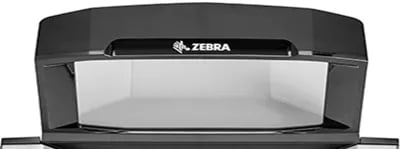
If the Zebra MP7000 scanner scale is experiencing communication issues with the POS, follow the steps in this guide. These steps are specific to the Zebra model and include instructions for performing a soft reset.
 ### View the Connection Status
To identify the issue, review the live weight display in the top right corner of the cashier screen.
### View the Connection Status
To identify the issue, review the live weight display in the top right corner of the cashier screen.
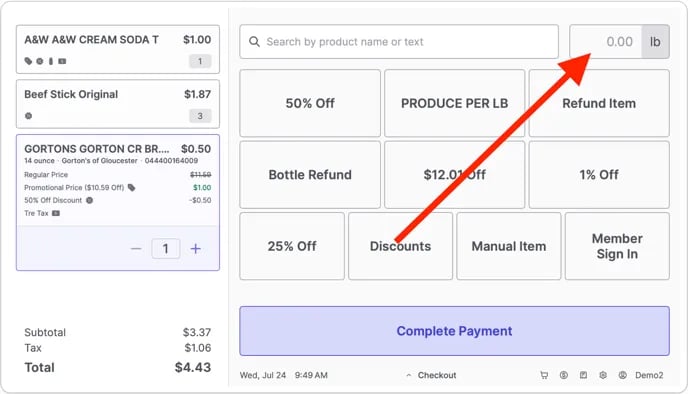 Compare the readout to the status options below:
* **Numerical display (e.g., 0.00lb).** The scale is communicating normally.
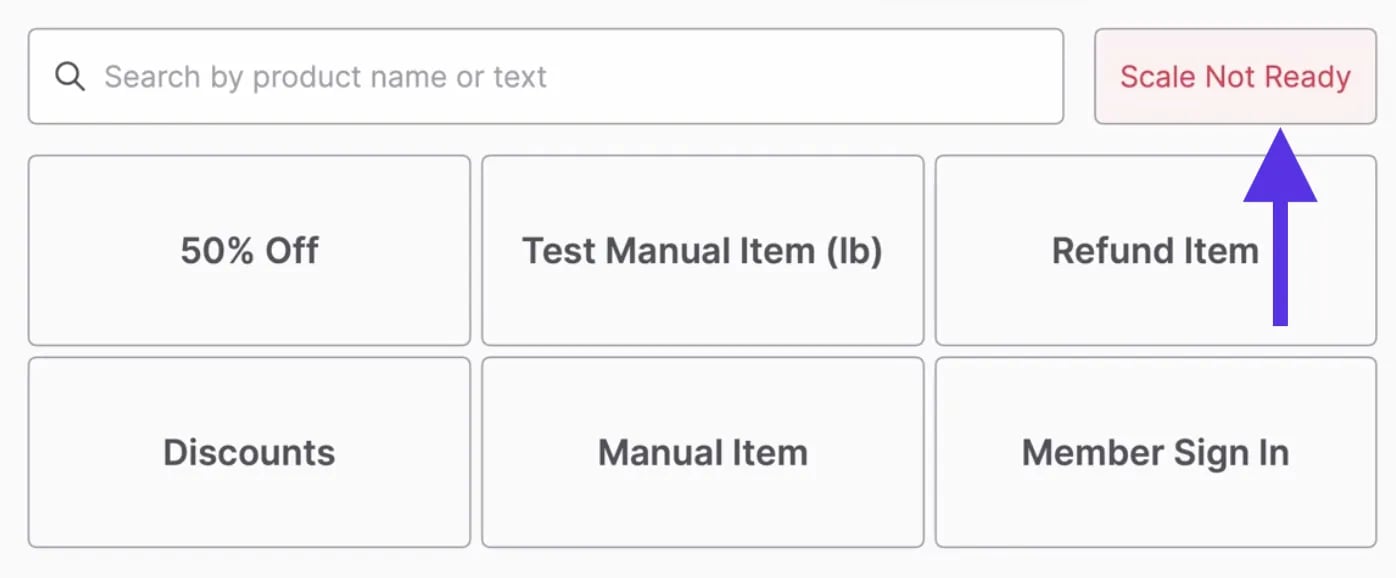
* **Scale not ready.** The POS is detecting interference. The system will block use until the weight becomes stable.
* **Scale disconnected.** The POS is unable to communicate with the scale.
***
### Troubleshoot "Scale Not Ready"
This error message displays when the scale detects fluctuating weight or debris.
Compare the readout to the status options below:
* **Numerical display (e.g., 0.00lb).** The scale is communicating normally.
* **Scale not ready.** The POS is detecting interference. The system will block use until the weight becomes stable.
* **Scale disconnected.** The POS is unable to communicate with the scale.
***
### Troubleshoot "Scale Not Ready"
This error message displays when the scale detects fluctuating weight or debris.
 **1. Clear the scale** Remove any loose items, papers, or cables resting on the weight plate or leaning against the vertical scanner tower.
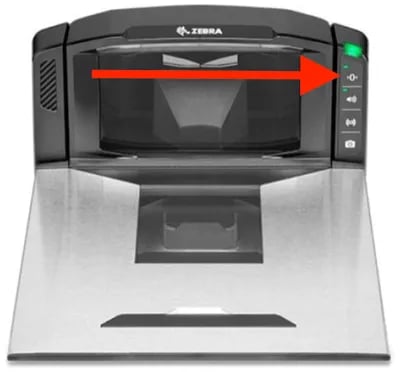
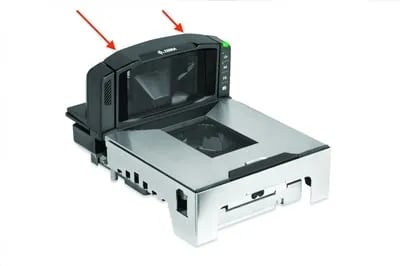 **2. Zero out the scale** Locate the button panel on the right side of the vertical tower. Press the top button (indicated by the `>0<` symbol).
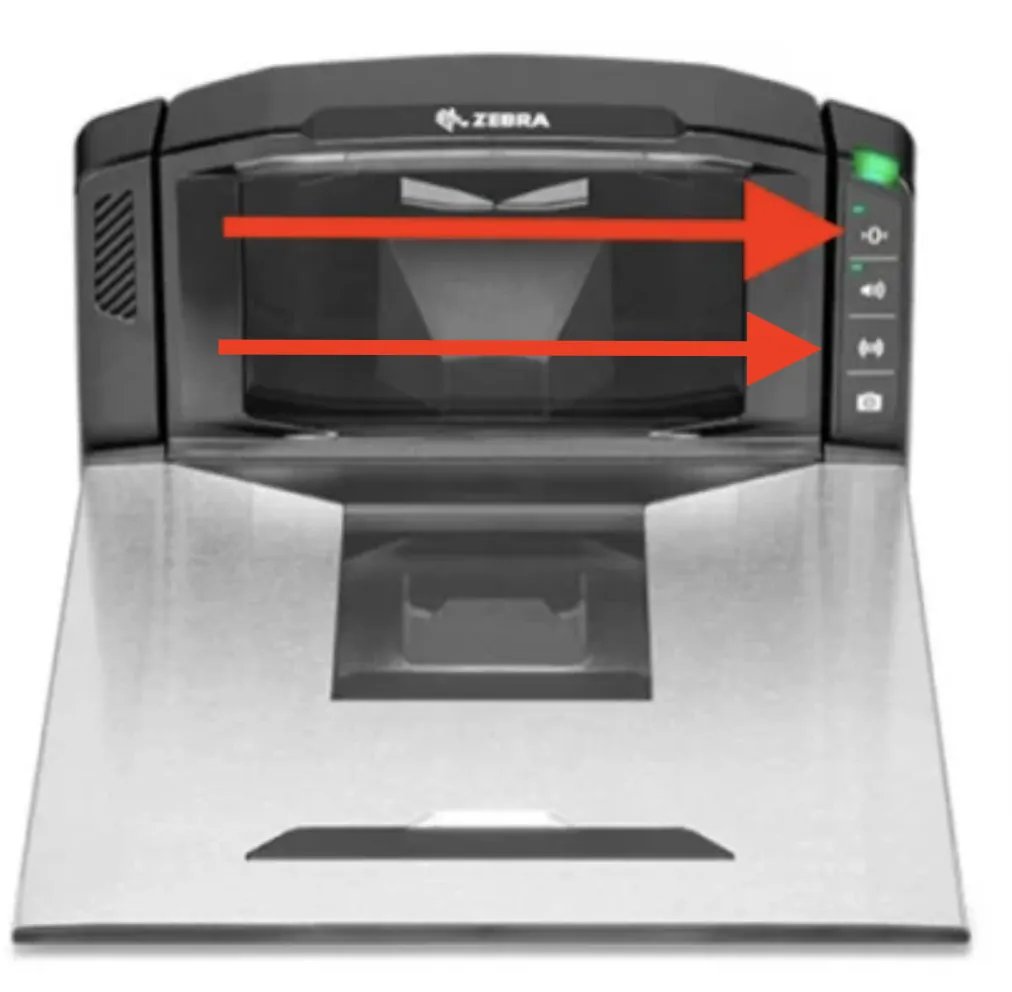
 **3. Perform a soft reset** A soft reset is often the quickest way to resolve connectivity errors.
* Locate the button panel on the right side of the scanner tower.
* Press and hold the **Zero** (`>0<`) button and the **EAS** (`((o))`) button simultaneously.
* Hold until the scanner emits a reboot tone.
**3. Perform a soft reset** A soft reset is often the quickest way to resolve connectivity errors.
* Locate the button panel on the right side of the scanner tower.
* Press and hold the **Zero** (`>0<`) button and the **EAS** (`((o))`) button simultaneously.
* Hold until the scanner emits a reboot tone.
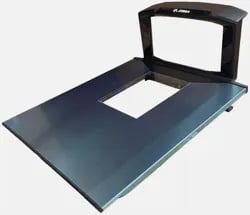
 **4. Check for debris** Lift the weight plate off the scale. Remove any debris that may have fallen underneath. Place the weight plate back on the scale, ensuring it is flush and aligned.
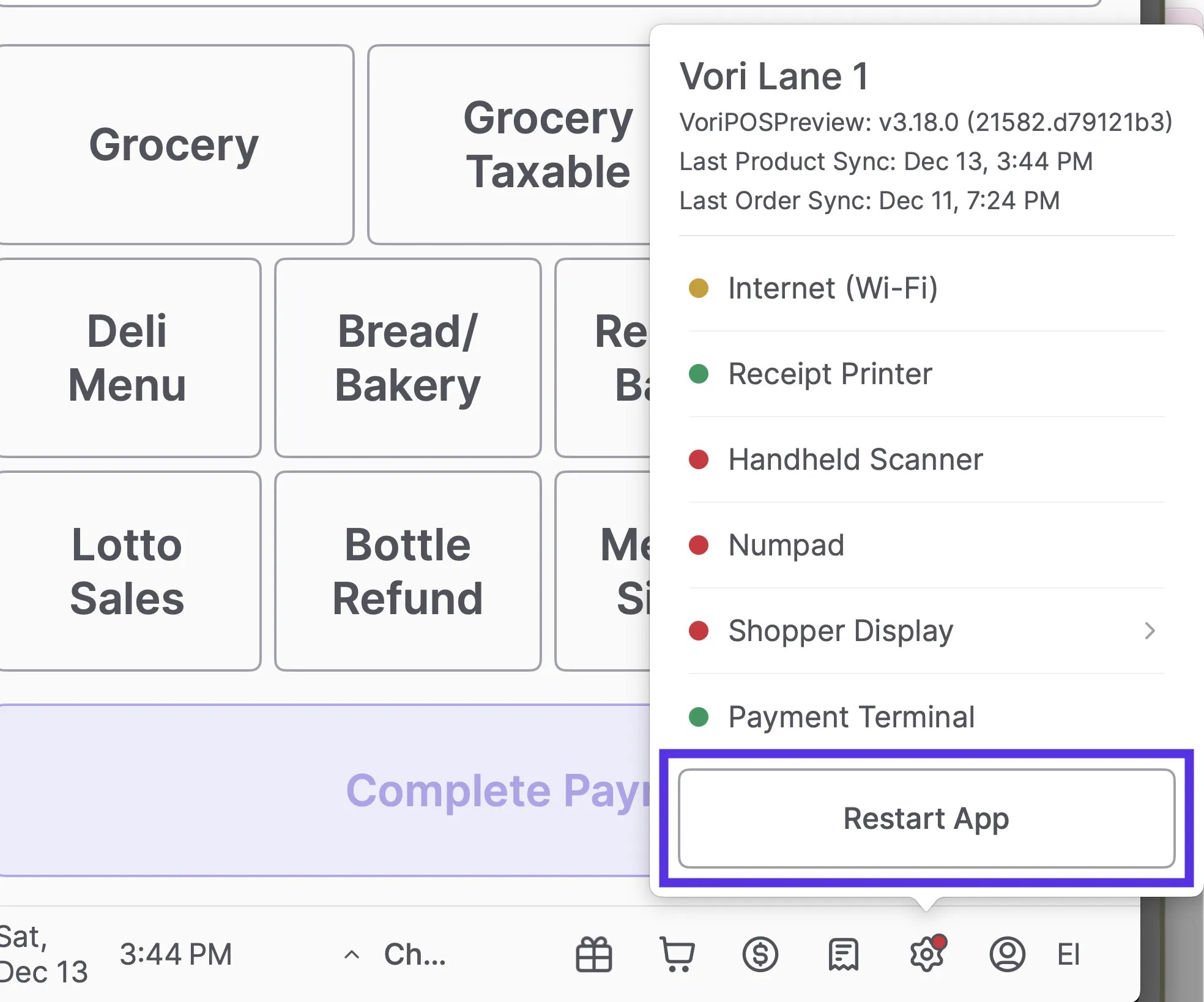
 **5. Restart the POS app** On the cashier screen, tap the **Gear icon** > **Device Status**. Select **Restart App**. Log back in to check the connection.
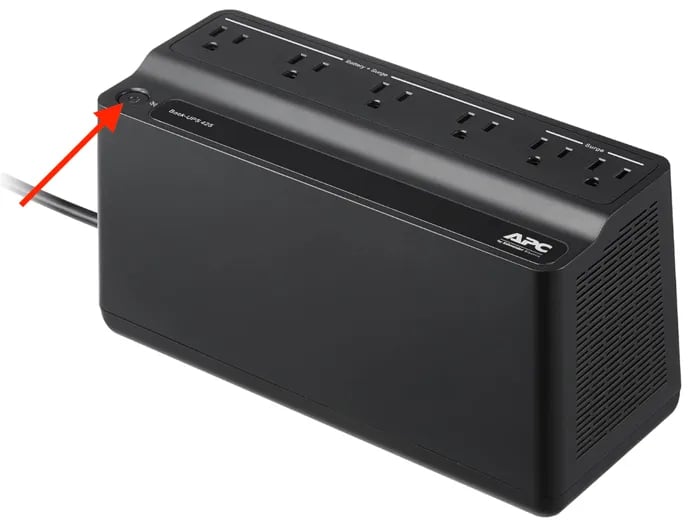
 **6. Power cycle the lane** Locate the UPS (Uninterruptible Power Supply) under the counter. Hold the power button for 5 seconds to turn it off. Wait 10 seconds, then hold the button again to turn the system back on. Once the system powers back on, enter the admin password (654321) when prompted on the cashier screen.
 ***
### Troubleshoot "Scale Disconnected"
If the live weight display shows the error message **"Scale disconnected"**, the POS cannot communicate with the hardware.
**1. Check the power** Verify the scale is turned on (check for lights or startup beeps). If the scale is off, check that the power cable is securely connected at the wall and the base of the scanner.\\
***
### Troubleshoot "Scale Disconnected"
If the live weight display shows the error message **"Scale disconnected"**, the POS cannot communicate with the hardware.
**1. Check the power** Verify the scale is turned on (check for lights or startup beeps). If the scale is off, check that the power cable is securely connected at the wall and the base of the scanner.\\
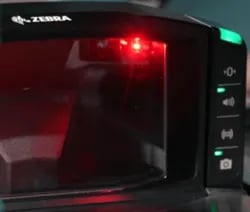 **2. Perform a soft reset** Follow the directions in Step 3 above to reset the scanner using the **Zero** and **EAS** buttons.
**3. Restart the POS app** On the cashier screen, tap the **Gear icon** > **Device Status**. Select **Restart App**.
**4. Power cycle the lane** Locate the UPS (Uninterruptible Power Supply) under the counter. Hold the power button for 5 seconds to turn it off. Wait 10 seconds, then hold the button again to turn the system back on.
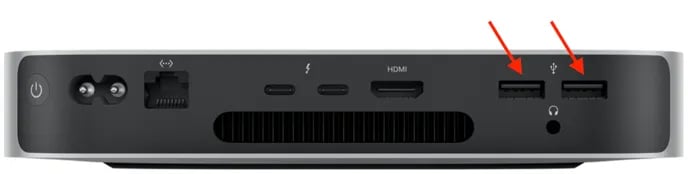
**5.** **Check communication cables** Confirm the scanner's USB communication cable is fully inserted into the back of the POS computer. The cable should be inserted into either USB-A port on the back of the POS computer.
**2. Perform a soft reset** Follow the directions in Step 3 above to reset the scanner using the **Zero** and **EAS** buttons.
**3. Restart the POS app** On the cashier screen, tap the **Gear icon** > **Device Status**. Select **Restart App**.
**4. Power cycle the lane** Locate the UPS (Uninterruptible Power Supply) under the counter. Hold the power button for 5 seconds to turn it off. Wait 10 seconds, then hold the button again to turn the system back on.
**5.** **Check communication cables** Confirm the scanner's USB communication cable is fully inserted into the back of the POS computer. The cable should be inserted into either USB-A port on the back of the POS computer.
 ⚠️ **Note:** If these steps do not resolve the issue, please contact Vori support.
***
### Scale is Making an Unusually Loud Beep
The scale cycles through different decode tones, and it may land on one that is jarring or disruptive during checkout. This is not a malfunction — the tone can be changed in a few seconds.
**To change the decode tone:**
1. Locate the **Volume** button on the scanner scale's button panel.
2. Press and hold the **Volume** button for 3 seconds.
3. After 2 seconds, the scale will play the current tone.
4. At 3 seconds, the scale will switch to a new tone.
5. Release the button once you hear a tone that works for your store.
Repeat as needed to cycle through available tones until you find one that fits.
## Related topics
- [Frequently Asked Questions](/faqs.md)
- [Hardware Troubleshooting Guide](/getting-started-with-vori/support/hardware-troubleshooting.md)
- [How to prepare countertop cutouts for Zebra scanner scale installation](/hardware-and-peripherals/cashier-handheld-scanner-and-countertop-scale/how-to-prepare-countertop-cutouts-for-zebra-scanner-scale-installation.md)
⚠️ **Note:** If these steps do not resolve the issue, please contact Vori support.
***
### Scale is Making an Unusually Loud Beep
The scale cycles through different decode tones, and it may land on one that is jarring or disruptive during checkout. This is not a malfunction — the tone can be changed in a few seconds.
**To change the decode tone:**
1. Locate the **Volume** button on the scanner scale's button panel.
2. Press and hold the **Volume** button for 3 seconds.
3. After 2 seconds, the scale will play the current tone.
4. At 3 seconds, the scale will switch to a new tone.
5. Release the button once you hear a tone that works for your store.
Repeat as needed to cycle through available tones until you find one that fits.
## Related topics
- [Frequently Asked Questions](/faqs.md)
- [Hardware Troubleshooting Guide](/getting-started-with-vori/support/hardware-troubleshooting.md)
- [How to prepare countertop cutouts for Zebra scanner scale installation](/hardware-and-peripherals/cashier-handheld-scanner-and-countertop-scale/how-to-prepare-countertop-cutouts-for-zebra-scanner-scale-installation.md)