> ## Documentation Index
> Fetch the complete documentation index at: https://help.vori.com/llms.txt
> Use this file to discover all available pages before exploring further.
# How to download TeamViewer
> This article explains how to download TeamViewer and share access credentials with Vori Support.
### Introduction
TeamViewer is a secure remote support tool that allows Vori’s Support team to access a store’s computer with permission. Downloading and launching the Quick Support version of TeamViewer enables one-time access—no account or installation required. This article outlines the steps for both Mac and Windows computers.
***
### Directions for Mac
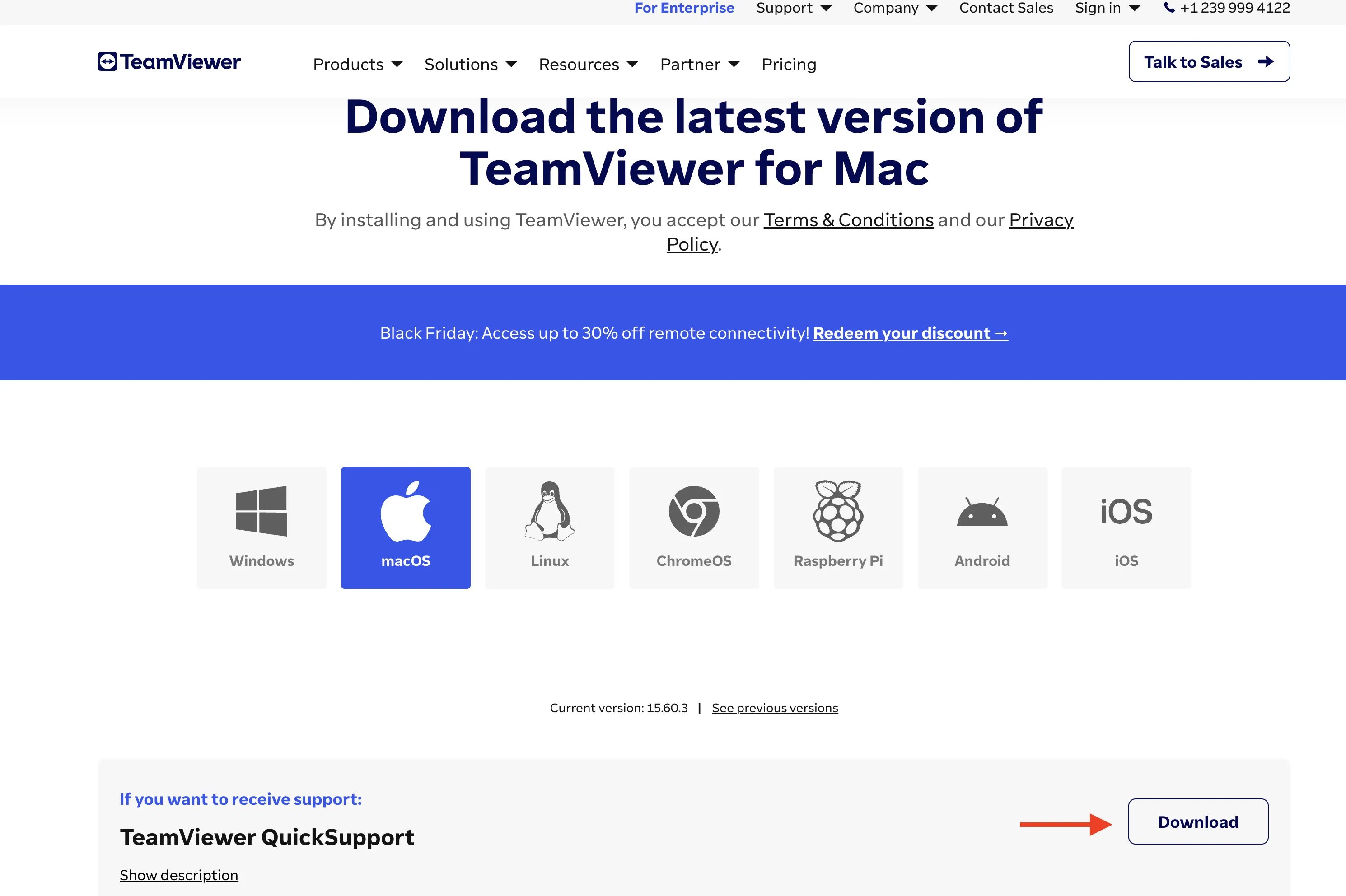
1. Click t[his link](https://www.teamviewer.com/en-us/download/macos/?coupon=CMP-PR-BF24) to open the TeamViewer download page.
2. Go to TeamViewer Quick Support, select **`Download`.**
 3. Open the downloaded file.
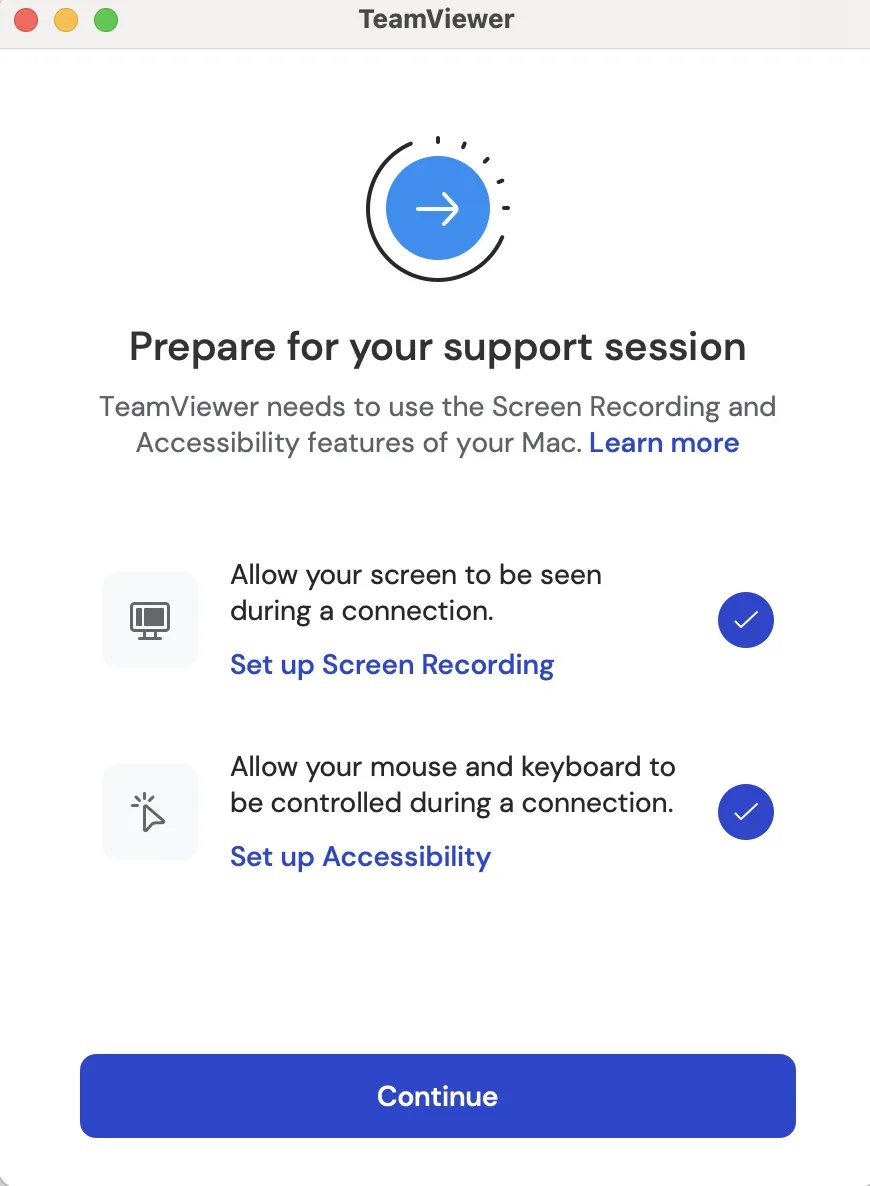
4. Allow permissions for **Set up Screen Recording** and **Set up Accessibility,** then continue.
3. Open the downloaded file.
4. Allow permissions for **Set up Screen Recording** and **Set up Accessibility,** then continue.
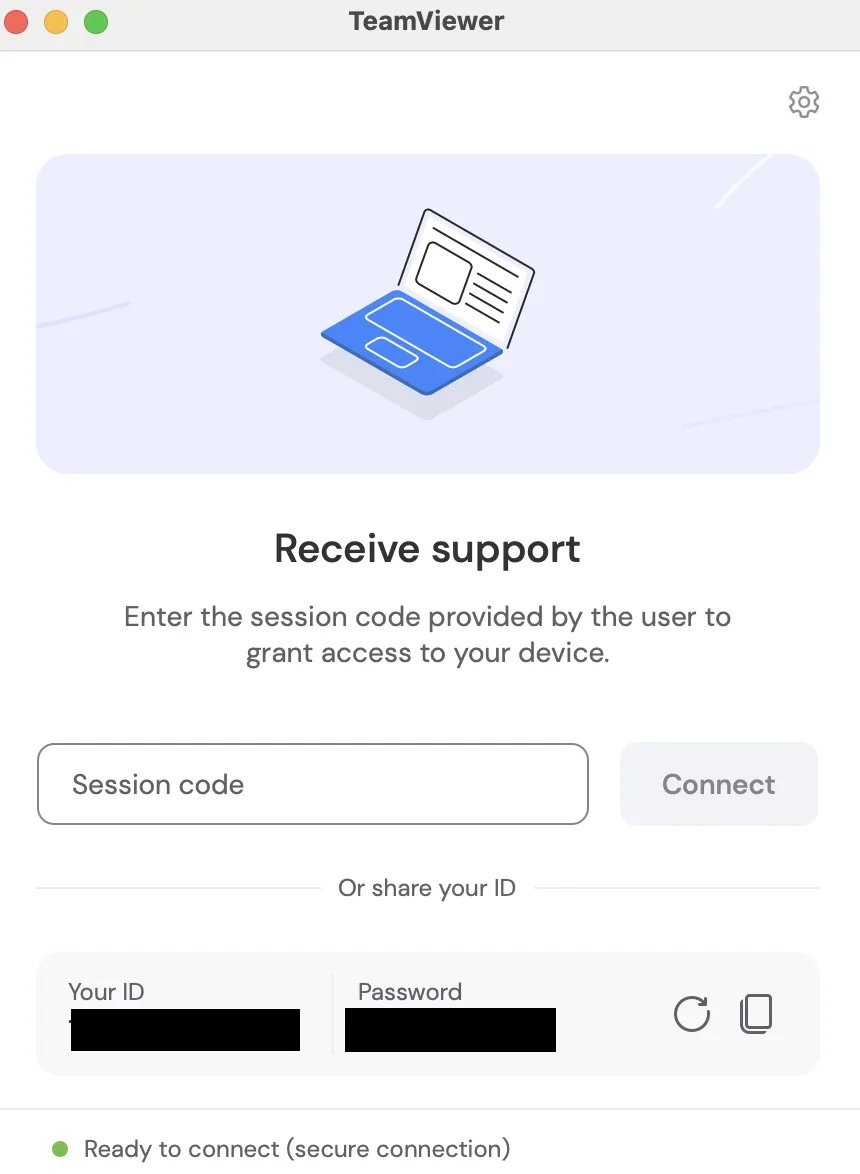
 5. Under Receive support, locate the Your ID and Password fields.
6. Provide both the **ID** and **Password** to **Vori Support**.
5. Under Receive support, locate the Your ID and Password fields.
6. Provide both the **ID** and **Password** to **Vori Support**.
 ***
### Steps for Windows
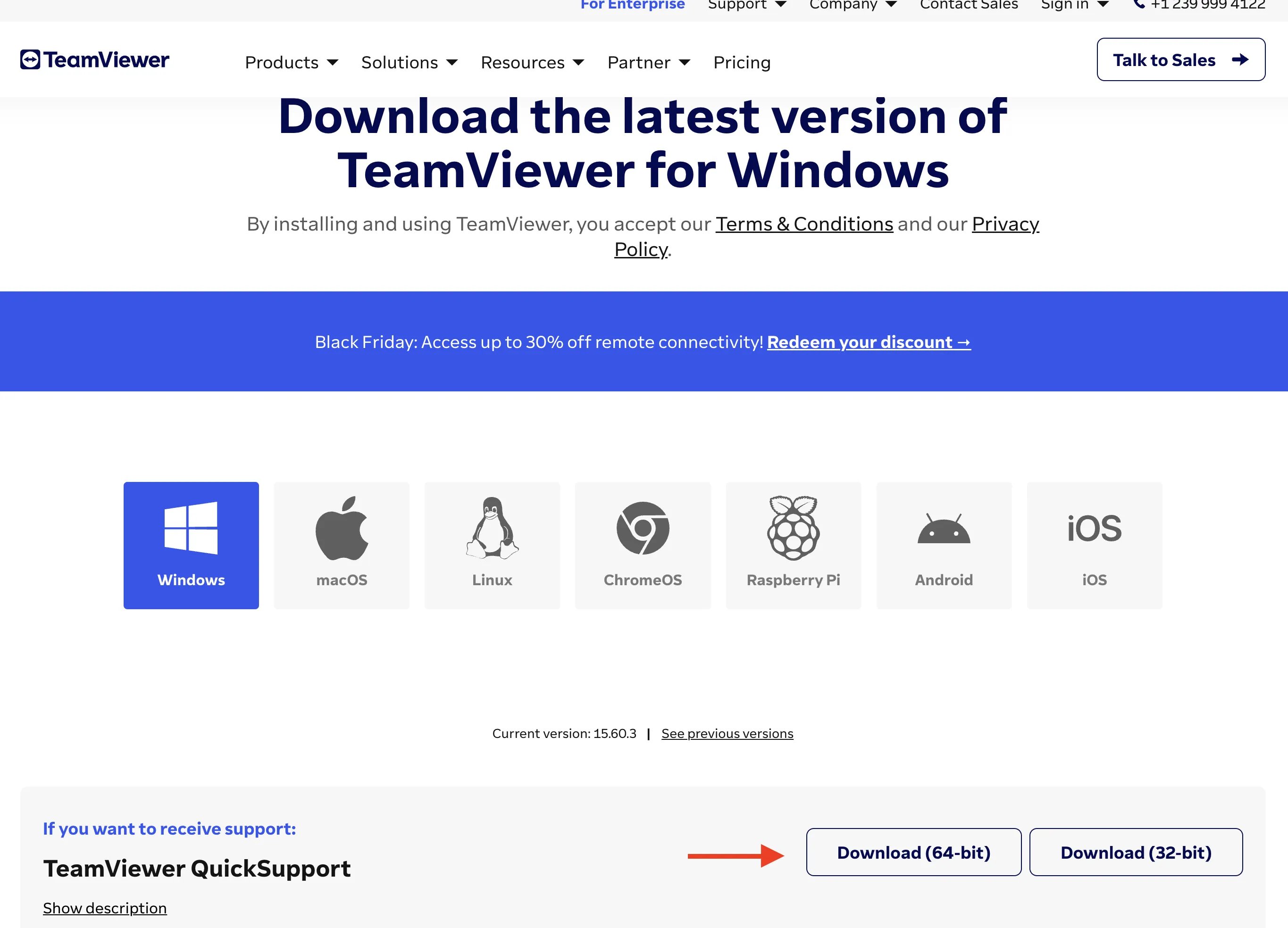
1. Click [this link](https://www.teamviewer.com/en-us/download/windows/?coupon=CMP-PR-BF24) to open the TeamViewer download page.
2. Go to TeamViewer Quick Support, select **`Download (64-bit)`.**
***
### Steps for Windows
1. Click [this link](https://www.teamviewer.com/en-us/download/windows/?coupon=CMP-PR-BF24) to open the TeamViewer download page.
2. Go to TeamViewer Quick Support, select **`Download (64-bit)`.**
 3. Open the downloaded file.
4. Approve all required permissions.
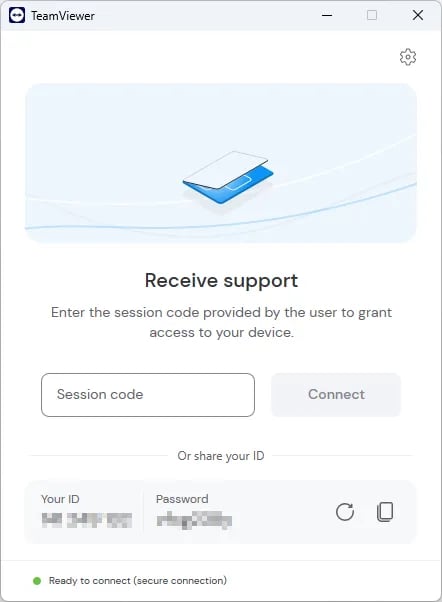
5. Under Receive support, locate the Your ID and Password fields.
6. Provide both the ID and Password to Vori Support.
3. Open the downloaded file.
4. Approve all required permissions.
5. Under Receive support, locate the Your ID and Password fields.
6. Provide both the ID and Password to Vori Support.
 ✏️ **Note -** TeamViewer QuickSupport allows Vori to view and troubleshoot issues live. No persistent access is granted once the session ends.
## Related topics
- [Hardware Troubleshooting Guide](/getting-started-with-vori/support/hardware-troubleshooting.md)
- [How to Download UNFI Invoices for Cost Change Review](/cost-changes-and-smart-pricing/unfi-and-supervalu/how-to-download-unfi-invoices-for-cost-change-review.md)
- [Frequently Asked Questions](/faqs.md)
✏️ **Note -** TeamViewer QuickSupport allows Vori to view and troubleshoot issues live. No persistent access is granted once the session ends.
## Related topics
- [Hardware Troubleshooting Guide](/getting-started-with-vori/support/hardware-troubleshooting.md)
- [How to Download UNFI Invoices for Cost Change Review](/cost-changes-and-smart-pricing/unfi-and-supervalu/how-to-download-unfi-invoices-for-cost-change-review.md)
- [Frequently Asked Questions](/faqs.md)