![vori-logo-black-horizontal-01 (1).png]](https://help.vori.com/hs-fs/hubfs/vori-logo-black-horizontal-01%20(1).png?height=42&name=vori-logo-black-horizontal-01%20(1).png)
Table of Contents
- Confirm Correct Password Entry
- Understand Mac Lockout Behavior
- Restart the POS Lane (Mac)
- Check the 10-Key (Numeric Keypad)
- Reconnect the 10-Key Keyboard
- Contact Support
Confirm Correct Password Entry
After a restart, the system will prompt for the admin password:
Admin Password: 654321
Carefully re-enter the password and ensure:
-
Each digit is entered correctly
-
No extra or missing numbers are included
If the password is still not accepted, proceed to the next step.
Understand Mac Lockout Behavior
Mac devices have built-in security protections for incorrect password attempts:
-
After multiple failed attempts, the system will temporarily lock you out
-
Each additional failed attempt may result in a longer timeout period
✏️ Note:
-
Wait for the timeout period to expire before trying again
-
You may also try restarting the Mac, which can reset the lockout timer and allow another attempt
If you’re able to try again but the password still fails, proceed to the next step.
Restart the POS Lane (Mac)
Restarting the POS lane can help reset login attempts and clear temporary issues.
-
Restart the Mac from the login screen or power button
-
Wait for the cashier screen to reload
-
Re-enter the admin password: 654321
If the password is still not accepted, proceed to the next step.
Check the 10-Key (Numeric Keypad)
There may be an issue with the keypad not properly registering inputs.
To test:
-
On the password screen, press each number one at a time
-
Watch the password field to confirm each keypress is being registered
-
Do not press Enter, just confirm input appears
If numbers are not appearing correctly, the keypad may be the issue.
If all numbers are registering but the password still fails, proceed to the next step.
Reconnect the 10-Key Keyboard
If the keypad appears functional but the password is not accepted:
-
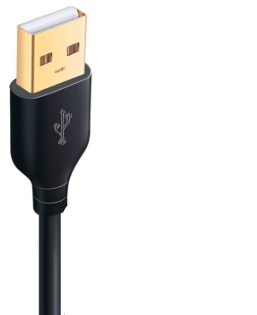
Locate the 10-key (numeric keypad) cable under the POS counter. It is plugged directly into the lane's Mac computer.
-
Unplug the cable
-
Wait a few seconds
-
Plug it back in securely
-
Try entering the password again
If the issue persists, proceed to the next step.
Contact Support
If:
-
All numbers are registering correctly
-
The password 654321 is still not accepted
Then it’s possible the admin password has been changed.
Please contact Vori Support for assistance with confirming or resetting the admin password.
Summary
This issue is typically caused by one of the following:
-
Too many incorrect attempts causing a temporary lockout
-
Incorrect password entry
-
Keypad input issues
-
Admin password has been changed
If you’re still unable to log in after following these steps, please reach out to support for further assistance.