> ## Documentation Index
> Fetch the complete documentation index at: https://help.vori.com/llms.txt
> Use this file to discover all available pages before exploring further.
# Export Your Product File from Clover
> Export your item file from Clover so you can send it to your Vori onboarding contact
### Introduction
If you're switching to Vori from Clover, your onboarding contact needs your existing product file to build out your catalog. Clover exports this as a single spreadsheet with a few tabs, and you'll send those tabs to Vori as CSV files.
***
### How to export your product file from Clover
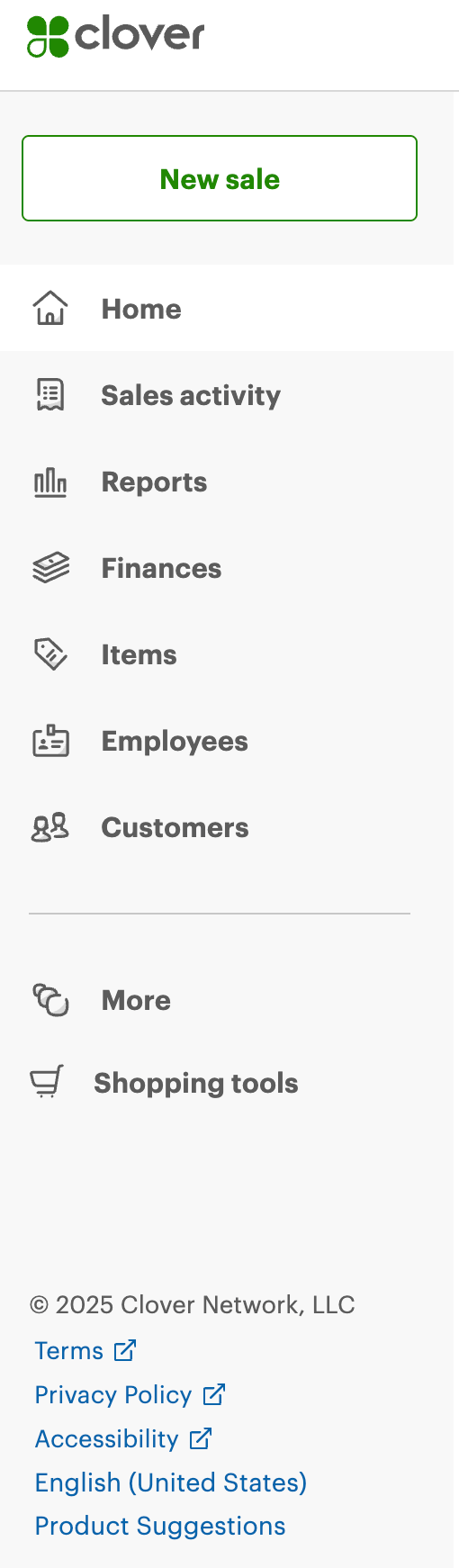
1. Log in to Clover and go to **Items** > **Item list** in the left-hand menu.
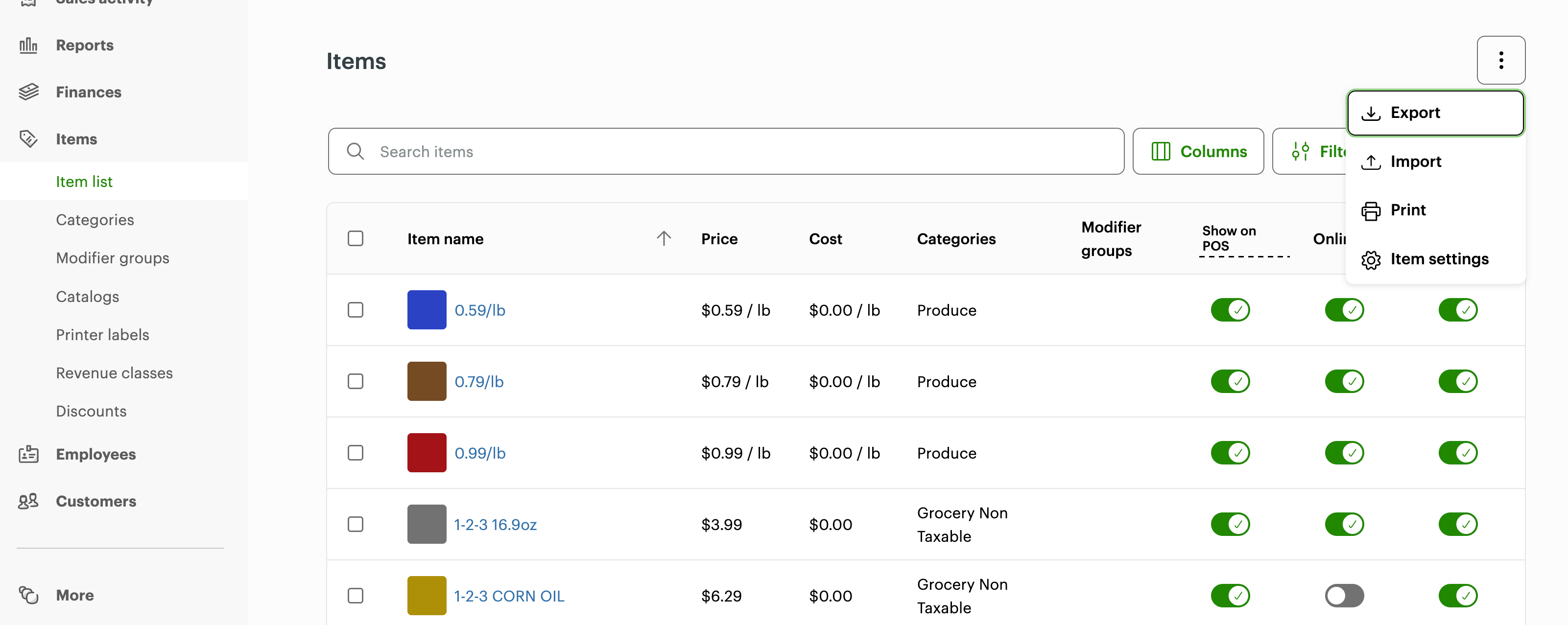
 2. In the Item list, click the **⋮** (three dots) in the top-right corner, then choose **Export**.
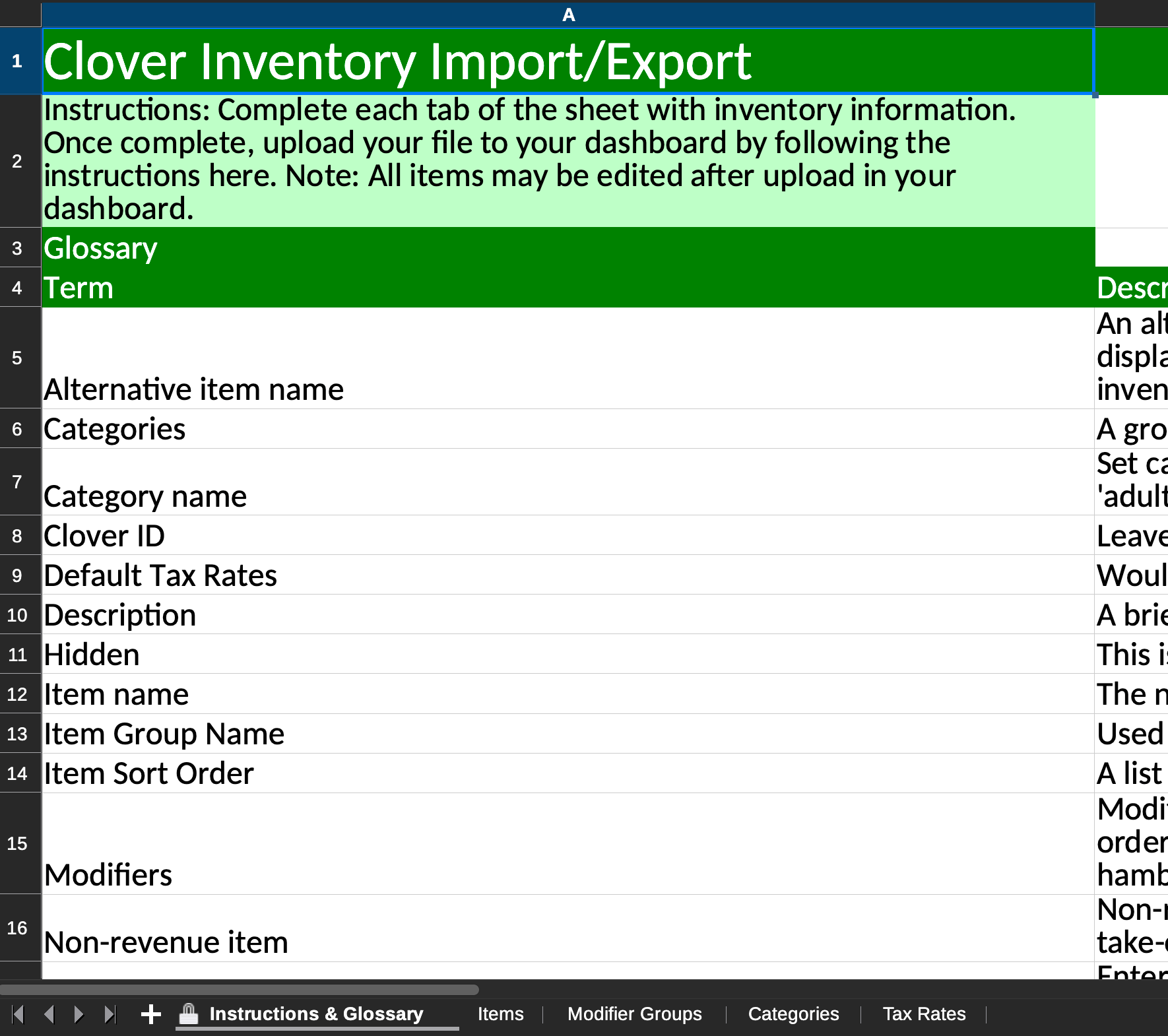
 3. Clover downloads an Excel file with several tabs: **Items**, **Modifier Groups**, **Categories**, and **Tax Rates**. Some tabs may be empty depending on your setup — that's expected.
 4. Save each tab you need as its own CSV file.
5. Send the exported file(s) to your Vori onboarding contact.
## Related topics
- [Export the Product Catalog](/product-and-product-catalog-management/product-catalog-and-bulk-management/how-to-export-the-product-catalog.md)
- [Export Regular or Promotion Items for Third-Party Tag Printing](/product-and-product-catalog-management/product-catalog-and-bulk-management/export-items-for-third-party-tag-printing.md)
- [Explore the Product Catalog](/product-and-product-catalog-management/product-catalog-and-bulk-management/explore-the-product-catalog.md)
4. Save each tab you need as its own CSV file.
5. Send the exported file(s) to your Vori onboarding contact.
## Related topics
- [Export the Product Catalog](/product-and-product-catalog-management/product-catalog-and-bulk-management/how-to-export-the-product-catalog.md)
- [Export Regular or Promotion Items for Third-Party Tag Printing](/product-and-product-catalog-management/product-catalog-and-bulk-management/export-items-for-third-party-tag-printing.md)
- [Explore the Product Catalog](/product-and-product-catalog-management/product-catalog-and-bulk-management/explore-the-product-catalog.md)