> ## Documentation Index
> Fetch the complete documentation index at: https://help.vori.com/llms.txt
> Use this file to discover all available pages before exploring further.
# Link a Product to an Electronic Shelf Label (ESL)
> Use the Vusion Link app to quickly pair your digital labels with the products on your shelves, ensuring the POS prices and shelf tags always match
### Before You Start
Make sure you have your tools ready so you can move fast on the floor.
**Required Materials**
* **A registered and online ESL:** The label must be active on your network.
👉 [Follow the guide to register ESL](/electronic-shelf-labels-esls/how-to-register-a-case-of-esls-in-the-vusion-link-app)
* [**Vusion Link App**](https://apps.apple.com/us/app/vusion-link/id1542333267)**:** Installed on your iPhone and logged into your **store** profile.
* **Product File:** Ensure the item(s) are already on file in your **product** catalog in the New Back Office ([app.vori.com](http://app.vori.com)).
***
### Link a Product to an ESL
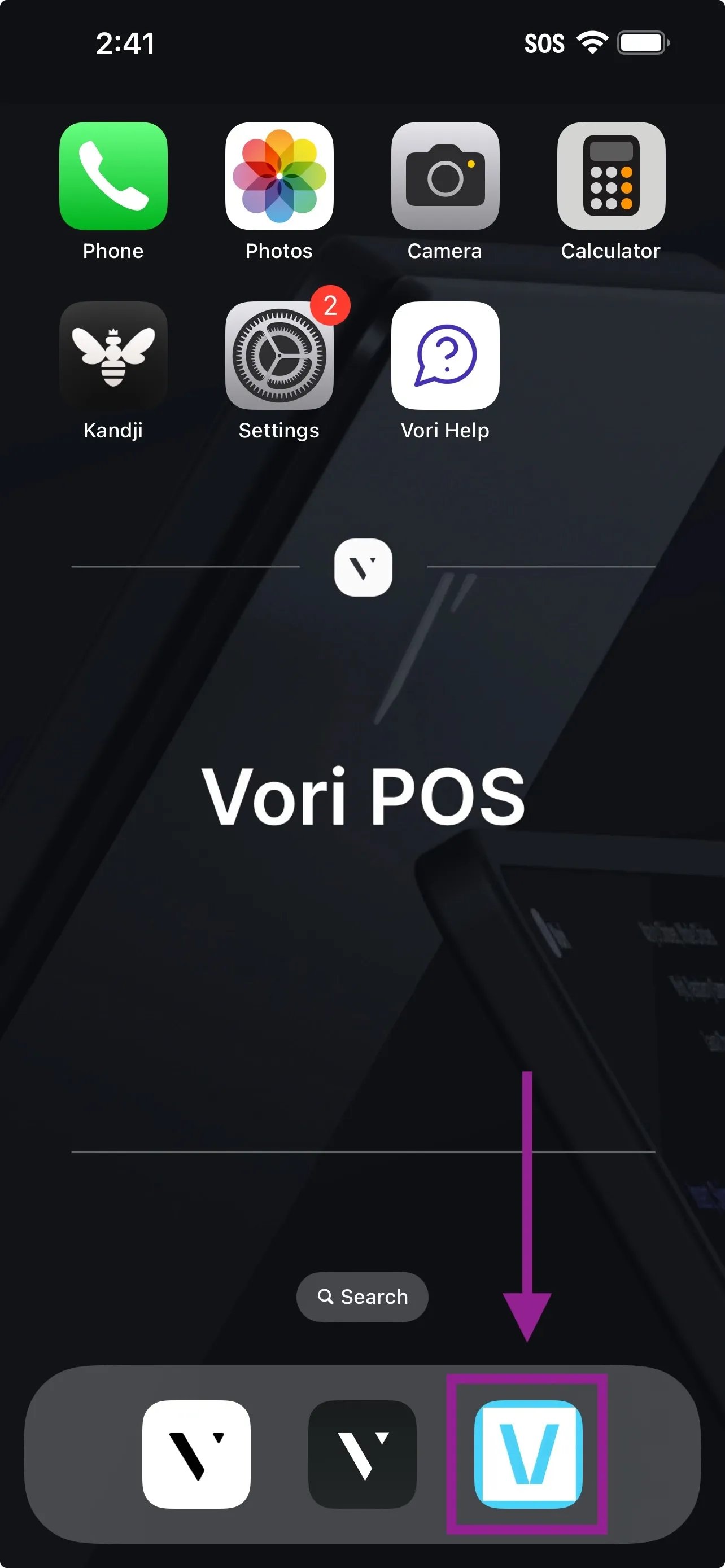
1. **Open the Vusion Link app** on your iPhone.
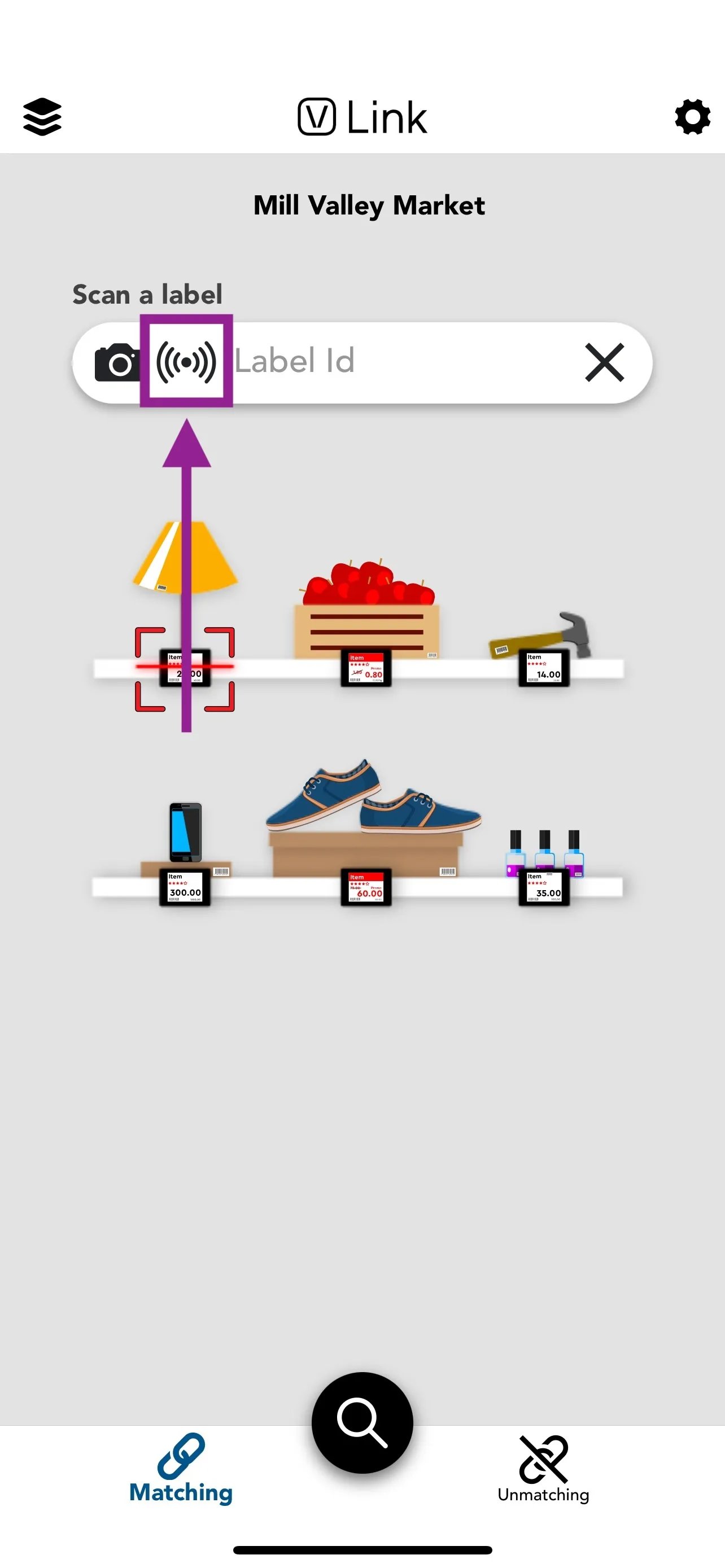
 2. **Select the Signal icon** when the **"Ready to Scan"** prompt appears.
 3. **Tap the top of your phone** against the ESL tag to identify the label.\*\*
\*\*
4. **Enter the product code** using one of these methods:
1. **If the product has a barcode:** Tap the **Camera** icon and scan the product barcode.
3. **Tap the top of your phone** against the ESL tag to identify the label.\*\*
\*\*
4. **Enter the product code** using one of these methods:
1. **If the product has a barcode:** Tap the **Camera** icon and scan the product barcode.
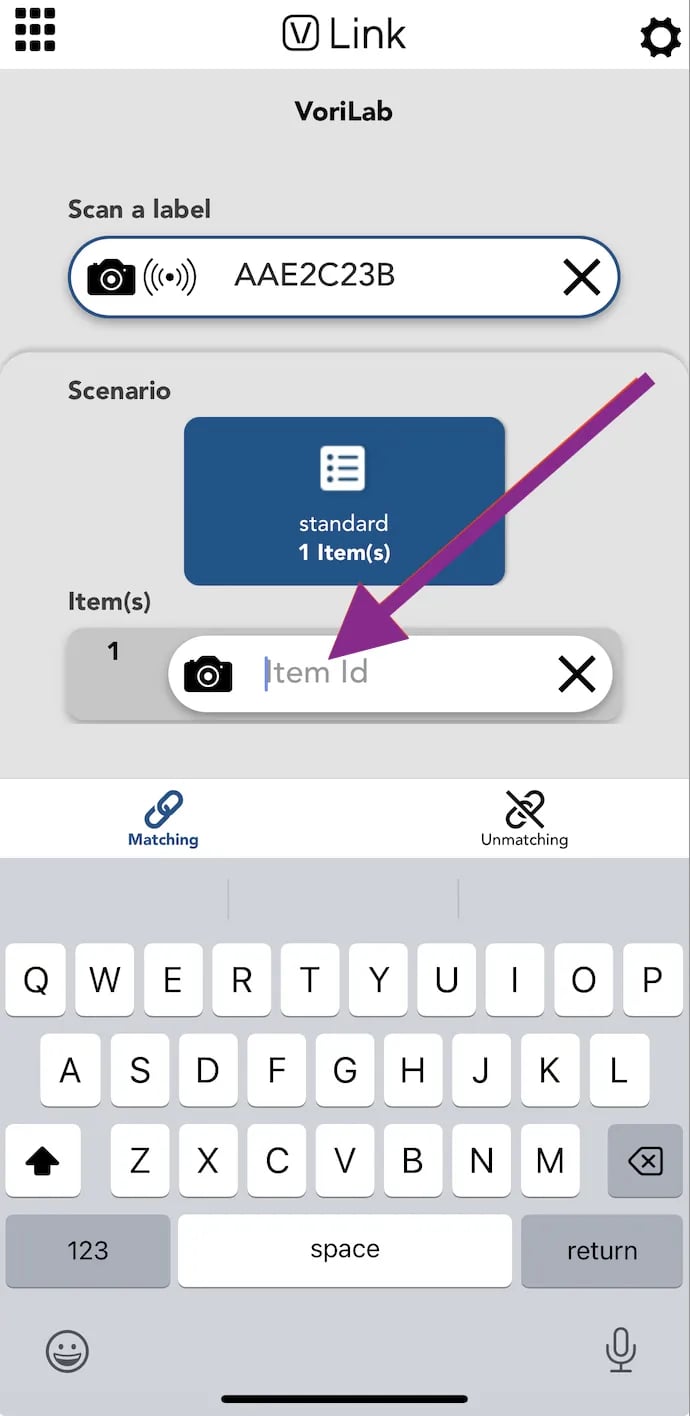
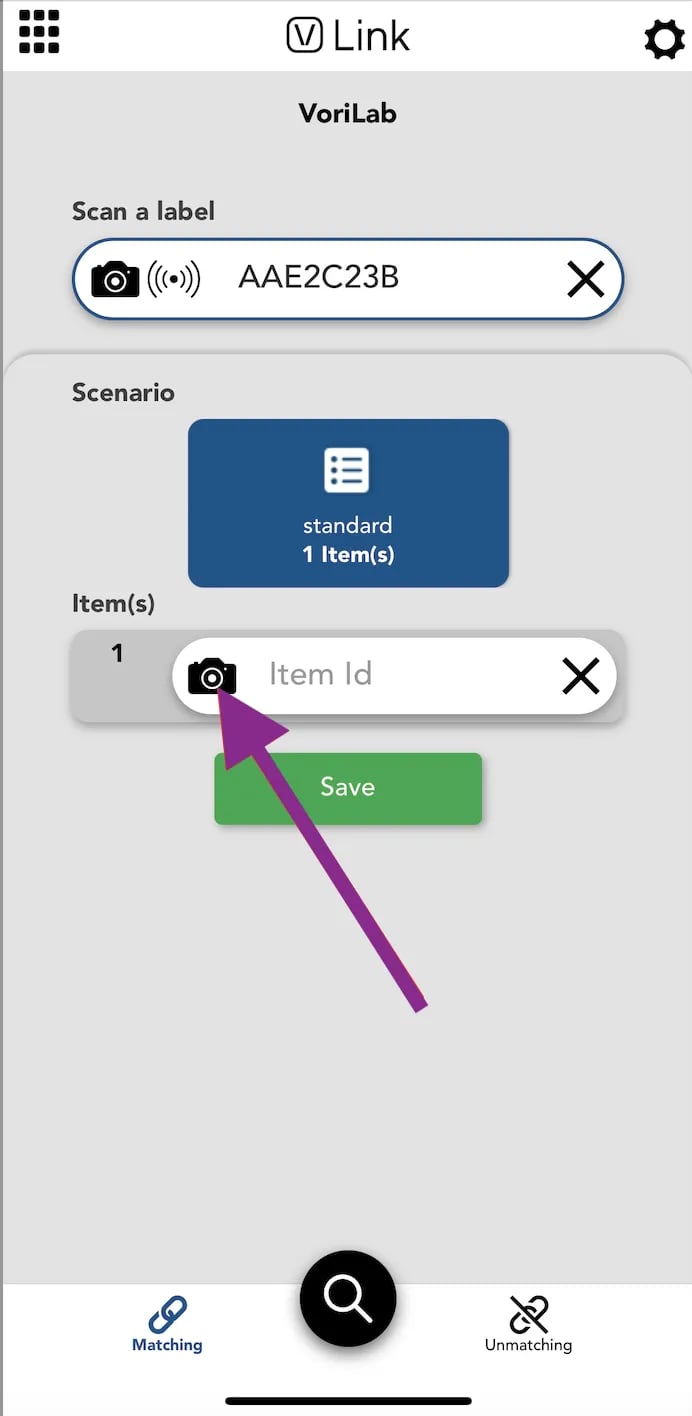 2. **If there is no barcode:** Tap the **Item ID** field and manually type the product code (e.g., PLU code).
 3. **Search by Product Name:** Tap out of the **Item** field and select the **magnifying glass** to search by product name. From there, enter the item in the search field, then tap the **blue chain link** to create the match.
 .
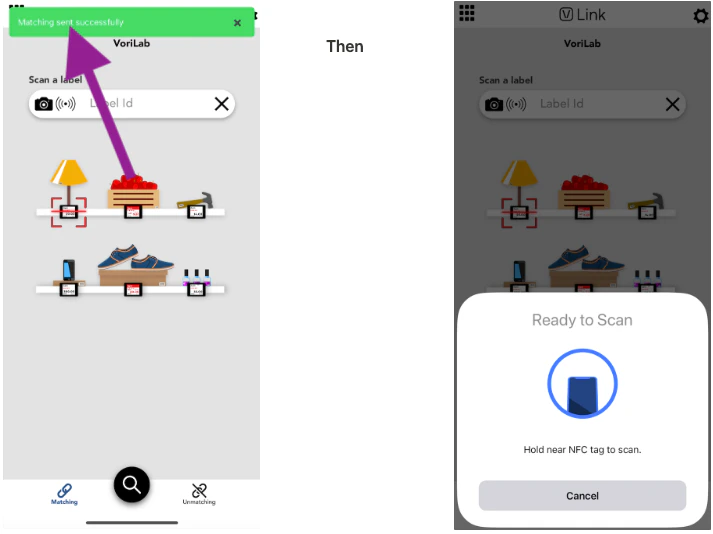
.  5. **Confirm the link:** A green confirmation banner will appear at the top of the screen once successful.
1. **✏️ Note:** It may take up to 1 minute for the ESL to update depending on your signal strength.
6. The **"Ready to Scan"** prompt will automatically reopen so you can move straight to the next item.
5. **Confirm the link:** A green confirmation banner will appear at the top of the screen once successful.
1. **✏️ Note:** It may take up to 1 minute for the ESL to update depending on your signal strength.
6. The **"Ready to Scan"** prompt will automatically reopen so you can move straight to the next item.
 ***
### Troubleshooting
**What if the ESL doesn't pair?**
* **Check Registration:** Ensure the ESL is registered and within range of your access point.
* **Retry:** Try scanning the tag again or restart the app if it stalls.
* **Verify Code:** Double-check for typos if you entered the product code manually.
\*\*What if the ESL displays a question mark?
***
### Troubleshooting
**What if the ESL doesn't pair?**
* **Check Registration:** Ensure the ESL is registered and within range of your access point.
* **Retry:** Try scanning the tag again or restart the app if it stalls.
* **Verify Code:** Double-check for typos if you entered the product code manually.
\*\*What if the ESL displays a question mark?

 \*\*
A **"?"** symbol means the product is not in your **store's** product file.
* Verify the item exists in your product catalog in the New Back Office.
* If it exists, try manually entering the code instead of scanning.
✏️ **Note:** You cannot link products that are not on file.
## Related topics
- [How to troubleshoot ESL linking issues with Type-2 UPCs](/electronic-shelf-labels-esls/how-to-troubleshoot-esl-linking-issues-with-type-2-upcs.md)
- [Wide Large 3" x 1.5" Label Tags](/hardware-and-peripherals/tag-printer/wide-large-3-x-1-5-label-tags.md)
- [How to search, view, & troubleshoot ESLs using Vusion Manager](/electronic-shelf-labels-esls/how-to-search-view-and-troubleshoot-esls-using-vusion-manager.md)
\*\*
A **"?"** symbol means the product is not in your **store's** product file.
* Verify the item exists in your product catalog in the New Back Office.
* If it exists, try manually entering the code instead of scanning.
✏️ **Note:** You cannot link products that are not on file.
## Related topics
- [How to troubleshoot ESL linking issues with Type-2 UPCs](/electronic-shelf-labels-esls/how-to-troubleshoot-esl-linking-issues-with-type-2-upcs.md)
- [Wide Large 3" x 1.5" Label Tags](/hardware-and-peripherals/tag-printer/wide-large-3-x-1-5-label-tags.md)
- [How to search, view, & troubleshoot ESLs using Vusion Manager](/electronic-shelf-labels-esls/how-to-search-view-and-troubleshoot-esls-using-vusion-manager.md)