> ## Documentation Index
> Fetch the complete documentation index at: https://help.vori.com/llms.txt
> Use this file to discover all available pages before exploring further.
# How to generate a Vusion Link login QR code from Vusion Manager
> Generate a Vusion Link login QR code from Vusion Manager.
### Direction
Each Vori store with ESLs is also equipped with a store handheld with the **Vusion Link** app pre-installed. This guide explains how to setup the app on a new phone, but is also helpful if needing help logging back into the app.
#### Required Materials
* Smartphone with internet access.
* Computer with internet access.
* User email registered to Vusion Manager, directions [here.](/electronic-shelf-labels-esls/how-to-sign-into-vusion-manager-for-the-first-time)
***
### Directions
1. On the smartphone, download Vusion Link from the App Store. Then open it.
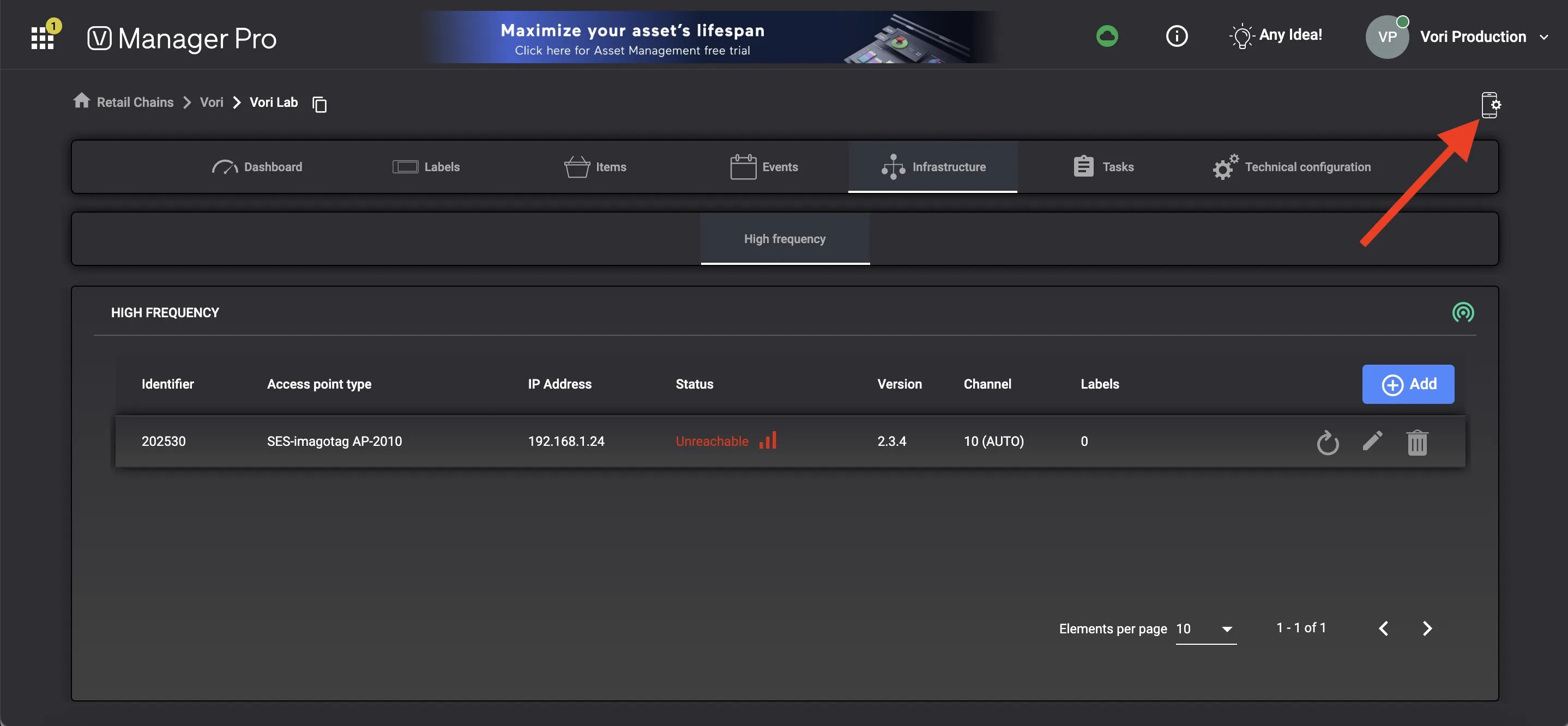
1.  2. On the computer, log into [Vusion Manager](https://manager-us.vusion.io). On your store’s page, select the `**Mobile Configuration**` icon.
1.
2. On the computer, log into [Vusion Manager](https://manager-us.vusion.io). On your store’s page, select the `**Mobile Configuration**` icon.
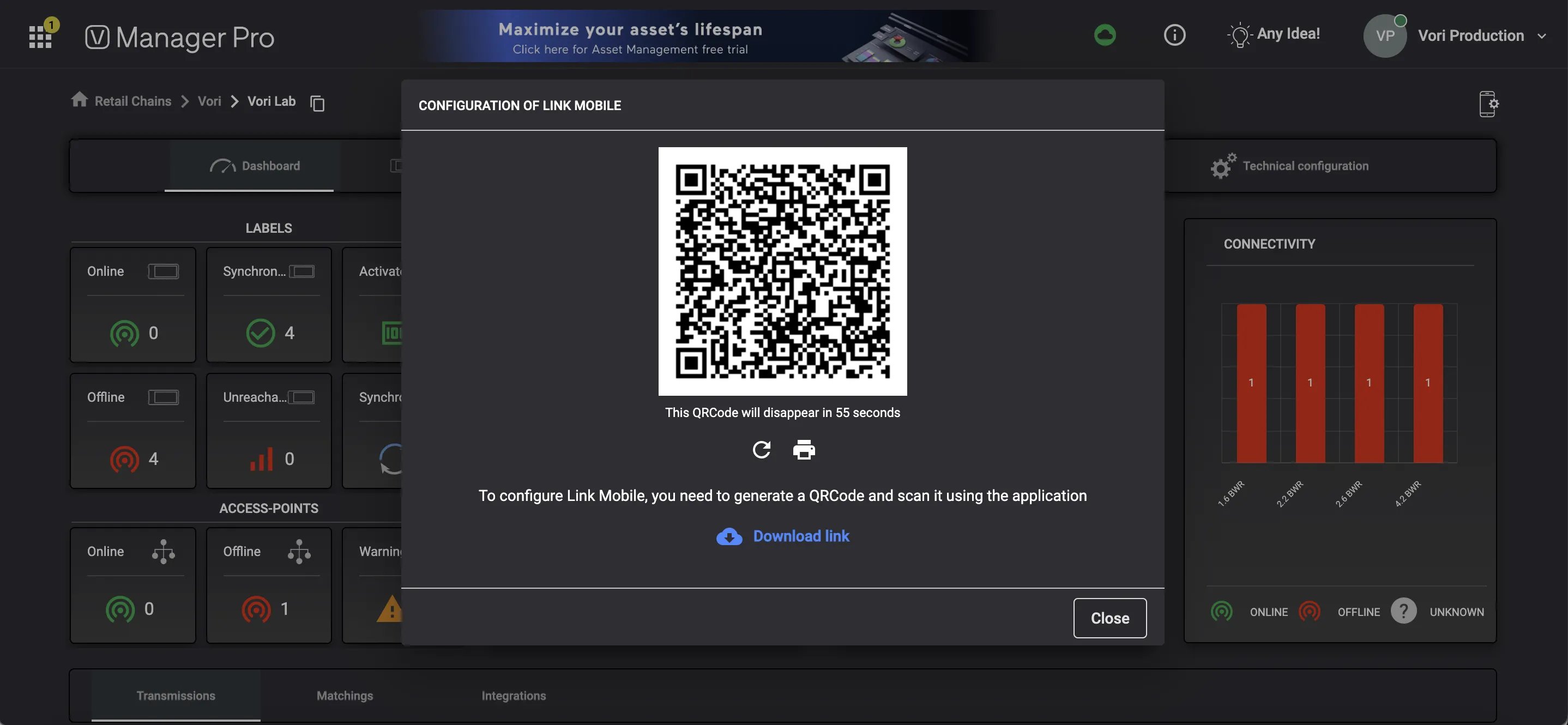
1.  3. A login QR code will be generated.
1.
3. A login QR code will be generated.
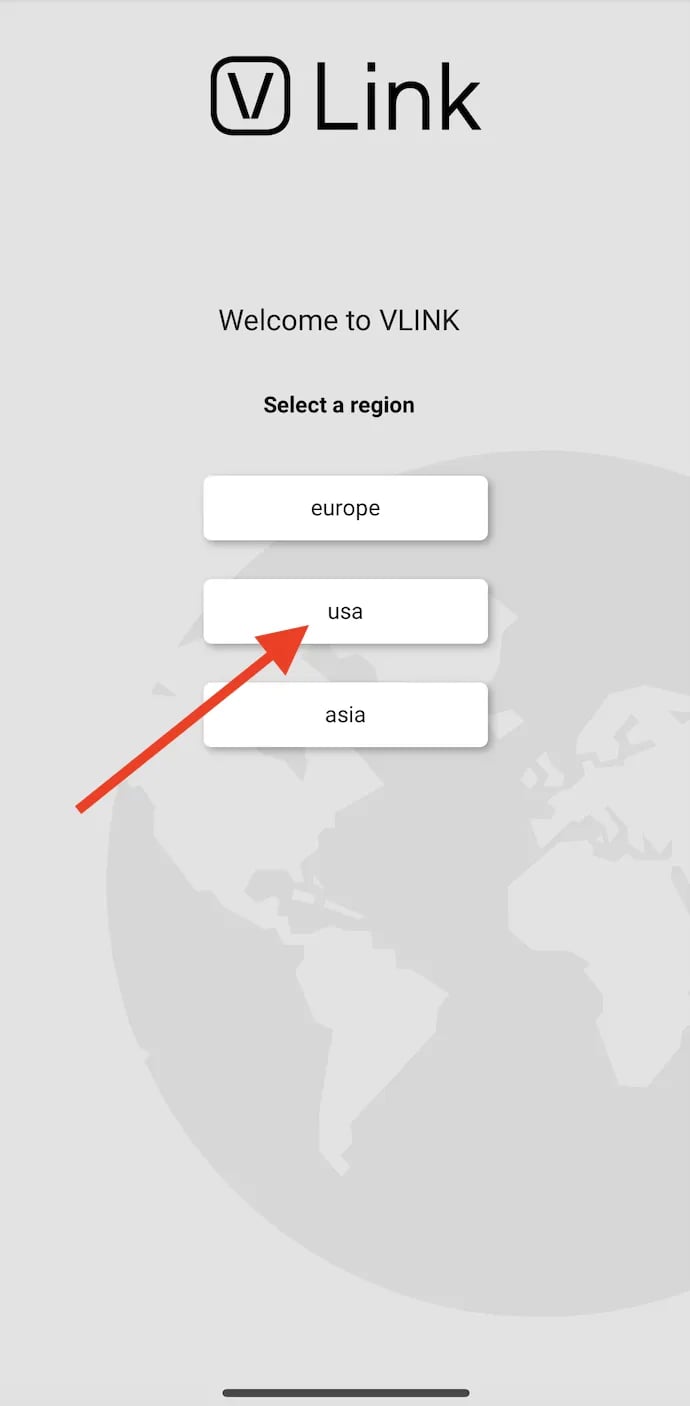
1.  4. In the Vusion Link app on the smartphone, select **USA** on the login screen.
1.
4. In the Vusion Link app on the smartphone, select **USA** on the login screen.
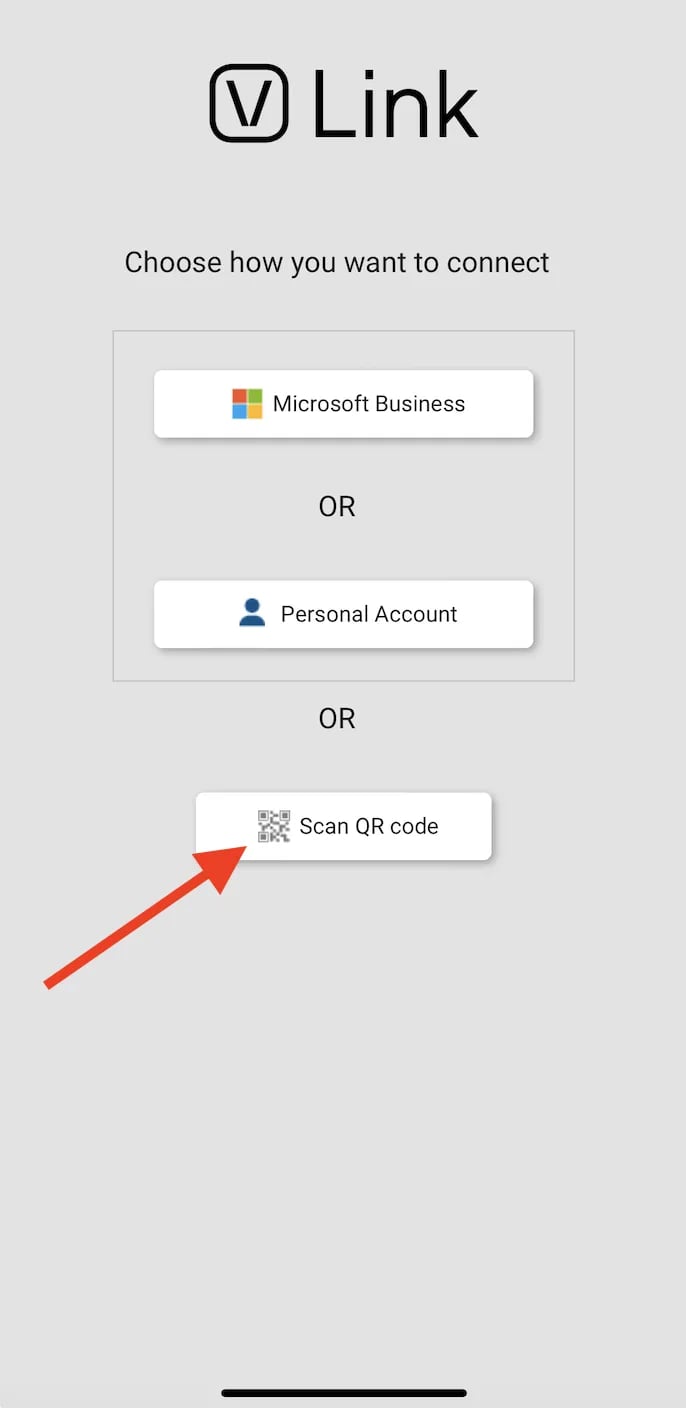
1.  5. Select **Scan QR code**. This will open the smartphone's camera.
1.
5. Select **Scan QR code**. This will open the smartphone's camera.
1.  6. Once the QR code in Vusion Manager is scanned with the smartphone's camera, the the Vusion Link app will automatically log in to the store’s account!
## Related topics
- [How to log into Vusion Link with a QR code generated from a different phone](/electronic-shelf-labels-esls/how-to-log-into-vusion-link-with-a-qr-code-generated-from-a-different-phone.md)
- [How to search, view, & troubleshoot ESLs using Vusion Manager](/electronic-shelf-labels-esls/how-to-search-view-and-troubleshoot-esls-using-vusion-manager.md)
- [How to sign into Vusion Manager for the first time](/electronic-shelf-labels-esls/how-to-sign-into-vusion-manager-for-the-first-time.md)
6. Once the QR code in Vusion Manager is scanned with the smartphone's camera, the the Vusion Link app will automatically log in to the store’s account!
## Related topics
- [How to log into Vusion Link with a QR code generated from a different phone](/electronic-shelf-labels-esls/how-to-log-into-vusion-link-with-a-qr-code-generated-from-a-different-phone.md)
- [How to search, view, & troubleshoot ESLs using Vusion Manager](/electronic-shelf-labels-esls/how-to-search-view-and-troubleshoot-esls-using-vusion-manager.md)
- [How to sign into Vusion Manager for the first time](/electronic-shelf-labels-esls/how-to-sign-into-vusion-manager-for-the-first-time.md)