![vori-logo-black-horizontal-01 (1).png]](https://help.vori.com/hs-fs/hubfs/vori-logo-black-horizontal-01%20(1).png?height=42&name=vori-logo-black-horizontal-01%20(1).png)
Sometimes the system may misread an invoice scan, such as identifying a "Case" as an individual unit ("Each"). Instead of fixing these rows one by one, you can use the Edit Invoice Extraction tool to fix the raw data in bulk.
✏️ Note: This article describes features in the New Back Office. For instructions on accessing it, view our guide: Access the New Back Office.
Table of Contents
When to Use Extraction Editing
Use this tool when the issue originates from how Vori initially scanned the invoice file. If you notice several errors of the same type, updating them in the extraction editor will save you time compared to editing line by line.
Common scenarios include:
- Wrong Unit of Measure (UOM): The invoice lists a "Case," but Vori scanned it as an "Each."
- Wrong Codes: The system read an "8" as a "0" in a barcode or item code.
How to Bulk Edit Units
If an entire invoice, multiple lines, or one line has the wrong unit type:
- Open the invoice.
- Click Edit Invoice Extraction in the top left corner (above the PDF view).

- Select the checkboxes next to the affected items, or click the top checkbox to Select All.
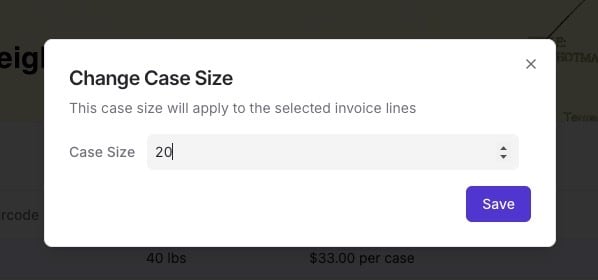
- An action menu will appear at the bottom of the screen with quick options, such as Case Size, Pack Size, or Brand. Select one of these to apply a quick update.

- Click More to see additional editing options if the field you need isn't listed.

- Update the value (e.g., change "Each" to "Case") and click Save.
- Return to the main invoice view to see the recomputed line items.